Can I Mirror My Phone To My Smart Tv Without Wifi
Yes, you can mirror your phone to your smart TV without WiFi. There are several reliable methods including HDMI adapters, Bluetooth connections, and built-in screen mirroring features. Whether you want to share photos, watch videos, or present content, screen mirroring without WiFi is easier than you think.
Have you ever wanted to show something on your phone screen to everyone in the room, but there is no WiFi? Maybe you are at a cabin in the woods, staying at a hotel with spotty internet, or your router just decided to take a break. Whatever the reason, the good news is that you can mirror your phone to your smart TV without WiFi. It is totally possible, and you do not need to be a tech expert to make it happen.
Screen mirroring has become one of the most popular ways to share content on a bigger screen. People use it for movie nights, family photo slideshows, gaming, and even work presentations. But most guides assume you have a working WiFi connection. That is where this guide comes in. We will walk you through every method that lets you cast your phone to TV without internet. You will learn about wired options, wireless tricks, and handy apps that make it all work.
By the end of this article, you will know exactly which method fits your situation. You will also understand the pros and cons of each approach. No fluff, no confusing jargon, just clear and practical advice. Let us get started.
Key Takeaways
- Wired HDMI adapters offer the most stable and lag-free mirroring experience without needing WiFi.
- Bluetooth and direct connections allow wireless mirroring even when there is no internet access.
- Built-in features like Miracast and Screen Mirroring work on many smart TVs and phones without WiFi.
- Third-party apps can help you cast content from your phone to TV offline.
- Using a mobile hotspot is a workaround that creates a local network for mirroring.
- Not all methods work with every phone or TV, so compatibility matters.
- Check your devices first to save time and frustration during setup.
📑 Table of Contents
- Can You Mirror Phone to Smart TV Without WiFi?
- Methods to Mirror Your Phone to TV Without WiFi
- Using Built-In Screen Mirroring Features
- Third-Party Apps for WiFi-Free Casting
- Comparing Different Mirroring Methods
- Common Mistakes to Avoid
- Expert Tips for Better Mirroring
- When to Use Each Method
- Frequently Asked Questions
- Conclusion
Can You Mirror Phone to Smart TV Without WiFi?
The short answer is yes. You absolutely can mirror your phone to a smart TV without a WiFi connection. There are multiple ways to do this, and they all work differently. Some use physical cables, while others rely on Bluetooth or direct device-to-device connections.
Most people assume that screen mirroring always needs WiFi because that is how popular apps like Chromecast and AirPlay usually work. But WiFi is just a way to send data between devices. You can send that same data through a cable, a Bluetooth signal, or a direct wireless connection that does not need the internet. The key is understanding which method works best for your specific devices.
Think about it this way. When you use a phone to TV without WiFi setup, you are creating your own small network between the two devices. The TV does not need to go online. It just needs to receive the signal from your phone. That signal can travel through a wire, a Bluetooth connection, or a direct Wi-Fi Direct protocol that works without a router.
Before you try any method, it helps to know what devices you are working with. Different phones and TVs support different mirroring technologies. An iPhone and an Android phone will have different options. A Samsung smart TV and a basic LED TV will also behave differently. Knowing your gear helps you pick the right path from the start.
What Is Screen Mirroring?
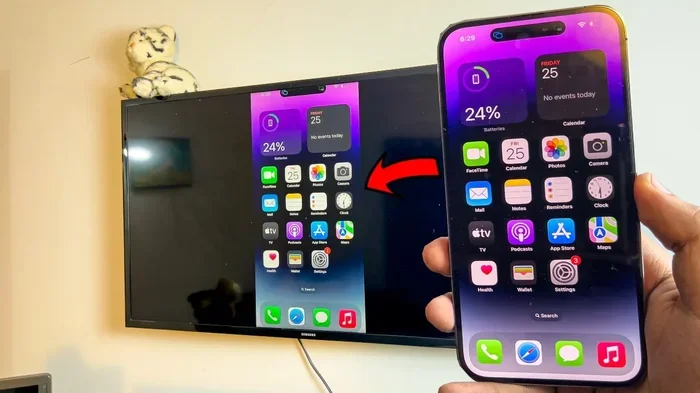
Screen mirroring means copying everything that shows on your phone screen and displaying it on your TV in real time. Whatever you tap, swipe, or scroll on your phone appears on the TV screen instantly. It is like holding up a mirror, but the reflection shows up on a much bigger display.
Mirroring is different from casting. When you cast content, you are telling the TV to go fetch a video or photo from the internet. With mirroring, everything stays on your phone, and the TV just shows a copy of what your phone is doing. This distinction matters a lot when you do not have WiFi, because casting usually requires internet access while mirroring does not.
Methods to Mirror Your Phone to TV Without WiFi
There are several ways to get your phone screen onto your TV without WiFi. Each method has its own strengths and weaknesses. Let us explore them one by one so you can choose the best option for your situation.
Method 1: HDMI Adapter (Wired Mirroring)
The most reliable way to mirror your phone to a TV without WiFi is by using an HDMI adapter. This method uses a physical cable to connect your phone directly to the TV. There is no wireless signal needed, no internet required, and no lag to worry about.
For Android phones, you can use a USB-C to HDMI adapter or a Micro-USB to HDMI cable, depending on your phone model. For iPhones, Apple makes a Lightning to Digital AV Adapter that works the same way. You simply plug one end into your phone and the other into an HDMI port on your TV.
Once connected, your TV will display your phone screen exactly as it is. You can browse photos, play videos, scroll through social media, or even play mobile games on the big screen. The experience is smooth and responsive because the connection is direct through the cable.
One of the best things about this method is that it works with almost any smart TV or even a basic TV with an HDMI input. You do not need any special apps or settings. Just plug in and go. If you are looking for a gadget that makes this process even easier, check out these 10 gadgets that make life easier for simple tech solutions.
Method 2: Bluetooth Connection
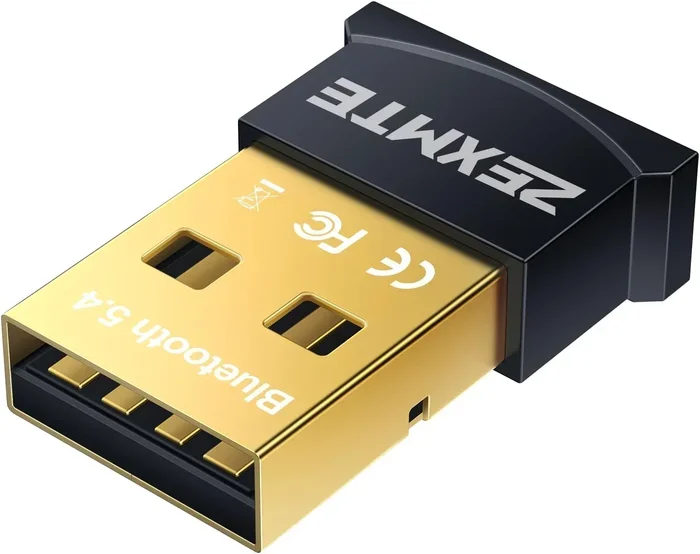
Bluetooth is another option for wireless display without WiFi. Some smart TVs support Bluetooth screen mirroring natively. You can pair your phone to the TV through the Bluetooth settings on both devices.
Keep in mind that Bluetooth mirroring is not as common as WiFi-based mirroring. Not all TVs support it, and the quality may not be as sharp as a wired connection. Bluetooth also has a shorter range, so you need to stay relatively close to the TV.
That said, Bluetooth works well for basic sharing needs. If you just want to show a few photos or share a short video, Bluetooth mirroring gets the job done. The video quality might not be perfect, but for casual use, it is perfectly fine.
Method 3: Wi-Fi Direct and Screen Mirroring Protocols
Many modern smart TVs and phones support Wi-Fi Direct. This is a technology that lets two devices connect directly to each other without needing a router or internet connection. It creates a small, private network between your phone and TV.
Miracast is one of the most popular Wi-Fi Direct protocols for screen mirroring. Many Android phones and smart TVs from brands like Samsung, LG, and Sony support Miracast. You can usually find this feature in your TV settings under Screen Mirroring or Miracast.
To use Miracast, you turn on the screen mirroring feature on your TV. Then, on your phone, you go to the screen mirroring or cast settings and select your TV from the list of available devices. The two devices connect directly, and your phone screen appears on the TV. No WiFi needed.
Another protocol to know about is DLNA. While DLNA is more commonly used for streaming media files rather than full screen mirroring, some devices support it for offline content sharing. It works well if you want to play a video file stored on your phone directly through your TV.
Method 4: Using a Mobile Hotspot
This is a clever workaround that many people use. You create a mobile hotspot from your phone and then connect your TV to that hotspot. Once both devices are on the same local network, you can use normal mirroring apps like Chromecast or screen mirroring features.
The trick here is that your phone is sharing its cellular data connection, which creates a mini WiFi network. Your TV connects to this network just like it would connect to a home router. From there, you can use all your usual mirroring tools.
This method does use your cellular data, so keep an eye on your data plan if you go this route. It also requires your TV to support connecting to WiFi networks, which most smart TVs do. The advantage is that you can use all the apps and features you normally rely on, even without home WiFi.
Using Built-In Screen Mirroring Features
Most modern smartphones and smart TVs come with built-in screen mirroring capabilities. These features are designed to make the process as simple as possible, and many of them work without WiFi.
Android Screen Mirroring Options
Android phones have several built-in options for mobile screen sharing. The most common is the Smart View feature on Samsung phones or the Cast feature on stock Android. These tools can work over Wi-Fi Direct or through wired connections.
To use Smart View on a Samsung phone, you swipe down from the top of your screen and tap the Smart View icon. Your TV should appear in the list if both devices support the same protocol. Select your TV, and the connection is made.
For other Android phones, look for the Cast icon in your quick settings or in the Google Home app. Some phones also have a built-in wireless display option in the display settings. These features use Wi-Fi Direct to create a direct connection between your phone and TV.
iPhone Screen Mirroring Options
iPhones use AirPlay for screen mirroring, which traditionally requires WiFi. However, there are workarounds. You can use an Apple Lightning to HDMI adapter for a wired connection that bypasses WiFi entirely.
Some newer Apple TVs and smart TVs support AirPlay over a peer-to-peer connection, which does not need a shared WiFi network. This means your iPhone and TV can connect directly to each other using Bluetooth and a direct wireless link. Check your TV manual to see if it supports peer-to-peer AirPlay.
If your TV does not support AirPlay natively, you can still use an HDMI adapter or explore third-party apps that enable wireless mirroring without WiFi. The options are more limited for iPhone users, but they do exist.
Third-Party Apps for WiFi-Free Casting
When built-in features are not enough, third-party apps can fill the gap. Several apps are designed specifically for screen cast without WiFi. These apps create direct connections between your phone and TV using various technologies.
One popular option is the ApowerMirror app. It supports both wired and wireless connections and works without an internet connection. You can mirror your phone screen to your TV using a USB cable or through a direct Wi-Fi Direct connection.
Another great app is LetsView. It is free and supports multiple platforms including Android, iOS, Windows, and Mac. LetsView can create a local connection between your phone and TV without needing WiFi. The app is easy to use and works well for most everyday mirroring needs.
For Samsung TV owners, the Samsung Smart View app is a solid choice. It is built into the ecosystem and supports direct device connections. Even without WiFi, it can find your TV on the same network or through a direct Wi-Fi Direct link.
When choosing a mirroring app, look for ones that explicitly state they work without internet or WiFi. Read user reviews to see how well the app performs in offline conditions. Some apps claim to work offline but have limitations, so it is worth testing before you rely on them for an important moment.
Comparing Different Mirroring Methods
Not all mirroring methods are created equal. Each one has different strengths depending on what you need. Here is a quick comparison to help you decide.
| Method | Wired or Wireless | Quality | Setup Difficulty | Works Without WiFi |
|---|---|---|---|---|
| HDMI Adapter | Wired | Excellent | Easy | Yes |
| Bluetooth | Wireless | Good | Easy | Yes |
| Wi-Fi Direct / Miracast | Wireless | Very Good | Moderate | Yes |
| Mobile Hotspot | Wireless | Very Good | Moderate | Yes |
| Third-Party Apps | Both | Varies | Easy to Moderate | Yes |
As you can see, every method works without WiFi. The main differences are in quality, ease of setup, and whether you prefer a wired or wireless connection. For the best quality and reliability, an HDMI adapter is hard to beat. For convenience and no cables, Wi-Fi Direct or a mobile hotspot works great.
Common Mistakes to Avoid
Even though mirroring without WiFi is straightforward, people still run into problems. Here are some common mistakes that can cause frustration.
Not checking compatibility first. Not every phone and TV support the same mirroring protocols. Before you start, check if your devices support Miracast, AirPlay, or the specific method you want to use. This one simple step can save you a lot of trial and error.
Using outdated apps or firmware. Apps and TV software get updates regularly. An outdated version might not support the mirroring features you need. Always keep your phone apps and TV firmware up to date for the best experience.
Ignoring cable quality. If you go the HDMI adapter route, cheap cables can cause signal issues. Invest in a good quality adapter and cable to ensure a stable and clear connection. A $10 cable from a reputable brand will outperform a $2 no-name cable every time.
Overlooking distance and interference. Wireless methods like Bluetooth and Wi-Fi Direct have range limits. Walls, furniture, and other electronics can interfere with the signal. Keep your phone close to the TV for the best results.
Forgetting about audio settings. Sometimes the video mirrors perfectly but the audio does not play through the TV. Check your phone audio output settings and make sure it is set to output through the TV or the connected device.
Expert Tips for Better Mirroring
Want to get the most out of your phone-to-TV mirroring setup? Here are some expert tips that make a real difference.
Turn on Do Not Disturb mode on your phone before you start mirroring. This prevents notifications from popping up on your TV screen and interrupting your content. It is a small step that makes a big difference, especially when you are sharing something with others.
Adjust your phone screen brightness before mirroring. A brighter screen can wash out the image on the TV. Lowering the brightness slightly can improve the picture quality and save battery at the same time.
Use landscape mode for videos. If you are watching a movie or video, rotate your phone to landscape before mirroring. This ensures the content fills the TV screen properly and looks its best.
Restart both devices before connecting. A quick restart of your phone and TV can clear up connection issues. It is a simple trick that tech support professionals recommend all the time, and it works.
Keep your phone plugged in. Mirroring uses a lot of battery, especially if the screen is constantly being refreshed. Plugging your phone into a charger while mirroring keeps it running smoothly and prevents it from dying mid-presentation or movie.
Close unnecessary apps. Background apps can slow down your phone and affect mirroring performance. Closing apps you are not using frees up resources and gives you a smoother experience on the TV screen.
When to Use Each Method
Different situations call for different mirroring methods. Here is a quick guide to help you pick the right one.
Use an HDMI adapter when you need the best quality and zero lag. This is ideal for presentations, gaming, or watching high-quality videos. It is also the best choice when you want a completely reliable connection with no setup hassle.
Use Wi-Fi Direct or Miracast when you want wireless freedom but do not have WiFi. This works well for sharing photos, showing presentations, or casual movie watching. The quality is very good, and you can move around the room without being tethered by a cable.
Use Bluetooth for quick, simple sharing when you are in a pinch. It is not the best for video quality, but it is fast and easy for showing a few photos or a short clip.
Use a mobile hotspot when you want to use all your favorite mirroring apps and features without home WiFi. This is great for hotel rooms, temporary setups, or when you are away from your regular internet connection.
Use third-party apps when built-in features are not working or your devices do not support the native mirroring options. Apps like ApowerMirror and LetsView give you more flexibility and work across different device brands.
Frequently Asked Questions
Can I mirror my phone to a TV without WiFi using Bluetooth?
Yes, some smart TVs support Bluetooth screen mirroring. You can pair your phone to the TV through Bluetooth settings on both devices. The quality may not be as high as a wired connection, but it works well for sharing photos and short videos without WiFi.
Do I need any special equipment to mirror without WiFi?
For wired mirroring, you need an HDMI adapter that matches your phone’s charging port. For wireless methods like Wi-Fi Direct or Miracast, you typically do not need any extra equipment if your phone and TV both support these protocols natively.
Is screen mirroring without WiFi as good as with WiFi?
Wired methods like HDMI adapters often provide better quality than WiFi-based mirroring because there is no wireless signal compression or interference. Wireless methods without WiFi, like Wi-Fi Direct, offer very good quality but may have slight lag compared to wired connections.
Can I use Chromecast without WiFi?
Traditional Chromecast requires WiFi to work. However, you can use a mobile hotspot to create a local network that Chromecast can connect to. This effectively lets you use Chromecast without a traditional WiFi router.
Why is my screen mirroring lagging or delayed?
Lag during mirroring can be caused by several factors. Wireless interference, outdated software, or a weak Bluetooth signal are common culprits. Try moving closer to the TV, restarting both devices, or switching to a wired HDMI connection for a smoother experience.
Can I mirror an iPhone to a non-smart TV without WiFi?
Yes, you can. You will need a Lightning to HDMI adapter and an HDMI cable connected to your TV. This wired method works with any TV that has an HDMI input, even if it is not a smart TV. Your iPhone screen will appear on the TV without needing WiFi.
Conclusion
Mirroring your phone to your smart TV without WiFi is not only possible, it is also surprisingly easy. Whether you choose a wired HDMI adapter for the best quality, use Wi-Fi Direct for wireless freedom, or try a mobile hotspot as a clever workaround, there is a solution that fits your needs. Each method has its own advantages, and the best one depends on your devices and what you want to do.
The key is to know your devices, pick the right method, and follow the steps carefully. With the tips and tricks in this guide, you should be able to share your phone screen on your TV in no time, even without an internet connection. From movie nights with friends to presentations at work, offline screen mirroring opens up a world of possibilities.
So the next time you find yourself without WiFi but with a big screen waiting, do not panic. You have all the tools you need right in your pocket. Try a few of these methods, see which one works best for you, and enjoy the big screen experience wherever you go.
Remember, technology should make your life easier, not harder. With the right approach, casting your phone to your TV becomes second nature. Happy mirroring!