Can I Install Bluetooth On My Pc And How To Set It Up
Can I Install Bluetooth On My Pc? Yes, you absolutely can, and the process is simpler than most people think. Whether your PC has built-in Bluetooth or you need a Bluetooth adapter, this guide walks you through every step. You will learn how to check for Bluetooth, install the right hardware, pair Bluetooth devices, and fix common problems. By the end, you will have wireless connectivity on your PC up and running.
So you want to go wireless. Maybe your favorite Bluetooth headphones are collecting dust because your PC does not have Bluetooth built in. Or perhaps you just bought a new Bluetooth speaker and want to stream music to it from your desk. Whatever the reason, the good news is that adding Bluetooth to your PC is very doable. You do not need to be a tech expert to make it happen.
In this guide, we will walk you through everything you need to know about Bluetooth setup on PC. We will show you how to check if your computer already supports Bluetooth connectivity, what to do if it does not, how to pick the right USB Bluetooth dongle, and how to pair Bluetooth devices in just a few minutes. We will also cover the most common Bluetooth connectivity issues and how to solve them fast. Whether you use Windows 10 or Windows 11, this guide has you covered.
Key Takeaways
- Most modern PCs have built-in Bluetooth: Check your settings before buying any hardware.
- A USB Bluetooth adapter is the easiest fix: It works on almost any desktop or laptop.
- Installing the Bluetooth driver is critical: Without it, your adapter will not function properly.
- Pairing devices is quick and simple: Just enable Bluetooth, put your device in pairing mode, and connect.
- Common issues have simple solutions: Driver updates, interference, and distance often cause problems.
- Keep your Bluetooth drivers updated: This improves performance and fixes bugs.
- Bluetooth 5.0 and above offer better range: Consider the version when buying an adapter.
📑 Table of Contents
What Is Bluetooth And Why Does Your PC Need It?
How Bluetooth Works
Bluetooth is a short-range wireless technology that lets devices talk to each other without cables. It uses radio waves in the 2.4 GHz frequency band to send data between devices. Think of it like a tiny invisible bridge between your PC and your accessories.
The technology has been around for over two decades now. Bluetooth 5.0 and newer versions offer much better range, faster speeds, and lower power consumption. Bluetooth low energy (BLE) is a special mode that saves battery on devices like keyboards and fitness trackers. Most modern wireless headphones and speakers use standard Bluetooth profiles for audio streaming.
Benefits Of Bluetooth On Your PC
Adding wireless connectivity to your PC opens up a lot of possibilities. Here are some of the biggest benefits:
- No more tangled cables: Connect your Bluetooth keyboard and mouse without wires cluttering your desk.
- Freedom to move: Walk around your room while listening to Bluetooth audio through your headphones or speaker.
- Easy file sharing: Use Bluetooth transfer files between your phone and PC without a USB cable.
- Multiple device support: Most adapters let you connect several devices at once.
- Simple setup: Modern PC Bluetooth setup processes are fast and user-friendly.
Whether you are a student, a gamer, or someone who works from home, Bluetooth on PC makes your setup cleaner and more flexible. It is one of the easiest upgrades you can make to improve your daily computing experience.
How To Check If Your PC Already Has Bluetooth
Checking Windows Settings
Before you buy anything, it is worth checking if your PC already has Bluetooth built in. Many modern laptops and even some desktops come with it pre-installed. Here is how to check on Windows:
- Click the Start menu and open Settings.
- Go to Devices (or Bluetooth & devices in Windows 11).
- Look for a Bluetooth toggle switch at the top.
- If you see the option to turn it on, your PC already has Bluetooth enabled.
If you do not see any Bluetooth options in your settings, your PC might not have a Bluetooth module. But do not worry, the next section will show you how to add it.
Checking Device Manager
Another quick way to check is through Device Manager. Right-click on the Start button and select Device Manager. Look for a category called Bluetooth. If you see it listed with your adapter name, your PC supports Bluetooth connectivity. If there is no Bluetooth section, you will need an external adapter.
How To Install Bluetooth On Your PC Step By Step
Buying The Right Bluetooth Adapter
If your PC does not have built-in Bluetooth, you need a Bluetooth adapter to add it. The most common type is a small USB dongle, also called a USB Bluetooth dongle. These are affordable and plug right into any available USB port on your computer.
Here is what to look for when shopping:
- Bluetooth version: Go for Bluetooth 5.0 or higher for the best Bluetooth range and speed.
- USB port type: Make sure you have a standard USB-A port, or get a USB-C adapter if needed.
- Compatibility: Check that the adapter works with your version of Windows.
- Brand reputation: Stick with trusted brands like TP-Link, ASUS, or Intel.
A good Bluetooth adapter costs between $10 and $30 for most users. You do not need to spend a lot unless you need advanced features like Bluetooth low energy support or extended range.
Installing The Driver
Once you have your USB Bluetooth dongle, plug it into an available USB port on your PC. Windows will usually detect the new hardware and try to install a Bluetooth driver automatically. This process takes about 30 seconds to a minute.
If Windows does not install the driver automatically, here is what to do:
- Go to the manufacturer’s website of your Bluetooth adapter.
- Search for the latest Bluetooth driver for your model.
- Download the driver and run the installer.
- Restart your PC after installation is complete.
After the restart, your PC should recognize the adapter and you will see the Bluetooth icon in your system tray. If you still do not see it, open Device Manager and check under Bluetooth for any warning icons.
Enabling Bluetooth In Windows
Now that your adapter is installed and the driver is working, it is time to turn on Bluetooth. Here is the simple process:
- Click the Start menu and open Settings.
- Navigate to Bluetooth & devices (Windows 11) or Devices then Bluetooth & other devices (Windows 10).
- Toggle the Bluetooth switch to On.
- Your PC is now Bluetooth enabled and ready to connect.
Quick tip: You can also toggle Bluetooth quickly by clicking the Quick Settings panel in the bottom-right corner of your screen. Just click the Bluetooth icon to turn it on or off. This is the fastest way to manage your PC Bluetooth setup day to day.
Best Bluetooth Adapters For PC
Budget Options
If you are looking for an affordable way to add Bluetooth to your PC, there are several great options under $15. Most budget adapters support Bluetooth 4.0 or 5.0 and work well for basic tasks like connecting wireless headphones or a Bluetooth keyboard and mouse.
Premium Options
For users who need the best performance, premium adapters with Bluetooth 5.2 or 5.3 offer faster data transfer, longer Bluetooth range, and better stability. These are ideal for Bluetooth audio streaming, gaming, and heavy file transfers.
Comparison Table
| Adapter | Bluetooth Version | Price Range | Best For |
|---|---|---|---|
| TP-Link UB500 | Bluetooth 5.0 | $10 – $15 | Everyday use, headphones, speakers |
| ASUS USB-BT500 | Bluetooth 5.0 | $12 – $18 | Stable audio streaming |
| Intel Wi-Fi 6 AX200 | Bluetooth 5.1 | $20 – $30 | Combo Wi-Fi + Bluetooth |
| TP-Link UB5000 | Bluetooth 5.3 | $25 – $35 | Premium performance, low latency |
| Kinivo BTD-400 | Bluetooth 4.0 | $8 – $12 | Basic connectivity on older PCs |
When choosing, think about what you will connect most often. If you just want to connect Bluetooth headphones PC style, even a budget adapter will work great. If you plan to connect multiple devices and transfer files, invest in a Bluetooth 5.0 or higher adapter.
How To Pair Bluetooth Devices With Your PC
Pairing Headphones And Speakers
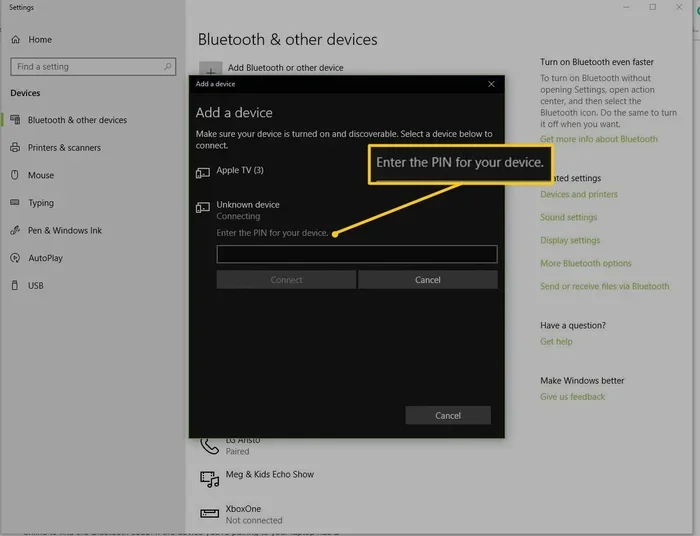
Connecting your Bluetooth headphones or Bluetooth speaker to your PC is straightforward. Here is the step-by-step process:
- Make sure Bluetooth is turned on on your PC.
- Put your headphones or speaker into pairing mode. Usually, you hold down the power button until a flashing light appears.
- On your PC, click Add Bluetooth or other device in the Bluetooth settings menu.
- Select Bluetooth from the list of options.
- Wait for your device to appear in the list and click on it.
- Wait for the Bluetooth pairing to complete.
Once paired, your Bluetooth audio will automatically connect whenever both devices are within range and Bluetooth is enabled on both sides.
Pairing Keyboards And Mice
Bluetooth keyboard and mouse setups work the same way. Put your peripheral into pairing mode, go to your PC’s Bluetooth settings, and click to connect. Most wireless keyboards and mice support Bluetooth low energy, which means they use very little battery power.
Transferring Files Over Bluetooth
You can also use Bluetooth to transfer files between your phone and PC. On Windows, go to Bluetooth settings, make sure your phone is visible, and select Send or receive files from the Bluetooth folder in File Explorer. Keep in mind that Bluetooth file transfer speeds are slower than USB or Wi-Fi, so it is best for small files like photos or documents.
Common Bluetooth Problems And How To Fix Them
Bluetooth Not Showing Up On Your PC
If your PC Bluetooth is not working or the option is missing, do not panic. This is one of the most common issues and usually has a simple fix. Here is what to try:
- Restart your PC: A simple reboot often resolves temporary software glitches.
- Check Device Manager: Look for any yellow warning icons under Bluetooth or Universal Serial Bus controllers.
- Update your driver: Go to Device Manager, right-click your Bluetooth adapter, and select Update driver.
- Try a different USB port: Some USB ports may not supply enough power for your Bluetooth adapter.
- Run the Windows troubleshooter: Go to Settings > System > Troubleshoot > Other troubleshooters > Bluetooth.
Connection Drops Frequently
If your Bluetooth connection keeps dropping, the issue is usually related to distance or interference. Bluetooth range is typically about 30 feet (10 meters) in open spaces. Walls, furniture, and other electronics can reduce this range significantly.
Here are some fixes for frequent disconnections:
- Move closer to your PC: Stay within the Bluetooth range for a stable connection.
- Reduce interference: Keep your Bluetooth adapter away from USB 3.0 ports, microwaves, and Wi-Fi routers.
- Update your drivers: Outdated Bluetooth drivers can cause instability.
- Re-pair the device: Remove the device from your Bluetooth settings and pair it again from scratch.
Audio Lag And Stuttering
If you notice a delay between the audio and the video on your Bluetooth headphones PC setup, this is called audio latency. It is more common with Bluetooth audio than with wired connections. Here is how to reduce it:
- Use Bluetooth 5.0 or higher: Newer versions have much lower latency than older ones.
- Keep your adapter close: Place the USB Bluetooth dongle near your headphones or speaker.
- Close background apps: Some programs can interfere with Bluetooth audio streaming.
- Check for driver updates: Manufacturers often release updates that improve Bluetooth audio performance.
Quick Tips For Better Bluetooth Performance
Here are some quick tips that can make a big difference in your daily Bluetooth experience:
- Keep your drivers updated: This is the single best thing you can do to maintain Bluetooth connectivity.
- Restart your adapter: Unplug and replug your USB Bluetooth dongle if things act up.
- Limit connected devices: Too many devices connected at once can slow down your Bluetooth adapter.
- Use the latest Windows updates: Microsoft regularly improves Bluetooth support in Windows updates.
- Turn off Bluetooth when not in use: This saves battery and reduces interference with other wireless devices.
Common Mistakes To Avoid
Even experienced users sometimes make mistakes with Bluetooth setup on PC. Here are the most common ones to avoid:
- Skipping driver installation: Never assume Windows will always install the right driver automatically. Manually check for the latest Bluetooth driver from the manufacturer.
- Ignoring firmware updates: Some Bluetooth adapters have firmware that can be updated for better performance.
- Placing the adapter in a USB hub: Plug your Bluetooth dongle directly into your PC for the strongest signal.
- Pairing too many devices: Keep your active Bluetooth connections to a reasonable number to avoid conflicts.
- Not checking compatibility: Make sure your Bluetooth adapter is compatible with your version of Windows before buying.
Expert Insights On Bluetooth Technology
Bluetooth technology has come a long way since its early days. Today, Bluetooth 5.3 offers impressive improvements in speed, range, and power efficiency. Experts recommend always choosing Bluetooth 5.0 or higher for a new adapter, as these versions handle multiple devices better and deliver more stable wireless connectivity.
One thing many people overlook is the importance of the Bluetooth version on your phone too. When transferring files between your phone and PC, having both devices on the same or similar Bluetooth versions ensures smoother transfers and fewer Bluetooth connectivity issues.
Another expert tip: if you use Bluetooth headphones for long gaming or video calls, look for adapters that support aptX or aptX Low Latency codecs. These significantly reduce audio delay and make your experience much more enjoyable. Standard Bluetooth audio codecs work fine for music, but codecs like aptX are a game-changer for real-time audio.
Conclusion
The answer to Can I Install Bluetooth On My Pc is a resounding yes. Whether your computer already has Bluetooth built in or you need to add a USB Bluetooth adapter, the process is simple and affordable. You now know how to check for Bluetooth connectivity, install the right hardware, pair Bluetooth devices, and troubleshoot the most common problems.
Remember to keep your Bluetooth drivers updated, choose the right Bluetooth version for your needs, and place your adapter in the best position for a strong signal. With these tips, your PC Bluetooth setup will be smooth and reliable.
Go ahead and connect those wireless headphones, pair your Bluetooth speaker, or set up your Bluetooth keyboard and mouse. Once you experience the convenience of wireless connectivity, you will wonder how you ever managed without it. Happy connecting!