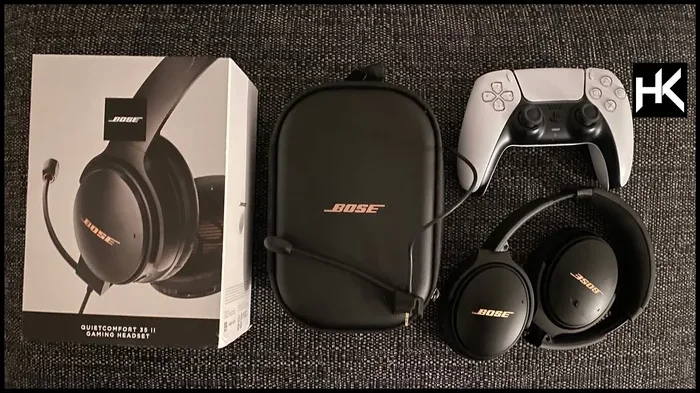
Can I Connect Bose Bluetooth Headphones To Ps5 Easily
Yes, you can connect Bose Bluetooth headphones to PS5, but it requires a workaround because the PS5 does not support standard Bluetooth audio. The easiest method is using a compatible Bluetooth adapter. This guide walks you through every step, from choosing the right adapter to fixing common connection issues, so you can enjoy wireless gaming audio with your Bose headphones on PlayStation 5.
Can I Connect Bose Bluetooth Headphones To Ps5? It is one of the most common questions Bose headphone owners ask. The short answer is yes, but the process is not as simple as pressing a pair of buttons. PlayStation 5 has a unique Bluetooth setup that does not allow standard wireless headphones to connect directly. You need a little extra help to get your Bose headphones working with your console. In this guide, we will walk you through every method, tip, and trick you need to know.
Whether you own the Bose QuietComfort 45, the Bose 700, or another model, this article covers everything. You will learn why the PS5 works differently, which method works best, and how to fix common problems. We also share product recommendations and expert tips to make your setup smooth. Let us dive right in.
Key Takeaways
- PS5 does not support standard Bluetooth headphones natively: You need a Bluetooth adapter or a workaround to use wireless audio.
- A USB Bluetooth adapter is the most reliable method: It offers low latency and stable connectivity for gaming.
- Bose headphones like the QC45 and 700 work well with adapters: These models deliver great sound quality on PS5.
- Avoid using the PS5’s built-in Bluetooth for audio: It only works with Sony’s DualSense controller and official accessories.
- Check your audio settings after connecting: Proper PS5 audio output configuration ensures the best experience.
- Internal link to gadgets for moms: If you are shopping for tech gifts, check out 10 Gadgets To Make Moms Life Easier for more ideas.
📑 Table of Contents
- Why Does PS5 Have Limited Bluetooth Support?
- Can You Connect Bose Bluetooth Headphones Directly to PS5?
- How to Connect Bose Bluetooth Headphones to PS5 (Best Methods)
- Best Bluetooth Adapters for Connecting Bose to PS5
- Common Problems and How to Fix Them
- Expert Tips for the Best Wireless Gaming Experience
- Is a Wireless Headset Better Than Using Bose Headphones on PS5?
- Final Thoughts
Why Does PS5 Have Limited Bluetooth Support?
PlayStation 5 uses a custom Bluetooth implementation. It is designed specifically for the DualSense controller and Sony accessories. Sony chose this approach to reduce wireless interference and ensure stable connections for their own devices. This means your PS5 will not see most Bluetooth headphones in its device list.
The console uses Bluetooth for the controller, not for audio streaming. When you pair your DualSense controller via Bluetooth, that connection is for input, not sound. Audio on PS5 comes through the USB port, the 3.5mm jack, or HDMI. So standard Bluetooth headphones simply do not appear as an option. This design choice frustrates many gamers who want a clean wireless setup.
Understanding the Bluetooth Limitations
The PS5 uses Bluetooth 5.1, but it restricts audio profiles. Standard A2DP (audio streaming) profiles from third-party brands are blocked. Sony wants you to use their official wireless headset or a wired connection. This limitation affects all non-Sony Bluetooth headphones, including Bose, Sony’s own consumer line, and every other brand. It is not a bug, it is a deliberate design decision.
However, there are workarounds. You can still enjoy wireless audio with Bose headphones on PS5. The key is using the right adapter or connection method. Let us look at your options below.
Can You Connect Bose Bluetooth Headphones Directly to PS5?
The direct answer is no. You cannot pair Bose Bluetooth headphones to PS5 through the console’s native Bluetooth settings. The PS5 does not scan for or display third-party Bluetooth audio devices. If you go to Settings, then Bluetooth, you will only see the DualSense controller option.
Some users try putting their Bose headphones in pairing mode and hope the PS5 detects them. This will not work. The console simply does not support that type of connection. So if you are looking for a plug-and-play wireless experience, the PS5 native Bluetooth will not deliver it.
What About Using the DualSense Controller?
You can connect Bose headphones to the DualSense controller using a 3.5mm cable. The controller has a built-in 3.5mm jack. You plug one end into the controller and the other into your Bose headphone’s audio input. This works, but it is not truly wireless. You still have a cable running from the controller to your headphones.
Some people use the DualSense Bluetooth to connect the controller to a phone, then route audio that way. This is overly complicated and adds noticeable lag. It is not a practical solution for gaming. We recommend skipping this approach entirely.
How to Connect Bose Bluetooth Headphones to PS5 (Best Methods)
Now let us get to the good part. There are two reliable methods to get your Bose headphones connected to PS5. One uses a Bluetooth adapter, and the other uses a USB audio device. Let us break down both methods step by step.
Method 1: Using a Bluetooth Adapter (Recommended)
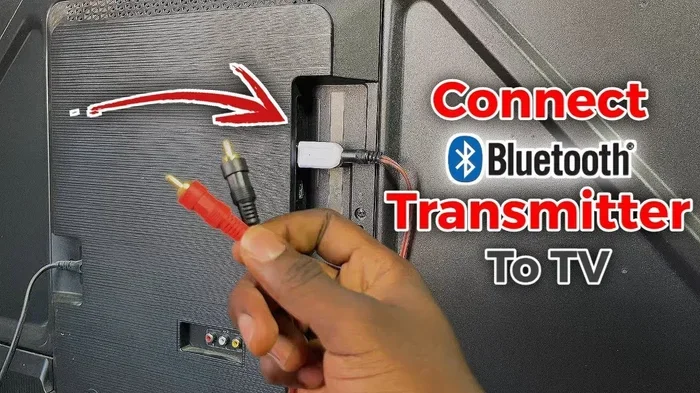
A USB Bluetooth adapter is the best way to connect Bose headphones to PS5. This small device plugs into the PS5’s USB port and creates a new Bluetooth bridge for audio. The PS5 recognizes the adapter, and the adapter connects to your Bose headphones. It is simple and effective.
Here is how to do it:
- Plug the Bluetooth adapter into a USB port on your PS5.
- Put your Bose headphones into pairing mode.
- Go to PS5 Settings, then Sound.
- Select the Bluetooth adapter as your audio output device.
- Wait for the connection to establish.
- Test the audio by playing a game or a movie.
Most Bluetooth adapters support low-latency codecs, which is essential for gaming. You want an adapter that supports aptX Low Latency or similar technology. This reduces the delay between what you see on screen and what you hear through your headphones. The difference is noticeable, especially in fast-paced games.
If you are looking for gift ideas that make tech life easier, check out 10 Gadgets To Make Moms Life Easier for more useful tech recommendations.
Method 2: Using a USB Sound Card with Bluetooth
Another option is a USB sound card that has built-in Bluetooth. These devices do double duty. They provide a high-quality audio output and also connect wirelessly to your Bose headphones. Some models even support multiple Bluetooth devices at once.
The setup process is similar to Method 1. You plug the USB sound card into the PS5, pair your Bose headphones to it, and select it as the audio output. The advantage here is that some sound cards offer better audio quality than basic Bluetooth adapters. You get enhanced bass, clearer highs, and a more immersive sound profile.
Popular options in this category include devices from brands like 1Mii, Avantree, and TaoTronics. Look for a model that supports the Bluetooth version your Bose headphones use. Most modern Bose headphones use Bluetooth 5.0 or higher, so make sure your adapter matches or exceeds that version.
Best Bluetooth Adapters for Connecting Bose to PS5
Not all Bluetooth adapters are created equal. Some add noticeable lag, while others deliver near-instant audio. When choosing an adapter for your Bose headphones, look for these features:
- Low latency support: aptX Low Latency or similar codecs reduce audio delay.
- Bluetooth 5.0 or higher: Ensures a stable, strong connection.
- USB-A or USB-C compatibility: The PS5 has both port types, so check which one you need.
- Multi-device pairing: Lets you switch between PS5 and other devices easily.
- Compact size: A small adapter stays out of the way and does not block other USB ports.
The 1Mii B06 adapter is a popular choice among gamers. It supports aptX Low Latency and Bluetooth 5.0. Another great option is the Avantree Leaf adapter, which offers plug-and-play simplicity. Both adapters work well with Bose headphones and provide a solid wireless audio experience on PS5.
Quick Tips for Choosing the Right Adapter
Before you buy, check your Bose headphone model. Different Bose models use different Bluetooth versions. The Bose QuietComfort 45 uses Bluetooth 5.1, while older models may use Bluetooth 5.0. Matching the adapter version to your headphone version ensures the best performance. Also, read user reviews to confirm the adapter works well with PS5 specifically.
Price is another factor. Good Bluetooth adapters range from $15 to $50. You do not need to spend a fortune, but avoid the cheapest options. They often lack low-latency support and can cause audio sync issues. A mid-range adapter gives you the best balance of performance and value.
Common Problems and How to Fix Them
Even with the right setup, you might run into issues. Here are the most common problems and their solutions.
No Sound After Connecting
If your Bose headphones connect but you hear no sound, check the PS5 audio output settings. Go to Settings, then Sound, then Audio Output. Make sure the Bluetooth adapter is selected as the output device. Also check that the volume is not muted on either the PS5 or the adapter.
Sometimes the PS5 defaults to the HDMI audio output. You need to manually switch it to the Bluetooth adapter. This is a common mistake that trips up many users.
Audio Delay or Lag
Audio lag is the most frustrating issue. You see the action on screen, but the sound comes a fraction of a second later. This usually happens when the adapter does not support low-latency codecs. Make sure your adapter supports aptX Low Latency or a similar technology.
Also, keep your Bose headphones close to the adapter. Walls and obstacles weaken the Bluetooth signal and increase latency. If possible, place the adapter near your gaming setup.
Connection Drops Frequently
If your Bose headphones keep disconnecting, the Bluetooth signal may be unstable. Try these fixes:
- Move the adapter closer to your headphones.
- Remove other Bluetooth devices from the area.
- Update the adapter firmware if possible.
- Restart both the PS5 and the adapter.
- Forget the device on your Bose headphones and pair again.
Interference from other wireless devices can also cause drops. Wi-Fi routers, microwaves, and even USB 3.0 devices can disrupt Bluetooth signals. Try moving the adapter to a different USB port or using a USB extension cable to distance it from potential interference sources.
Bose Headphones Not Showing Up in PS5 Settings
If your Bose headphones do not appear in the PS5 Bluetooth menu, that is expected. The PS5 does not list third-party Bluetooth audio devices natively. You need the adapter to act as a bridge. Make sure the adapter itself is paired and connected, then check the audio output settings to confirm it is active.
Expert Tips for the Best Wireless Gaming Experience
Getting your Bose headphones connected to PS5 is only half the battle. Here are expert tips to make the experience even better.
First, update your PS5 system software regularly. Sony frequently releases updates that improve Bluetooth compatibility and audio performance. A simple system update can fix connection issues you did not even know existed.
Second, use the PS5’s built-in equalizer. Go to Settings, then Sound, then Audio Output. You can adjust the equalizer settings to match your Bose headphones’ strengths. This gives you more control over your sound profile without needing extra software.
Third, consider using the adapter for other devices too. Many Bluetooth adapters support multi-device pairing. You can switch between PS5, PC, and phone seamlessly. This makes the adapter a versatile addition to your setup, not just a PS5 accessory.
Finally, keep your Bose headphones charged. Wireless headphones drain battery during long gaming sessions. A full charge gives you 20 to 30 hours of playback on most Bose models, but it is still smart to check before a marathon gaming night.
Is a Wireless Headset Better Than Using Bose Headphones on PS5?
You might wonder if buying a dedicated wireless headset is better than using your Bose headphones. Dedicated PS5 headsets like the Sony Pulse 3D offer native wireless connectivity. They connect directly to the PS5 without any adapters. They also feature built-in microphones for voice chat.
However, Bose headphones often deliver superior sound quality. The noise cancellation, comfort, and audio fidelity of Bose headphones are hard to match with gaming headsets in the same price range. If audio quality matters more than built-in chat features, Bose headphones with an adapter are the better choice.
You can always use a separate microphone for voice chat. Many gamers use a standalone mic or the Discord app on a phone. This gives you the best of both worlds: premium audio from Bose and clear communication for team play.
For more tech tips and gadget recommendations, visit our guide on 10 Gadgets To Make Moms Life Easier for inspiration.
Final Thoughts
So, can I connect Bose Bluetooth headphones to PS5? Yes, you absolutely can. It just takes a little extra equipment, mainly a Bluetooth adapter. Once you have the right adapter, the setup is straightforward and the results are excellent. You get premium Bose sound quality while gaming on PS5, without any wires holding you back.
The key is choosing a low-latency Bluetooth adapter and configuring your PS5 audio settings correctly. Once that is done, you will forget the PS5’s Bluetooth limitations ever existed. Your Bose headphones will deliver immersive, high-quality wireless audio for every gaming session.
We hope this guide helped you get your Bose headphones working with PS5. If you run into any issues, refer back to the troubleshooting section. And if you are shopping for more tech gadgets, do not miss our 10 Gadgets To Make Moms Life Easier list for more great picks.
Happy gaming, and enjoy the wireless freedom with your Bose headphones on PS5.