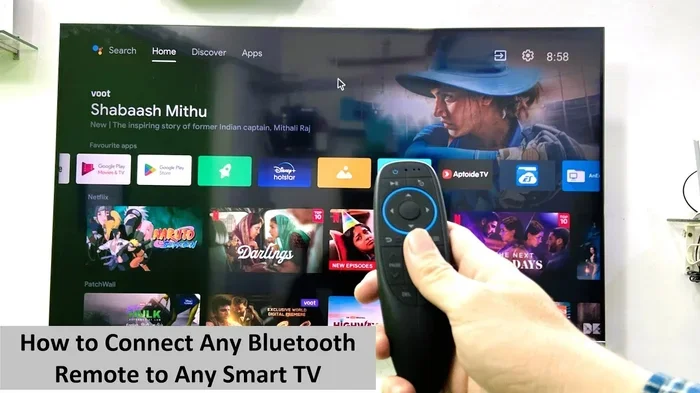
Can I Connect A Bluetooth Controller To My Tv With Ease
Yes, you can connect a Bluetooth controller to your TV in most cases, and the process is simpler than you think. Whether you want to play games, navigate apps, or just enjoy a better streaming experience, a Bluetooth controller makes it easy. This guide walks you through every step, from checking compatibility to solving common problems. You will learn what devices work, how to pair them fast, and how to avoid the mistakes that trip up most people.
Have you ever wanted to play games on your big screen but hated using the tiny remote? Or maybe you just want a more comfortable way to navigate your smart TV apps. The good news is that you can connect a Bluetooth controller to your TV and transform how you interact with your entertainment setup. It is easier than most people think, and you do not need to be tech-savvy to pull it off.
In this guide, we will walk you through everything you need to know. From checking if your TV supports Bluetooth to pairing your favorite gamepad, we have got you covered. You will also learn about common issues, helpful tips, and the best controllers to use. Let us dive right in.
Key Takeaways
- Most modern smart TVs support Bluetooth controllers right out of the box, making setup quick and straightforward.
- Pairing steps vary by TV brand, but the general process is similar across Samsung, LG, Sony, and other major manufacturers.
- A Bluetooth adapter can help older TVs that lack built-in Bluetooth support.
- Common issues like lag or disconnection are usually easy to fix with simple troubleshooting steps.
- Not all controllers work with all TVs, so checking compatibility before buying saves time and frustration.
- Using a Bluetooth controller improves your TV gaming experience compared to using a standard remote.
- Helpful gadgets like those found in this list of 10 gadgets to make moms life easier can complement your TV setup perfectly.
📑 Table of Contents
- What Is a Bluetooth Controller and Why Use It With Your TV?
- Can I Connect A Bluetooth Controller To My Tv? The Short Answer
- How To Connect A Bluetooth Controller To Your TV Step by Step
- What If Your TV Does Not Have Bluetooth?
- Best Bluetooth Controllers for TV Gaming
- Common Problems and How To Fix Them
- Expert Tips for the Best Bluetooth TV Experience
- Quick Tips Summary
- Is It Worth It? Final Thoughts
What Is a Bluetooth Controller and Why Use It With Your TV?
A Bluetooth controller is a wireless device that lets you control your TV or gaming setup without cables. Think of it like a wireless gamepad you can use to play games, navigate menus, or control streaming apps. Instead of fumbling with a remote, you get a familiar joystick, buttons, and triggers at your fingertips.
More and more people are switching to Bluetooth controllers for their TV setups. Here is why:
- Comfort: Controllers feel natural in your hands, especially during long gaming sessions.
- Convenience: No cables means no clutter. You can sit back on the couch and play freely.
- Better Gaming: Many Bluetooth controllers offer lower input lag than you might expect.
- Versatility: You can use the same controller for multiple devices, including your TV, phone, or tablet.
- Modern Look: Wireless setups just look cleaner on your entertainment center.
Using a Bluetooth controller for TV is not just for hardcore gamers either. Even casual users benefit from the ease of navigation. Streaming apps, smart TV menus, and even web browsers become much more enjoyable to use with a proper controller.
Can I Connect A Bluetooth Controller To My Tv? The Short Answer
The short answer is yes. Most modern smart TVs come with built-in Bluetooth support. This means you can pair a controller directly without any extra equipment. However, the exact process depends on your TV brand and model. Let us break it down by the most popular TV manufacturers.
Samsung TVs
Samsung smart TVs generally support Bluetooth gamepads. To connect one, go to your Settings menu, select Bluetooth, and put your controller into pairing mode. Samsung TVs also work well with the Xbox Wireless Controller and PlayStation DualSense controller through Bluetooth.
LG TVs
LG TVs also offer native Bluetooth support. Navigate to Settings, then Sound or All Settings depending on your model, and look for the Bluetooth section. LG TVs tend to have a straightforward pairing process that works with most standard Bluetooth controllers.
Sony TVs
Sony TVs are naturally great with PlayStation controllers. Since Sony uses Bluetooth in their consoles, their TVs support PlayStation controllers natively. You can pair a DualShock or DualSense controller directly without any extra steps.
Vizio and Other Brands
Some budget TVs may have limited Bluetooth support. Vizio TVs, for example, might require you to check specific settings menus. If your TV does not have built-in Bluetooth, do not worry. We will cover solutions for that later in this guide.
How To Connect A Bluetooth Controller To Your TV Step by Step
Now that you know most TVs support Bluetooth controllers, let us walk through the actual pairing process. Follow these steps carefully, and you should be connected within minutes.
Step 1: Check Your TVs Bluetooth Settings
First, turn on your TV and grab your TV remote. Navigate to the Settings menu. Look for a section labeled Bluetooth, Connections, or Wireless. Not all TVs label this the same way, so try searching for “Bluetooth” in the search bar if your TV has one.
Step 2: Put Your Controller Into Pairing Mode
Every controller has a slightly different method for entering pairing mode. Here are the most common ones:
- Xbox Controller: Press and hold the Xbox button and the pairing button on the top edge until the Xbox button flashes.
- PlayStation DualSense: Press and hold the PlayStation button and the Create button until the light bar starts blinking.
- Generic Bluetooth Controllers: Usually, you hold down a dedicated Bluetooth or Pair button for a few seconds.
Step 3: Search for Devices on Your TV
Back on your TV, go to the Bluetooth settings and select “Search for Devices” or “Add New Device.” Your TV will scan for nearby Bluetooth signals. Make sure your controller is close to the TV during this step.
Step 4: Select Your Controller
When your controller appears on the TV screen, select it. The TV will attempt to pair. You should see a confirmation message or a solid light on the controller once the connection is established.
Step 5: Test the Connection
Try navigating your TV menu or launching a game app. If the controller responds, you are all set. If not, try restarting both the TV and the controller and repeating the process.
What If Your TV Does Not Have Bluetooth?
Not every TV supports Bluetooth natively. Older models and some budget TVs may lack this feature entirely. But you are not out of luck. There are simple and affordable solutions that let you add Bluetooth capability to almost any TV.
Option 1: Use a Bluetooth Adapter
A Bluetooth adapter plugs into your TVs USB port and adds Bluetooth support instantly. These adapters are small, affordable, and work with most TVs that have a USB port. Look for a Bluetooth 5.0 adapter for the best performance and range.
Option 2: Use a Streaming Device
Devices like Roku, Amazon Fire TV Stick, or Apple TV often support Bluetooth controllers. You can connect your controller to the streaming device instead of the TV directly. This is a great workaround if your TV itself does not have Bluetooth.
Option 3: Use a Gaming Console
If you have a gaming console connected to your TV, you can often use its Bluetooth capabilities. Some consoles allow you to connect controllers wirelessly and use them as input devices for the TV interface.
Best Bluetooth Controllers for TV Gaming
Not all controllers are created equal. Some work better with TVs than others. Here are some of the top options you should consider:
| Controller | Compatibility | Battery Life | Price Range |
|---|---|---|---|
| Xbox Wireless Controller | Most smart TVs | 40+ hours | $50-$60 |
| PlayStation DualSense | Sony TVs, most smart TVs | 8-12 hours | $70 |
| Nintendo Switch Pro Controller | Most smart TVs | 40+ hours | $70 |
| 8BitDo Ultimate Bluetooth | Universal | 18+ hours | $50 |
| Razer Wolverine V2 | Most smart TVs | 10+ hours | $100 |
The Xbox Wireless Controller remains the most popular choice for TV gaming. It offers excellent battery life, wide compatibility, and a comfortable grip. The PlayStation DualSense is a close second, especially if you own a Sony TV. For budget-friendly options, the 8BitDo Ultimate Bluetooth controller is a fantastic pick that works with almost everything.
If you are looking for other helpful gadgets to enhance your home entertainment setup, you might want to check out 10 Gadgets To Make Moms Life Easier. Many of these gadgets complement a great TV gaming setup perfectly.
Common Problems and How To Fix Them
Even with the best setup, you might run into some hiccups. Bluetooth connections can sometimes be finicky. Here are the most common issues and how to solve them.
Controller Not Showing Up on TV
If your TV does not detect the controller, try these fixes:
- Make sure the controller is in pairing mode and the light is flashing.
- Move the controller closer to the TV.
- Restart the TVs Bluetooth settings by turning Bluetooth off and back on.
- Check if the controller is already connected to another device and disconnect it first.
Input Lag or Delayed Response
Input lag can ruin your gaming experience. Here is what you can do:
- Reduce the distance between the controller and the TV.
- Remove other Bluetooth devices that might be causing interference.
- Check for TV firmware updates that might improve Bluetooth performance.
- Make sure no other devices are connected to the controller.
Controller Disconnects Randomly
Random disconnections are frustrating but usually easy to fix:
- Check the controllers battery level and charge it if needed.
- Go to your TVs Bluetooth settings and remove the controller, then pair it again.
- Make sure nothing is blocking the line of sight between the controller and the TVs Bluetooth receiver.
Controller Works for Games But Not TV Navigation
Some TVs only support specific controller inputs for navigation. If your controller works in games but not for menus, you may need to adjust the TVs input settings. Look for options like “Game Mode” or “Controller Support” in your TVs settings menu.
Expert Tips for the Best Bluetooth TV Experience
Want to get the most out of your Bluetooth controller and TV setup? Here are some expert tips that make a real difference:
- Keep your TV firmware updated. Manufacturers often release Bluetooth improvements through software updates. Check for updates regularly.
- Use a dedicated USB port for Bluetooth adapters. Avoid USB hubs, as they can weaken the Bluetooth signal.
- Charge your controller before each use. Nothing kills the mood faster than a dead controller mid-game.
- Minimize Bluetooth interference. Other wireless devices like keyboards, mice, and smart home gadgets can interfere with your connection.
- Restart both devices if things act up. A simple restart fixes more Bluetooth issues than any other trick.
- Consider a controller with low latency mode. Some controllers have a dedicated low-latency Bluetooth mode that reduces input delay significantly.
Quick Tips Summary
- Always check TV compatibility before buying a Bluetooth controller.
- Use the TVs built-in Bluetooth settings for the easiest pairing experience.
- Keep your controller charged to avoid interruptions during gameplay.
- A Bluetooth adapter is a cheap fix for TVs without built-in support.
- Restart devices first when troubleshooting connection issues.
- Explore helpful home gadgets that can enhance your overall TV experience.
Is It Worth It? Final Thoughts
So, can you connect a Bluetooth controller to your TV? Absolutely yes. Whether you are a casual streamer, a competitive gamer, or someone who just wants a better way to navigate your smart TV, a Bluetooth controller is a game changer. The setup process is straightforward, the experience is smooth, and the benefits are clear.
Most modern smart TVs make it easy to pair a controller in just a few minutes. And for TVs that lack Bluetooth, affordable adapters and streaming devices bridge the gap perfectly. You do not need expensive equipment or technical expertise to get started.
The key is to choose a controller that matches your TV and your needs. Consider compatibility, battery life, comfort, and price when making your decision. Once you make the switch from a remote to a controller, you will wonder how you ever managed without one.
Take some time today to try connecting your controller. You might be surprised at how simple and rewarding the experience is. Your TV gaming sessions will never feel the same again.
Frequently Asked Questions
Can I Connect Any Bluetooth Controller to My TV?
Most Bluetooth controllers work with smart TVs that support Bluetooth input. However, compatibility depends on your TV brand and model. Xbox, PlayStation, and Nintendo controllers generally work well with most modern TVs. Always check your TVs manual or settings to confirm Bluetooth controller support before purchasing.
Do I Need Any Extra Equipment to Connect a Bluetooth Controller to My TV?
Usually no. Most modern smart TVs have built-in Bluetooth, so you can pair a controller directly. If your TV does not support Bluetooth, a simple Bluetooth USB adapter or a streaming device like a Fire Stick can add the capability you need. These accessories are affordable and easy to set up.
Why Does My Bluetooth Controller Keep Disconnecting from My TV?
Random disconnections usually happen due to low battery, Bluetooth interference, or distance. Try charging your controller fully, moving it closer to the TV, and removing other Bluetooth devices that might be causing interference. Restarting both the TV and the controller often resolves this issue quickly.
Can I Use a PlayStation Controller on a Samsung or LG TV?
Yes, PlayStation controllers work with most Samsung and LG smart TVs through Bluetooth. Put your DualShock or DualSense controller into pairing mode, go to your TVs Bluetooth settings, and select the controller when it appears. The setup process is simple and takes less than a minute.
Is There Any Input Lag When Using a Bluetooth Controller on a TV?
Modern Bluetooth controllers have minimal input lag that is barely noticeable for most users. However, competitive gamers may notice a slight difference compared to wired connections. Using a controller with a low-latency Bluetooth mode or a Bluetooth 5.0 adapter can significantly reduce any lag you might experience.
Can I Connect Multiple Bluetooth Controllers to One TV?
Yes, most smart TVs allow you to connect multiple Bluetooth controllers at the same time. This is great for local multiplayer gaming sessions. Check your TVs Bluetooth settings to see how many devices it can pair simultaneously, as the limit varies by brand and model.
=== CONCLUSION ===
Connecting a Bluetooth controller to your TV opens up a world of comfort and convenience. You get better control, a more immersive experience, and a setup that feels modern and clutter-free. The process is straightforward, and most TVs make it easy to pair a controller in just a few minutes.
Whether you are using an Xbox controller, a PlayStation DualSense, or a universal Bluetooth gamepad, the steps remain largely the same. Check your TVs Bluetooth settings, put your controller in pairing mode, and connect. If your TV does not support Bluetooth natively, a simple adapter or streaming device solves the problem entirely.
Remember to keep your controller charged, minimize Bluetooth interference, and update your TVs firmware for the best results. These small steps make a huge difference in your daily experience. Now that you know how easy it is to set up a Bluetooth controller with your TV, there is no reason not to try it today. Your couch gaming sessions are about to get a whole lot better.