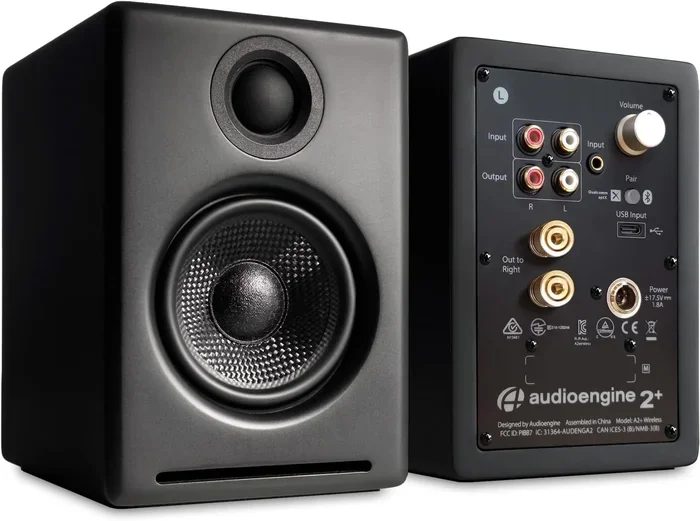
How Do I Connect My Audioengine Bluetooth Speaker Guide
Our guide shows you exactly how to connect your Audioengine Bluetooth speaker in simple steps. You will learn the pairing process, common fixes, and tips to get the best sound. Whether you are new to Bluetooth or just need a refresher, this guide covers everything you need.
Setting up a Bluetooth speaker should feel easy, and that is exactly what this guide is all about. If you just bought an Audioengine Bluetooth speaker or are thinking about getting one, you are in the right place. We will walk you through every step, from the first power-on to enjoying your favorite music wirelessly. No tech skills are needed. Just follow along and you will be listening in minutes.
Many people assume connecting a wireless speaker is complicated. The truth is that modern Bluetooth audio technology makes it incredibly simple. Your Audioengine wireless speaker uses the latest Bluetooth connectivity standards, which means fast pairing and stable connections. Whether you want to stream music from your phone, tablet, or laptop, this guide covers it all. Let us dive right in.
Key Takeaways
- Pairing is simple: Most Audioengine Bluetooth speakers connect in just a few easy steps using the Bluetooth menu on your device.
- Troubleshooting is straightforward: Common issues like pairing failures often have quick fixes you can do at home.
- Sound quality matters: Placing your speaker correctly and keeping it close to your device improves Bluetooth audio performance.
- Multiple devices work: You can connect phones, tablets, and laptops to your Audioengine speaker with ease.
- Maintenance helps longevity: Regular firmware updates and proper charging keep your speaker running smoothly.
- Wired options exist too: You can use an aux cable as a backup connection method when Bluetooth is not working.
📑 Table of Contents
- Understanding Your Audioengine Bluetooth Speaker
- Step-by-Step Guide to Connecting Your Audioengine Bluetooth Speaker
- Troubleshooting Common Connection Issues
- Tips for Getting the Best Sound from Your Audioengine Bluetooth Speaker
- Audioengine Bluetooth Speaker Versus Wired Connections
- Final Thoughts on Setting Up Your Audioengine Bluetooth Speaker
Understanding Your Audioengine Bluetooth Speaker
Before you start the pairing process, it helps to know a little about your Audioengine Bluetooth speaker. These speakers are built for great sound and easy use. They come with Bluetooth 5.0 or newer, which gives you a wider range and stronger signal. Most models also support NFC pairing, which lets you tap your phone against the speaker to connect instantly.
The speakers typically feature a long-lasting battery, a durable design, and both Bluetooth and wired connection options. This means you can use them at home, in the backyard, or even at a party. The Audioengine brand is known for making speakers that balance portability with powerful sound output. Understanding these basics helps you get the most out of every session.
What Makes Audioengine Speakers Different
Audioengine has built a reputation for quality audio hardware. Their Bluetooth speakers stand out because they deliver rich, full sound even at higher volumes. Unlike some brands that sacrifice bass for size, Audioengine speakers maintain a balanced audio profile across all frequencies. This makes them great for many different music styles, from pop and rock to jazz and classical.
Another thing that sets these speakers apart is their build quality. They use sturdy materials that can handle everyday use. The controls are simple and intuitive, so you do not need to read a long manual. And because they support multiple connection methods, you always have a backup plan if Bluetooth is not available.
Step-by-Step Guide to Connecting Your Audioengine Bluetooth Speaker
Now let us get into the actual Bluetooth pairing process. The steps are similar for most devices, whether you use an iPhone, Android phone, or laptop. Follow these instructions carefully and you will be connected in no time.
Step 1: Power On Your Speaker
Start by pressing the power button on your Audioengine Bluetooth speaker. You should see a light turn on or hear a short sound confirming it is on. Some models flash a blue light when they are ready to pair. If the speaker is already on but was connected to another device before, it may need to be put into pairing mode first.
To enter pairing mode, usually you hold down the Bluetooth button for a few seconds. The flashing light will tell you the speaker is ready to be found by other devices. This is an important step because many speakers do not stay in pairing mode permanently. They switch back to connected mode after a short time.
Step 2: Turn on Bluetooth on Your Device
Next, go to the settings on your phone, tablet, or computer. Find the Bluetooth option and make sure it is turned on. On most phones, you can swipe down from the top of the screen and tap the Bluetooth icon to quick-enable it. On a laptop, you will usually find it in the system settings or control panel.
Once Bluetooth is on, your device will start scanning for available speakers. This should only take a few seconds. You will see a list of nearby Bluetooth devices appear on your screen. Look for your Audioengine speaker in that list. It will usually show the model name or just “Audioengine” followed by a number.
Step 3: Select and Pair
Tap on your Audioengine Bluetooth speaker when you see it in the list. Your device will now try to establish a connection. You might see a spinning circle or a message saying “Connecting.” Within a few seconds, the connection should be made. On some models, you may need to enter a PIN code like 0000 or 1234, but most modern speakers do not require this.
Once paired, the flashing light on the speaker should stop, and it will stay solid. You will also see a confirmation on your device screen that says the speaker is connected. At this point, any audio from your phone will play through the Audioengine speaker. Try playing a song to test it out.
Step 4: Adjust Volume and Settings
After the connection is established, you can adjust the volume from your device or directly from the speaker. Most Audioengine models have physical buttons on top for volume control. You can also adjust the equalizer settings on your phone if your music app supports it. This lets you fine-tune the Bluetooth audio to match your personal preference.
For the best experience, keep your device within about 30 feet of the speaker. Bluetooth range can be affected by walls, furniture, and other electronic devices. If you notice any dropouts, moving closer to the speaker usually fixes the problem right away.
Troubleshooting Common Connection Issues
Even though Bluetooth pairing is usually smooth, sometimes things do not go as planned. Do not worry. Most issues have simple solutions. Here are the most common problems and how to fix them.
Speaker Not Showing Up in the Device List
If your Audioengine Bluetooth speaker does not appear when you scan for devices, the first thing to check is whether it is in pairing mode. Make sure the light is flashing. If it is not, turn the speaker off and on again, then hold the Bluetooth button until it flashes. Also check that your phone’s Bluetooth is turned on and that it is not already connected to another speaker nearby.
Sometimes restarting both the speaker and your phone solves this problem quickly. Just power off the speaker, turn off Bluetooth on your phone, wait a few seconds, and then turn everything back on. This clears any temporary glitches that might be blocking the connection.
Connection Keeps Dropping
A Bluetooth connection that keeps dropping can be frustrating. The most common cause is distance. If you move too far from the speaker, the signal weakens. Try staying within 15 to 20 feet for the most stable connection. Walls and other obstacles also weaken the signal, so try to keep a clear line of sight between your device and the speaker.
Another cause can be interference from other wireless devices. Wi-Fi routers, microwaves, and even USB 3.0 ports can sometimes disrupt Bluetooth signals. Moving away from these devices can help stabilize the connection. If the problem continues, check if there are any firmware updates available for your Audioengine speaker.
Paired but No Sound
If your device shows connected but no sound comes out, the speaker might be set as an output device but the volume is too low. Check the volume on both your phone and the speaker. Also make sure your phone is not sending audio to a different device, like headphones or a smart speaker. On some phones, you can go to the Bluetooth settings and manually select the Audioengine speaker as the audio output.
Sometimes restarting the audio app you are using helps. Close the app completely, reopen it, and the sound should start playing through the speaker. This is a simple fix that works more often than you might think.
Quick Troubleshooting Tips
- Restart both devices if the connection fails repeatedly.
- Check the battery level of your Audioengine speaker. Low battery can cause connection problems.
- Forget the device on both the speaker and your phone, then pair again from scratch.
- Move closer to the speaker to rule out range issues.
- Check for firmware updates through the Audioengine website or app.
Tips for Getting the Best Sound from Your Audioengine Bluetooth Speaker
Once your Audioengine Bluetooth speaker is connected, you want to make sure you are getting the best possible sound. A few small adjustments can make a big difference in audio quality.
Place the Speaker Correctly
Where you put your speaker matters more than you might think. Placing it on a flat, hard surface helps the sound travel better. Avoid putting it in corners or against walls, as this can make the bass sound muddy. If you want richer sound, try placing the speaker on a table or shelf rather than on the floor.
For the best wireless audio streaming experience, keep the speaker at ear level or slightly above when you are seated. This gives you a more balanced soundstage. If you are using the speaker outdoors, placing it on a raised surface helps the sound carry further without being blocked by grass or furniture.
Keep the Speaker Charged
Bluetooth speaker battery life affects sound quality more than most people realize. When the battery gets low, the speaker may reduce its output to save power, which makes the sound quieter and less detailed. Try to keep your Audioengine speaker charged above 20 percent for the best performance.
Most Audioengine models charge fully in about two to three hours and can play for 10 to 15 hours depending on the volume level. If you plan to use the speaker for a long event, make sure it is fully charged beforehand. You can also keep it plugged in while using it, which ensures consistent power delivery.
Use the Right Audio Source
The quality of your music files matters too. Streaming services like Spotify and Apple Music use compressed audio formats that sound good but are not lossless. If you want the best possible Bluetooth audio quality, look for settings in your app that allow higher-quality streaming. Some apps let you choose between normal and high-quality streaming options.
Also, if you have music stored on your device in high-quality formats like FLAC or WAV, use those when possible. The Audioengine Bluetooth speaker can reproduce more detail than compressed formats, so feeding it better source material makes a noticeable difference.
Explore the Audioengine App
If your Audioengine model supports it, download the companion app from the App Store or Google Play. The app lets you adjust equalizer settings, check battery status, and update firmware. Some models also allow you to connect two speakers together for stereo sound, which is a great way to fill a room with rich audio.
Audioengine Bluetooth Speaker Versus Wired Connections
While Bluetooth connectivity is the main way to use an Audioengine speaker, wired options still have their place. Understanding when to use each method helps you get the best experience for every situation.
When to Use Bluetooth
Bluetooth is perfect for everyday listening. It is convenient, wireless, and works with almost any device. If you are at a party, sitting on the patio, or just moving around the house, Bluetooth gives you the freedom to go anywhere within range. The sound quality is excellent for most listening situations, and setup takes only seconds.
Most people find that Bluetooth audio from an Audioengine speaker is more than good enough for casual listening, background music, and even movie watching. The convenience factor alone makes it the go-to option for many users.
When to Use a Wired Connection
There are times when a wired connection makes more sense. If you need the absolute best sound quality, an aux cable or USB connection delivers a cleaner signal with less compression. This is especially true if you are an audiophile who cares about every detail of the music.
Wired connections also work when your phone battery is low and you do not want to drain it further by using Bluetooth. They are also more stable and do not suffer from the occasional dropouts that wireless connections can experience. If you are setting up the speaker in a fixed location like a desk or a shelf, a wired connection might be the better choice.
Comparison Table
Here is a quick look at how Bluetooth and wired connections compare for your Audioengine speaker.
- Convenience: Bluetooth wins easily. No cables needed, just turn it on and connect.
- Sound Quality: Wired connections offer slightly better audio fidelity with less compression.
- Range: Bluetooth gives you up to 30 feet of freedom. Wired is limited by cable length.
- Stability: Wired connections are more stable and do not interfere with other devices.
- Setup Time: Bluetooth takes seconds. Wired requires plugging in a cable.
Many users find that they use both methods depending on the situation. Bluetooth for casual listening and wired for critical listening sessions. This flexibility is one of the reasons Audioengine speakers are so popular.
Final Thoughts on Setting Up Your Audioengine Bluetooth Speaker
Connecting your Audioengine Bluetooth speaker is a straightforward process that anyone can do. Whether you are tech-savvy or not, the steps in this guide will help you get up and running quickly. The key is to follow each step carefully, especially putting the speaker into pairing mode and making sure Bluetooth is enabled on your device.
Remember that troubleshooting is part of the process. If something does not work right away, do not get frustrated. Most issues have simple solutions, and the tips in this guide should help you resolve them fast. Keep your speaker charged, place it in a good spot, and enjoy the music.
One thing worth noting is that you can also explore other Bluetooth audio options if you want to expand your setup. For example, if you are curious about using other Bluetooth devices for audio, you might want to check out whether you can turn your phone into a Bluetooth speaker for quick sharing. You can also learn about using HDMI for video and Bluetooth for audio if you want to set up a home theater system with multiple audio sources. And if you have regular speakers at home, you might be interested in how to turn regular speakers into Bluetooth to get wireless streaming without buying a new speaker.
Your Audioengine Bluetooth speaker is a versatile tool for enjoying music anywhere. With the right setup and a few simple tips, you will be getting great sound every time you press play. Now go connect your speaker and start listening.
Frequently Asked Questions
How long does it take to pair an Audioengine Bluetooth speaker?
The pairing process usually takes less than a minute. You power on the speaker, enable Bluetooth on your device, and select the speaker from the list. Most Audioengine models support quick pairing, so you should be connected in seconds.
Can I connect multiple devices to my Audioengine Bluetooth speaker?
Yes, most Audioengine Bluetooth speakers can remember multiple paired devices. You can switch between them by disconnecting one and connecting another. Some models also support multipoint Bluetooth, which allows two devices to stay connected at the same time.
Why does my Audioengine speaker keep disconnecting from my phone?
Disconnections usually happen because of distance, interference, or low battery. Try moving closer to the speaker, turning off nearby Wi-Fi routers, and making sure both devices have enough charge. Restarting both devices often fixes the problem too.
Do I need an app to connect my Audioengine Bluetooth speaker?
No, you do not need an app for basic Bluetooth pairing. The built-in Bluetooth settings on your phone or laptop are enough. However, the Audioengine companion app gives you access to equalizer settings and firmware updates for a better experience.
Can I use my Audioengine Bluetooth speaker while it is charging?
Yes, you can use the speaker while it is plugged in. In fact, some people prefer to keep it charging during long listening sessions to avoid battery drain. The speaker will continue to play normally while receiving power.
What should I do if my Audioengine speaker will not turn on?
First, make sure the speaker is charged. Connect it to a power source and wait at least 30 minutes before trying to turn it on again. If it still does not respond, try a different charging cable or adapter. If the problem persists, contact Audioengine customer support for help.