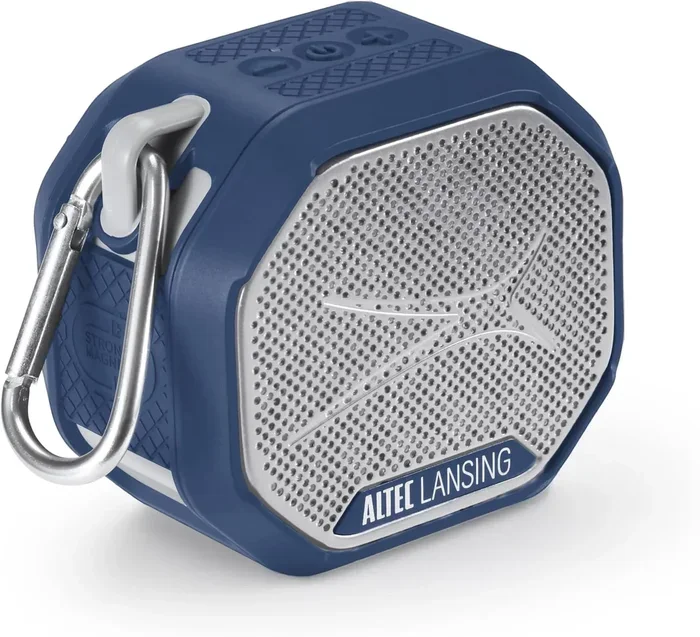
How Do I Connect My Altec Lansing Bluetooth Speaker
Connecting your Altec Lansing Bluetooth speaker is simple and fast when you follow the right steps. This guide walks you through pairing your speaker with any device, troubleshooting common issues, and getting the best sound quality. You will learn everything from initial setup to advanced connection tips that make your wireless audio experience better.
There is nothing quite like filling a room with your favorite music without a single wire in sight. Altec Lansing Bluetooth speakers make this possible with reliable wireless connections and solid sound quality. Whether you are setting up a speaker for the first time or reconnecting after a long break, the process is straightforward and user-friendly.
This guide covers everything you need to know about connecting your Altec Lansing Bluetooth speaker to any device. You will find step-by-step instructions, helpful tips, and solutions to common problems. By the end, you will feel confident pairing your speaker quickly and getting the most out of your wireless audio setup.
Bluetooth speaker pairing has become a standard feature across most modern audio devices. Altec Lansing has built its reputation on making this process simple, even for people who are not tech-savvy. The company designs its speakers with clear indicators and intuitive controls that guide you through every step.
Before you begin, make sure your speaker is charged and within range of the device you want to connect. Most wireless audio connections work best within 30 feet of the source device. Remove any obstacles between the speaker and your phone or laptop to ensure a strong and stable signal.
Key Takeaways
- Quick Pairing: Most Altec Lansing speakers use a simple Bluetooth pairing process that takes under a minute.
- Wide Compatibility: These speakers work with smartphones, tablets, laptops, and any device that supports Bluetooth.
- Troubleshooting Is Easy: Common connection issues can usually be fixed with a quick reset or by checking your Bluetooth settings.
- Multiple Devices: Many Altec Lansing models support multipoint pairing, letting you switch between devices seamlessly.
- Best Sound Quality: Keeping your speaker close and minimizing interference helps maintain strong wireless audio performance.
- Firmware Updates: Regularly updating your speaker firmware can fix bugs and improve connectivity.
📑 Table of Contents
- Understanding Your Altec Lansing Bluetooth Speaker
- Step-by-Step Guide to Connecting Your Altec Lansing Bluetooth Speaker
- Troubleshooting Common Connection Issues
- Advanced Tips for Better Bluetooth Performance
- Altec Lansing Bluetooth Speaker vs. Other Wireless Speakers
- Maintaining Your Altec Lansing Bluetooth Speaker
- Final Thoughts
Understanding Your Altec Lansing Bluetooth Speaker
Altec Lansing offers several Bluetooth speaker models, each with slightly different features and setup methods. Understanding your specific model helps you follow the right steps. Most models share a similar pairing process, but some may include extra features like multipoint connection or voice assistant support.
Popular Altec Lansing Bluetooth Speaker Models
Altec Lansing has a wide range of speakers to fit different needs and budgets. Here are some of the most popular models you might own:
- Altec Lansing Orbit IM700: A compact and portable option perfect for personal listening or small rooms.
- Altec Lansing Bluetooth Portable Speaker: Mid-range speakers with enhanced bass and longer battery life.
- Altec Lansing Party Series: Larger speakers designed for outdoor gatherings and bigger spaces.
Each model has a Bluetooth button or a dedicated power and Bluetooth toggle. Check your user manual if you are unsure where the Bluetooth controls are on your specific speaker. Most Altec Lansing speakers have a Bluetooth indicator light that flashes when the speaker is ready to pair.
What You Need Before Pairing
Gather a few things before you start the speaker pairing process. Having everything ready saves time and prevents frustration.
- A fully charged or powered Altec Lansing Bluetooth speaker.
- The device you want to connect (smartphone, tablet, laptop, or desktop computer).
- Bluetooth enabled on your device.
- Your speaker within 30 feet of your device.
- A quiet moment to focus on the setup steps.
Once you have these items, you are ready to move to the actual pairing process. Keep your speaker manual nearby if you run into any model-specific questions.
Step-by-Step Guide to Connecting Your Altec Lansing Bluetooth Speaker
The Bluetooth speaker setup process follows a general pattern across most Altec Lansing models. Whether you use an iPhone, Android phone, Windows laptop, or Mac, the steps are similar. Let us walk through each stage carefully.
Step 1: Power On Your Speaker
Press and hold the power button on your Altec Lansing speaker until you hear a startup sound or see the LED light turn on. Most speakers have a power indicator that shows whether the device is on and ready. If your speaker has a low battery, charge it fully before attempting to pair.
Some models require you to hold the Bluetooth button separately after powering on. Check if your speaker has a dedicated Bluetooth button or if the power button doubles as the Bluetooth toggle. The flashing LED light usually signals that the speaker is in pairing mode.
Step 2: Enable Bluetooth on Your Device
On your phone, tablet, or computer, go to the settings menu and turn on Bluetooth. You can usually find this option in the quick settings panel by swiping down from the top of your screen. Alternatively, navigate to Settings > Bluetooth and toggle it on.
Make sure your device is not already connected to another Bluetooth audio device. If your phone is paired with headphones or another speaker, disconnect from that device first. This prevents confusion during the pairing process and ensures your Altec Lansing speaker gets full attention from your device.
Step 3: Search for Available Devices
Once Bluetooth is on, your device will start scanning for nearby Bluetooth devices. On most phones, you will see a list of available devices appear within a few seconds. Look for your Altec Lansing speaker name in the list.
The speaker name usually starts with “Altec Lansing” followed by the model number or a creative name like “Altec Lansing Bluetooth Speaker.” Tap on the speaker name to begin the pairing process. Some devices may ask you to confirm a pairing request or enter a Bluetooth PIN code. The default PIN is often 0000 or 1234, but check your speaker manual if needed.
Step 4: Confirm the Connection
After you tap the speaker name, your device will establish the connection. You will hear a confirmation sound from the speaker, and the LED light will usually stop flashing and stay solid. This solid light means the wireless connection is active and ready.
Now try playing music or any audio from your device. The sound should come through your Altec Lansing speaker immediately. If you hear audio, congratulations, your Bluetooth speaker pairing was successful. Adjust the volume on both your device and the speaker to get the best listening experience.
Step 5: Test and Adjust Settings
Play a song or video with different audio frequencies to test the sound quality. Check the bass, midrange, and treble to make sure everything sounds balanced. Most Altec Lansing speakers have built-in equalizer settings you can access through the speaker buttons or a companion app.
If the sound feels weak or distorted, move closer to the speaker. Bluetooth range can be affected by walls, furniture, and other electronic devices. Try to keep your speaker in the same room as your source device for the best wireless music streaming experience.
Troubleshooting Common Connection Issues
Even with the simplest setup, you might run into hiccups when connecting your Altec Lansing Bluetooth speaker. Do not worry, most problems have quick and easy solutions. Let us go through the most common issues and how to fix them.
Speaker Not Showing Up in Device List
If your device does not detect the Altec Lansing speaker, the first thing to check is whether the speaker is in pairing mode. The LED light should be flashing rapidly. If it is not, turn the speaker off and back on, then press and hold the Bluetooth button again.
Also, make sure Bluetooth is turned on and actively scanning on your device. Sometimes restarting your phone or computer refreshes the Bluetooth search and helps it find the speaker. If the problem continues, move your speaker closer to your device and try again.
Paired But No Sound
A connected speaker with no sound is a common frustration. Start by checking the volume on both your device and the speaker. It sounds simple, but the volume on the speaker itself might be turned all the way down.
Another cause is that your device is still routing audio to a different Bluetooth audio device. On your phone or computer, go to the sound settings and make sure the Altec Lansing speaker is selected as the output device. On Windows, right-click the speaker icon in your taskbar and choose the Altec Lansing speaker from the list.
Connection Keeps Dropping
An unstable connection can ruin your listening experience. Bluetooth interference from other wireless devices like Wi-Fi routers, microwaves, or other Bluetooth devices can weaken the signal. Move your speaker away from these devices and see if the connection stabilizes.
Also, check the distance between your speaker and source device. While Bluetooth can reach up to 30 feet, walls and obstacles reduce this range significantly. Staying in the same room with a clear line of sight gives you the most reliable wireless audio connection.
Resetting Your Altec Lansing Speaker
If none of the above solutions work, a factory reset often fixes persistent connection problems. The reset process varies by model, but most Altec Lansing speakers follow a similar method. Typically, you hold down the power button and the Bluetooth button simultaneously for about 10 seconds until the LED light flashes a specific pattern.
After resetting, the speaker will forget all previous pairings. You will need to go through the pairing process again from scratch. Refer to your speaker manual for model-specific reset instructions. This fresh start often resolves stubborn Bluetooth issues.
Advanced Tips for Better Bluetooth Performance
Once your Altec Lansing speaker is connected, you can take a few extra steps to improve your experience. These tips help you get the most from your wireless speaker setup and keep everything running smoothly.
Keep Firmware Updated
Altec Lansing releases firmware updates that improve Bluetooth connectivity and fix known bugs. Check the Altec Lansing website or companion app for updates specific to your model. Updating your speaker firmware is especially important if you use Bluetooth headphones with Switch or other gaming devices where low latency matters.
Use Your Speaker in Optimal Conditions
For the best sound and connection quality, use your speaker in environments with minimal wireless interference. Avoid placing the speaker near microwaves, cordless phones, or crowded Wi-Fi networks. These devices operate on similar frequencies and can disrupt your wireless music streaming.
Explore Multipoint Pairing
Some newer Altec Lansing models support multipoint connection, which allows the speaker to stay connected to two devices at the same time. This feature is handy if you want to switch between your phone and laptop without disconnecting and reconnecting each time.
To use multipoint, check your speaker manual for the specific setup process. Usually, you pair the first device normally, then put the speaker back in pairing mode to connect the second device. The speaker will automatically switch between the two based on which device is playing audio.
Can I Use My Altec Lansing Speaker Without Bluetooth?
Some Altec Lansing speakers include an AUX input or USB port for wired connections. If Bluetooth is not working or you prefer a wired setup, you can use these alternative inputs. This is especially useful if your device does not support Bluetooth connectivity or if you want a more stable connection for critical listening.
Similarly, you might wonder if you can use a regular speaker and turn it into a Bluetooth speaker using a Bluetooth adapter. Altec Lansing also offers solutions for those looking to upgrade existing audio setups with wireless capabilities.
Altec Lansing Bluetooth Speaker vs. Other Wireless Speakers
When choosing a Bluetooth speaker, it helps to understand how Altec Lansing compares to other brands. The table below highlights key differences and similarities.
| Feature | Altec Lansing | JBL | Ultimate Ears |
|---|---|---|---|
| Bluetooth Range | Up to 30 feet | Up to 33 feet | Up to 100 feet |
| Battery Life | 8-15 hours | 10-20 hours | 12-24 hours |
| Multipoint Pairing | Available on select models | Available on select models | Available on select models |
| Water Resistance | Varies by model | IPX7 on most models | IP67 on most models |
| Companion App | Yes | JBL Portable | UE Boom App |
Each brand has its strengths, but Altec Lansing stands out for its balanced sound quality and user-friendly setup. The Bluetooth speaker pairing process on Altec Lansing speakers is one of the simplest in the market, making it a great choice for beginners and experienced users alike.
If you are also considering using your speaker for voice amplification or as a car audio device, Altec Lansing speakers offer versatility beyond just music playback. You can even use certain models as a portable speaker for outdoor events or gatherings. The wireless audio streaming capabilities make them suitable for a wide range of scenarios.
Maintaining Your Altec Lansing Bluetooth Speaker
Taking care of your speaker ensures it stays in top condition for years. Proper maintenance also helps maintain strong Bluetooth connectivity and sound quality over time.
- Charge Regularly: Do not let the battery drain completely before recharging. Partial charges are better for lithium-ion batteries.
- Clean the Exterior: Wipe the speaker with a soft, dry cloth to remove dust and debris. Avoid using harsh chemicals.
- Store Properly: When not in use, store the speaker in a cool, dry place away from direct sunlight.
- Update Firmware: Check for firmware updates every few months to keep your wireless audio connection running smoothly.
- Reset Periodically: A factory reset every few months can clear out old pairings and refresh the Bluetooth module.
These simple habits go a long way in extending the life of your speaker. A well-maintained Altec Lansing Bluetooth speaker delivers consistent performance and reliable wireless music streaming every time you use it.
Final Thoughts
Connecting your Altec Lansing Bluetooth speaker does not have to be complicated. With the right steps and a little patience, you can have your speaker paired and playing music in under five minutes. The process is designed to be simple and accessible for everyone, regardless of technical skill level.
Remember to keep your speaker charged, stay within Bluetooth range, and update your firmware regularly for the best experience. If you run into issues, the troubleshooting tips in this guide should help you resolve them quickly. Bluetooth speaker setup becomes second nature once you have done it a few times.
Enjoy your wireless audio freedom and the rich, clear sound that Altec Lansing speakers are known for. Whether you are at home, in the car, or outdoors, your Bluetooth speaker pairing will deliver quality sound whenever you need it.
Frequently Asked Questions
How long does it take to connect an Altec Lansing Bluetooth speaker?
The pairing process typically takes less than one minute once your speaker is in pairing mode. Most users complete the entire setup, from powering on to playing music, in under three minutes. The exact time depends on how quickly your device finds the speaker in its Bluetooth list.
Why is my Altec Lansing Bluetooth speaker not connecting to my phone?
This usually happens when the speaker is not in pairing mode or when your phone’s Bluetooth is turned off. Try turning Bluetooth off and back on, then restart the pairing process. If the issue persists, reset your speaker and remove any old pairings from your phone’s Bluetooth memory.
Can I connect my Altec Lansing speaker to multiple devices at once?
Some Altec Lansing models support multipoint pairing, which allows two simultaneous connections. Check your speaker manual to see if your specific model has this feature. If it does, you can switch between devices without disconnecting either one.
What is the Bluetooth range of an Altec Lansing speaker?
Most Altec Lansing Bluetooth speakers have a range of up to 30 feet in open spaces. Walls, furniture, and other electronic devices can reduce this range significantly. For the best connection, keep your speaker and source device in the same room with a clear path between them.
Do I need an app to connect my Altec Lansing Bluetooth speaker?
No, you do not need an app for basic Bluetooth pairing. Your device’s built-in Bluetooth settings handle the connection process. However, Altec Lansing offers companion apps for some models that provide additional features like equalizer settings and firmware updates.
Can I use my Altec Lansing Bluetooth speaker as a speakerphone for calls?
Yes, many Altec Lansing Bluetooth speakers have a built-in microphone that supports phone calls. You can answer calls directly through the speaker and use it for voice calls. The sound quality for calls may vary depending on the model and your environment.