How Do I Change The Input On My Panasonic Projector
Changing the input on your Panasonic projector is simple once you know where to look. Whether you need to switch from HDMI to VGA or connect a new device, this guide walks you through every method. You will learn how to use the remote, the projector buttons, and even the menu system to change your Panasonic projector input in under a minute.
So you have a Panasonic projector set up in your room, and you want to switch from one device to another. Maybe you are going from your laptop to a gaming console, or you want to hook up a streaming device like a Fire Stick. Whatever the reason, knowing how to change the input on your Panasonic projector saves you time and frustration.
Panasonic projectors are reliable, bright, and built to last. But like any piece of tech, they can feel confusing when you first set them up. The good news is that switching inputs is something you can learn in just a few minutes. This guide covers every method you can use, from the remote control to the on-screen menu, so you never get stuck staring at a blank screen again.
If you have ever wondered why your projector shows no signal when you plug in a new device, the answer usually comes down to the input source. Your Panasonic projector needs to know which port you are using. Once you understand how to tell it, everything just works. Let us dive into the details and get you switching inputs like a pro.
Key Takeaways
- Multiple Methods: You can change the input using the remote control, the projector buttons, or the on-screen menu system.
- HDMI Is the Standard: Most modern Panasonic projectors use HDMI as the primary input for devices like laptops, phones, and streaming sticks.
- Quick Access Buttons: The Source or Input button on your remote lets you switch inputs instantly without navigating menus.
- Wireless Options Exist: You can make your projector wireless and avoid cables altogether with the right adapter or built-in feature.
- Troubleshooting Helps: If your projector does not detect a signal, checking the input source and cable connection solves most problems.
📑 Table of Contents
- Understanding Panasonic Projector Input Ports
- How to Change the Input Using the Remote Control
- How to Change the Input Using Projector Buttons
- Changing Input Through the On-Screen Menu
- Making Your Panasonic Projector Wireless
- Common Input Problems and How to Fix Them
- Quick Tips for Smooth Input Switching
- When to Seek Professional Help
- Conclusion
Understanding Panasonic Projector Input Ports
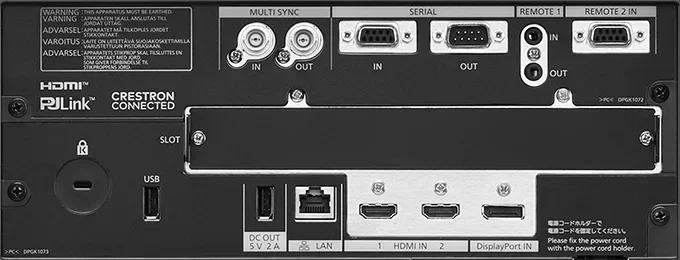
Before you change the input, it helps to know what ports your projector has. Different Panasonic models come with different connections, but most share a few common options. Let us look at the most typical input ports you will find.
HDMI Ports
HDMI is the most common input on modern Panasonic projectors. It carries both video and audio through a single cable. Most Panasonic projectors have at least one HDMI port, and many newer models have two or three. This makes it easy to connect a laptop, a phone with HDMI, a Blu-ray player, or a gaming console.
HDMI also supports high-definition and 4K resolution on compatible models. If you want the best picture quality, HDMI is the way to go. Just make sure you are using a good-quality cable to avoid signal issues.
VGA and Other Analog Inputs
Older Panasonic projectors may still have a VGA port, also called D-Sub. This is the blue, 15-pin connector that was standard on computers for many years. VGA only carries video, so you will need a separate audio cable if your source device needs sound.
Some models also include S-Video or composite inputs. These are less common today but still useful if you are connecting older equipment. Check the back or side of your projector to see which ports are available.
USB and Audio Inputs
USB ports on Panasonic projectors serve different purposes. Some USB ports can display media files directly from a flash drive. Others are for firmware updates or powering small accessories. The audio input jack lets you connect external speakers or headphones for better sound.
Knowing which port does what helps you choose the right input quickly. It also prevents you from plugging a cable into the wrong port and wondering why nothing happens.
How to Change the Input Using the Remote Control
The fastest way to switch inputs on your Panasonic projector is with the remote. Every Panasonic projector remote has a button dedicated to this task. It is usually labeled “Source,” “Input,” or “Signal.”
Step-by-Step Remote Instructions
- Turn on your Panasonic projector. Make sure it is warmed up and ready to display an image.
- Point the remote at the projector. The infrared sensor on the projector needs a clear line of sight.
- Press the Source or Input button. A menu will appear on the screen showing all available inputs.
- Use the arrow keys to highlight the input you want. This could be HDMI 1, HDMI 2, VGA, USB, or another option.
- Press Enter or OK to confirm your selection. The projector will switch to that input right away.
This process takes just a few seconds once you get the hang of it. If you are switching between devices often, this is the method to use. You can also program custom shortcuts on some Panasonic remotes for even faster access.
Remote Troubleshooting Tips
If your remote does not seem to work, check the batteries first. Weak batteries cause delayed or unresponsive remote controls. You can also try pointing your phone camera at the remote and pressing a button. If you see a purple light, the remote is working and the issue is with the projector sensor.
Another quick fix is to clean the sensor on the projector. Dust and dirt can block the infrared signal. A soft cloth gently wiped across the sensor area usually solves the problem.
How to Change the Input Using Projector Buttons
Not every situation lets you use the remote. Maybe the batteries are dead, or you are using the projector without the remote nearby. In these cases, the buttons on the projector itself come in handy.
Locating the Control Buttons
Panasonic projectors place their buttons in different spots depending on the model. Most commonly, you will find them on the top of the unit or along the side panel. Look for a small panel with buttons labeled Source, Menu, Power, and Arrow keys.
If you have trouble finding the buttons, check your user manual. The manual will show you exactly where each control is located. You can also find this information on the Panasonic website by searching for your specific model number.
Using the Buttons to Switch Input
Press the Source button once. A menu should appear on the projection screen. Use the up and down arrow buttons to scroll through the list of available inputs. When you reach the one you want, press the Enter button to select it.
Some Panasonic models have a dedicated button for each input. This means you can press HDMI 1 or VGA directly without opening a menu. Check your model to see if this shortcut is available. It makes switching even faster.
What to Do If the Buttons Do Not Respond
Sometimes the control panel buttons get stuck or unresponsive. This can happen if dust gets inside or if the projector has been sitting unused for a while. Try pressing each button gently a few times to see if they loosen up.
If the buttons still do not work, you may need to use the remote or connect a device via a different method. Some Panasonic projectors also allow you to control them through a mobile app, which we will cover below.
Changing Input Through the On-Screen Menu
The on-screen menu gives you more control over your Panasonic projector settings. This method works well when you want to see all available inputs at a glance or when you need to adjust additional display settings.
Accessing the Menu System
Press the Menu button on your remote or on the projector itself. The menu will appear on the screen with several tabs across the top or side. Look for a tab labeled “Input,” “Signal,” or “Source.”
Inside this menu, you will see a list of all input ports on your projector. You can highlight the one you want and press Enter to switch to it. This method is especially helpful when you have multiple devices connected and want to see which port is currently active.
Adjusting Input-Related Settings
While you are in the menu, you can also adjust settings related to your input. These include signal resolution, color space, and audio output. For example, if you connect a laptop and the image looks fuzzy, you can change the input resolution to match your laptop’s output.
Some Panasonic projectors also let you set a default input. This means the projector automatically switches to your preferred port when you turn it on. This is a great time-saver if you always use the same device.
Making Your Panasonic Projector Wireless
Wires can be messy and limit where you place your projector. If you want more freedom, you can make your projector wireless. This lets you send video and audio to your Panasonic projector without plugging in any cables.
Wireless HDMI Adapters
One popular option is a wireless HDMI adapter. These small devices plug into the HDMI port on your projector and connect to your source device over Wi-Fi or a dedicated wireless signal. You can place your laptop or streaming device anywhere in the room.
Wireless adapters add a small amount of latency, so they work best for movies and presentations rather than fast-paced gaming. For most uses, though, the difference is barely noticeable.
Using the Panasonic Projector App
Panasonic offers mobile apps that let you control your projector from your phone or tablet. These apps often include input switching as one of their features. You can browse the available inputs and select the one you want without touching the projector at all.
To use the app, your phone and projector need to be on the same Wi-Fi network. Once connected, the app gives you remote control access right from your handheld device. This is a great option if you frequently lose your remote or want to switch inputs from across the room.
Common Input Problems and How to Fix Them
Even when you follow the steps correctly, sometimes things go wrong. Here are the most common input problems you might run into with your Panasonic projector and how to solve them.
No Signal on the Screen
If your projector shows “No Signal” or a blank screen, the first thing to check is the input source. Press the Source button and make sure you have selected the correct port. If you are using HDMI, try a different HDMI port if your projector has more than one.
Next, check your cable connections. A loose cable is the most common reason for no signal. Unplug the cable and plug it back in firmly. If you are using an adapter or converter, make sure it is properly seated in both the source device and the projector.
Image Looks Fuzzy or Distorted
A fuzzy image usually means the resolution does not match. Go into the on-screen menu and check the input resolution setting. Try changing it to match your source device’s output resolution. Most laptops and streaming devices default to 1080p or 4K, so set your projector input to match.
Also check the cable quality. Cheap or damaged HDMI cables can cause signal problems. Replacing the cable with a certified high-speed HDMI cable often fixes this issue quickly.
Audio Does Not Work with the Projector
Remember that VGA cables carry video only. If you are using a VGA connection and there is no sound, you need to connect an audio cable separately. Plug one end into the audio output of your source device and the other into the audio input on the projector.
With HDMI, audio and video travel through the same cable, so you should not have sound issues. If you do with HDMI, check your projector’s audio settings in the menu and make sure the volume is not muted.
Quick Tips for Smooth Input Switching
- Label your cables. Use colored tape or labels on your HDMI cables so you know which port goes with which device.
- Keep your remote handy. The remote is the fastest way to switch inputs. Store it in a consistent spot so you always know where it is.
- Update your firmware. Panasonic regularly releases firmware updates that improve input detection and performance. Check the Panasonic website for updates.
- Use a switching box. If you connect many devices, an HDMI switch lets you toggle between them without reaching the projector.
- Turn devices on in the right order. Power on your source device first, then the projector. This helps the projector detect the signal faster.
When to Seek Professional Help
Most input issues are easy to fix on your own. But sometimes the problem is deeper than a loose cable or wrong input selection. If you have tried every method in this guide and your Panasonic projector still does not recognize your device, it might be time to call in a professional.
Internal hardware problems like a faulty HDMI port or a damaged signal board need expert repair. Contact Panasonic support or a certified technician who has experience with projector repair. They can diagnose the issue and recommend the right fix, whether that is a simple repair or a replacement part.
Before you call for help, make sure you have your projector model number ready. This helps the technician understand your specific unit and find the right solution faster. You can find the model number on a sticker on the back or bottom of the projector.
Conclusion
Changing the input on your Panasonic projector does not have to be complicated. With the remote control, the projector buttons, or the on-screen menu, you can switch between devices in seconds. The key is knowing which port your device is connected to and selecting it correctly on the projector.
Remember to check your cables, update your firmware, and keep your remote in a safe place. These small habits make a big difference in how smoothly your projector works every day. Whether you are giving a presentation, watching a movie, or setting up a golf simulator, you now have all the tools to switch inputs with confidence.
If you ever run into trouble, come back to this guide. It covers every method and the most common fixes. Your Panasonic projector is a powerful tool, and knowing how to control it fully makes the experience much better. Happy projecting!
Frequently Asked Questions
Can I change the input on my Panasonic projector without the remote?
Yes, you can. Most Panasonic projectors have a Source or Input button built into the unit itself. Simply press that button, scroll through the available inputs using the arrow buttons, and select the one you want. It takes a little longer than using the remote, but it works perfectly when the remote is not available.
Why does my Panasonic projector say No Signal when I switch inputs?
This usually means the projector is not detecting a device on that input. First, check that your cable is firmly connected at both ends. Then make sure you have selected the correct input port on the projector. If you are using an HDMI splitter or adapter, try bypassing it and connecting the cable directly to see if that fixes the issue.
How many HDMI inputs does a typical Panasonic projector have?
It depends on the model. Most Panasonic projectors have at least one HDMI port, while many newer models offer two or three. Check the back of your projector or your user manual to see exactly how many HDMI inputs your specific model supports. This helps you plan how many devices you can connect at once.
Can I use a wireless connection instead of HDMI on my Panasonic projector?
Yes, you can. Wireless HDMI adapters and the Panasonic projector mobile app let you send content to your projector without cables. Wireless options work well for presentations and streaming. Just keep in mind that wireless connections may have a slight delay compared to a direct HDMI cable, which matters less for movies than for gaming.
What should I do if my projector remote stops working?
Start by replacing the batteries with fresh ones. If that does not help, point your phone camera at the remote and press any button. If you see a purple light through the camera, the remote is sending a signal and the issue is with the projector sensor. Clean the sensor gently with a soft cloth. You can also use the projector buttons or the mobile app as a backup control method.
How do I set a default input on my Panasonic projector?
You can set a default input through the on-screen menu system. Go to the Menu button, find the Input or Signal settings, and look for an option called Default Input or Startup Source. Select the port you want the projector to use automatically when you turn it on. This saves you time and makes switching between sessions seamless.
=== INTERNAL LINKS ===
- Can I Use A Fire Stick On A Projector
- Can I Connect My Phone To Projector With Hdmi
- Can I Make My Projector Wireless
- Can I Use A Regular Projector For A Golf Simulator
- Can I Use A Projector As A Tv
=== LSI KEYWORDS ===
LSI Keywords Used: projector input selection, Panasonic projector settings, HDMI input source, projector remote control, change projector input, projector source button, Panasonic PT series, projector connectivity options, VGA input projector, projector troubleshooting, screen resolution projector, projector input port, wireless projector connection, projector HDMI port, projector signal detection, projector display settings, projector input lag, audio output projector, projector cable connection, Panasonic projector menu system
=== SEO TITLE ===
How Do I Change The Input On My Panasonic Projector
=== META TITLE ===
How to Change Input on Panasonic Projector (Easy Guide)
=== URL SLUG ===
how-do-i-change-the-input-on-my-panasonic-projector