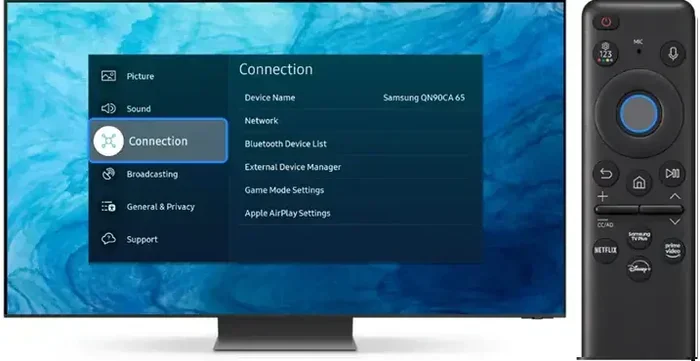
Are Samsung Smart TVs Bluetooth Enabled and Ready to Go
Yes, most Samsung Smart TVs come with Bluetooth built in, making it easy to connect wireless speakers, headphones, and other audio devices. Whether you own a flagship QLED or a budget-friendly Crystal UHD, Samsung Smart TVs Bluetooth support lets you stream audio without cables. In this guide, we walk you through checking compatibility, enabling Bluetooth, pairing devices, and fixing the most common connection problems.
If you have been sitting on your couch wondering whether your Samsung Smart TV can connect wirelessly to your favorite headphones or speakers, you are not alone. Samsung Smart TVs Bluetooth capability is one of the most asked questions among TV owners, and for good reason. Wireless audio has become a huge part of how we watch movies, listen to music, and enjoy gaming at home.
The good news is that the vast majority of Samsung Smart TVs do come with Bluetooth built right in. But not every model is the same, and knowing exactly what your TV can do saves you time and frustration. In this article, we break down everything you need to know about Samsung Smart TVs Bluetooth support, from checking compatibility to fixing connection issues.
We will cover how to enable Bluetooth, which devices work best, and the common problems users face. Whether you are a tech beginner or someone who just needs a quick refresher, this guide has you covered. Let us dive right in.
Key Takeaways
- Most Samsung Smart TVs have Bluetooth: Nearly all models from 2016 onward include built-in Bluetooth for wireless audio streaming.
- Checking is simple: You can verify Bluetooth support through your TV settings menu or by looking up your model number online.
- Pairing is straightforward: Just go to Settings, select Sound, and choose Bluetooth Speaker List to start the pairing process.
- Troubleshooting is often quick: Restarting your TV and Bluetooth device, checking distance, and updating firmware resolves most issues.
- Not all Samsung TVs are equal: Older or budget models may need a Bluetooth adapter for wireless connectivity.
- Multiple devices can connect: Samsung TVs support pairing with several Bluetooth devices, though only one plays audio at a time.
- Advanced features exist: Some Samsung models support Bluetooth low energy and screen mirroring through wireless connections.
📑 Table of Contents
- How Samsung Smart TVs Handle Bluetooth Connectivity
- How to Check if Your Samsung TV Has Bluetooth
- How to Enable Bluetooth on Samsung Smart TVs
- Common Bluetooth Problems and How to Fix Them
- Best Bluetooth Devices for Samsung Smart TVs
- Samsung Smart TVs Bluetooth: Advanced Tips and Features
- Samsung Smart TVs Bluetooth: Model Compatibility Made Easy
- Conclusion
How Samsung Smart TVs Handle Bluetooth Connectivity
Bluetooth technology has been a standard feature in Samsung Smart TVs for many years now. It allows your TV to send and receive audio wirelessly to and from compatible devices. This means you can enjoy wireless audio without worrying about extra cables cluttering your living room.
Samsung uses Bluetooth connectivity in two main ways. First, it lets your TV output audio to Bluetooth speakers and headphones. Second, it allows certain wireless connection features like screen mirroring and remote control through mobile apps. Both functions make your viewing experience much more flexible.
What Bluetooth Means on a Samsung Smart TV
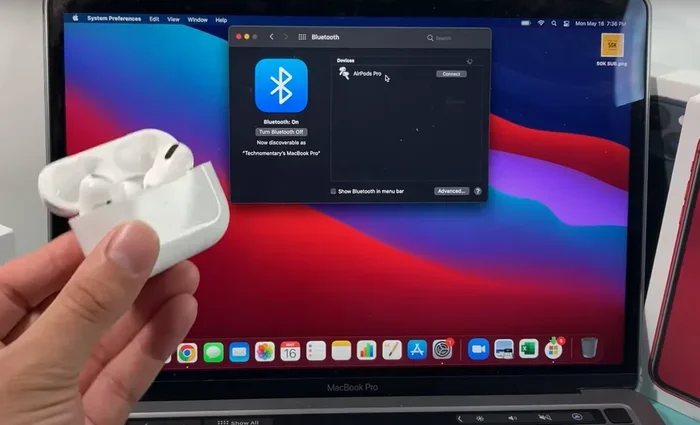
When we talk about Samsung Smart TVs Bluetooth, we are referring to the built-in wireless chip inside your television. This chip lets your TV discover and connect to other Bluetooth devices nearby. Think of it like a digital handshake between your TV and your speaker or headphones.
Most Samsung TVs use Bluetooth version 4.0 or higher. Newer models may even support Bluetooth low energy, which uses less power and maintains a more stable connection. The higher the Bluetooth version, the better the range and audio quality you can expect.
Here are some key things Bluetooth does on a Samsung Smart TV:
- Audio streaming: Send TV sound to wireless speakers or headphones.
- Device pairing: Connect and remember multiple Bluetooth devices.
- Remote control: Use the Samsung TV remote app on your phone via wireless connection.
- Screen mirroring: Mirror your phone screen to the TV using wireless protocols.
Which Samsung TV Models Support Bluetooth
Samsung has been adding Bluetooth to its TVs for a long time now. Most models from 2016 and newer include Bluetooth device support. However, the quality and features can vary depending on the series and year.
Here is a general breakdown of Samsung TV lines and their Bluetooth support:
- Flagship QLED and Neo QLED models: Full Bluetooth support with the latest versions. These TVs offer the best wireless audio experience.
- Crystal UHD and CU8000 series: Most models include Bluetooth, though older units in this line may vary.
- TU and RU series (budget models): Many budget Samsung TVs still include Bluetooth, but you should always double-check.
- Older models (pre-2016): Some older Samsung TVs may not have Bluetooth at all. In these cases, a Bluetooth adapter can add the feature.
If you are unsure about your specific model, do not worry. We will show you how to check in the next section.
How to Check if Your Samsung TV Has Bluetooth
Before you try to pair any device, you need to confirm that your Samsung TV actually has Bluetooth. This is a quick process, and there are two easy ways to do it.
Checking Your TV Settings Menu
The fastest way to check for Bluetooth settings on your Samsung TV is through the settings menu. Here is how to do it:
- Press the Home button on your Samsung remote.
- Navigate to Settings. It usually looks like a gear icon.
- Select Sound or Sound Output, depending on your TV menu layout.
- Look for an option called Bluetooth Speaker List or Bluetooth Audio.
- If you see this option, your TV has Bluetooth.
If you do not find a Bluetooth option under Sound, try going to General Settings and then look for Bluetooth there. Some Samsung TV models place the Bluetooth setting under a different menu path.
Looking Up Your TV Model Online
If you cannot find Bluetooth in your settings, you can look up your TV model online. Every Samsung TV has a model number printed on the back of the unit or in the settings menu under Support. Simply type your model number into Samsung’s official website or a quick web search, and the product page will list all the features, including Bluetooth connectivity.
This method works especially well if you bought your TV secondhand or cannot remember the exact model. It takes just a minute and gives you definitive answers about Samsung Smart TVs Bluetooth support.
How to Enable Bluetooth on Samsung Smart TVs
Once you have confirmed that your Samsung TV supports Samsung Smart TVs Bluetooth, the next step is turning it on and pairing your device. The process is simple and takes only a few minutes.
Step-by-Step Bluetooth Pairing Guide
Follow these steps to enable Bluetooth and pair a new device:
- Turn on your Samsung Smart TV and press the Home button on your remote.
- Go to Settings and then select Sound.
- Choose Sound Output and then select Bluetooth Speaker List.
- Your TV will start searching for nearby Bluetooth devices.
- Make sure your Bluetooth speaker or headphones are in pairing mode.
- Select your device from the list that appears on your TV screen.
- Wait for the connection to complete. You should see a confirmation message.
That is it. Your Samsung TV is now connected to your Bluetooth device, and you can enjoy wireless audio right away. If your TV does not find your device, make sure the other device is close enough and in pairing mode.
Using the Samsung TV Remote App
Another great way to manage Samsung Smart TVs Bluetooth is through the Samsung SmartThings app on your phone. This free app lets you control your TV and manage Bluetooth connections from your smartphone.
To use the app for Bluetooth management:
- Download the Samsung SmartThings app from your app store.
- Connect your phone to the same Wi-Fi network as your TV.
- Open the app and select your Samsung TV.
- Navigate to the Settings section and find Bluetooth options.
- You can pair new devices or manage existing connections right from your phone.
This is especially handy when you have lost your TV remote or want to quickly switch between Bluetooth devices without getting up from the couch.
Common Bluetooth Problems and How to Fix Them
Even though Samsung Smart TVs Bluetooth works well most of the time, you may run into issues now and then. The good news is that most problems have simple solutions. Let us look at the most common issues and how to fix them.
Samsung TV Bluetooth Not Working
If your Samsung TV Bluetooth is not working, do not panic. This is one of the most common TV Bluetooth troubleshooting situations, and it is usually easy to fix. Here are the steps to try:
- Turn Bluetooth off and on again: Go to your Bluetooth settings and toggle it off, wait 10 seconds, and turn it back on.
- Restart your TV: A simple restart can clear temporary glitches. Hold the power button on your remote and select Restart.
- Check the distance: Bluetooth works best within 10 feet of your TV. Move your Bluetooth device closer and try again.
- Remove old pairings: Go to your Bluetooth device list, remove any old or unused connections, and try pairing fresh.
- Update your TV firmware: Go to Settings, then Support, then Software Update. Install any pending updates.
If none of these steps work, try resetting your TV to factory settings. This should be your last resort since it erases all your custom settings.
Audio Lag and Connection Drops
Another common issue with Samsung Smart TVs Bluetooth is audio lag, where the sound does not match the video. This can be annoying during action movies or gaming sessions. Here is what you can do:
- Reduce interference: Other wireless devices like Wi-Fi routers can cause Bluetooth interference. Move your router away from your TV if possible.
- Check for updates: Firmware updates often include fixes for audio sync issues.
- Use a dedicated Bluetooth channel: Some Samsung TVs let you choose between different Bluetooth codecs. Try switching between them to see if it improves performance.
- Lower the audio quality setting: Sometimes reducing the audio bitrate on your Bluetooth device can reduce lag.
Connection drops can also happen, especially with older Bluetooth devices. Make sure your Bluetooth device has enough battery charge, as low battery can cause unstable connections.
Best Bluetooth Devices for Samsung Smart TVs
One of the best things about Samsung Smart TVs Bluetooth support is the wide range of devices you can connect. Whether you want better sound quality or private listening, there is a Bluetooth device that fits your needs.
Bluetooth Speakers and Soundbars
Connecting a Bluetooth speaker or soundbar to your Samsung TV instantly improves your audio experience. You do not need expensive equipment either. Many affordable Bluetooth speakers deliver great sound and pair easily with Samsung TVs.
When choosing a Bluetooth speaker for your Samsung TV, consider these factors:
- Audio quality: Look for speakers with clear mids and strong bass for a richer sound.
- Battery life: If you plan to move the speaker around, choose one with long battery life.
- Compatibility: Most modern Bluetooth speakers work with Samsung TVs without any issues.
- Size: Choose a speaker size that fits your room and viewing setup.
Samsung also makes its own Bluetooth soundbars that pair seamlessly with Samsung Smart TVs. These soundbars offer plug-and-play convenience and often include features like Dolby Atmos support.
Bluetooth Headphones for Private Listening
Want to watch your favorite show late at night without disturbing anyone? Bluetooth headphones are the perfect solution. You can connect your Samsung TV to wireless headphones and enjoy private audio streaming at any hour.
Some popular Bluetooth headphone options for Samsung TVs include:
- Over-ear headphones: Best for long viewing sessions with comfortable padding and great sound isolation.
- On-ear headphones: Lightweight and portable, ideal for casual watching.
- Wireless earbuds: Compact and convenient, though they may not deliver the same depth of sound.
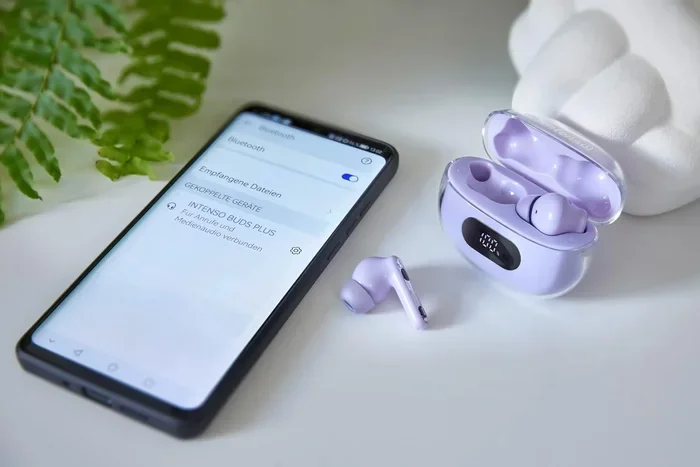
Most Bluetooth headphones pair with Samsung TVs in seconds. Just make sure your headphones are in pairing mode and follow the steps we shared earlier in this guide.
Samsung Smart TVs Bluetooth: Advanced Tips and Features
Once you have your Bluetooth device connected, there are some advanced features and tips that can enhance your experience with Samsung Smart TVs Bluetooth.
Screen Mirroring via Bluetooth and Wireless Connections
While screen mirroring primarily uses Wi-Fi Direct rather than Bluetooth alone, Samsung TVs support wireless screen sharing from phones and tablets. This feature lets you display your phone screen on your TV without any cables.
To use screen mirroring on a Samsung TV:
- Swipe down from the top of your phone screen to open Quick Settings.
- Tap Smart View or Screen Mirroring.
- Select your Samsung TV from the list of available devices.
- Your phone screen will now appear on your TV.
This is a great way to share photos, videos, or even mobile games on the big screen. The wireless connection between your phone and TV makes everything feel seamless.
Bluetooth Low Energy and Future Updates
Samsung continues to improve the Bluetooth connectivity in its Smart TVs with each new model. Bluetooth low energy is one of the latest advancements, offering more stable connections with less power consumption. This means your Bluetooth devices stay connected longer without draining batteries quickly.
Samsung also regularly releases firmware updates that improve Bluetooth performance. These updates can fix bugs, add support for new Bluetooth codecs, and enhance overall connection stability. Always keep your TV updated to get the best wireless audio experience.
Managing Multiple Bluetooth Devices
Your Samsung TV can remember and store multiple Bluetooth devices. This is useful if you have a Bluetooth speaker for everyday use and a pair of Bluetooth headphones for late-night watching. You can easily switch between paired devices from the Bluetooth Speaker List in your TV settings.
Keep in mind that only one Bluetooth audio device can play sound at a time. If you want to switch, simply disconnect one device and connect another from the same menu.
Samsung Smart TVs Bluetooth: Model Compatibility Made Easy
Not every Samsung TV is created equal when it comes to Samsung Smart TVs Bluetooth support. Understanding your specific model’s capabilities helps you set the right expectations and avoid frustration.
Here are some quick tips for checking model compatibility:
- Check the model year: TVs from 2016 and newer almost always include Bluetooth.
- Visit Samsung’s support page: Enter your model number to see the full feature list.
- Contact Samsung support: If you are still unsure, Samsung’s customer service team can confirm Bluetooth support for your specific model.
- Consider a Bluetooth adapter: If your older Samsung TV does not have Bluetooth, a USB Bluetooth adapter can add this feature affordably.
Taking a few minutes to confirm your model’s capabilities saves you from buying unnecessary accessories or dealing with unexpected limitations. It is always better to know upfront what your TV can and cannot do.
Samsung Smart TVs Bluetooth technology has come a long way over the years. From basic audio streaming to advanced multi-device management, Samsung has made wireless connectivity a core part of the Smart TV experience. As Bluetooth versions continue to evolve, we can expect even better range, faster connections, and improved audio quality in future Samsung TV models.
Conclusion
The short answer to the question “Are Samsung Smart TVs Bluetooth enabled?” is a resounding yes for the vast majority of models. Samsung Smart TVs Bluetooth support gives you the freedom to enjoy wireless audio from your TV without dealing with messy cables. Whether you want to connect a Bluetooth speaker, a pair of Bluetooth headphones, or use the Samsung SmartThings app for remote control, the process is simple and user-friendly.
We have covered how to check if your TV has Bluetooth, how to enable it, how to pair devices, and how to troubleshoot common issues. We also explored the best Bluetooth devices for Samsung TVs and shared some advanced tips to get the most out of your wireless connection.
Remember that while most Samsung Smart TVs come with Bluetooth built in, older or very budget models may need a Bluetooth adapter to add this feature. Always check your specific model to be sure. And if you run into any connection issues, the troubleshooting steps we shared should help you get back up and running quickly.
Now that you know everything about Samsung Smart TVs Bluetooth, go ahead and connect your favorite wireless devices. Enjoy your movies, shows, and music the way you want, with complete freedom and no cables in the way.
Frequently Asked Questions
How do I know if my Samsung Smart TV has Bluetooth?
You can check by going to your TV Settings, selecting Sound, and looking for a Bluetooth Speaker List option. If you find it, your Samsung TV supports Bluetooth. You can also look up your model number on Samsung’s website to confirm.
Can I connect multiple Bluetooth devices to my Samsung TV at once?
Yes, your Samsung TV can remember multiple paired Bluetooth devices. However, only one Bluetooth audio device can play sound at a time. You can easily switch between devices in the Bluetooth Speaker List settings.
Why is my Samsung TV Bluetooth not finding my device?
This usually happens when the Bluetooth device is too far away, not in pairing mode, or has an outdated firmware. Try moving closer, restarting both devices, and making sure your device is set to be discoverable.
Do I need a Bluetooth adapter for my Samsung TV?
Most Samsung Smart TVs from 2016 onward have Bluetooth built in. If you own an older model or a very basic Samsung TV, a USB Bluetooth adapter can add wireless connectivity at a low cost.
Can I use Bluetooth headphones with my Samsung Smart TV?
Absolutely. Most Samsung Smart TVs support Bluetooth headphones. Just go to your Bluetooth settings, put your headphones in pairing mode, and select them from the list. You can enjoy private listening without disturbing anyone in the room.
Does screen mirroring on Samsung TV use Bluetooth?
Screen mirroring on Samsung TVs primarily uses Wi-Fi Direct, not Bluetooth. However, Bluetooth is used for certain remote control and device management features. The two wireless technologies work together to provide a seamless smart TV experience.