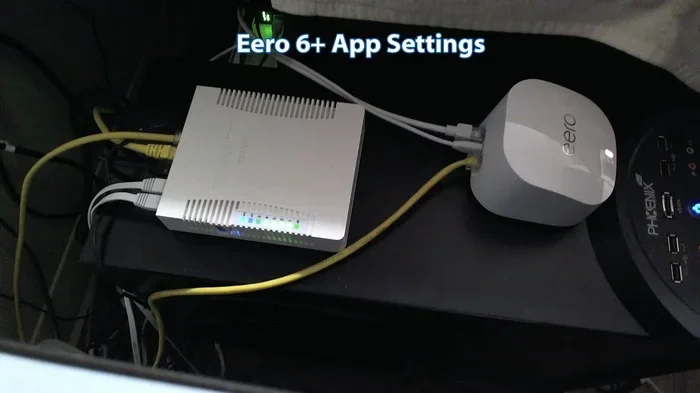
Can I Use Eero By Itself to Replace My Current Router
Yes, you can use Eero by itself to replace your current router. Eero is a mesh WiFi system that works as a standalone router when connected directly to your modem. You can ditch your ISP-provided router and enjoy better coverage, faster speeds, and simpler management with the Eero app.
Can I Use Eero By Itself to Replace My Current Router? The short answer is yes. Eero is a mesh WiFi system that can work as a standalone router. You just need to connect it directly to your modem, and you are good to go.
Many people feel stuck with the router their internet provider gave them. Those devices are often slow, have weak range, and lack modern features. Eero offers a simple upgrade path. You can drop the ISP router and bring in a mesh system that covers your whole home.
In this guide, we will walk through everything you need to know. We will cover setup, speed, compatibility, and whether Eero can truly replace your current router. By the end, you will know exactly what to do.
Key Takeaways
- Eero works standalone: You can remove your ISP router and use Eero directly with your modem.
- Easy setup: The Eero app walks you through installation in minutes.
- Better coverage: Mesh WiFi eliminates dead zones in your home.
- No subscription required: Eero works fully without a paid plan.
- Speed stays strong: Eero supports WiFi 6 and multi-gig speeds.
- Extra features: Eero Secure and parental controls add value at no extra cost.
📑 Table of Contents
- What Is Eero and How Does It Work?
- Can Eero Work Without an ISP Router?
- Does Eero Work Without a Subscription?
- Will Eero Slow Down Your Internet Speed?
- Eero vs. Your ISP Router: Which Is Better?
- Common Mistakes When Using Eero Without a Router
- Who Should Use Eero as Their Only Router?
- Final Thoughts
What Is Eero and How Does It Work?
Eero is a mesh WiFi system made by Amazon. It replaces your traditional router with a network of devices that work together. Each Eero unit, called a node, talks to the others to spread WiFi evenly across your home.
Unlike a single router, a mesh system uses multiple points to create one seamless network. You move from room to room without losing connection. Your phone, laptop, and smart home devices all stay on the same network name.
Eero comes in different models. The basic Eero is affordable and great for small homes. Eero Pro and Eero 6+ handle larger spaces and faster internet plans. Each model plugs directly into a wall outlet or sits flat on a surface.
How Mesh WiFi Differs from a Standard Router
A standard router sends WiFi from one point. That signal gets weaker as it travels through walls and floors. Dead zones are common in larger homes.
Mesh WiFi fixes this problem. Each Eero node acts as a signal booster. They share the load and keep your connection strong everywhere. You get one network name, one password, and smooth handoffs between nodes.
Here is a quick comparison to help you understand the difference:
- Standard Router: Single device, limited range, possible dead zones, harder to manage.
- Eero Mesh System: Multiple nodes, whole-home coverage, seamless roaming, easy app-based management.
Can Eero Work Without an ISP Router?
Yes, Eero can work without an ISP router. You just need to connect your Eero directly to your modem. The modem brings the internet signal from your provider into your home. Eero then takes that signal and distributes it as WiFi.
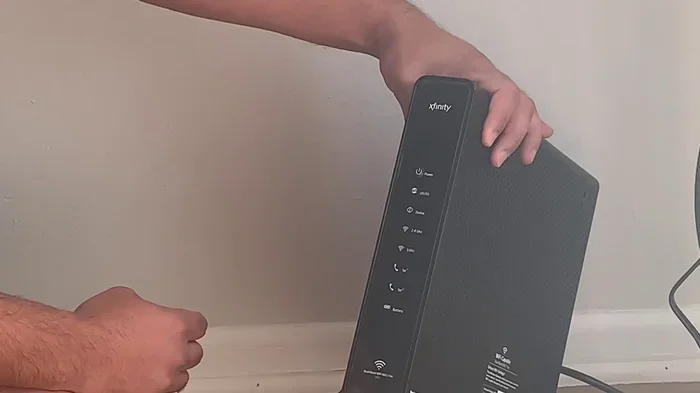
Most ISPs give you a combo device that acts as both a modem and a router. You can put that device into bridge mode. This turns off its router functions and lets Eero take over. Then Eero becomes your main router.
Some people prefer to buy their own modem separately. This gives them more control and often saves money in the long run. You connect your modem to Eero, and Eero handles everything else.
Steps to Set Up Eero Without an ISP Router
Setting up Eero without an ISP router is straightforward. Follow these steps to get started:
- Connect your modem to the Eero main unit using an Ethernet cable.
- Plug the Eero into power and wait for it to boot up.
- Download the Eero app on your phone.
- Follow the on-screen instructions to create your network.
- Add extra Eero nodes if you need more coverage.
- Connect your devices to the new Eero network.
That is it. The entire process takes about 15 minutes. You do not need any technical skills to get it done.
Does Eero Work Without a Subscription?
Eero works perfectly fine without any subscription. The basic features are all free. You get full mesh WiFi coverage, parental controls, guest networks, and device management at no extra cost.
Eero Secure is an optional add-on. It costs around $2.99 to $9.99 per month depending on the plan. It adds advanced security features like ad blocking, malware protection, and connected device insights. But you do not need it for Eero to function as a router.
Many users are happy with the free version. It handles everything most households need. You get fast WiFi, easy management, and reliable performance without paying a dime each month.
What You Get With and Without a Subscription
- Free Plan: Basic mesh WiFi, parental controls, guest network, device prioritization, and network insights.
- Eero Secure: Adds antivirus protection, ad blocking, VPN protection, and detailed threat alerts.
- Eero Secure Plus: Includes everything in Secure plus identity theft monitoring and VPN for all devices.
Will Eero Slow Down Your Internet Speed?
A common concern is whether mesh systems slow down your internet. The honest answer is that Eero can sometimes reduce speed slightly. This happens because each hop between nodes uses a small amount of bandwidth.
However, modern Eero models handle this very well. Eero 6 and newer support WiFi 6, which is fast and efficient. You will barely notice any speed loss in most homes. For gigabit internet plans, Eero still delivers excellent performance.
Tips to Maximize Eero Speed
Follow these simple tips to get the best speed out of your Eero setup:
- Place the main Eero unit close to your modem.
- Use wired backhaul if your Eero nodes support it. This means connecting nodes with Ethernet cables for the fastest possible connection.
- Keep Eero nodes in open spaces, not inside cabinets or behind walls.
- Update your Eero firmware regularly through the app.
- Avoid placing nodes near microwave ovens or cordless phones, which can cause interference.
With these steps, your Eero network will run at near-peak performance. You will get fast, reliable WiFi throughout your home.
Eero vs. Your ISP Router: Which Is Better?
Most ISP-provided routers are basic. They work, but they do not offer the best performance. They often have weak range, outdated WiFi standards, and limited features.
Eero, on the other hand, is built for modern homes. It supports the latest WiFi standards, offers easy app management, and provides whole-home coverage. Here is a side-by-side look:
| Feature | ISP Router | Eero Mesh System |
|---|---|---|
| WiFi Standard | Often older (WiFi 4 or 5) | WiFi 6 or WiFi 6E |
| Coverage | Limited range | Whole-home mesh coverage |
| Setup | Complicated admin panel | Simple Eero app |
| Management | Basic or none | App-based with real-time insights |
| Parental Controls | Usually none | Built-in free controls |
| Guest Network | Sometimes available | Always included |
| Price | Often rented monthly | One-time purchase |
As you can see, Eero wins in almost every category. The only thing an ISP router might have going for it is that it comes free with your internet plan. But renting it each month adds up over time. Buying an Eero system pays for itself.
Common Mistakes When Using Eero Without a Router
Switching to Eero is easy, but some people make avoidable mistakes. Here are a few to watch out for.
Forgetting to Put the ISP Device in Bridge Mode
If you keep your ISP combo device active, it may conflict with Eero. Both devices will try to manage the network. This causes double NAT issues, which can block certain apps and services. Always switch your ISP device to bridge mode before connecting Eero.
Placing Nodes Too Far Apart
Eero nodes need to communicate with each other. If you place them too far apart, the signal weakens. A good rule of thumb is to keep nodes within 30 to 40 feet of each other, especially if you are using wireless backhaul.
Skipping Firmware Updates
Eero updates its software regularly. These updates fix bugs, improve security, and boost performance. Always keep your Eero system updated through the app. It only takes a few minutes and keeps everything running smoothly.
Not Using Ethernet When Available
If you have Ethernet cables running through your walls, use them. Wired backhaul is always faster and more stable than wireless. Eero supports Ethernet connections on all nodes, so take advantage of this whenever possible.
Who Should Use Eero as Their Only Router?
Eero is a great choice for many households. Here are some situations where it makes the most sense:
- Large homes with dead zones: Mesh WiFi fills in the gaps and gives you coverage everywhere.
- Families with many devices: Eero handles dozens of connected devices without breaking a sweat.
- People who want simple setup: The Eero app makes installation foolproof.
- Users tired of renting from their ISP: Buying an Eero system saves money over time.
- Smart home owners: Eero works well with Alexa and other smart devices.
- Remote workers: Reliable, fast WiFi is essential for video calls and file uploads.
If any of these sound like you, Eero is a smart investment. It replaces your router and gives you a better internet experience overall.
Final Thoughts
So, can I Use Eero By Itself to Replace My Current Router? Absolutely. Eero works as a standalone mesh WiFi system. You connect it to your modem, set it up through the app, and enjoy fast, reliable internet throughout your home.
You do not need an ISP router anymore. You do not need a subscription to get started. Eero delivers excellent performance right out of the box. The setup is simple, the app is intuitive, and the coverage is impressive.
Whether you live in a small apartment or a large house, Eero has a model that fits your needs. It is one of the best mesh WiFi systems on the market today. Ditch the old ISP router and make the switch. Your home network will thank you.
Start with one Eero unit if you are unsure. Test it out for a few days. If you need more coverage, add extra nodes later. The system is flexible and grows with your needs.
Take control of your home network today. Eero makes it easy to say goodbye to slow WiFi and hello to a faster, smarter connection.
Frequently Asked Questions
Can I use Eero by itself without a modem?
No, you still need a modem to bring the internet signal into your home. Eero replaces your router, not your modem. Connect your modem to the Eero main unit, and Eero handles the rest.
Do I need to pay for a subscription to use Eero?
No, Eero works fully without a subscription. All the core features, including mesh WiFi, parental controls, and guest networks, are free. Subscriptions like Eero Secure are optional extras.
Will I lose any features by removing my ISP router?
You might lose some ISP-specific features like phone service integration or cable TV management. However, you will gain better WiFi performance, easier management, and modern features that ISP routers usually lack.
Can Eero replace a modem and router combo?
Eero can replace the router part of a combo device. You still need the modem part to receive the internet signal. Put your ISP combo device in bridge mode and let Eero handle all routing and WiFi duties.
How many Eero nodes do I need for my home?
For small homes under 1,500 square feet, one Eero unit is usually enough. Medium homes of 1,500 to 3,000 square feet benefit from two nodes. Large homes over 3,000 square feet may need three or more nodes for full coverage.
Can I keep my old router and use Eero alongside it?
Yes, you can, but it is not recommended. Running two routers on the same network can cause conflicts and slow things down. It is best to put your old router in bridge mode or replace it entirely with Eero.