Will Smart Switch Transfer Text Messages to Your Phone
Smart Switch can transfer text messages between phones, but the process depends on your device type and setup. Whether you are moving from Samsung to Samsung or switching platforms, this guide walks you through every step so you do not lose your important conversations.
Switching phones can feel like a big deal. You have all your contacts, photos, apps, and yes, your text messages. Nobody wants to lose years of conversations just because they got a new device. The question on everyone’s mind is simple: does Smart Switch actually move your text messages from one phone to another? The short answer is yes, but there are some important details you need to know before you start.
Smart Switch is Samsung’s official tool for moving data between devices. It handles contacts, photos, apps, and text message history with relative ease. But the experience is not always the same for everyone. Your results depend on the type of phones you are switching between, the method you choose, and even the version of Smart Switch you are using. This guide breaks it all down so you can switch phones with confidence and keep every important text message intact.
Key Takeaways
- Smart Switch does transfer text messages in most cases, especially between Samsung devices.
- SMS and MMS texts are generally included in a full Smart Switch backup and restore.
- Cross-platform transfers (Android to iPhone or vice versa) may have limitations with message history.
- Wi-Fi and cable methods both work, but cable tends to be faster and more reliable.
- Chat app messages like WhatsApp or iMessage may need separate backup steps.
- Always back up first before starting any transfer to avoid permanent data loss.
- Check your transfer results after completing the process to make sure all texts arrived.
📑 Table of Contents
- How Smart Switch Handles Text Messages
- What Gets Transferred and What Does Not
- Step-by-Step Guide to Transferring Text Messages with Smart Switch
- Common Problems When Transferring Text Messages
- Tips for a Smooth Smart Switch Text Transfer
- Smart Switch Text Transfer: Samsung vs Other Phones
- How to Verify Your Text Messages After Transfer
- Final Thoughts on Smart Switch and Text Message Transfer
How Smart Switch Handles Text Messages
When you use Smart Switch to move data, the tool creates a backup of your phone’s content and then restores it on the new device. Text messages fall into a specific category during this process. SMS messages (standard text texts) and MMS messages (picture and video texts) are both included in the default transfer settings. This means that in most cases, you will see your full text history on your new phone right after the transfer finishes.
But here is where it gets a little tricky. Smart Switch treats text message data differently depending on the operating systems involved. If you are moving from one Samsung phone to another, the process is smooth and straightforward. The tool copies over your SMS and MMS threads with their original timestamps and contact names. However, if you are switching between different brands or moving between Android and iPhone, some message formatting or app-specific chats might not transfer the same way.
SMS vs MMS: What Gets Transferred?
Understanding the difference between SMS and MMS helps you know what to expect. SMS messages are the plain text texts you send every day. They are lightweight and transfer easily through Smart Switch. MMS messages include pictures, videos, and group texts. These are a bit larger and sometimes behave differently during the transfer process.
In most cases, Smart Switch moves both types without any problem. But if you have very old MMS messages or media-heavy group chats, there is a small chance that some attachments might not copy over perfectly. This is not a common issue, but it is worth knowing about before you start your phone migration.
Do Chat Apps Like WhatsApp Transfer Too?
This is one of the most common questions people ask. Smart Switch does not transfer WhatsApp messages directly through its standard backup process. WhatsApp has its own built-in backup system that works separately from Smart Switch. If you want to keep your WhatsApp chat history, you need to back up WhatsApp first and then restore it on your new device after the Smart Switch transfer is complete.
The same goes for other messaging apps like Telegram, Signal, or Facebook Messenger. Each app manages its own data, and Smart Switch focuses on the native SMS and MMS messages stored in your phone’s default messaging app. So if you rely heavily on chat apps, plan extra time to back up those conversations too.
What Gets Transferred and What Does Not
Smart Switch is powerful, but it is not magic. It transfers a lot of data, but there are clear boundaries. Knowing what stays and what goes helps set the right expectations. Here is a simple breakdown of what you can expect during a typical transfer.
What Smart Switch transfers:
- SMS text messages and MMS media messages
- Contacts and call logs
- Photos, videos, and music files
- App data and downloaded apps
- Home screen layouts and settings
- Calendar events and notes
- Wi-Fi network passwords
What Smart Switch does not transfer:
- WhatsApp messages (requires separate backup)
- App-specific account logins
- Face ID or fingerprint data
- Some third-party app messages and caches
- iMessage history when moving to Android
One important thing to note is that if you are worried about privacy during transfer, you should know that Smart Switch moves your data locally. It does not upload your text messages to the cloud or share them with anyone. Your conversations stay private and secure throughout the process. If you are also curious about whether others can see your messages over shared networks, you can read about can people see your text messages if you are on their Wi-Fi to understand network privacy better.
Step-by-Step Guide to Transferring Text Messages with Smart Switch
Ready to move your texts? The process is simpler than most people think. You can use either a wireless connection or a USB cable. Both methods work well, but the cable method tends to be faster and more stable, especially when you are transferring a large amount of message history.
Method 1: Wireless Transfer Using Smart Switch
The wireless method is convenient and does not require any cables. Here is how to do it:
- Install Smart Switch on both your old phone and your new phone.
- Open the app on both devices and select the Send and Receive options.
- Choose the wireless transfer option and wait for the devices to find each other.
- On the sending device, select the content you want to transfer. Make sure the Text Messages toggle is turned on.
- Tap Start and let the transfer begin.
- Wait for the process to complete. This can take anywhere from a few minutes to over an hour depending on how much data you have.
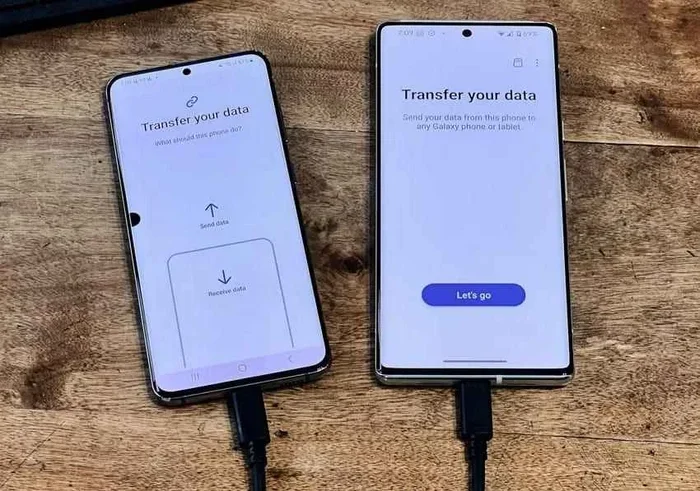
Method 2: Cable Transfer Using USB-C or OTG Adapter
The cable method is my personal recommendation for a few reasons. It is faster, more reliable, and less likely to run into connection issues. Here is the process:
- Connect both phones using a USB cable and an OTG adapter if needed.
- Open Smart Switch on both devices.
- Select Cable as the transfer method on the sending phone.
- Choose the data you want to move, including text messages.
- Tap Transfer and wait for the process to finish.
- Once done, disconnect the cable and check your messages on the new device.
One helpful tip is to make sure both phones are charged to at least 50 percent before you start. A low battery during transfer can cause problems and potentially interrupt the process. Also, keep both devices on the same Wi-Fi network if you are using the wireless method.
Common Problems When Transferring Text Messages
Even though Smart Switch is designed to be easy, things do not always go perfectly. Here are the most common issues people run into when transferring text messages and how to fix them.
Missing Texts After Transfer
This is the number one complaint. You finish the transfer and some of your messages are not there. The most common reason is that the Text Messages toggle was accidentally left off during the selection step. To fix this, simply run the transfer again and make sure you check the box for messages this time.
Another reason could be that your old phone has a damaged database. If your messaging app is acting up or crashing, some messages might not be readable by Smart Switch. In this case, try clearing the cache of your messaging app first and then attempt the transfer again.
Messages Showing Up Out of Order
Sometimes after a transfer, your text messages appear in a different order than they should. This usually happens because of timestamp mismatches between devices. It is a minor issue and does not mean your messages are lost. They are all there, just sorted slightly differently. In most cases, your messaging app will reorganize them correctly within a few hours.
Transfer Keeps Failing or Freezing
If your transfer keeps stopping, try these fixes:
- Restart both phones and try again
- Make sure you are using the latest version of Smart Switch
- Delete old Smart Switch data on both devices and reinstall the app
- Try the cable method instead of wireless
- Free up storage space on both phones before attempting the transfer
For those switching between platforms, the process can be a bit more complex. If you are moving from iPhone to Samsung or vice versa, you might want to check out this guide on can I text during my flight for more context on how messaging works across different setups and networks.
Tips for a Smooth Smart Switch Text Transfer
Getting the best results from Smart Switch is all about preparation. A few simple steps before you start can save you a lot of headaches later. Here are my top tips for making sure your text message transfer goes as smoothly as possible.
- Back up everything first. Before you start any transfer, create a full backup of your old phone. This gives you a safety net in case anything goes wrong.
- Clean up your messages. Delete any large attachments or old conversations you no longer need. This speeds up the transfer and saves storage space on your new phone.
- Update Smart Switch. Always use the latest version of the app. Older versions may have bugs that cause transfer problems.
- Stay on the same Wi-Fi network. If you are using wireless transfer, make sure both devices are connected to the same network with a strong signal.
- Do not use your phones during the transfer. Let Smart Switch do its job without interruption. Using other apps can slow things down or cause errors.
- Verify your messages afterward. Once the transfer is complete, go through your text threads to make sure everything came through. It is much easier to catch missing messages right away than to try to recover them later.
Also, keep in mind that Smart Switch is not the only option available. Some people prefer using cloud-based services or third-party tools to move their data. But Smart Switch remains one of the most reliable and user-friendly options, especially if you are moving to or from a Samsung device. If you want to learn more about how Smart Switch handles other types of data, check out this article on does the iPhone store emails for insights on how different phones manage communication data.
Smart Switch Text Transfer: Samsung vs Other Phones
The experience of transferring text messages varies depending on which phones you are moving between. Here is a closer look at how Smart Switch performs in different scenarios.
Samsung to Samsung
This is the easiest and most reliable scenario. Smart Switch was built by Samsung, so it works seamlessly between Samsung devices. Your SMS and MMS messages transfer perfectly, including attachments, timestamps, and contact names. Almost every text thread will appear exactly as it was on your old phone.
Samsung to Non-Samsung Android
Transferring from Samsung to another Android phone works well for most data types. Text messages generally transfer without issues. However, some Samsung-specific features like RCS chat messages may not carry over to phones that do not support them. The standard SMS and MMS texts will still arrive on your new device.
iPhone to Samsung
Switching from iPhone to Samsung is a bigger jump. Smart Switch has a dedicated tool for iPhone users, and it can transfer your text messages. However, iMessage conversations will arrive as standard SMS texts on your new Samsung phone. The content of the messages will be there, but the blue iMessage bubbles and read receipts will not carry over. If you want to keep your iMessage history accessible, you may need to use a separate backup method.
Samsung to iPhone
Moving from Samsung to iPhone is the most challenging scenario. Smart Switch has an iPhone version, but it has more limitations. Standard SMS and MMS messages can transfer, but the process is not as smooth as Samsung-to-Samsung transfers. Some message formatting may change, and media attachments might need to be re-downloaded. If you rely heavily on your text history, consider using additional backup tools alongside Smart Switch.
For those who also use smart speakers or other connected devices, keep in mind that your messaging setup might be affected by the switch. If you are curious about using a Mi smart speaker for calls or other connected devices after your switch, there are plenty of options to explore.
How to Verify Your Text Messages After Transfer
Once Smart Switch finishes the transfer, do not just assume everything went well. Take a few minutes to verify your messages. Here is a quick checklist:
- Open your messaging app and scroll through your recent conversations
- Check older threads to make sure they are present
- Look for any missing pictures or videos in MMS threads
- Verify that contact names are attached correctly to message threads
- Check the date and time stamps on a few messages to confirm accuracy
- Search for a specific keyword in your messages to test the search function
If you notice any missing messages, do not panic. You can try running Smart Switch again and making sure the text messages option is selected. You can also check your old phone to confirm whether the messages were ever backed up properly in the first place.
It is also worth noting that some messaging apps store data in ways that Smart Switch cannot fully access. For example, if you use a third-party messaging app like Google Messages or Telegram, those apps may have their own separate data that does not get picked up by Smart Switch. In those cases, you will need to use the app’s built-in backup feature to preserve your message history.
Final Thoughts on Smart Switch and Text Message Transfer
So, does Smart Switch transfer text messages? Yes, it absolutely does in the vast majority of cases. Whether you are moving between Samsung phones or switching platforms, Smart Switch handles your SMS and MMS messages reliably. The key is to prepare properly, use the right transfer method, and verify your results afterward.
Remember that Smart Switch focuses on native messaging data. If you use chat apps like WhatsApp or Telegram, you will need to handle those separately. But for your everyday text conversations, Smart Switch has you covered. It is one of the best tools available for moving your phone data, and with the tips in this guide, you can use it with confidence.
Switching phones does not have to be stressful. With the right knowledge and a little preparation, you can keep all your important text messages safe and sound on your new device. Take your time, follow the steps, and enjoy your new phone knowing that your conversations are right where they belong.
For additional help with your messaging setup after the switch, you might want to explore whether your new phone supports features like Samsung text over Wi-Fi or check out how to manage your messages in different network conditions. The more you know about your phone’s messaging capabilities, the smoother your overall experience will be.
Frequently Asked Questions
Does Smart Switch transfer deleted text messages?
No, Smart Switch does not transfer messages that have already been deleted from your old phone. The tool only copies data that is still present on your device. If you want to recover deleted texts, you will need to use a data recovery tool before running Smart Switch.
Can I use Smart Switch to transfer text messages from Android to iPhone?
Yes, Smart Switch has a tool for Android-to-iPhone transfers. It can move standard SMS and MMS messages, but iMessage-specific features will not carry over. Your messages will appear as regular text messages on the iPhone.
How long does it take for Smart Switch to transfer text messages?
The transfer time depends on how many messages you have and how you are transferring. A cable transfer usually takes 10 to 30 minutes for a moderate text history. Wireless transfers can take longer, especially if you have a lot of media attachments in your messages.
Will I lose my text messages if I reset my phone after Smart Switch?
No, as long as Smart Switch completed the transfer successfully, your messages are stored on your new phone. Resetting your phone after a complete transfer should not affect your text messages. However, always back up your data before performing a factory reset.
Can I transfer text messages from an old Samsung phone to a new one using Smart Switch Wireless?
Yes, the wireless method works great for Samsung-to-Samsung transfers. Your SMS and MMS messages will transfer over Wi-Fi Direct. Just make sure both phones are close to each other and connected to the same Wi-Fi network for the best results.
What should I do if some of my text messages did not transfer with Smart Switch?
First, check that the Text Messages option was selected during the transfer. If it was, try running the transfer again. You can also clear the cache on your messaging app and attempt the transfer once more. If the problem persists, use the cable method instead of wireless for a more stable connection.