Does Philips Hue Play Work With Smart TVs and More
The Philips Hue Play does work with smart TVs, offering immersive ambient lighting that syncs with your screen. You can set it up using HDMI-CEC, the Hue Sync app, or by connecting it directly to your TV’s HDMI port. This guide covers compatibility, setup, and tips to get the most out of your Philips Hue Play with any smart TV.
You just got a Philips Hue Play light bar, and you are excited to try it with your smart TV. But there is one question hanging over your head: does it actually work? You are not alone. Many people want to upgrade their TV setup with ambient lighting but are unsure about compatibility.
The good news is that the Philips Hue Play works with a wide range of smart TVs. Whether you watch movies, play games, or stream your favorite shows, this light bar can transform your viewing experience. It casts colorful light on your wall or behind your screen, making everything feel more cinematic. In this guide, we will walk you through everything you need to know. We will cover compatibility, setup, and pro tips to get the best results.
By the end of this article, you will know exactly whether the Philips Hue Play is right for your smart TV setup. You will also learn how to avoid common mistakes and get the most value out of your investment. Let us dive in.
Key Takeaways
- Philips Hue Play works with most smart TVs: It connects via HDMI and supports HDR content for vivid color matching.
- Setup is simple: You can use the Hue Sync app, HDMI-CEC, or pair it with the Hue Bridge for full control.
- It enhances gaming and streaming: The Hue Play creates an immersive backlight effect that reduces eye strain.
- You don’t always need a Hue Sync box: Some setups work directly with your TV or phone.
- Compatibility depends on your TV model: Check your TV’s HDMI ports and CEC support before buying.
- It works best in dark rooms: Ambient lighting shines brightest when the room is dimmed.
📑 Table of Contents
- What Is the Philips Hue Play?
- Does Philips Hue Play Work With Smart TVs?
- How to Set Up Philips Hue Play With Your Smart TV
- Philips Hue Play vs. Hue Sync Box: Which Is Better for TV Lighting?
- Tips for Getting the Best Experience With Philips Hue Play
- Common Issues and How to Fix Them
- Can You Use Philips Hue Play With a Projector?
- Final Thoughts
What Is the Philips Hue Play?
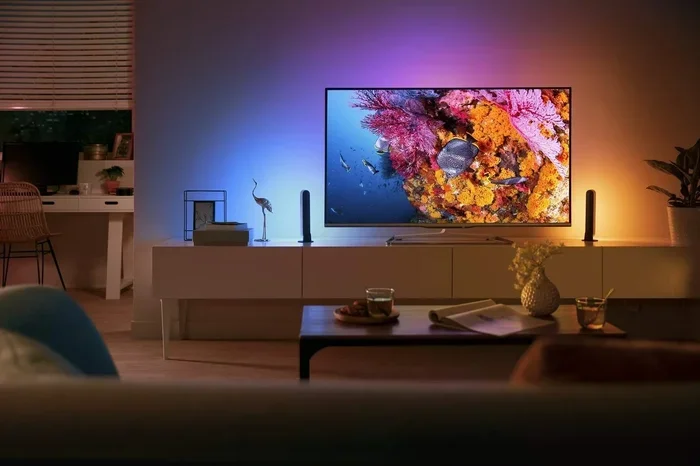
The Philips Hue Play is a light bar designed by Philips Hue to create ambient lighting around your TV or monitor. It is part of the larger Philips Hue ecosystem, which includes light strips, bulbs, and the Hue Bridge. The Hue Play is compact and easy to place. You can set it on a shelf, mount it behind your TV, or position it on a desk.
What makes the Hue Play special is its ability to sync with what is on your screen. The light changes color and brightness based on the content you are watching. This creates a surround-like effect that makes your viewing area feel much bigger. It is especially popular among gamers and movie lovers who want a more immersive experience.
The Hue Play connects to your TV or device through an HDMI cable. It also works with the Hue Sync app on your phone or computer. You can control it using the Philips Hue app, voice commands, or automation routines. It supports HDR content, which means it can display a wide range of colors with high contrast. This makes it one of the best options for entertainment lighting on the market.
Does Philips Hue Play Work With Smart TVs?
The short answer is yes. The Philips Hue Play works with most smart TVs that have an available HDMI port. It does not matter if you own a Samsung, LG, Sony, TCL, or Vizio TV. As long as your TV has HDMI input and supports HDMI-CEC (Consumer Electronics Control), the Hue Play should work. HDMI-CEC allows devices to communicate with each other through a single HDMI connection. This means your TV remote can control the Hue Play in some cases.
However, there are a few things to keep in mind. Not every smart TV handles HDMI-CEC the same way. Some brands call it by different names. Samsung calls it Anynet+, LG calls it SimpLink, and Sony calls it Bravia Sync. You should check your TV’s manual to confirm it supports this feature. Without HDMI-CEC, you may need to use the Hue Sync app or the Hue Bridge to control the lighting.
The Hue Play also works well with streaming devices like Apple TV, Roku, and Chromecast. You can plug the Hue Play into the HDMI port of your streaming device, and it will sync with whatever you are watching. This is a great option if your TV does not support HDMI-CEC or if you want more control over the sync settings.
One important thing to note is that the Philips Hue Play is not a standalone product in the traditional sense. It works best when paired with the Philips Hue Bridge. The Bridge connects to your Wi-Fi router and allows you to control your lights from anywhere. You can also set up automations, scenes, and schedules. If you already have other Hue lights in your home, adding the Hue Play fits right into your existing setup. If you want to learn more about syncing Hue lights to your TV without a sync box, check out our guide on how to sync Hue lights to your TV without a sync box.
Which Smart TVs Work Best With Philips Hue Play?
Most modern smart TVs will work with the Hue Play. Here is a quick look at some popular brands and models:
- Samsung Smart TVs: Works well with HDMI-CEC (Anynet+). Most models from 2018 and newer support this.
- LG Smart TVs: Excellent compatibility thanks to SimpLink. LG OLED and NanoCell models are especially good.
- Sony Bravia: Bravia Sync makes setup easy. Many Sony TVs also support HDR passthrough, which enhances the Hue Play experience.
- TCL and Hisense: Budget-friendly options that still offer HDMI-CEC support. They work great with the Hue Play for basic sync.
- Vizio Smart TVs: Compatible through HDMI-CEC (called CEC on Vizio models). Setup is straightforward.
If you are using a streaming stick or box, the Hue Play will work with those too. You just need to connect the Hue Play between the streaming device and your TV. This ensures the light syncs with whatever content is being displayed.
How to Set Up Philips Hue Play With Your Smart TV
Setting up the Philips Hue Play with your smart TV is easier than you might think. Here is a step-by-step guide to get you started.
- Unbox the Hue Play light bar. You will find the light bar, an HDMI cable, and a power adapter in the box.
- Connect the Hue Play to your TV. Plug one end of the HDMI cable into the Hue Play and the other end into an HDMI port on your TV. Make sure you use an HDMI port that supports HDMI-CEC.
- Plug in the power adapter. Connect the Hue Play to a power outlet using the included USB cable and power adapter.
- Open the Philips Hue app. If you have the Hue Bridge, the app should detect the Hue Play automatically. Follow the on-screen instructions to complete the setup.
- Enable HDMI-CEC on your TV. Go to your TV settings and turn on HDMI-CEC. The exact name depends on your TV brand.
- Test the sync. Play a movie or game and watch the Hue Play light up. The colors should match what is on your screen.
If you do not have the Hue Bridge, you can still use the Hue Play with the Hue Sync app on your phone or computer. The app lets you manually adjust the lighting and choose sync modes. You can also mirror your phone to a smart TV without Wi-Fi to control the lighting from a secondary device while your main device handles the content.
Setting Up With the Hue Bridge vs. Without
Using the Hue Bridge gives you the full experience. The Bridge handles all the communication between your TV and the Hue Play. It also allows you to create custom scenes and automations. For example, you can set the Hue Play to turn on automatically when your TV powers on. You can also schedule it to dim at bedtime.
Without the Bridge, you can still use the Hue Play. The Hue Sync app on your phone or PC will handle the sync. The downside is that you need to keep your phone or computer nearby and running. The Bridge setup is more seamless and hands-free, which is why most users prefer it.
Philips Hue Play vs. Hue Sync Box: Which Is Better for TV Lighting?
When people talk about adding ambient lighting to their TV setup, two products often come up: the Philips Hue Play and the Hue Sync Box. Both are designed to sync light with your screen, but they work differently. Let us compare them.
| Feature | Philips Hue Play | Hue Sync Box |
|---|---|---|
| Connection | HDMI cable directly to TV or device | HDMI passthrough box placed between source and TV |
| Number of Lights Supported | Up to 10 Hue lights | Up to 10 Hue lights |
| HDR Support | Yes | Yes |
| Setup Complexity | Simple, plug and play | Moderate, requires box placement |
| Price | More affordable | More expensive |
| Best For | Single light bar or a few lights | Full-room lighting setups |
| PC Compatibility | Yes, via HDMI or USB | Yes, via HDMI |
| Streaming Device Support | Yes | Yes |
The Philips Hue Play is a great choice if you want a simple setup. It is perfect for a single light bar behind your TV. The Hue Sync Box is better if you want to connect multiple Hue lights throughout your room and have them all sync together. The Box acts as a central hub for your entertainment lighting. It analyzes the video signal and sends color data to all connected lights.
For most people, the Hue Play alone is enough. It provides excellent color matching and is easy to set up. If you want to learn more about how the Hue Sync Box works with streaming services like Netflix, check out our article on does the Hue Sync Box work with Netflix.
Tips for Getting the Best Experience With Philips Hue Play
To get the most out of your Philips Hue Play, follow these practical tips:
- Place the light bar behind your TV, not on top of it. The best effect happens when the light is hidden from view and casts onto the wall behind the screen.
- Use a dark room. Ambient lighting works best when the room is dim. Bright rooms can wash out the effect.
- Adjust the brightness in the Hue app. You can set the light intensity to match your preference. Lower brightness works well for movies, while higher brightness is better for gaming.
- Use the Hue Sync app for fine-tuning. The app lets you adjust color saturation, brightness offset, and transition speed. Play around with these settings to find what looks best.
- Keep your firmware updated. Philips regularly releases updates that improve color accuracy and sync performance. Check the Hue app for updates.
- Use a high-quality HDMI cable. A good cable ensures a stable connection and better color transmission. Cheap cables can cause flickering or sync issues.
Quick Tips for Gamers
If you are using the Philips Hue Play for gaming, there are a few extra things to keep in mind. First, make sure your TV or monitor has a low input lag. The Hue Play itself does not add any lag, but a slow TV can make your games feel unresponsive. Second, use the game mode on your TV to get the best picture quality. Third, consider using the Hue Play with a gaming setup that includes a PC or console. The light bar responds well to fast-moving visuals in games, making the experience much more immersive.
Quick Tips for Movie Watchers
For movie nights, dim the room lights and set the Hue Play to a warm color profile. This mimics the feel of a real cinema. You can also use the Hue app to create a custom scene called “Movie Night” that automatically adjusts the lighting when you start watching. The Hue Play works especially well with dark scenes in movies, where the ambient light can enhance shadows and highlights on the screen.
Common Issues and How to Fix Them
Like any tech product, the Philips Hue Play can sometimes have issues. Here are the most common problems and how to solve them.
The Hue Play is not syncing with the TV. This is usually caused by HDMI-CEC being turned off. Go to your TV settings and enable CEC. Also, make sure you are using the correct HDMI port. Some ports do not support CEC on certain TV models.
The colors do not match the screen. This can happen if the Hue Sync app is not set up correctly. Open the app and adjust the color profile settings. Also, make sure your TV is not applying any color filters or picture modes that alter the output.
The light flickers or strobes. This is often caused by a loose HDMI connection. Try unplugging and replugging the cable. If the problem persists, replace the HDMI cable with a higher-quality one.
The Hue Play does not show up in the app. Make sure the power adapter is connected and the Hue Play is turned on. If you are using the Bridge, try removing and re-adding the device in the app. You can also connect your phone to TV with an HDMI cable to troubleshoot display issues that might affect the sync.
The lighting is too dim or too bright. Use the brightness slider in the Hue app to adjust. You can also set different brightness levels for different times of day using automations.
Can You Use Philips Hue Play With a Projector?
Yes, the Philips Hue Play works with projectors too. If you use a projector for movies or gaming, you can place the Hue Play behind the screen or on a shelf nearby. The setup is the same as with a TV. Just connect the Hue Play to the projector using an HDMI cable and sync it through the Hue app. If you want to learn more about using projectors as a TV, check out our guide on can you use a projector as a TV.
This makes the Hue Play a versatile option for anyone who wants ambient lighting in their entertainment area. Whether you watch on a 55-inch smart TV or a 120-inch projector screen, the Hue Play delivers a similar immersive effect.
Final Thoughts
The Philips Hue Play is a fantastic addition to any smart TV setup. It is easy to use, looks great, and genuinely enhances your viewing experience. Whether you watch movies, play games, or just want a cooler-looking living room, the Hue Play delivers. It works with most smart TVs, streams devices, and even projectors. The setup is straightforward, and the results are impressive.
One of the best things about the Hue Play is its flexibility. You can use it on its own or as part of a larger Philips Hue ecosystem. It pairs well with other Hue lights, bulbs, and accessories. If you are already invested in the Philips Hue ecosystem, adding the Hue Play is a natural next step.
Just remember to check your TV’s HDMI-CEC support before buying. And if you want the most seamless experience, consider getting the Hue Bridge. It takes the setup to the next level with automations and voice control.
Overall, the Philips Hue Play is a solid product that lives up to the hype. It brings cinema-quality ambient lighting to your home at an affordable price. If you have been on the fence about getting one, now is a great time to take the plunge. Your TV watching will never feel the same again.
Frequently Asked Questions
Can I use Philips Hue Play without the Hue Bridge?
Yes, you can use the Hue Play without the Bridge by using the Hue Sync app on your phone or computer. However, the Bridge gives you more features like automations, voice control, and remote access. Without the Bridge, you need to keep your phone or PC nearby and running the app for sync to work.
Does Philips Hue Play support HDR?
Yes, the Philips Hue Play supports HDR content. It can display a wide range of colors and high contrast levels, which makes the lighting effects more vibrant and accurate. This is especially noticeable when watching HDR movies or playing HDR games on compatible devices.
Can I connect the Hue Play to any HDMI port on my TV?
You should connect the Hue Play to an HDMI port that supports HDMI-CEC. Most modern TVs have at least one or two ports that support this feature. Check your TV manual to confirm which ports support CEC. Using the wrong port may prevent the sync from working properly.
Is the Philips Hue Play compatible with all streaming devices?
The Hue Play works with most streaming devices including Apple TV, Roku, Amazon Fire Stick, and Chromecast. You just need to connect the Hue Play between the streaming device and your TV using an HDMI cable. This ensures the light syncs with whatever content is being played on the device.
Can I use multiple Philips Hue Play light bars together?
Yes, you can use multiple Hue Play light bars together. They can all be controlled through the same Hue app or Bridge. This is great for creating a surround lighting effect around your TV or monitor. Just make sure your Bridge or app supports the number of lights you want to connect.
Does the Hue Play work with gaming consoles like PlayStation and Xbox?
Yes, the Philips Hue Play works with gaming consoles including PlayStation 5 and Xbox Series X. You connect the Hue Play between the console and your TV using an HDMI cable. The light syncs with the game visuals, creating an immersive gaming atmosphere. For more information on using Hue accessories with consoles, you can also explore how AirPods work with PS5 for a complete gaming setup.
=== CONCLUSION ===
The Philips Hue Play is a versatile and user-friendly light bar that works with most smart TVs on the market. Whether you are a casual viewer, a movie buff, or a hardcore gamer, it adds a new dimension to your entertainment setup. The ambient lighting it creates is stunning and genuinely makes a difference in how you experience content on your screen.
Setup is simple, compatibility is broad, and the results are impressive. With the right placement and a few adjustments in the Hue app, you can turn your living room into a mini home theater. The Hue Play is a worthwhile investment for anyone looking to upgrade their smart TV experience without spending a fortune.
Give it a try, and you will wonder how you ever watched TV without it. Philips Hue Play is more than just a light bar. It is a gateway to a more immersive and enjoyable way to enjoy your favorite content.