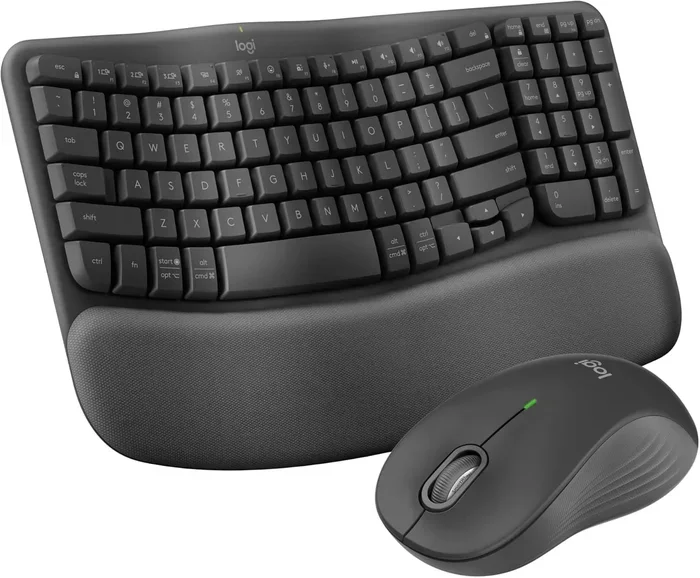
Do Logitech Keyboards Work With Bluetooth Wireless
Yes, many Logitech keyboards work with Bluetooth wireless technology, letting you connect to computers, tablets, and phones without any cables. Popular models like the Logitech K380 and K480 are built specifically for Bluetooth connectivity, and they support multi-device pairing so you can switch between devices easily. In this guide, we walk you through everything you need to know about Logitech Bluetooth keyboard setup, compatibility, and troubleshooting.
If you have been wondering whether Logitech keyboards work with Bluetooth, the short answer is yes. Logitech has been a leader in wireless peripherals for years, and their Bluetooth keyboard lineup is one of the best in the market. Whether you want a compact keyboard for travel or a full-sized model for your home office, there is likely a Logitech Bluetooth option that fits your needs.
In this article, we will cover everything you need to know about Logitech Bluetooth keyboard compatibility, setup, and performance. We will also look at specific models, compare Bluetooth with USB receiver connections, and help you troubleshoot common issues. By the end, you will have a clear picture of what to expect from a wireless Logitech keyboard.
Logitech makes keyboards for every kind of user. Students, professionals, gamers, and casual users all find something useful in their product range. The fact that many of these keyboards now feature Bluetooth wireless connectivity makes them even more versatile. You can connect to your laptop, tablet, or phone without needing a single cable on your desk.
Key Takeaways
- Wide Compatibility: Most modern Logitech keyboards support Bluetooth wireless connections with laptops, tablets, and smartphones.
- Easy Pairing Process: Connecting a Logitech Bluetooth keyboard is simple and usually takes less than two minutes.
- Multi-Device Support: Models like the K380 and K480 let you pair with up to three devices and switch between them instantly.
- No Driver Hassles: Most Bluetooth keyboards work plug-and-play with major operating systems like Windows, macOS, Android, and iOS.
- USB Receiver Option Available: Some Logitech keyboards also include a USB dongle for users who prefer a wired or dedicated wireless connection.
- Common Issues Are Fixable: Most Bluetooth connection problems can be solved with simple steps like resetting the keyboard or checking battery levels.
📑 Table of Contents
- Do Logitech Keyboards Work With Bluetooth?
- How to Pair Your Logitech Keyboard With Bluetooth
- Which Logitech Keyboards Support Bluetooth?
- Bluetooth vs. USB Receiver: Which Connection Is Better?
- Common Bluetooth Keyboard Problems and How to Fix Them
- Tips for Getting the Best Experience With Your Bluetooth Keyboard
- Final Thoughts
Do Logitech Keyboards Work With Bluetooth?
The short answer is yes. Most Logitech keyboards designed in the last several years include Bluetooth capability. However, not every single Logitech keyboard uses Bluetooth. Some models rely solely on a USB receiver, and others use both Bluetooth and a USB dongle for flexible connectivity.
When you shop for a Logitech wireless keyboard, it is important to check the product specifications. Look for “Bluetooth” or “wireless Bluetooth” in the product title or description. If it is not listed there, the keyboard likely uses only a USB receiver. This distinction matters because it affects which devices you can connect to and how you set things up.
One of the most popular Bluetooth keyboards from Logitech is the K380. It is a compact, portable keyboard that works with almost any device that supports Bluetooth. The K380 has become a go-to choice for people who work across multiple devices. Another strong option is the K480, which adds a built-in tablet stand and a cradle for your phone or tablet.
If you are coming from a wired keyboard experience, the switch to a wireless Bluetooth keyboard is smoother than you might think. The connection is stable, the typing feel is familiar, and you do not need to install special software in most cases. Just turn on Bluetooth on your device, put the keyboard in pairing mode, and you are good to go.
Why Bluetooth Matters for Keyboards
Bluetooth technology has improved a lot over the years. Earlier versions of Bluetooth had range and lag issues, but modern Bluetooth 5.0 and newer standards offer fast, stable connections. This means your wireless keyboard responds just as quickly as a wired one. You will not notice any delay when typing, clicking, or navigating on screen.
Bluetooth also gives you freedom of movement. You are not tied to your desk by a cable. You can sit on your couch, move to the kitchen table, or work from the porch. As long as your device is within range, your keyboard stays connected. For people who like flexibility in their workspace, Bluetooth connectivity is a game changer.
How to Pair Your Logitech Keyboard With Bluetooth
Setting up a Logitech Bluetooth keyboard is straightforward. The process is similar across most models, but small differences exist depending on the specific keyboard you own. Here is a general walkthrough that covers the most common setup steps.
First, make sure your keyboard has fresh batteries or is fully charged. Low battery can cause pairing issues, so always start with a full charge. Next, turn on Bluetooth on the device you want to connect. On a computer, go to Settings, then Bluetooth, and make sure it is turned on. On a phone or tablet, the process is similar.
Now, put your keyboard into pairing mode. Most Logitech keyboards have a dedicated Bluetooth button or a switch on the back or bottom. Press and hold this button until the Bluetooth indicator light starts flashing. This tells the keyboard is ready to be discovered by other devices.
On your computer or phone, search for available Bluetooth devices. Your Logitech keyboard should appear in the list. Select it, and if prompted, enter the pairing code shown on screen. Once paired, the light on the keyboard will stop flashing and stay solid. You are now connected and ready to type.
Quick Pairing Tips
- Keep devices close: Place your keyboard within a few feet of the device during pairing for the best results.
- Restart Bluetooth: If your device does not find the keyboard, turn Bluetooth off and on again.
- Check for interference: Other wireless devices nearby can sometimes cause pairing problems. Move away from routers or other electronics.
- Update your OS: Make sure your device has the latest software updates, as older software can sometimes cause compatibility issues.
If you have ever converted wired headphones to Bluetooth, you already understand the basic idea of wireless pairing. The process for keyboards is very similar. The keyboard acts as a Bluetooth device that your computer or phone can recognize and connect to.
Which Logitech Keyboards Support Bluetooth?
Logitech offers a wide range of keyboards, and not all of them use Bluetooth. Here are some of the most popular Bluetooth-enabled models that you should consider.
| Model | Bluetooth | Multi-Device | Best For |
|---|---|---|---|
| Logitech K380 | Yes | Up to 3 devices | Portability and versatility |
| Logitech K480 | Yes | Up to 3 devices | Tablet and phone use with stand |
| Logitech K360 | Yes | 1 device | Compact home use |
| Logitech K400 Plus | No (USB) | N/A | Media center and couch computing |
| Logitech MX Keys | Yes | Up to 3 devices | Professional and productivity |
| Logitech K780 | Yes | Up to 2 devices | Large device compatibility |
As you can see, the best Bluetooth keyboards from Logitech tend to support multi-device pairing. This is a huge advantage if you work across a laptop, a tablet, and a phone. You can switch between devices with the press of a button, and you only need one keyboard for everything.
The Logitech K380 remains the most popular choice for Bluetooth keyboard users. It is lightweight, compact, and works with virtually every device. The Logitech MX Keys is a step up in terms of build quality and typing experience. It is designed for professionals who spend long hours at the keyboard.
If you are looking for a keyboard that can also serve as a media remote or work well with gaming setups, you might want to explore models that offer dual connectivity. Some Logitech keyboards support both Bluetooth and a USB receiver, giving you the flexibility to switch between wireless and wired modes. This is especially useful if you experience any Bluetooth interference in your environment.
Bluetooth vs. USB Receiver: Which Connection Is Better?
When you buy a wireless keyboard, you usually have two connectivity options: Bluetooth or a USB receiver (sometimes called a dongle). Both have their pros and cons, and the right choice depends on how you plan to use the keyboard.
Bluetooth Connection
Bluetooth is the most convenient option for most users. It works with any device that has Bluetooth support, which includes most modern laptops, tablets, and smartphones. You do not need to carry a separate USB receiver, which makes the keyboard more portable. If you travel frequently, a Bluetooth keyboard is the way to go.
The downside of Bluetooth is that it can sometimes experience interference from other wireless devices. In crowded environments like offices or apartments with many Wi-Fi networks, you might notice slight lag or occasional disconnections. These issues are rare but can be annoying when they happen.
USB Receiver Connection
A USB receiver provides a dedicated, point-to-point connection between the keyboard and the device. This means less interference and a more stable connection. The USB receiver also tends to have lower latency, which is important for fast typists or anyone who uses keyboard shortcuts extensively.
The trade-off is that you need to plug the receiver into a USB port. This limits portability, and you cannot use the keyboard with devices that do not have USB ports, like many tablets and phones. If you primarily use a desktop computer or a laptop with available USB ports, a USB receiver connection works great.
Which Should You Choose?
If you use multiple devices and want flexibility, go with Bluetooth. If you need the most stable and responsive connection for a single device, a USB receiver is the better choice. Some Logitech keyboards offer both options, giving you the best of both worlds.
Think about it this way. If you have ever used a Bluetooth speaker without needing a separate connection, you already understand the convenience of Bluetooth. The same freedom applies to keyboards. You just pair and go, and your keyboard is ready whenever you need it.
Common Bluetooth Keyboard Problems and How to Fix Them
Even the best wireless keyboard can run into connection issues from time to time. Most problems are easy to fix, and you do not need to be a tech expert. Here are the most common issues and their solutions.
Keyboard Not Found During Pairing
If your device cannot find the keyboard, first make sure the keyboard is in pairing mode. The Bluetooth light should be flashing. If it is not, press and hold the Bluetooth button again. Also, check that Bluetooth is turned on on your device and that the device is not already connected to another keyboard.
Sometimes, simply restarting the Bluetooth function on your device solves the problem. Turn Bluetooth off, wait a few seconds, and turn it back on. Then try searching for the keyboard again. This simple step fixes the issue more often than you might expect.
Intermittent Connection Drops
If your keyboard keeps disconnecting, the battery is the first thing to check. Low battery power can cause weak signals and frequent dropouts. Replace the batteries or recharge the keyboard and see if the problem goes away.
Other causes include distance and interference. Bluetooth has a range of about 30 feet, but walls and other obstacles can reduce this. Move closer to your device and away from other wireless electronics. If you live in an area with many Wi-Fi networks, changing your Wi-Fi channel can also help reduce interference.
Typing Lag or Delay
A slight delay between pressing a key and seeing the character on screen can be frustrating. This is usually caused by Bluetooth interference or a weak connection. Try moving closer to your device or disconnecting other Bluetooth devices temporarily to see if that helps.
If you are using a keyboard that supports both Bluetooth and USB receiver, try switching to the USB receiver for a more stable connection. The USB receiver typically provides a faster and more reliable link, especially in environments with many wireless signals.
Keyboard Not Responding After Reconnecting
If your keyboard was working fine and suddenly stops responding, try turning it off and back on again. This resets the Bluetooth connection in most cases. If that does not work, remove the keyboard from your device’s Bluetooth memory and pair it again from scratch.
For Logitech keyboards that support multi-device pairing, make sure you have selected the correct device channel. Press the channel button to cycle through the paired devices and make sure you are on the right one. Sometimes the keyboard is connected to a different device and not the one you are currently using.
These troubleshooting steps cover the vast majority of Bluetooth keyboard issues. If none of them work, it could be a hardware problem, and you should contact Logitech support for further help.
Tips for Getting the Best Experience With Your Bluetooth Keyboard
To make the most of your Logitech Bluetooth keyboard, follow these simple tips that experienced users swear by.
- Keep the firmware updated: Logitech occasionally releases firmware updates that improve Bluetooth performance and fix bugs. Check the Logitech Options or Logitech Flow software for updates.
- Use a hard surface: Bluetooth signals work best when there are no obstructions between the keyboard and the device. A desk or table is ideal.
- Manage your paired devices: Most Bluetooth keyboards can remember multiple devices. Keep only the devices you actively use paired to avoid confusion.
- Charge regularly: If your keyboard has a rechargeable battery, do not let it run completely empty. Charge it before the battery gets too low to avoid losing your paired device settings.
- Store properly when traveling: If you carry your keyboard in a bag, turn it off to save battery and prevent accidental key presses.
These tips will help you maintain a strong, reliable wireless connection and extend the life of your keyboard. A little care goes a long way when it comes to wireless peripherals.
If you are someone who likes to stay connected across devices, you might also enjoy learning about how different Bluetooth devices work together. For instance, many people ask whether certain Bluetooth accessories work with specific platforms. Understanding how Bluetooth works across devices helps you make smarter buying decisions and get more out of your tech setup.
Final Thoughts
Do Logitech keyboards work with Bluetooth wireless? Absolutely. Logitech has built a strong lineup of Bluetooth keyboards that cater to every type of user. From the compact and portable K380 to the premium MX Keys, there is a Logitech Bluetooth keyboard for everyone. The setup process is simple, the connections are reliable, and the multi-device support is a standout feature.
Whether you are working from home, studying at a coffee shop, or just looking to declutter your desk, a wireless Logitech keyboard gives you the freedom and flexibility you need. Bluetooth technology has made it easier than ever to connect your peripherals without cables, and Logitech continues to lead the way in wireless innovation.
If you are ready to make the switch, pick a model that fits your needs, follow the pairing steps in this guide, and enjoy the convenience of a wireless Bluetooth keyboard. Once you experience the freedom of going cable-free, you will not want to go back.
Frequently Asked Questions
Can I connect a Logitech Bluetooth keyboard to a phone?
Yes, most Logitech Bluetooth keyboards can connect to smartphones running Android or iOS. The pairing process is the same as with a tablet or computer. Just turn on Bluetooth on your phone, put the keyboard in pairing mode, and select the keyboard from the list of available devices.
How many devices can a Logitech Bluetooth keyboard connect to?
It depends on the model. The Logitech K380 and K480 support up to three devices and let you switch between them with the press of a button. Other models may only support one device at a time. Check the product specifications before purchasing if multi-device support is important to you.
Do I need to install drivers for a Logitech Bluetooth keyboard?
In most cases, no. Logitech Bluetooth keyboards work plug-and-play with major operating systems including Windows, macOS, Chrome OS, Android, and iOS. However, if you want to access advanced features like custom key shortcuts or multi-device management, you can download the Logitech Options or Logitech Flow software.
What is the Bluetooth range for Logitech keyboards?
The typical Bluetooth range for Logitech keyboards is about 30 feet (10 meters). This can vary depending on the model and your environment. Walls, other wireless devices, and interference can reduce the effective range. For best results, keep your keyboard within a reasonable distance of the connected device.
Can I use a Logitech Bluetooth keyboard with a smart TV or streaming device?
Yes, if the device supports Bluetooth input, you can pair a Logitech Bluetooth keyboard with it. This is especially useful for smart TVs, streaming boxes, and Android TV devices. It makes navigating menus and typing search queries much easier than using a remote control.
What should I do if my Logitech Bluetooth keyboard keeps disconnecting?
First, check the battery level and recharge or replace the batteries. Next, make sure you are within the Bluetooth range and that there is no interference from other wireless devices. You can also try removing the keyboard from your device’s Bluetooth list and pairing it again. If the problem persists, check for firmware or software updates for both the keyboard and your device.