Do Bluetooth Adapters Work On Pc Heres Everything You Need
Do Bluetooth adapters work on PC? Absolutely. A Bluetooth adapter lets any computer connect wirelessly to headphones, speakers, keyboards, and more. This guide covers setup, types, troubleshooting, and the best adapters to buy.
Do Bluetooth adapters work on PC? The short answer is a resounding yes. If your computer lacks built-in Bluetooth, a small adapter can add wireless connectivity in minutes. You can connect headphones, speakers, keyboards, mice, and even game controllers without a single cable.
Bluetooth adapters are affordable, easy to use, and incredibly convenient. Whether you are working from home, gaming, or just streaming music, a Bluetooth adapter opens up a world of wireless possibilities. This guide covers everything you need to know about using Bluetooth adapters on your PC.
We will walk you through how they work, the different types available, setup steps, common problems, and the best options on the market. By the end, you will know exactly which adapter fits your needs and how to get it running smoothly.
Key Takeaways
- Bluetooth adapters work on virtually all PCs: Whether you have a desktop or laptop, a USB dongle or built-in module can add wireless capability.
- Setup is simple and fast: Most adapters plug and play, but updating drivers ensures the best performance.
- Bluetooth 5.0 offers the best range and speed: Newer versions deliver longer range and fewer dropouts.
- Common issues are easy to fix: Driver updates, repositioning, and firmware upgrades solve most problems.
- Choose the right adapter for your needs: Gaming, audio streaming, and general use each have different requirements.
- Compatibility matters: Check your PC’s operating system and Bluetooth version before buying.
📑 Table of Contents
- What Is a Bluetooth Adapter and How Does It Work?
- Types of Bluetooth Adapters for PC
- How to Set Up a Bluetooth Adapter on Your PC
- Common Bluetooth Adapter Problems and How to Fix Them
- Best Bluetooth Adapters for PC in 2024
- Benefits of Using a Bluetooth Adapter on PC
- Frequently Asked Questions
- Final Thoughts
What Is a Bluetooth Adapter and How Does It Work?
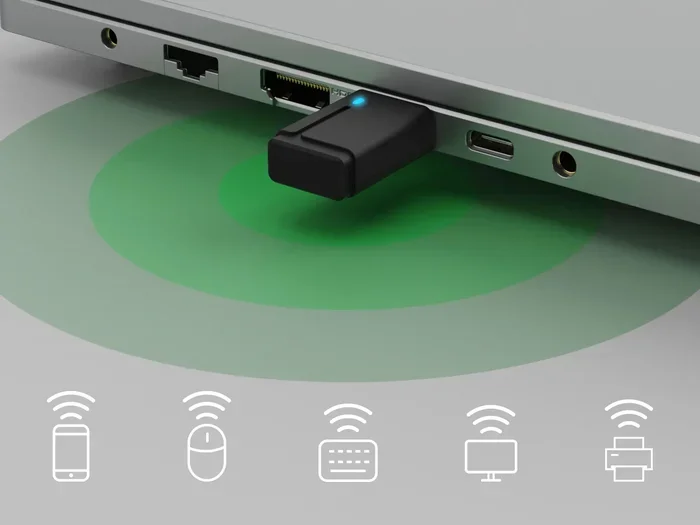
A Bluetooth adapter is a small device that adds wireless communication to your PC. It acts as a bridge between your computer and other Bluetooth-enabled devices. Think of it as a tiny radio that sends and receives signals over short distances.
Most Bluetooth adapters are USB dongles. You plug them into an available USB port, and your PC recognizes them instantly. Some adapters come as internal cards that you install inside a desktop tower. Both types serve the same purpose, but USB dongles are far more popular because of their simplicity.
Bluetooth uses short-range radio waves to transmit data. The adapter sends signals to paired devices and receives signals back. This two-way communication happens in milliseconds, making wireless connections feel instant and seamless.
How Bluetooth Versions Differ
Not all Bluetooth adapters are the same. The version number matters a lot. Bluetooth 4.0 is older and slower. Bluetooth 5.0 offers double the speed and four times the range. Bluetooth 5.3 is the newest standard and includes improvements for stability and power efficiency.
Here is a quick look at the differences:
- Bluetooth 4.0: Basic connectivity, shorter range, and slower transfer speeds. Fine for simple tasks like keyboard and mouse use.
- Bluetooth 5.0: Better range, faster speeds, and improved stability. Great for audio streaming and gaming.
- Bluetooth 5.3: The latest standard with the best performance and lowest power consumption.
If you want to stream music or use wireless headphones, go for Bluetooth 5.0 or newer. Older versions can still work, but you may experience more dropouts and shorter range.
Types of Bluetooth Adapters for PC
Not every Bluetooth adapter looks the same. Different types serve different purposes. Let us break down the main options so you can pick the right one.
USB Bluetooth Dongles
USB dongles are the most popular type. They are small, portable, and easy to use. You simply plug them into a USB port, and your PC detects them within seconds. Most dongles cost between $5 and $25, making them a budget-friendly option.
USB dongles work well for everyday tasks. They handle wireless keyboards, mice, headphones, and speakers with ease. If you need a quick and simple solution, a USB dongle is the way to go.
Internal Bluetooth Cards
Internal Bluetooth cards install inside your desktop PC. They connect to the motherboard through a PCIe slot or USB header. These cards offer better performance than dongles because they have stronger antennas and more stable connections.
Internal cards are ideal for desktop users who want a clean setup without dangling dongles. They are also better for heavy use, such as gaming or professional audio work.
Bluetooth Transmitter and Receiver Combos
Some adapters act as both transmitters and receivers. A transmitter sends audio from your PC to wireless speakers or headphones. A receiver picks up Bluetooth signals and sends them to your PC. Combo devices give you flexibility for different use cases.
These are especially useful if you want to upgrade older speakers or headphones with Bluetooth capability. They work as a bridge between your wired devices and wireless technology.
How to Set Up a Bluetooth Adapter on Your PC
Setting up a Bluetooth adapter is straightforward. Most adapters work on Windows 10 and Windows 11 right out of the box. Here is a step-by-step guide to get you started.
Step 1: Plug in the Adapter
Insert the Bluetooth adapter into a USB port. Wait a few seconds for Windows to detect it. You should see a notification that says the device is ready to use. If nothing happens, try a different USB port.
Step 2: Install Drivers (If Needed)
Most adapters install drivers automatically. However, some require manual driver installation. Visit the manufacturer’s website and download the latest driver for your model. Installing the correct driver prevents connection issues and improves performance.
For the best results, always update your Bluetooth drivers after setup. Updated drivers fix bugs, improve stability, and sometimes add new features. You can check for driver updates through Device Manager on Windows.
Step 3: Pair Your Devices
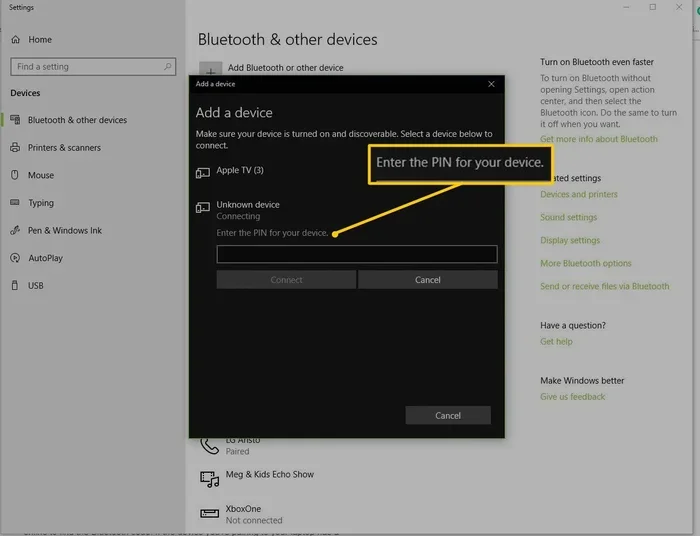
Go to Settings, then Bluetooth and Devices. Turn on Bluetooth and click Add Device. Put your wireless device into pairing mode. Your PC should detect it within seconds. Click on the device name to complete the pairing process.
If you are connecting wireless headphones or a game controller, the pairing process is the same. Just make sure the device is in pairing mode before searching on your PC.
Quick Tips for a Smooth Setup
- Keep the adapter close to your PC during setup.
- Turn off other Bluetooth devices temporarily to avoid interference.
- Restart your PC if the adapter is not detected.
- Check that your operating system is up to date.
Common Bluetooth Adapter Problems and How to Fix Them
Bluetooth adapters work well most of the time, but issues can happen. Here are the most common problems and simple fixes.
Adapter Not Detected by PC
If your PC does not recognize the adapter, try a different USB port. USB hubs can sometimes cause detection problems. Plug the adapter directly into a port on the back of your PC for the best results.
You should also check Device Manager. If you see a yellow warning icon, the driver needs updating. Right-click the device and select Update Driver. This often solves detection issues instantly.
Poor Connection or Frequent Dropouts
Weak connections are usually caused by distance or interference. Bluetooth has a typical range of about 30 feet. Walls, furniture, and other electronic devices can weaken the signal.
Move closer to the adapter and remove obstacles between your PC and the connected device. If you are using wireless headphones, stay within the recommended range for the best experience.
Audio Lag or Latency
Audio lag happens when there is a delay between the audio source and what you hear. This is common with Bluetooth audio, especially on older adapters. Upgrading to a Bluetooth 5.0 adapter can significantly reduce latency.
If you experience lag while gaming, consider using a wired connection for critical audio cues. For casual listening and video watching, Bluetooth audio works perfectly fine.
Pairing Failures
Sometimes devices refuse to pair. This usually happens when the pairing mode is not activated correctly. Make sure the device you are trying to connect is in pairing mode. Remove old pairings and try again.
Restarting both your PC and the device you want to connect can also resolve pairing failures. A fresh start clears temporary glitches that block the connection.
Best Bluetooth Adapters for PC in 2024
Not all Bluetooth adapters are created equal. Some offer better range, faster speeds, or lower latency. Here are some top picks for different needs.
For basic use, a simple USB Bluetooth 5.0 dongle works great. Brands like TP-Link and ASUS offer reliable options under $20. These adapters handle everyday tasks like wireless keyboards, mice, and audio streaming without any issues.
For gaming, look for adapters with low-latency technology. If you have been wondering whether you can use wireless headphones while gaming, the answer is yes, and a good Bluetooth adapter makes it even better. Many gamers connect their wireless headsets to PC using a USB dongle for the lowest possible delay.
For audiophiles who want the best sound quality, consider adapters that support aptX or LDAC codecs. These codecs deliver higher-quality audio over Bluetooth. They make a noticeable difference when listening to music or watching movies.
Also, if you have older wired headphones or speakers, you can make them Bluetooth-compatible with a transmitter adapter. This is a popular and affordable upgrade that breathes new life into old audio gear.
For users who want to connect wireless controllers to their PC, Bluetooth adapters work great for this too. You can pair Xbox or PlayStation controllers wirelessly and enjoy gaming without being tethered to your desk.
Benefits of Using a Bluetooth Adapter on PC
Bluetooth adapters bring several advantages to your PC setup. Here is why they are worth considering.
- Wireless freedom: Move around your desk or room without cable restrictions.
- Easy connectivity: Connect multiple devices like headphones, speakers, and peripherals at once.
- No extra software: Most adapters work without installing third-party programs.
- Affordable: Quality Bluetooth adapters cost as little as $5 to $25.
- Wide compatibility: They work with Windows, and many support other operating systems too.
A Bluetooth adapter transforms your PC into a wireless hub. You can connect wireless headphones for music, a wireless keyboard for typing, and a wireless mouse for navigation. Everything works together seamlessly.
One important thing to keep in mind is that Bluetooth adapters use your PC’s processing power to manage connections. Modern PCs handle this easily, but very old computers might experience slight performance dips when multiple Bluetooth devices are connected at once.
Frequently Asked Questions
Do Bluetooth adapters work on all PCs?
Yes, Bluetooth adapters work on almost all PCs. They are compatible with Windows 10, Windows 11, and most Linux distributions. Some adapters also work with macOS. You just need a free USB port and a PC that supports USB connectivity. If your PC is less than ten years old, it will almost certainly support Bluetooth adapters without any issues.
Can I use Bluetooth headphones with a Bluetooth adapter on PC?
Absolutely. Bluetooth adapters work perfectly with wireless headphones. Simply pair your headphones with the adapter the same way you would with built-in Bluetooth. For the best audio quality and lowest latency, choose an adapter that supports Bluetooth 5.0 or newer. If you want to explore more options for using wireless audio with different devices, check out this guide on using Bluetooth headphones with Switch systems.
Is a Bluetooth adapter the same as a Bluetooth transmitter?
Not exactly. A Bluetooth adapter adds Bluetooth capability to your PC. A Bluetooth transmitter sends audio from a source device to wireless headphones or speakers. Some adapters function as both transmitter and receiver, giving you more flexibility. If you want to turn your regular wired speakers into wireless ones, you can learn more about that process here.
Do Bluetooth adapters affect PC performance?
No, Bluetooth adapters have minimal impact on PC performance. They use very little processing power and memory. Modern PCs handle Bluetooth connections effortlessly. Even on older computers, a Bluetooth adapter should not cause any noticeable slowdown. The only time you might see a minor impact is when transferring large files over Bluetooth, which is rare for most users.
Can I use a Bluetooth adapter for gaming on PC?
Yes, you can use a Bluetooth adapter for gaming. Wireless keyboards, mice, and game controllers all work with Bluetooth adapters. For the best gaming experience, choose an adapter with low latency and Bluetooth 5.0 or higher. Many wireless gaming headsets use their own USB dongle for the fastest connection, but standard Bluetooth adapters work well for casual gaming and voice chat.
How far can a Bluetooth adapter reach from my PC?
Most Bluetooth adapters have a range of about 30 feet (10 meters) in open space. Walls, furniture, and other electronics can reduce this range. Bluetooth 5.0 adapters offer better range than older versions, sometimes reaching up to 80 feet in ideal conditions. For the best results, keep your paired devices within a reasonable distance from your PC.
Final Thoughts
Do Bluetooth adapters work on PC? They absolutely do, and they are one of the simplest ways to add wireless connectivity to any computer. Whether you want to connect wireless headphones, a wireless keyboard, or a game controller, a Bluetooth adapter makes it happen in minutes.
The setup process is easy, the adapters are affordable, and the benefits are huge. You get rid of cable clutter, gain freedom of movement, and connect all your favorite wireless devices with confidence. With Bluetooth 5.0 and newer standards, the wireless experience is smoother and more reliable than ever before.
Pick the right adapter for your needs, follow the setup steps in this guide, and enjoy seamless wireless connectivity on your PC. A small investment that makes a big difference in how you use your computer every day.