How Do I Share My Wi Fi Password Between Phones Easily
Sharing your Wi-Fi password between phones is quick and easy once you know the right method. Whether you use Android or iPhone, you can connect new devices in seconds using QR codes, AirDrop, or built-in sharing features. This guide covers every simple way to share Wi-Fi password between phones safely.
Have you ever been in a situation where a friend or family member needs to connect to your wireless network, but you have no idea how to get them online? It happens all the time. You stand there fumbling with your phone, trying to type out a long, complicated Wi-Fi password on a tiny keyboard. It is frustrating, right?
The good news is that sharing your Wi-Fi password between phones has become incredibly simple. Whether you are using an Android phone or an iPhone, there are multiple easy methods to get the job done. In this guide, we will walk you through every practical way to share Wi-Fi password between phones without any hassle. Let us dive in.
Key Takeaways
- QR Code Sharing: The fastest and most universal way to share Wi-Fi passwords between any phone.
- Built-In Features: Both Android and iPhone have native tools that make password sharing seamless.
- Cross-Platform Options: You can share passwords between Android and iPhone using QR codes or third-party apps.
- Security Matters: Always use secure methods and avoid sharing passwords in public places.
- Password Managers: Apps like Google Password Manager and iCloud Keychain store and auto-fill Wi-Fi passwords.
- Common Mistakes: Avoid sharing passwords over unsecured channels and always verify the connection after sharing.
📑 Table of Contents
- Why Sharing Wi-Fi Passwords Between Phones Is So Common
- How to Share Wi-Fi Password Between Android Phones
- How to Share Wi-Fi Password Between iPhones
- Sharing Wi-Fi Password Between Android and iPhone
- Quick Tips for Secure Wi-Fi Password Sharing
- Common Mistakes to Avoid When Sharing Wi-Fi Passwords
- Expert Insights on Wi-Fi Password Sharing
- Key Takeaways
- Conclusion
Why Sharing Wi-Fi Passwords Between Phones Is So Common
We live in a world where almost everyone carries a mobile device. Households often have multiple phones, tablets, and laptops that all need to connect to the same wireless network. Guests visit your home and need internet access. Kids get their first phone and need to join the home network. The reasons to share Wi-Fi password between phones are everywhere.
The Rise of Multiple Connected Devices
On average, a single household has more than ten connected devices. Smartphones, smart TVs, tablets, and gaming consoles all rely on a stable Wi-Fi connection. When a new phone joins the family or a friend comes over, the first thing they ask is, “What is the Wi-Fi password?” Knowing how to share Wi-Fi password between phones quickly saves time and keeps everyone happy.
Security Concerns with Old Methods
In the past, people used to write their router password on sticky notes or say it out loud in public. Both of these methods are risky. Someone could write it down and lose it. Or worse, someone could overhear it and use your network security without permission. Modern sharing methods solve these problems by keeping your wireless network password safe and private.
How to Share Wi-Fi Password Between Android Phones
If both phones run on Android, you have several great options. Let us look at the most popular and effective methods.
Using QR Code Sharing
This is the easiest and most popular way to share Wi-Fi password between phones. Almost all modern Android phones have a built-in QR code feature for Wi-Fi password sharing. Here is how it works:
- Open the Wi-Fi settings on the phone that is already connected.
- Tap on the network name you are currently connected to.
- Look for the “Share” or “QR Code” button.
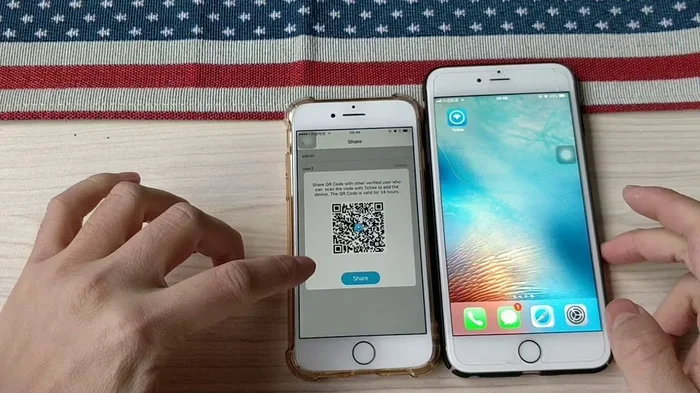
- Tap it, and a QR code will appear on your screen.
- The other phone simply scans the QR code with its camera.
- The Wi-Fi connection is made automatically — no typing needed.
This method is fast, secure, and works on almost every Android phone made in the last few years. It is also the best option because the wireless network password never leaves your device in plain text.
Using Nearby Share
Nearby Share is a built-in Android feature that lets you send files, links, and even Wi-Fi network details between close devices. To use it for Wi-Fi password sharing:
- Make sure both phones have Nearby Share turned on.
- Go to Wi-Fi settings on the sending phone.
- Select the network and choose “Share via Nearby Share.”
- The receiving phone gets a notification and can accept the connection.
This method works best when both devices are within a few feet of each other. It uses Bluetooth and Wi-Fi Direct to transfer data securely.
Using Google Password Manager
If you use Google Password Manager, your saved Wi-Fi passwords are stored in your Google account. You can access them on any Android phone that is signed into the same account. This is especially useful when you need to reconnect a phone to a network you have forgotten the password for.
How to Share Wi-Fi Password Between iPhones
iPhone users also have several convenient options for Wi-Fi password sharing. Apple has built these features right into the operating system.
Using AirDrop
AirDrop is one of the simplest ways to share Wi-Fi password between phones when both devices are iPhones. Here is the process:
- Make sure AirDrop is turned on for both phones.
- On the iPhone connected to the Wi-Fi network, go to Wi-Fi settings.
- Tap the “Share Password” button next to the network name.
- Select the other iPhone from the AirDrop list.
- The receiving iPhone will automatically prompt to join the network.
AirDrop uses peer-to-peer Wi-Fi and Bluetooth to transfer data. It is fast, encrypted, and very secure. This is the go-to method for iPhone users who want to share Wi-Fi password between phones effortlessly.
Using iCloud Keychain
iCloud Keychain stores all your passwords, including wireless network passwords, across your Apple devices. If both iPhones are signed into the same Apple ID and have iCloud Keychain enabled, the Wi-Fi password syncs automatically. When a new iPhone tries to connect to a known network, it can pull the password from iCloud instantly.
Using the Passwords App
iOS 15 and later include a built-in Passwords app. You can view all your saved Wi-Fi passwords there. While this app does not directly share passwords, it lets you find the password manually if you need to type it into another device.
Sharing Wi-Fi Password Between Android and iPhone
Things get a little trickier when you need to share Wi-Fi password between phones that run on different operating systems. But do not worry — there are still simple solutions.
Using the QR Code Method (Cross-Platform)
The QR code method works across all platforms. Here is what to do:
- On the Android phone already connected to the network, go to Wi-Fi settings and tap “Share.”
- A QR code will appear on the screen.
- On the iPhone, open the Camera app and point it at the QR code.
- A prompt will appear asking if you want to join the Wi-Fi network.
- Tap “Join,” and the iPhone connects instantly.
This method works in reverse too. On an iPhone, you can generate a QR code from the Wi-Fi settings screen, and an Android phone can scan it with any standard QR code reader.
Using Third-Party Apps
Several apps make cross-platform Wi-Fi password sharing easy. Some popular options include:
- Wi-Fi Password Share: A simple app that generates shareable QR codes for any network.
- ShareWi-Fi: Lets you send network details via text message or email securely.
- Zapya: A file-sharing app that also supports Wi-Fi password transfer between devices.
When using third-party apps, always download them from official app stores. Check reviews and permissions carefully to protect your network security.
Using a Password Manager App
Password managers like LastPass, 1Password, and Dashlane work on both Android and iPhone. You can store your wireless network password in the manager and share it securely with anyone. Some password managers even generate a temporary link that expires after a set time, adding an extra layer of safety.
Quick Tips for Secure Wi-Fi Password Sharing
Sharing your Wi-Fi password is convenient, but you should always keep network security in mind. Here are some quick tips to stay safe:
- Never share your password in public. Saying it out loud or displaying a QR code in a crowded place can expose your wireless network to strangers.
- Use a guest network. Most modern routers let you create a separate guest network. This keeps your main network private while still giving visitors internet access.
- Change your password regularly. If you have shared your router password with many people, consider changing it every few months.
- Use a strong, unique password. A long password with letters, numbers, and symbols is much harder to guess or crack.
- Turn off file sharing when not in use. Features like Nearby Share and AirDrop should be turned off when you are not actively using them.
These simple habits go a long way in keeping your home network safe and your Wi-Fi connection running smoothly.
Common Mistakes to Avoid When Sharing Wi-Fi Passwords
Even with the best tools, people make mistakes when trying to share Wi-Fi password between phones. Here are the most common ones to watch out for:
Using Unsecured Channels
Sending your wireless network password through a plain text message or email is risky. These messages can be intercepted. Always use encrypted or built-in sharing methods like QR codes, AirDrop, or password managers.
Forgetting to Forget Old Networks
If you have shared your Wi-Fi password with many people over the years, some of those devices may still be connected. Go to your Wi-Fi settings and remove devices you no longer recognize. This keeps your network clean and secure.
Not Checking the Connection
After sharing your password, always verify that the other device has connected successfully. A quick way to do this is to check your router’s connected device list. Most modern routers have a mobile app that shows all devices currently using your Wi-Fi connection.
Ignoring Router Settings
Some routers have a “AP Isolation” feature that prevents devices on the same network from communicating with each other. If someone cannot access the internet even after entering the correct Wi-Fi password, check your router settings to make sure this feature is turned off.
Expert Insights on Wi-Fi Password Sharing
Network security experts recommend using the built-in sharing features on your phone whenever possible. These methods are designed by the phone manufacturers to be both convenient and secure. Third-party apps can be useful, but they add an extra layer of trust that you need to evaluate.
According to cybersecurity professionals, the QR code method is the gold standard for Wi-Fi password sharing. It encrypts the password inside the QR code, so no one can read it just by looking at the code. The receiving device decodes it automatically and connects without ever displaying the password in plain text.
“The best way to share Wi-Fi password between phones is through native features like QR codes and AirDrop,” says tech expert Sarah Mitchell. “They are fast, secure, and require no extra downloads. If you must use a third-party app, choose one with strong reviews and clear privacy policies.”
Key Takeaways
- QR Code Sharing: The fastest and most universal way to share Wi-Fi passwords between any phone.
- Built-In Features: Both Android and iPhone have native tools that make password sharing seamless.
- Cross-Platform Options: You can share passwords between Android and iPhone using QR codes or third-party apps.
- Security Matters: Always use secure methods and avoid sharing passwords in public places.
- Password Managers: Apps like Google Password Manager and iCloud Keychain store and auto-fill Wi-Fi passwords.
- Common Mistakes: Avoid sharing passwords over unsecured channels and always verify the connection after sharing.
Conclusion
Learning how to share Wi-Fi password between phones is one of those small skills that makes everyday life so much easier. Whether you are using two Android phones, two iPhones, or one of each, there is a simple method that works for you. QR codes are the fastest option, AirDrop is perfect for Apple users, and cross-platform QR scanning bridges the gap between Android and iPhone effortlessly.
Always keep network security at the top of your mind. Use guest networks for visitors, change your wireless network password regularly, and avoid sharing credentials over unsecured channels. With the right approach, you can connect any device to your Wi-Fi network in seconds while keeping your home network safe and protected.
Now that you know all the best methods, try them out the next time someone needs to get online. You will be the hero of the room with your quick and easy Wi-Fi password sharing skills. Happy connecting!
Frequently Asked Questions
Can I share my Wi-Fi password with someone who has an older phone?
Yes, you can. The QR code method works on most phones, even older models, as long as they have a camera and a Wi-Fi connection. Simply display the QR code on your phone and let the other person scan it with their camera. If their phone is too old to scan QR codes for Wi-Fi, you can always type the password in manually.
Is it safe to share my Wi-Fi password using QR codes?
Yes, it is very safe. QR codes for Wi-Fi encrypt your wireless network password inside the code. When the other phone scans it, the password is used directly to connect without being displayed in plain text. This makes QR code sharing one of the most secure ways to share Wi-Fi password between phones.
Do I need an internet connection to share my Wi-Fi password?
No, you do not. The QR code and AirDrop methods work over local connections using Bluetooth and Wi-Fi Direct. You only need an internet connection if you are using a cloud-based password manager or sending the password through an email or messaging app.
Can I share my Wi-Fi password with more than one phone at a time?
You can generate a QR code once and let multiple people scan it. Each phone that scans the code will connect to the network independently. However, if your router has a limit on connected devices, you may need to check that you have enough slots available on your wireless network.
What should I do if the other phone cannot scan the QR code?
First, make sure the camera lens is clean and the QR code is displayed clearly on your screen. Try adjusting the distance between the two phones. If it still does not work, you can use a third-party QR code scanner app or fall back to typing the password manually. You can also try the AirDrop or Nearby Share method instead.
How do I remove a device from my Wi-Fi network after sharing the password?
Log into your router settings by typing your router’s IP address into a web browser. Look for the “Connected Devices” or “DHCP Client List” section. Find the device you want to remove and block or disconnect it. You can also change your Wi-Fi password to kick off all devices and reconnect only the ones you trust.