How Do I See Saved Wifi Passwords On Android 12 Easily
Finding your saved wifi password on Android 12 is easier than you think. Whether you need to share your network key with a friend or reconnect a device, Android 12 has built-in options to help you view stored wifi passwords. This guide walks you through every method step by step, so you can access your android 12 wifi credentials quickly and safely.
Have you ever stood in front of a friend’s router, trying to type in a wifi password from memory, only to blank out? Or maybe you just bought a new smart TV and need the wifi network password to connect it. Whatever the reason, knowing how to find your saved wifi credentials on your Android 12 phone is a really useful skill.
Android 12 comes with several built-in ways to view your saved wifi password. You don’t need to be a tech expert to pull this off. In this article, we will walk you through every method available, from the simplest QR code trick to more advanced options like using the router admin panel. By the end, you will know exactly how to see your wifi password android 12 in just a few minutes.
We will also cover some common mistakes people make when trying to retrieve their android wifi settings passwords. Plus, we have quick tips and expert insights sprinkled throughout to help you avoid frustration. Let us get started.
Key Takeaways
- QR Code Sharing: Android 12 lets you share your wifi password using a simple QR code, which is the easiest method for most users.
- Settings App Method: You can view saved wifi passwords directly through the Android 12 Settings app with just a few taps.
- Third-Party Apps: Several reliable apps can help you retrieve and manage your wifi password android details if the built-in options don’t work.
- Router Admin Panel: Your wifi router password can also be found by logging into your router’s admin page.
- File Manager Trick: Android 12 stores wifi data in system files that can be accessed through a file manager with root access.
- Google Account Sync: If you use Google’s wifi credentials sync, your passwords may be stored in your Google account settings.
- Security First: Always be cautious when sharing or viewing your network security key to protect your home network.
📑 Table of Contents
- Why You Might Need to See Your Saved Wifi Password
- Method 1: Use the QR Code Sharing Feature
- Method 2: Check Your Wifi Settings Directly
- Method 3: Use a Third-Party Password Manager App
- Method 4: Check Your Router’s Admin Panel
- Method 5: Use the File Manager (For Rooted Devices)
- Method 6: Check Google Account Wifi Sync
- Tips for Managing Your Wifi Passwords Safely
- Troubleshooting: What to Do If You Cannot See Your Password
- Final Thoughts
Why You Might Need to See Your Saved Wifi Password
There are many situations where you need to pull up your connected wifi password on your Android 12 device. Understanding why can help you appreciate the methods we will cover below.
Maybe you are setting up a new smart home device, like a baby monitor or a security camera. These gadgets often require you to enter your wifi password during setup. If you have not written it down anywhere, you might feel stuck. Other times, a guest comes over and wants to use your internet. Instead of guessing or resetting your router, you can simply look up the password on your phone.
Another common reason is troubleshooting. If your wifi network password has been changed recently but your phone still connects automatically, you might want to verify what password is actually stored. This helps you understand if your phone has the most current credentials or if you need to update them manually.
Common Scenarios Where You Need Your Wifi Password
- Setting up a new smart device: Smart TVs, printers, and IoT gadgets all need your wifi password android to connect.
- Helping a friend or guest: You can quickly share your password without having to remember it.
- Recovering a forgotten password: If you changed your password and forgot it, your phone might still have the old one saved.
- Troubleshooting connection issues: Verifying the saved password can help diagnose why a device will not connect.
- Setting up a new phone: When you switch to a new Android device, you need the password to reconnect to your home network.
Method 1: Use the QR Code Sharing Feature
This is by far the easiest and most popular way to see your saved wifi password on Android 12. Google added a built-in QR code sharing feature that lets you generate a scannable code containing your network name and password. You can then share this code with anyone who needs to connect.
Here is how it works. First, make sure your phone is currently connected to the wifi network you want to check. Open your Android 12 wifi settings and long-press on the connected network name. A menu will pop up with several options.
Tap on the “Share” button. Your phone will generate a QR code that contains your wifi network password and network name (SSID). Anyone with a smartphone can scan this code using their camera app, and the password will be automatically filled in for them.
But here is the cool part. When you scan the QR code yourself using your phone’s camera, you can also see the password displayed as plain text on your screen. This is the quickest way to read your wifi password android 12 without needing any extra apps or technical know-how.
Step-by-Step Guide to QR Code Sharing
- Open the Settings app on your Android 12 phone.
- Tap on “Network and Internet” or “Connections,” depending on your device.
- Select “Wifi” from the list of options.
- Find the network you are currently connected to and tap and hold on it.
- Choose “Share” from the menu that appears.
- Point your camera at the QR code or tap the “Share” button again to send it via text, email, or messaging app.
- Look at the QR code image. The password is usually displayed as text below or within the code details.
Quick Tip: If the password does not show up in the QR code details, try taking a screenshot of the code and zooming in. Some Android skins display the password in a slightly different location within the share sheet.
Method 2: Check Your Wifi Settings Directly
Android 12 also lets you view the details of any saved wifi network, including the password. This method works for networks you have connected to in the past, even if you are not currently connected to them.
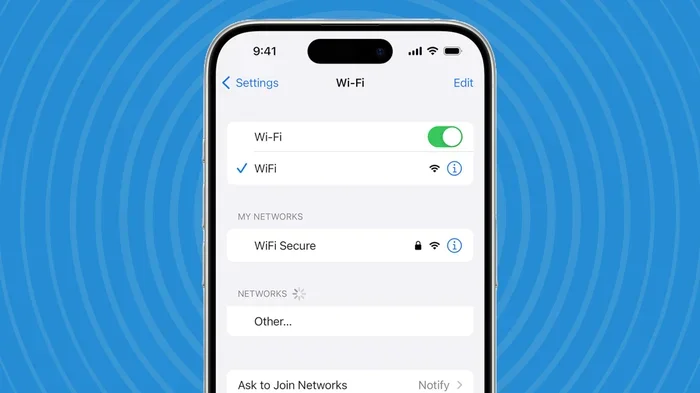
Start by going to your Settings app. Navigate to “Network and Internet” and then tap on “Wifi.” You will see a list of all the networks your phone has ever connected to or tried to connect to.
Find the network you want to check and tap on it. A details screen will open showing information like signal strength, frequency, and security type. If your phone supports it, there will be a “Share” option here too, which brings up the QR code method we just discussed.
For some Android 12 devices, you might also see a “Config” or “Details” option that provides additional network information. However, viewing the actual wifi password in plain text from this screen is not always available on every device. This depends on your phone manufacturer and any custom software they have added.
What Information You Can See in Wifi Details
- Network Name (SSID): The name of your wifi network.
- Security Type: Whether your network uses WPA2, WPA3, or another encryption standard.
- Signal Strength: How strong the connection is measured in dBm.
- IP Address: The local IP address assigned to your device on the network.
- Gateway: The address of your router.
- DNS Servers: The domain name servers your phone is using.
Method 3: Use a Third-Party Password Manager App
If the built-in methods do not show you the password in plain text, you can try a third-party app. There are several reliable apps on the Google Play Store designed to help you view and manage your saved wifi passwords on Android 12.
One popular option is the “Wifi Password Show” app. This app reads the wifi configuration files stored on your phone and displays your saved network passwords in a clean, easy-to-read format. Another great choice is “Network Cell Info Lite,” which provides detailed network information including your network security key.
Before you download any app, make sure to check the reviews and permissions it requests. A trustworthy app should only ask for the permissions it needs to function. Avoid apps that ask for unnecessary access to your personal data.
Top Apps for Viewing Saved Wifi Passwords
- Wifi Password Show: Simple and straightforward. It displays all your saved wifi password android entries in a list format.
- Network Cell Info Lite: Offers detailed network diagnostics along with password viewing capabilities.
- Wifi Analyzer: Primarily a signal analysis tool, but it also shows saved network details.
- Fing Network Scanner: A comprehensive network tool that includes password recovery features.
Expert Insight: Always download apps from the official Google Play Store. Third-party apps from unknown sources can pose security risks, especially when they handle sensitive data like your wifi password. Stick to well-reviewed, widely used apps with a strong reputation.
Method 4: Check Your Router’s Admin Panel
Another way to find your wifi router password is by logging into your router’s admin panel. This method works regardless of what phone you use, and it is especially helpful if you need to change or reset your wifi network password.
To access your router’s admin panel, you need to know your router’s IP address. Most routers use either 192.168.0.1 or 192.168.1.1 as their default gateway. You can find this information in your Android 12 wifi settings under the connected network details. Look for the “Gateway” entry.
Once you have the IP address, open your phone’s web browser and type it into the address bar. This will take you to your router’s login page. Enter your admin username and password. If you have never changed these, the default credentials are usually printed on a sticker on the back of your router. Common defaults are “admin” for both the username and password.
After logging in, navigate to the “Wireless” or “Wifi” settings section. Here you will find your wifi network password displayed in plain text or as dots that you can reveal by clicking an eye icon. This is also where you can change your password if needed.
Common Router Admin Login Addresses
- 192.168.0.1 (used by many Netgear and D-Link routers)
- 192.168.1.1 (used by many TP-Link and Linksys routers)
- 10.0.0.1 (used by some Comcast and Arris routers)
- 192.168.2.1 (used by some SMC and Belkin routers)
Method 5: Use the File Manager (For Rooted Devices)
If your Android 12 device is rooted, you can access your saved wifi passwords directly from the system files. Android stores wifi configuration data in a file called “wpa_supplicant.conf.” This file contains the network names and passwords for all the wifi networks your phone has ever connected to.
To access this file, you need a file manager app that supports root browsing. Popular options include “Root Browser” or “Solid Explorer.” Navigate to the path “/data/misc/wifi/” and look for the “wpa_supplicant.conf” file. Open it with a text editor, and you will see a list of all your saved networks along with their passwords.
Please note that this method requires root access, which means it will not work on most standard, unrooted Android 12 phones. Rooting your device also voids your warranty and can introduce security risks, so proceed with caution.
Common Mistake: Many people try to access the wifi configuration file without root access and get frustrated when they cannot open it. The file is located in a protected system directory that requires root permissions. If your phone is not rooted, skip this method and use one of the other approaches we have covered.
Method 6: Check Google Account Wifi Sync
Google has a feature that syncs your wifi passwords across devices using your Google account. If you have this feature enabled, you might be able to find your saved wifi network password through your Google account settings on a web browser.
To check this, open a web browser on any device and go to your Google Account settings. Navigate to the “Security” section and look for “Wifi passwords” or “Devices and sharing.” If your Google account has synced your wifi credentials, they may be listed there.
This method is especially useful if you have switched to a new phone and need to reconnect to your networks. Google automatically restores your saved wifi passwords during the setup process if you have this sync feature turned on.
How to Enable Wifi Password Sync on Android 12
- Open the Settings app on your Android 12 phone.
- Go to “Google” and then tap on “Setup and restore.”
- Look for “Wifi passwords” or “Backup” settings.
- Make sure the toggle for syncing wifi passwords is turned on.
- Your android wifi settings passwords will now be backed up to your Google account.
Tips for Managing Your Wifi Passwords Safely
Now that you know how to find your saved wifi password, it is important to manage them safely. Your wifi network is the gateway to all the devices connected to your home internet. Keeping it secure should be a priority.
First, consider using a password manager app to store all your network credentials in one secure place. Apps like LastPass, 1Password, or Bitwarden can safely store your wifi password android entries and auto-fill them when needed. This eliminates the need to remember or look up passwords every time.
Second, change your wifi router password regularly. A strong password should be at least 12 characters long and include a mix of uppercase letters, lowercase letters, numbers, and symbols. Avoid using easily guessable information like your name, birthday, or address.
Third, enable WPA3 encryption on your router if it supports it. WPA3 is the latest and most secure wifi encryption standard. It provides better protection against brute-force attacks compared to older standards like WPA2.
Quick Tip: Write down your wifi network password and store it in a safe place at home, such as a physical notebook kept in a drawer. This serves as a backup if you ever lose access to all your digital records.
Troubleshooting: What to Do If You Cannot See Your Password
Sometimes, none of the methods above work, and you still cannot see your saved wifi password. This can happen for several reasons, and there are simple fixes for each one.
If the QR code method does not show the password, your phone manufacturer might have disabled this feature. Some brands like Samsung or Xiaomi customize Android 12 and remove certain sharing options. In this case, try the third-party app method or check your router admin panel.
If you are getting an error when trying to access your wifi settings android 12, try restarting your phone first. A simple reboot can often resolve minor software glitches that prevent you from accessing network settings. If the problem persists, make sure your phone is updated to the latest version of Android 12, as software updates often include bug fixes for network settings.
Another common issue is that your phone might not be connected to the network you are trying to check. The QR code sharing feature only works for the network you are currently connected to. To check a different saved network, use the Settings app method and tap on the specific network from your list of saved networks.
Quick Troubleshooting Checklist
- Restart your phone and try again.
- Make sure you are connected to the correct network.
- Update your phone to the latest Android 12 version.
- Try a different method from the ones listed above.
- Check if your phone manufacturer has disabled the share option.
- Use a third-party app as a backup option.
- Log into your router admin panel directly.
Final Thoughts
Knowing how to see your saved wifi passwords on Android 12 is a simple but incredibly useful skill. Whether you use the QR code sharing feature, check your wifi settings directly, or log into your router admin panel, there are plenty of ways to retrieve your network security key whenever you need it.
We have covered six different methods in this guide, ranging from the easiest QR code trick to more advanced options for rooted devices. Each method has its own advantages, and you can choose the one that works best for your situation. The QR code method is the fastest and requires no extra apps, while the router admin panel gives you the most control over your network settings.
Remember to always keep your wifi password secure and share it only with people you trust. Use strong, unique passwords for your networks, and consider using a password manager to keep track of all your credentials. With the tips and methods in this article, you will never be stuck trying to connect a new device to your wifi again.
Take a few minutes today to try out these methods on your Android 12 phone. Once you see how easy it is to find your saved wifi password, you will wonder why you did not know this sooner. Share this guide with friends and family who might benefit from it, and stay connected with confidence.
Frequently Asked Questions
Can I see my saved wifi password on Android 12 without rooting my phone?
Yes, you can. The QR code sharing feature and the Settings app method both work on unrooted Android 12 devices. You do not need root access to view your wifi password android 12 using these built-in methods.
Why can’t I see the password in the QR code details on my Android 12?
Some phone manufacturers customize Android 12 and hide the password text in the QR code share sheet. If this happens, try taking a screenshot of the QR code and zooming in, or use a third-party app to retrieve your saved wifi password.
Is it safe to use third-party apps to view wifi passwords?
It can be safe if you download apps from the official Google Play Store and choose well-reviewed, reputable apps. Always check the permissions an app requests before installing it. Avoid apps from unknown developers that ask for unnecessary access to your personal data.
How do I find my router’s admin password if I forgot it?
If you forgot your router admin password, you can reset your router to factory settings by pressing and holding the small reset button on the back of the router for about 10 seconds. This will restore the default admin credentials, which are usually printed on a sticker on the router.
Can I see the wifi password for a network I am not currently connected to?
On Android 12, you can see the list of all saved networks in your wifi settings, but viewing the password in plain text usually requires you to be connected to that network for the QR code sharing feature. For saved networks you are not connected to, a third-party app or router admin panel is your best option.
Does Android 12 automatically backup my wifi passwords?
Yes, if you have enabled Google account sync for wifi passwords in your backup settings, Android 12 will automatically save your wifi network password to your Google account. This allows your passwords to be restored when you set up a new Android device.