How Do I Save Passwords On My Iphone And Keep Them Safe
Saving passwords on your iPhone is easier than you think, and doing it the right way keeps your accounts safe from hackers. You can use Apple’s built-in iCloud Keychain, download a third-party password manager, or try the new passkeys feature. This guide walks you through every method step by step, so you never have to guess or reset a password again.
Your iPhone holds a lot of your digital life. From banking apps to social media, you probably log into dozens of accounts every single day. Remembering all those passwords is nearly impossible. That is exactly why knowing how to save passwords on iPhone and keep them safe matters so much.
Apple has built some really smart tools right into iOS that make saving and managing passwords simple. You do not need to be a tech expert to use them. Whether you are new to iPhone or have had one for years, this guide will show you the best ways to store your login credentials securely. We will cover iCloud Keychain, third-party apps, passkeys, and plenty of practical tips along the way.
By the time you finish reading, you will know exactly how to save passwords on iPhone with confidence. You will also understand how to keep those passwords safe from prying eyes. Let us get started.
Key Takeaways
- iCloud Keychain is Apple’s free built-in tool that saves and syncs passwords across all your Apple devices automatically.
- Third-party password managers like 1Password and Bitwarden offer extra features and cross-platform support.
- iPhone makes it simple to save, edit, and delete passwords right from Settings or Safari.
- Two-factor authentication adds a powerful extra layer of protection to your saved login credentials.
- Passkeys are the future of secure login and are now supported on iPhone with iOS 16 and later.
- Regularly reviewing your saved passwords helps you spot weak or reused credentials before they become a problem.
📑 Table of Contents
- What Is iCloud Keychain and Why It Matters
- How to Save Passwords on iPhone Step by Step
- Using a Third-Party Password Manager
- How to Manage and Edit Saved Passwords
- Keeping Your iPhone Passwords Safe from Threats
- The Future of Passwords: Passkeys on iPhone
- Common Mistakes People Make When Saving Passwords
- Conclusion
What Is iCloud Keychain and Why It Matters
iCloud Keychain is Apple’s built-in password-saving tool. It stores your usernames, passwords, and credit card information securely. Then it syncs everything across your iPhone, iPad, and Mac. This means you only need to remember one thing: your device passcode or use Face ID to unlock your saved credentials.
Many people wonder whether iCloud Keychain is safe. The short answer is yes. Apple uses end-to-end encryption for all data stored in iCloud Keychain. This means even Apple cannot read your saved passwords. Only your trusted devices can access them.
How iCloud Keychain Works
When you save a password on your iPhone, iCloud Keychain encrypts it and sends it to your iCloud account. From there, it syncs to any other Apple device signed into the same Apple ID. The whole process happens in the background. You do not need to lift a finger once it is set up.
Here is what iCloud Keychain can do for you:
- Save website passwords when you browse in Safari
- Store Wi-Fi network passwords so you auto-connect to known networks
- Remember credit card details for faster online shopping
- Auto-fill login credentials in apps and browsers
- Generate strong passwords when you create a new account
These features make iCloud Keychain one of the most convenient ways to save passwords on iPhone. It is free, it is built right into iOS, and it works seamlessly across your Apple ecosystem.
Setting Up iCloud Keychain
Setting up iCloud Keychain takes only a few minutes. Open the Settings app on your iPhone. Tap your name at the top to open your Apple ID settings. Then tap iCloud and look for Keychain. Toggle it on. You will be asked to enter your Apple ID password to confirm.
Once it is turned on, your iPhone starts saving passwords automatically. When you log into a new website or app, Safari will ask if you want to save the password. Just tap Save, and it is stored securely. You can also manually add passwords by going to Settings, then Passwords.
If you use multiple Apple devices, make sure iCloud Keychain is enabled on all of them. This ensures your saved passwords are available everywhere you need them. It is one of the easiest steps you can take to streamline your digital life.
How to Save Passwords on iPhone Step by Step
Now that you understand iCloud Keychain, let us walk through the actual process of saving passwords. There are a few different ways to do this, and each one is straightforward.
Saving Passwords Through Safari
Safari is the default browser on iPhone, and it works hand-in-hand with iCloud Keychain. When you visit a website and enter your login details, Safari will prompt you to save the password. A small popup appears asking if you want to save it. Tap Save, and you are done.
If the popup did not appear, you can still save the password manually. Tap the aA icon or the share button at the bottom of Safari. Look for the Passwords option. This takes you directly to your saved passwords list, where you can add new ones.
Here is a quick tip: always let Safari generate a strong password when you create a new account. Safari will create a long, random string of characters that is nearly impossible to guess. You do not need to remember it because iCloud Keychain stores it for you.
Saving Passwords Through the Settings App
You can also manage all your saved passwords directly from the Settings app. Open Settings and tap Passwords. You may need to authenticate with Face ID or Touch ID. This opens your password vault, where you can see every saved login credential.
To add a new password manually, tap the plus sign in the top right corner. Fill in the website, username, and password fields. Tap Done, and the new entry is saved and synced to iCloud. This method is great for saving passwords for apps that do not use Safari for login.
Saving Wi-Fi Passwords
Your iPhone also saves Wi-Fi passwords automatically. When you connect to a new Wi-Fi network, your iPhone stores the password in iCloud Keychain. If you ever need to find a saved Wi-Fi password, go to Settings, then Wi-Fi. Tap the info icon next to the network name, and copy the password.
Sharing a Wi-Fi password with a friend is also easy. When they are near your iPhone and trying to connect, your iPhone will detect their device and offer to share the password. Just tap Share Password, and they are connected. This is one of the most underrated features of saving passwords on iPhone.
Using a Third-Party Password Manager
While iCloud Keychain works great for Apple users, it does have limitations. It only syncs across Apple devices. If you also use an Android phone, a Windows laptop, or a Chromebook, you might want a more universal solution. That is where third-party password managers come in.
A password manager is a dedicated app that stores all your login credentials in one secure place. Most password managers use a single master password to lock your vault. You only need to remember that one password, and the app handles the rest.
Popular Password Manager Apps for iPhone
There are many excellent password managers available for iPhone. Here are some of the most popular options:
- 1Password: Known for its clean interface and strong security features. It supports family plans and works across all platforms.
- Bitwarden: A free and open-source option that is highly trusted by security experts. It offers excellent value.
- LastPass: A long-standing favorite with a free tier that includes core features.
- Dashlane: Offers built-in VPN and dark web monitoring in addition to password storage.
- Enpass: A great option for users who prefer offline storage without cloud syncing.
How to Set Up a Password Manager on iPhone
Setting up a password manager is simple. Download the app from the App Store. Create an account and choose a strong master password. This is the one password you must remember, so make it count. Use a mix of uppercase letters, lowercase letters, numbers, and symbols.
Most password managers will import your existing saved passwords from iCloud Keychain or your browser. This saves you a lot of time. Once your passwords are in the app, you can use its autofill feature to log into websites and apps just like you normally would.
The biggest advantage of using a third-party password manager is cross-platform support. You can save passwords on iPhone and access them from your Android tablet or Windows PC. This makes password managers ideal for people who do not live entirely inside the Apple ecosystem.
How to Manage and Edit Saved Passwords
Saving passwords is only half the battle. You also need to know how to manage them. Over time, you may need to update a password, delete an old entry, or check which of your passwords are weak or have been compromised.
Editing a Saved Password
To edit a saved password, open Settings and tap Passwords. Authenticate with Face ID or Touch ID. Find the password you want to change and tap on it. You can now edit the username, password, or website. Tap Done to save your changes.
It is a good habit to update your passwords regularly, especially for important accounts like email, banking, and social media. If a service you use has experienced a data breach, change your password immediately. Your iPhone will also alert you if any of your saved passwords appear in a known data breach.
Deleting Saved Passwords
If you no longer need a saved password, deleting it is easy. Go to Settings, tap Passwords, find the entry, and swipe left. Tap Delete to remove it. You can also tap Edit at the top right, select the entries you want to remove, and tap Delete.
Be careful when deleting passwords. Make sure you have the login details saved somewhere else if you still need access to that account. Deleting a password from your iPhone does not change the actual password on the website or app. It only removes the saved copy from your device.
Checking Password Security
iPhone has a built-in password security tool that checks your saved passwords for known issues. Go to Settings, tap Passwords, and look for the Security Recommendations section. Here, you will see a list of passwords that are reused, weak, or have been exposed in a data breach.
This feature is incredibly useful for improving your overall security. If a password shows up as compromised, change it right away. Use the built-in password generator to create a new, strong, unique password for that account. Then save it back to iCloud Keychain or your password manager.
Keeping Your iPhone Passwords Safe from Threats
Saving passwords is only useful if you keep them safe. There are several steps you can take to protect your stored login credentials from unauthorized access. These tips are simple but make a huge difference.
Use a Strong Device Passcode
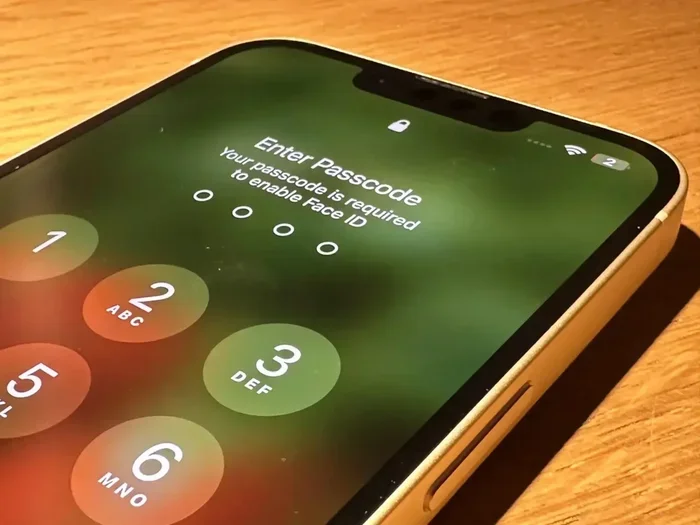
Your device passcode is the first line of defense for all your saved passwords. A six-digit passcode is better than a four-digit one, but a custom alphanumeric code is even stronger. Go to Settings, then Face ID and Passcode, and update your passcode if needed.
Consider using a password manager that supports biometric unlock. Face ID and Touch ID make it quick and easy to access your passwords without exposing them to anyone nearby. This adds convenience without sacrificing security.
Enable Two-Factor Authentication
Two-factor authentication, or 2FA, adds an extra layer of protection to your accounts. Even if someone gets your password, they still cannot log in without a second verification step. This could be a code sent to your phone, a fingerprint scan, or a security key.
You can enable 2FA for your Apple ID by going to Settings, tapping your name, then Passwords and Security. Turn on Two-Factor Authentication. Do the same for your most important accounts, including email, banking, and social media. This is one of the most effective ways to keep your saved passwords safe.
Avoid Public Wi-Fi for Sensitive Logins
Public Wi-Fi networks are convenient, but they are not always safe. Hackers can sometimes intercept data on open networks. Avoid logging into sensitive accounts, such as banking or email, when connected to public Wi-Fi. If you must, use a VPN to encrypt your connection.
Your iPhone will warn you if a Wi-Fi network is not secure. Pay attention to these warnings. They are there to protect your saved passwords and personal information. When in doubt, switch to your cellular data or wait until you are on a trusted network.
Keep Your iPhone Updated
Apple regularly releases iOS updates that include security patches. These patches fix vulnerabilities that hackers could use to access your device and saved passwords. Always install the latest updates as soon as they are available.
Go to Settings, then General, then Software Update to check for the latest version. Turn on Automatic Updates so your iPhone always stays current without you needing to remember. Keeping your device updated is one of the simplest and most effective security practices you can follow.
The Future of Passwords: Passkeys on iPhone
Passkeys represent a major shift in how we think about saving passwords on iPhone. Instead of storing a password, passkeys use a cryptographic key pair to authenticate your identity. This means no passwords are stored at all, which eliminates the risk of password theft entirely.
Apple introduced passkeys with iOS 16, and support has grown rapidly since then. Major websites and apps, including Google, Amazon, and GitHub, now support passkey login. When you create a passkey, your iPhone stores it securely in iCloud Keychain. It syncs across your Apple devices and is protected by Face ID or Touch ID.
Using a passkey is simple. When you log into a supported website or app, your iPhone prompts you to verify your identity with Face ID or Touch ID. You tap confirm, and you are signed in. No typing a password, no remembering anything. It is fast, secure, and incredibly convenient.
While passkeys are still relatively new, they are quickly becoming the standard for secure authentication. As more services adopt passkey support, the need to save traditional passwords will decrease. For now, it is worth exploring passkeys for your most-used accounts and gradually transitioning away from passwords altogether.
How to Create a Passkey on iPhone
Creating a passkey is easy when a service supports it. When you sign up for a new account or update your login method on a supported site, look for the option to create a passkey. Your iPhone will guide you through the process. You will use Face ID or Touch ID to confirm the creation, and the passkey is saved automatically.
You can also manage your existing passkeys by going to Settings, then Passwords, and looking for the Passkeys section. Here, you can view, delete, or add new passkeys just like you would with traditional saved passwords.
Why Passkeys Are More Secure Than Passwords
Passkeys are resistant to phishing attacks because they are tied to specific websites and apps. A hacker cannot trick you into entering a passkey on a fake website because the passkey only works on the legitimate site. They are also immune to data breaches because no actual password is ever stored on a server.
This makes passkeys one of the most secure authentication methods available today. By combining passkeys with iCloud Keychain and biometric unlock, you get a level of security that is far stronger than any traditional password system. It is exciting to see Apple leading the way in this transition.
Common Mistakes People Make When Saving Passwords
Even with the best tools, people sometimes make mistakes that put their saved passwords at risk. Here are some common pitfalls to avoid.
- Using the same password for multiple accounts: If one account is compromised, all your accounts are at risk. Always use unique passwords.
- Ignoring security recommendations: iPhone will warn you about weak or compromised passwords. Do not ignore these alerts.
- Sharing passwords through text or email: This is a major security risk. Use a password manager’s sharing feature instead.
- Not enabling biometric lock: Without Face ID or Touch ID, anyone with physical access to your phone can see your saved passwords.
- Skipping software updates: Outdated software has known vulnerabilities that hackers can exploit to access your device.
Avoiding these mistakes will significantly improve the security of your saved passwords. It is all about building good habits and using the tools Apple provides effectively.
Expert Tips for Better Password Security
Security professionals recommend a few extra steps to keep your iPhone passwords safe. First, use a password generator to create long, random passwords for every account. Second, enable two-factor authentication on every account that supports it. Third, review your saved passwords at least once a month to check for any issues.
Another expert tip is to use a password manager even if you already use iCloud Keychain. A dedicated app gives you more control, better cross-platform support, and advanced features like breach monitoring. Many password managers also offer family plans, making it easy to share credentials safely with trusted family members.
Finally, consider using a hardware security key for your most sensitive accounts. A security key is a small physical device that provides the strongest form of two-factor authentication. It is nearly impossible for a hacker to bypass. While it is an extra purchase, the peace of mind it provides is well worth it.
Conclusion
Knowing how to save passwords on iPhone and keep them safe is one of the most important digital skills you can develop. Apple has made it incredibly easy with iCloud Keychain, built-in password tools, and the exciting new passkey technology. Whether you stick with Apple’s native solution or choose a third-party password manager, the key is to take action today.
Start by enabling iCloud Keychain and checking your saved passwords for any security issues. Then consider setting up two-factor authentication on your most important accounts. Explore passkeys for services that support them. And if you want the best cross-platform experience, try a reputable password manager.
Your digital security is in your hands. Every step you take to protect your saved passwords makes it harder for hackers to access your personal information. Make it a habit to review your passwords regularly, keep your iPhone updated, and stay informed about new security features. With the right approach, you can enjoy the convenience of saved passwords without ever compromising your safety.
Your iPhone is designed to keep your information secure. Use its built-in tools, follow the tips in this guide, and you will have strong, safe passwords for every account. It is that simple. Start saving and securing your passwords on iPhone today, and never worry about forgotten logins again.
Frequently Asked Questions
Is iCloud Keychain safe for storing passwords?
Yes, iCloud Keychain is safe. Apple uses end-to-end encryption, which means your passwords are protected and cannot be read by anyone except your trusted devices. It is one of the most secure ways to save passwords on iPhone.
Can I save passwords on iPhone without iCloud?
Yes, you can use a third-party password manager to save passwords without relying on iCloud. Apps like Bitwarden, 1Password, and LastPass store your credentials in their own secure vaults and work across all platforms.
How do I find a saved password on my iPhone?
Open the Settings app, tap Passwords, and authenticate with Face ID or Touch ID. You will see a list of all your saved passwords. Tap on any entry to view, copy, or edit the details.
What are passkeys and how do they work on iPhone?
Passkeys are a passwordless login method that uses cryptographic keys instead of traditional passwords. Your iPhone stores passkeys in iCloud Keychain and uses Face ID or Touch ID to authenticate you. They are more secure than passwords because they cannot be phished or stolen in data breaches.
How often should I change my saved passwords?
You should change your passwords whenever a service reports a data breach or if you notice any suspicious activity. Otherwise, focus on using strong, unique passwords for each account rather than changing them on a fixed schedule. iPhone will alert you if any of your saved passwords have been compromised.
Can I share saved passwords with family members safely?
Yes, iCloud Keychain allows you to share passwords securely with family members who are part of your Family Sharing group. You can also use third-party password managers that offer encrypted sharing features. Always avoid sharing passwords through text messages or email.