How Do I Print A Test Page From My Phone Right Now
Printing a test page from your phone is easier than you think. Whether you use an iPhone or Android device, you can quickly check your printer’s status and fix common issues. This guide walks you through every method so you can print a test page from your phone in just a few minutes.
Have you ever needed to print a test page from your phone but did not know where to start? Maybe your printer is acting up, or you just set up a new wireless printer and want to make sure everything works. Either way, you are in the right place. This guide will show you exactly how to do it, step by step, no matter what kind of phone you have.
Printing from a phone used to feel complicated. But today, most printers support mobile printing right out of the box. Whether you use an iPhone or an Android phone, the process is straightforward. You do not need a computer, and you do not need to be a tech expert. Let us dive in and get your printer working.
Key Takeaways
- Multiple methods work: You can print a test page using AirPrint, Wi-Fi Direct, Bluetooth, or printer brand apps.
- iPhone and Android both supported: Both major mobile platforms offer built-in printing features.
- Setup takes minutes: Connecting your phone to your printer is quick and does not require technical skills.
- Troubleshooting is simple: Most printing problems have easy fixes you can do at home.
- Test pages help diagnose issues: They reveal print quality problems, alignment errors, and connectivity faults.
- Wireless printing is the future: More printers now support mobile printing without cables.
📑 Table of Contents
- What Is a Test Page and Why Should You Print One
- How to Print a Test Page From iPhone
- How to Print a Test Page From Android
- Setting Up Your Wireless Printer for Mobile Printing
- Common Problems When Printing From Your Phone
- Expert Tips for Better Print Quality
- How to Verify Your Test Page Results
- Frequently Asked Questions
What Is a Test Page and Why Should You Print One
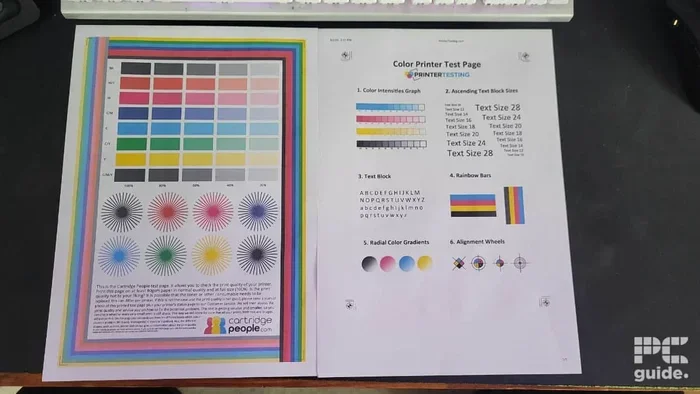
A test page is a simple document your printer creates to show you how it is performing. It usually contains text, lines, and color blocks. When you print a test page, you can see if your printer is working correctly. It helps you spot problems early before they become bigger issues.
There are several reasons you might want to print a test page from your phone. Maybe you just connected your printer to a new Wi-Fi network. Perhaps you noticed faint text or streaky colors in your recent prints. Or maybe you have not used your printer in a while and want to make sure the ink cartridges are still good. Whatever the reason, printing a test page is the fastest way to check your printer’s health.
Here are some key benefits of printing test pages regularly:
- Check print quality: You can see if colors are vibrant and text is sharp.
- Detect alignment issues: Lines and grids on the test page show if the print heads are aligned properly.
- Spot connectivity problems: If the test page fails to print, you know there is a connection issue to fix.
- Save ink and paper: Catching problems early means you do not waste supplies on bad prints.
- Track maintenance needs: Frequent test pages help you know when it is time to clean or replace parts.
How to Print a Test Page From iPhone
If you have an iPhone, you are in luck. Apple makes printing from your phone very easy. The built-in AirPrint feature lets you connect to compatible printers without downloading extra apps. Here is how to do it.
Step 1: Make Sure Your Printer Supports AirPrint
First, check if your printer supports AirPrint. Most modern printers from HP, Canon, Epson, and Brother do. You can find a list of AirPrint-compatible printers on Apple’s website. If your printer is older, you may need to download a manufacturer app instead.
Step 2: Connect Your iPhone and Printer to the Same Wi-Fi Network
This is the most important step. Both your iPhone and your printer must be on the same Wi-Fi network. Go to your iPhone’s Settings, tap Wi-Fi, and make sure you are connected. Then check your printer’s display or control panel to confirm it is on the same network.
Step 3: Open the Document or Photo You Want to Print
Find the photo, email, or document you want to use as your test page. You can use a blank notes app page or any image on your phone. Tap the share button, which looks like a square with an arrow pointing up.
Step 4: Tap Print and Select Your Printer
Scroll down in the share menu and tap “Print.” Then tap “Select Printer” and choose your printer from the list. If your printer does not appear, make sure both devices are on the same Wi-Fi network and try again.
Step 5: Adjust Settings and Hit Print
Before you print, you can adjust a few settings. Choose the number of copies, whether you want color or black-and-white, and which pages to print. For a test page, one copy in color is usually best. Then tap the big “Print” button in the top right corner.
Quick Tip: If your iPhone does not find your printer, try turning AirPrint off and back on from your printer’s settings. Restarting both devices also works wonders.
How to Print a Test Page From Android
Android phones offer great flexibility when it comes to mobile printing. Google built a printing feature right into the Android operating system. You can also use brand-specific apps for more control. Let us walk through both methods.
Using the Built-In Android Print Feature
Most Android phones running version 4.4 or later have a built-in print service. Here is how to use it to print a test page from your phone:
- Open the photo, document, or web page you want to print.
- Tap the three-dot menu button in the top right corner.
- Select “Print” from the menu options.
- Tap “Select Printer” and choose your wireless printer.
- Adjust the settings like color, copies, and page range.
- Tap the “Print” icon to send the job.
If your printer does not show up, go to Settings, then Connected Devices, then Connection Preferences, and tap “Printing.” Make sure the “Default Print Service” is turned on. This activates Android’s built-in printing feature.
Using Manufacturer Printer Apps
Many printer brands offer free apps that give you more features than the built-in Android print tool. Here are the most popular ones:
- HP Smart: Works with HP printers. Offers setup, scanning, and ink level checks.
- Canon Print: Great for Canon printers. Includes a test page option built right in.
- Epson iPrint: Perfect for Epson printers. Lets you adjust print quality settings.
- Brother iPrint&Scan: Works with Brother printers and supports multiple connection types.
Download the app that matches your printer brand from the Google Play Store. Open the app, follow the setup prompts, and look for a “Print Test Page” or similar option in the menu. These apps often include extra tools like nozzle checks and alignment tests that the built-in feature does not offer.
Using Wi-Fi Direct for Printing
Wi-Fi Direct lets you connect your phone directly to your printer without a router. This is handy when you do not have access to a Wi-Fi network. Here is how it works:
- Go to your printer’s settings and enable Wi-Fi Direct.
- A network name and password will appear on the printer’s screen.
- On your Android phone, go to Wi-Fi settings and connect to the printer’s network.
- Open the print menu in any app and select your printer.
- Print your test page as usual.
This method works well in offices or homes where the Wi-Fi signal is weak near the printer. It creates a direct connection between your phone and the printer.
Setting Up Your Wireless Printer for Mobile Printing
Before you can print a test page from your phone, you need to make sure your wireless printer is set up correctly. A proper setup saves you time and frustration later. Here is how to get everything ready.
Connecting Your Printer to Wi-Fi
Most modern printers have a touchscreen or control panel that guides you through Wi-Fi setup. The general steps are:
- Turn on your printer and press the Wi-Fi or Setup button.
- Select “Wireless Settings” or “Network Setup” from the menu.
- Choose your home Wi-Fi network from the list.
- Enter your Wi-Fi password using the printer’s keypad or touchscreen.
- Wait for the confirmation message that says you are connected.
If your printer does not have a screen, you can use the WPS push button method. Simply press the WPS button on your router, then press the WPS button on your printer within two minutes. The devices will connect automatically.
Installing the Printer on Your Phone
Once your printer is on Wi-Fi, your phone should detect it automatically. However, you can speed things up by installing the manufacturer’s app. These apps are free and available on both the App Store and Google Play Store. They provide extra features like ink level monitoring, scan functions, and maintenance tools.
Checking Printer Firmware Updates
Printer manufacturers release firmware updates to fix bugs and improve performance. An outdated firmware version can cause connection problems. Check for updates through the printer’s control panel or the manufacturer’s app. Keeping your printer updated ensures smooth wireless printing from phone every time.
Quick Tip: Name your printer something easy to recognize in your Wi-Fi settings. Instead of “HP OfficeJet Pro 9015,” call it “Home Printer.” This makes it much easier to find when you are printing from your phone.
Common Problems When Printing From Your Phone
Even with the best setup, you might run into issues when trying to print a test page from your phone. The good news is most problems have simple solutions. Here are the most common issues and how to fix them.
Printer Not Showing Up on Your Phone
This is the most common complaint. If your phone cannot find the printer, try these steps:
- Make sure both devices are on the same Wi-Fi network.
- Restart your phone and your printer.
- Turn Wi-Fi on your phone off and back on.
- Check if your printer is in “Sleep” mode and wake it up.
- Update the printer app or your phone’s operating system.
Sometimes routers block communication between devices. If you have a dual-band router, try connecting both your phone and printer to the 2.4 GHz band instead of 5 GHz. Many printers only support 2.4 GHz Wi-Fi.
Print Quality Is Poor
If your test page comes out faded, streaky, or blurry, your printer needs attention. Here is what to check:
- Low ink or toner: Check ink levels through the manufacturer’s app and replace cartridges if needed.
- Clogged print heads: Run the print head cleaning tool in your printer’s maintenance menu.
- Paper quality: Use fresh, standard-weight paper for test pages.
- Alignment issues: Print an alignment page and follow the on-screen instructions.
Print Job Stuck in the Queue
Sometimes a print job gets stuck and nothing happens. To fix this, open the print queue on your phone, cancel any pending jobs, and try again. On iPhone, go to Settings, then Printers & Scanners, tap your printer, and clear the queue. On Android, go to Settings, then Connected Devices, then Print, and cancel stuck jobs from there.
Phone and Printer Keep Disconnecting
If your connection drops frequently, the issue is usually your Wi-Fi signal. Move your router closer to the printer, or consider getting a Wi-Fi range extender. You can also try connecting via Bluetooth printing if your printer supports it, as Bluetooth creates a more stable direct connection.
Expert Tips for Better Print Quality
Once you know how to print a test page from your phone, you can take steps to improve your results every time. These tips come from printer experts and will help you get the best output from your mobile prints.
Use the Right Paper Settings
When you send a print job from your phone, take a moment to check the paper type setting. If you are printing on glossy photo paper but the printer thinks it is plain paper, the results will be disappointing. Match the paper setting in the print menu to the actual paper you are using for the best results.
Print in Draft Mode for Quick Tests
If you just want to check that your phone and printer are communicating, use draft mode. It uses less ink and prints faster. You can find the quality setting in the print menu. Switch to “High Quality” or “Best” when you are ready for a final test page.
Keep Your Printer Clean
Dust and ink residue can build up inside your printer over time. Clean the paper rollers with a dry cloth every few months. If you print frequently, run a maintenance cycle once a month. This keeps your mobile printing experience smooth and your test pages looking great.
Save Your Printer Settings as Defaults
Most printer apps let you save your preferred settings as defaults. Set your favorite paper size, quality, and color options once, and they will apply every time you print. This saves time and ensures consistency across all your print jobs.
How to Verify Your Test Page Results
After you print a test page from your phone, you need to check the results carefully. A test page is only useful if you know what to look for.
Start by examining the text. It should be sharp and easy to read, with no missing letters or blurry sections. Next, look at the color blocks. Each color should be solid and even, without streaks or blank spots. Check the alignment grid to make sure all the lines meet at right angles.
If you see any issues, do not worry. Most problems are easy to fix. Run the print head cleaning cycle once or twice for streaky colors. Replace empty cartridges right away. If the text is blurry, check that you are using the right paper type setting. For persistent issues, consult your printer’s manual or contact the manufacturer’s support team.
Key Takeaway: A clean, well-aligned test page means your printer is in good shape. A problem-filled test page gives you early warning so you can fix things before they affect your important documents.
Frequently Asked Questions
Can I print a test page from my phone without Wi-Fi?
Yes, you can. Use Wi-Fi Direct or Bluetooth to connect your phone directly to the printer. Some printer apps also support USB OTG connections, though this is less common. Wi-Fi Direct is the easiest option for most users.
Why does my phone not find my printer when I try to print?
The most common reason is that your phone and printer are not on the same Wi-Fi network. Make sure both devices are connected to the same network. Also check that your printer is turned on and not in sleep mode. Restarting both devices often fixes this problem quickly.
Do I need a special app to print from my phone?
Not always. iPhones with AirPrint-compatible printers do not need any extra apps. Android phones have a built-in print feature too. However, downloading your printer brand’s app gives you access to more features like test page printing, ink level checks, and maintenance tools.
How often should I print a test page?
It is a good idea to print a test page once a month if you use your printer regularly. If you rarely print, print a test page before any important document. This helps you catch problems like low ink or clogged print heads early.
Can I print a test page from a phone to any printer?
Most modern wireless printers support mobile printing. However, very old printers or specialty printers may not be compatible. Check your printer’s manual or the manufacturer’s website for mobile printing support information.
What should I do if my test page comes out blank?
A blank test page usually means an ink cartridge is empty or not installed correctly. Remove the cartridge, check for protective tape, and reinsert it firmly. If the cartridge is empty, replace it. Also make sure you selected “Color” in the print settings, not “Grayscale” or “Black Only.”