How Do I Find My Wi Fi Password On Android 13 Phone
Finding your Wi-Fi password on Android 13 is quick and straightforward once you know where to look. Whether you need your saved WiFi password for a new device or want to check your network details, Android 13 makes it easy. This guide walks you through every method, from built-in settings to router access, so you never get stuck without your connection.
So, you just got a new device, or maybe you need to give your neighbor the WiFi details. You reach for your Android 13 phone, and suddenly you realize you have no idea where your WiFi password is hiding. Don’t worry. This happens to everyone. How Do I Find My Wi Fi Password On Android 13 Phone? The answer is simpler than you think.
Android 13 has made it easier than ever to access your saved WiFi passwords. You don’t need to be a tech expert. You don’t need to reset your router. With a few taps, you can pull up your wireless network password right from your phone. In this guide, I will walk you through every method available. Each method is simple, practical, and works on most Android 13 devices.
By the end of this article, you will know exactly how to find your WiFi password, how to share it with others, and how to keep it safe. Let us dive right in.
Key Takeaways
- Built-in Settings: Android 13 lets you view saved WiFi passwords directly in your phone settings.
- QR Code Sharing: You can share your WiFi password using a QR code without typing it out.
- Router Access: Logging into your router is another reliable way to find your network password.
- Google Account Recovery: Your Google account may store WiFi passwords you previously connected to.
- Third-Party Apps: Password manager apps can help you store and retrieve WiFi credentials securely.
- Security Matters: Always keep your WiFi password safe and avoid sharing it publicly.
📑 Table of Contents
- Understanding WiFi Passwords on Android 13
- How to View Your Saved WiFi Password on Android 13
- How to Share Your WiFi Password with Others
- How to Find Your WiFi Password Through Router Settings
- What to Do If You Forgot Your WiFi Password on Android 13
- Tips to Keep Your WiFi Password Safe and Secure
- Frequently Asked Questions About WiFi Passwords on Android 13
- Final Thoughts
Understanding WiFi Passwords on Android 13
Before we get into the steps, let us understand what we are working with. When you connect your Android 13 phone to a WiFi network, your phone saves the password. This is called a saved network credential. It is stored locally on your device and tied to your Google account in many cases.
Knowing where this information lives is the first step. Think of your WiFi password like a key to your front door. Your phone holds a copy of that key every time you connect. The challenge is just knowing which drawer it is in.
Here are some important terms you should know:
- SSID: This is the name of your WiFi network.
- Network Security Key: Another term for your WiFi password.
- Saved Networks: Networks your phone has connected to before.
- QR Code Sharing: A visual way to share WiFi details without typing.
- Router Admin Panel: The settings page for your WiFi router.
These terms will help you follow along as we explore each method. Now let us look at the easiest way to find your password.
How to View Your Saved WiFi Password on Android 13
This is the most direct method. Android 13 has a built-in feature that lets you see your saved WiFi passwords. You just need to know where to tap.
Step-by-Step Guide to View WiFi Password
Follow these steps carefully. They work on most Android 13 phones including Samsung, Google Pixel, and OnePlus devices.
- Open the Settings app on your Android 13 phone.
- Tap on Network & Internet or Connections depending on your device.
- Select WiFi from the menu.
- Find the network you are currently connected to or a network you have connected to before.
- Tap on the network name or the gear icon next to it.
- Look for the Share button. It usually looks like a QR code icon.
- You may need to authenticate with your fingerprint or PIN.
- After authentication, the WiFi password will appear in the QR code or as plain text.
That is it. You now have your WiFi password right on your screen. It is that simple.
Why This Method Works Best
The built-in method is the fastest because it does not require any extra apps. Your phone already has everything it needs. Also, this method works even if you are not connected to the network at that moment, as long as the network is saved on your device.
Quick Tip: If you do not see the share option, make sure your phone is updated to the latest Android 13 version. Some older builds may not have this feature enabled.
Common Mistakes to Avoid
- Skipping authentication: You must verify your identity with a PIN or fingerprint before the password shows up.
- Looking in the wrong menu: Some phones label it as Connections instead of Network & Internet.
- Trying to view passwords for networks you never connected to: Only saved networks will show their passwords.
How to Share Your WiFi Password with Others
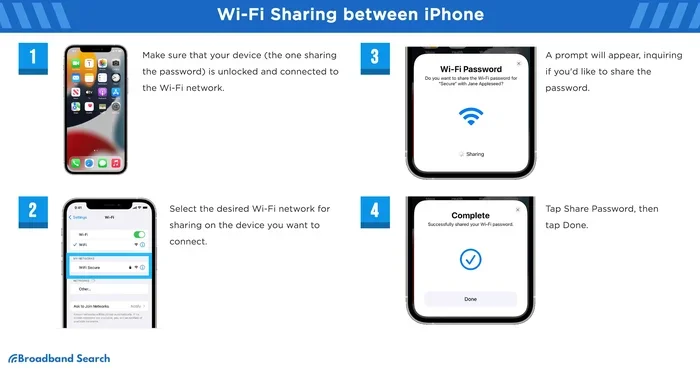
One of the coolest features of Android 13 is the ability to share your WiFi password without typing a single character. This is perfect when friends come over or when you need to set up a new device.
Using the QR Code Method
When you tap the share button on your saved WiFi network, Android generates a QR code. This code contains your network name and password. Anyone scanning it with their phone will automatically connect.
Here is how to do it:
- Go to Settings > WiFi.
- Tap on the saved network you want to share.
- Tap the Share button.
- Your phone will generate a QR code after you verify your identity.
- Have the other person scan the QR code with their phone camera.
- They will be connected instantly.
Using Nearby Share for Password Transfer
Android 13 also supports Nearby Share. This lets you send WiFi details directly to another Android device nearby. Both phones need to have Nearby Share enabled. This method is great for quick transfers without scanning a code.
Keep in mind that the receiving device must also run Android 10 or later for this to work smoothly.
How to Find Your WiFi Password Through Router Settings
Sometimes you need the WiFi password for a device that does not have access to your phone. Maybe you are setting up a smart TV or a gaming console. In these cases, checking your router settings is the way to go.
Accessing Your Router Admin Panel
Every WiFi router has a settings page you can access through a web browser. Here is how to find it:
- Connect your Android 13 phone to the WiFi network.
- Open your web browser.
- Type your router’s IP address in the address bar. Common addresses are 192.168.0.1 or 192.168.1.1.
- Log in with your router admin credentials. These are often printed on the back of your router.
- Navigate to the Wireless Settings or WiFi Settings section.
- Look for the Password or Network Security Key field.
Once you find the password, write it down and store it somewhere safe. You can also change it from this page if you want to update your WiFi security.
Finding Your Router IP Address on Android 13
If you do not know your router IP address, you can find it on your Android 13 phone:
- Go to Settings > Network & Internet > WiFi.
- Tap on your connected network.
- Look for the Gateway entry. That is your router IP address.
What to Do If You Forgot Your WiFi Password on Android 13
Forgot passwords happen. Maybe you have not connected to a network in months, or you bought a used phone with a network already saved. Here is what you can do.
Method 1: Check Your Google Account
Android 13 syncs WiFi passwords with your Google account. If you signed into a new phone with the same Google account, your saved passwords may transfer automatically. You can also visit passwords.google.com on any browser to view saved WiFi passwords.
Method 2: Reset Your Router
If you truly cannot access the password, resetting your router is a last resort. Press and hold the reset button on your router for about 10 seconds. This will restore the factory settings, including the default WiFi password printed on the router label.
Expert Insight: Resetting your router should be your final option. It will erase all custom settings, including your WiFi name, password, and port forwarding rules. Always try the other methods first.
Method 3: Use a Password Manager App
If you previously saved your WiFi password in a password manager app, you can retrieve it from there. Apps like LastPass, 1Password, or Google Password Manager store your credentials securely and make them easy to access.
Tips to Keep Your WiFi Password Safe and Secure
Now that you know how to find your WiFi password, it is equally important to keep it safe. A weak or exposed password can lead to unauthorized access, slow internet speeds, and even security risks.
Best Practices for WiFi Security
- Use WPA3 encryption: This is the most secure WiFi standard available today.
- Change default router passwords: Many routers come with generic admin passwords. Change them immediately.
- Create a strong WiFi password: Use at least 12 characters with a mix of letters, numbers, and symbols.
- Enable network hiding: This makes your network invisible to casual scanners.
- Update router firmware regularly: Manufacturers release updates that fix security vulnerabilities.
Quick Tips for Everyday Use
Quick Tip 1: Never write your WiFi password on a sticky note near your router. It is one of the most common ways neighbors or visitors access your network without permission.
Quick Tip 2: Create a separate guest network for visitors. This keeps your main network and all connected devices safe.
Quick Tip 3: Use a password manager to store your WiFi password. This way, you never have to worry about forgetting it again.
Comparison Table: Methods to Find WiFi Password on Android 13
| Method | Ease of Use | Requires Internet | Works Offline | Best For |
|---|---|---|---|---|
| Android Settings | Very Easy | No | Yes | Quick access on your own phone |
| QR Code Sharing | Easy | No | Yes | Sharing with friends or new devices |
| Router Admin Panel | Moderate | Yes | No | Smart TVs, consoles, and other devices |
| Google Account | Easy | Yes | No | Recovering passwords on new phones |
| Password Manager App | Easy | No | Yes | Long-term storage and retrieval |
As you can see, each method has its strengths. For everyday use, the Android 13 built-in settings are the fastest. For sharing, the QR code method is unbeatable. For recovery, your Google account or a password manager app is your best bet.
Frequently Asked Questions About WiFi Passwords on Android 13
Here are some common questions people ask when trying to find their WiFi password on Android 13.
Can I see my WiFi password without root access on Android 13?
Yes, absolutely. Android 13 allows you to view saved WiFi passwords without root access. You just need to use the built-in share feature in your WiFi settings. The system will ask you to verify your identity, and then the password will appear on screen.
Why can’t I find the share button on my WiFi network?
If the share button is missing, make sure your phone is running Android 13 or later. Also check that you have a screen lock enabled, such as a PIN or fingerprint. The share button requires authentication before it displays the password.
Will resetting my router delete all my WiFi passwords?
Resetting your router restores it to factory settings. This means your custom WiFi name and password will revert to the defaults. You will need to set up a new password after the reset. Any devices connected to your network will also need to reconnect.
Is it safe to save WiFi passwords on my Android phone?
Yes, it is safe. Android 13 encrypts saved WiFi credentials locally on your device. As long as you use a strong screen lock and keep your phone secure, your saved passwords remain protected. Using a password manager app adds an extra layer of security.
Can I find the WiFi password on Android 13 for a network I am not connected to?
Yes, you can view passwords for any saved network, even if you are not currently connected. Go to your WiFi settings, tap on the saved network, and use the share feature. The password will appear after you verify your identity.
How do I change my WiFi password after finding it on Android 13?
The easiest way is to log into your router admin panel using your router IP address. Navigate to the wireless settings section and change the password there. All connected devices will need the new password to reconnect.
Final Thoughts
Finding your WiFi password on Android 13 does not have to be a frustrating experience. Whether you need it for a new device, a friend’s phone, or just to double-check your network details, Android 13 gives you multiple easy ways to access it. The built-in settings are the fastest and most convenient method for most users.
Remember to keep your WiFi password safe and secure. Use strong passwords, enable the latest encryption standards, and consider using a password manager for long-term storage. With the tips and methods in this guide, you will never be stuck without your WiFi connection again.
Now that you know exactly how to find and manage your WiFi password, take a moment to check your own network settings. It only takes a couple of minutes, and it gives you peace of mind knowing your connection is secure and accessible whenever you need it.