How Do I Connect My Phone To My Car With Bluetooth
Connecting your phone to your car with Bluetooth is easier than you think. This guide walks you through every step, from initial pairing to fixing common connection problems. You will learn how to set up hands-free calling, stream music wirelessly, and get the best Bluetooth connection for your vehicle.
Key Takeaways
- Bluetooth pairing is simple: Most cars and phones can connect in under two minutes with just a few taps.
- Check compatibility first: Make sure your car stereo and phone both support Bluetooth before you start.
- Troubleshooting is straightforward: Restarting devices, clearing old pairings, and updating software fixes most issues.
- Apple CarPlay and Android Auto offer more features: These apps give you maps, apps, and voice commands on your car screen.
- Alternative connections exist: USB cables, AUX cables, and FM transmitters work when Bluetooth is not an option.
- Regular maintenance keeps connections smooth: Updating firmware and managing paired devices prevents future problems.
📑 Table of Contents
- What Is Bluetooth Phone Connection in Cars?
- How to Connect Your Phone to Your Car With Bluetooth
- Common Bluetooth Connection Problems and How to Fix Them
- Apple CarPlay vs Android Auto: Which Is Better for Your Car?
- Tips to Get the Best Bluetooth Experience in Your Car
- When Bluetooth Is Not Enough: Alternative Connection Methods
- Expert Insights on Car Bluetooth Connections
- Common Mistakes People Make When Connecting Phone to Car
- How to Keep Your Bluetooth Car Connection Secure
- Conclusion
What Is Bluetooth Phone Connection in Cars?
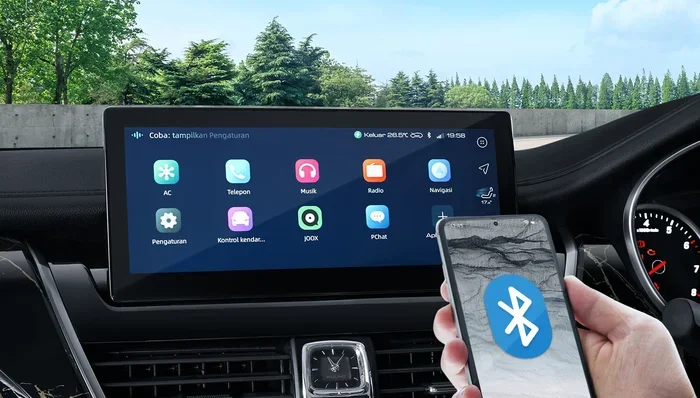
Bluetooth is a wireless technology that lets your phone talk to your car without any cables. It uses short-range radio waves to send data between devices. You can make calls, play music, and use navigation apps all without touching your phone.
The car infotainment system is the brain behind this connection. It is the screen and audio system built into your dashboard. When you pair your phone, the car stereo Bluetooth feature kicks in and links the two devices together.
Most cars made after 2012 come with built-in Bluetooth. Even older vehicles can get Bluetooth support through add-on adapters. The technology has become a standard feature, and mobile device integration is now expected by drivers everywhere.
Understanding how this works makes the whole process much easier. You are not just turning on a switch. You are creating a secure, encrypted link between your mobile device and your car’s audio system. Once paired, the connection remembers your phone and reconnects automatically.
How to Connect Your Phone to Your Car With Bluetooth
Setting up a Bluetooth connection between your phone and car is a straightforward process. Whether you drive a sedan, SUV, or truck, the basic steps are the same. Let us walk through it together.
Step 1: Turn on Bluetooth on Your Phone
Open your phone settings first. Look for the Bluetooth option and tap it. Make sure the toggle switch is turned on. Your phone will now start searching for nearby devices. On most phones, you will see a spinning circle or a “Searching” message.
For iPhone users, go to Settings and tap Bluetooth. For Android users, swipe down from the top of your screen and tap the Bluetooth icon. You can also go to Settings and find it there. Either way, the goal is the same: make your phone visible to other devices.
Step 2: Put Your Car in Pairing Mode
Now you need to tell your car to look for your phone. This is called entering pairing mode. The exact steps depend on your car brand and model. Here are the most common ways:
- Press the Bluetooth button on your steering wheel or infotainment screen.
- Go to Settings on your car display and select Bluetooth.
- Hold the phone button on your car stereo for a few seconds.
- Navigate to Phone Settings and choose “Add New Device.”
When your car enters pairing mode, it will show a message like “Searching for devices” or “Pairing Mode Active.” Some cars will also display a PIN code on the screen. You may need to enter this PIN on your phone to complete the connection.
Step 3: Find and Select Your Car on Your Phone
Back on your phone, you should see a list of available devices. Look for your car’s name. It might say something like “Ford SYNC,” “Chevrolet MyLink,” or your car’s model name. Tap on it to start the pairing process.
Your phone and car will now exchange information. This only takes a few seconds. You might see a confirmation message on both screens. Once you see “Connected” or “Paired,” you are all set.
Step 4: Test the Connection
Now comes the fun part. Play some music on your phone and see if it comes through your car speakers. Ask a voice assistant to make a call. Try streaming a podcast. If everything works, you have successfully completed your car Bluetooth setup.
If something does not work, do not worry. Move on to the troubleshooting section below. Most connection issues have simple fixes.
Quick Tips for a Smooth Pairing Process
- Keep your phone close to the car’s infotainment system during pairing.
- Make sure your phone battery is at least 20% charged.
- Turn off other Bluetooth devices nearby that might interfere.
- Restart both devices if the pairing does not start.
- Check your car manual for brand-specific pairing instructions.
Common Bluetooth Connection Problems and How to Fix Them
Even when you follow every step correctly, things can go wrong. Bluetooth troubleshooting is a normal part of owning a connected car. Let us look at the most common issues and their solutions.
Phone Connects but No Sound Comes Through
This is one of the most frequent complaints. Your phone shows as connected, but you hear nothing from the car speakers. The fix is usually simple. Check your car’s audio source or input setting. You may need to select “Bluetooth Audio” or “BT Audio” instead of the radio or USB mode.
Also, check your phone’s volume and media volume separately. On Android phones, media volume and call volume are different settings. On iPhones, make sure the ringer and alerts are not muted. A quick volume adjustment often solves this problem right away.
Phone Will Not Pair with the Car
If your phone will not connect, start by turning Bluetooth off and back on again. This sounds too simple, but it works more often than you would think. Next, try restarting both your phone and your car’s infotainment system.
Another common cause is too many paired devices. Your car can only remember a certain number of phones. Go into your car’s Bluetooth settings and delete old or unused pairings. Then try connecting again.
Sometimes the problem is on the phone side. Go to your phone’s Bluetooth settings and “Forget” the car device. Then start the pairing process fresh from the beginning. This clears any corrupted data that might be blocking the connection.
Connection Drops Frequently
A wireless connection that keeps dropping is frustrating. This usually happens when your phone is too far from the car’s antenna. Keep your phone in the center console or glove box. Also, make sure your car’s Bluetooth firmware is up to date.
Interference from other devices can also cause drops. If you have multiple Bluetooth devices in your car, turn off the ones you are not using. Wi-Fi routers and microwaves can also interfere with Bluetooth signals, though this is less common inside a vehicle.
Voice Commands Are Not Working
If you can make calls but voice commands fail, check your phone’s microphone permissions. Your car needs access to your phone’s microphone to hear your voice. Go to your phone settings, find the car Bluetooth connection, and make sure “Voice Audio” or “Microphone” is enabled.
On some cars, you need to set the car as the primary audio input for voice commands. Check your car’s settings under “Phone” or “Voice Control” to make sure everything is configured correctly.
Apple CarPlay vs Android Auto: Which Is Better for Your Car?
Both Apple CarPlay and Android Auto are amazing tools that take your phone mirroring to the next level. They do more than just play music. They give you maps, messages, and your favorite apps right on your car screen. But which one is right for you?
What Is Apple CarPlay?
Apple CarPlay works with iPhones. It mirrors your phone’s interface onto your car display. You get Siri voice commands, Apple Maps, Spotify, Messages, and more. CarPlay works over both Bluetooth and USB. For the best experience, use a USB cable.
With CarPlay, you can make calls, send and receive messages, and get turn-by-turn navigation. The interface is designed to be simple and safe. Large buttons and voice control mean you keep your eyes on the road.
What Is Android Auto?
Android Auto works with Android phones. It offers a similar experience with Google Maps, Google Assistant, Spotify, WhatsApp, and more. Like CarPlay, it works over Bluetooth and USB. A USB connection gives you the fastest and most reliable experience.
Android Auto lets you use all your favorite apps safely while driving. The interface is clean and easy to navigate. Google Assistant handles voice commands, and the maps are some of the best available.
Comparison Table
| Feature | Apple CarPlay | Android Auto |
|---|---|---|
| Compatible Phone | iPhone | Android phones |
| Voice Assistant | Siri | Google Assistant |
| Navigation App | Apple Maps | Google Maps |
| Connection Methods | Bluetooth and USB | Bluetooth and USB |
| Wireless Support | Yes (newer cars) | Yes (newer cars) |
| App Selection | Good selection | Good selection |
| Setup Difficulty | Very easy | Very easy |
Both systems are excellent. Your choice mostly comes down to which phone you use. If you have an iPhone, CarPlay is the natural choice. If you have an Android phone, Android Auto is your best bet. Some cars support both, giving you the flexibility to switch between them.
Which One Offers Better Music Streaming?
Both CarPlay and Android Auto support popular music apps like Spotify, Apple Music, YouTube Music, and Pandora. The streaming quality depends on your Bluetooth connection strength and your car’s audio system. For the highest quality audio, a USB cable connection is always better than wireless Bluetooth.
Tips to Get the Best Bluetooth Experience in Your Car
Once you have your phone connected to car working, you want to keep it running smoothly. Here are some practical tips that make a big difference.
Keep Your Software Updated
Both your phone and your car receive software updates. These updates often include Bluetooth improvements and bug fixes. Check for phone updates regularly. For your car, consult your owner’s manual or visit your dealer for firmware updates.
Manage Your Paired Devices
Over time, your car accumulates a list of paired devices. Delete phones you no longer use. This frees up memory and reduces the chance of accidental connections. Most car systems let you view and manage paired devices in the Bluetooth settings menu.
Use a Quality USB Cable for Wired Connections
If you also use a USB cable, invest in a good one. Cheap cables can cause connection drops and slow charging. Look for cables that are certified by the manufacturer. A quality cable makes a real difference in wireless streaming stability when used alongside Bluetooth.
Adjust Your Car’s Bluetooth Settings
Most car infotainment systems have hidden Bluetooth settings that can improve your experience. Look for options like “Connect as Media Device” or “Auto Connect.” Enabling auto connect means your phone pairs automatically every time you start your car.
Keep Your Phone Charged
Bluetooth uses your phone’s battery. If your phone battery is low, the connection may become unstable. Use a car charger to keep your phone powered during long drives. This also ensures your hands-free calling works reliably.
When Bluetooth Is Not Enough: Alternative Connection Methods
Bluetooth is great, but it is not the only way to connect your phone to your car. Sometimes you need a different approach. Here are the best alternatives.
USB Connection
A USB cable gives you the most reliable connection. It charges your phone and provides the best audio quality. Many cars support USB connections for both audio and phone mirroring through CarPlay or Android Auto. Just plug in and go.
The downside is the cable. It can be annoying to plug and unplug every time. But for the best sound quality and the most stable connection, a USB cable is hard to beat.
AUX Cable
An AUX cable is a simple 3.5mm audio cable that connects your phone’s headphone jack to your car’s AUX input. It does not charge your phone, but it does deliver good audio quality. AUX cables work with any phone that has a headphone jack.
More and more phones are dropping the headphone jack. If your phone does not have one, you will need a USB-C to AUX adapter or a Lightning to AUX adapter. These small accessories make AUX connections possible with modern phones.
FM Transmitter
An FM transmitter plugs into your car’s cigarette lighter or USB port. It broadcasts your phone’s audio over an FM frequency that your car radio can pick up. This is a great option for older cars that do not have Bluetooth or AUX inputs.
FM transmitters are affordable and easy to use. The downside is that audio quality is not as good as Bluetooth or USB. You may also experience some static or interference. But for a budget-friendly solution, they work well.
Comparison Table: Connection Methods
| Method | Audio Quality | Charges Phone | Ease of Use | Best For |
|---|---|---|---|---|
| Bluetooth | Good | No | Very Easy | Wireless convenience |
| USB Cable | Excellent | Yes | Easy | Best audio and charging |
| AUX Cable | Good | No | Easy | Older cars without Bluetooth |
| FM Transmitter | Fair | Yes (via USB) | Easy | Older cars, budget option |
Expert Insights on Car Bluetooth Connections
Automotive tech experts agree that Bluetooth connectivity has improved dramatically over the past few years. Modern Bluetooth versions like 5.0 and 5.3 offer better range, faster data transfer, and lower power consumption. If your car and phone both support the latest Bluetooth version, you will get the best experience.
Experts also recommend keeping your device pairing list clean. Too many saved devices can slow down the connection process and cause conflicts. A clean pairing list means smoother connectivity every time you get in your car.
One piece of advice from automotive technicians is to always restart your car’s infotainment system before attempting a new pairing. A simple reboot clears the system’s memory and resolves many hidden issues. This small step can save you a lot of frustration.
Another tip is to avoid connecting too many apps at once. If your phone is trying to stream music, sync contacts, and send notifications all at the same time, the Bluetooth connection can become overloaded. Prioritize what you need most and disable the rest.
Common Mistakes People Make When Connecting Phone to Car
Avoid these common mistakes to save time and frustration.
- Skipping the car manual. Your car’s manual has specific pairing instructions for your model. Skipping it can lead to confusion and failed attempts.
- Not deleting old pairings. Old, unused pairings take up space and can interfere with new connections. Clean up your device list regularly.
- Ignoring software updates. Outdated software on either your phone or car can cause compatibility issues. Always keep both devices updated.
- Placing your phone too far away. Bluetooth has a limited range of about 30 feet. Keep your phone close to the car’s antenna for the best signal.
- Forgetting to enable media audio. When you pair your phone, make sure “Media Audio” is turned on. Without it, you will only get call audio, not music or podcasts.
- Trying to pair in a crowded area. Bluetooth signals can get crowded in parking lots or garages with many cars. Move to a quieter spot if pairing fails.
How to Keep Your Bluetooth Car Connection Secure
Security matters when connecting your phone to your car. A Bluetooth connection is generally safe, but you can take extra steps to protect your data.
First, only pair devices you trust. Do not pair with unknown devices in public places. Second, turn off Bluetooth when you are not using it. This prevents unauthorized devices from trying to connect. Third, delete your car pairing from your phone when you sell or trade in your vehicle.
These simple steps keep your personal data safe and ensure that only your devices can access your car’s Bluetooth system. Wireless security is an important part of the connected car experience.
Conclusion
Connecting your phone to your car with Bluetooth opens up a world of convenience and safety. You get hands-free calling, wireless music streaming, and easy access to navigation apps. The process is simple, and once set up, it works automatically every time you get in your car.
Remember the key steps: turn on Bluetooth, put your car in pairing mode, find your car on your phone, and test the connection. If you run into problems, the troubleshooting tips in this guide will help you fix them quickly.
Whether you use Apple CarPlay, Android Auto, or just basic Bluetooth audio, the connection enhances your driving experience. Keep your software updated, manage your paired devices, and enjoy the benefits of a connected car. Your phone to car Bluetooth setup is one of the best upgrades you can make, and now you know exactly how to do it right.