How Do I Connect My Phone To A Speaker Device Easily
Connecting your phone to a speaker device is easier than you think. Whether you use Bluetooth, Wi-Fi, or a simple audio cable, this guide walks you through every method step by step. You will learn how to pair devices, fix common issues, and get the best sound quality from your setup.
Have you ever wanted to fill a room with music from your phone? Maybe you are hosting a party, relaxing at home, or just want better sound during your morning routine. Connecting your phone to a speaker device is one of the simplest ways to upgrade your audio experience. Yet many people find the process confusing or frustrating.
The good news is that it does not have to be hard. Whether your speaker uses Bluetooth technology, Wi-Fi, or a simple cable, the steps are straightforward. This guide covers every method you can use. You will also learn how to fix common problems and get the best sound quality every time.
By the end of this article, you will feel confident connecting any phone to any speaker. No guesswork. No stress. Just clear, easy steps that work every time. Let us get started.
Key Takeaways
- Bluetooth pairing is the most popular and easiest way to link your phone and speaker wirelessly.
- Wi-Fi streaming offers higher audio quality and longer range than standard Bluetooth.
- Wired connections using an audio cable or USB work when wireless options fail.
- NFC quick pairing lets you connect with a simple tap on supported devices.
- Troubleshooting steps can fix most connection problems in under two minutes.
- Audio settings on your phone control output choice, volume, and sound balance.
- Speaker compatibility matters, so always check your device specs before buying.
📑 Table of Contents
- Why Connecting Your Phone to a Speaker Matters
- How Bluetooth Connection Works
- Connecting via Bluetooth: Step-by-Step Guide
- Using Wi-Fi and Wireless Streaming Methods
- Wired Connection Options
- Troubleshooting Common Connection Issues
- Tips for Better Audio Quality
- Common Mistakes to Avoid
- Expert Insights on Phone-to-Speaker Connectivity
- Key Takeaways
- Conclusion
Why Connecting Your Phone to a Speaker Matters
Your phone is a powerful music player. It holds thousands of songs, podcasts, and streaming apps. But the tiny built-in speakers on most phones cannot fill a room with rich audio. A Bluetooth speaker or any external speaker device changes that completely.
Here is why this matters:
- Better sound quality — External speakers produce louder, clearer audio than phone speakers ever could.
- Shared listening — When you connect your phone to a speaker, everyone in the room can enjoy the music together.
- Wireless freedom — Modern wireless connection methods let you move around freely without cables.
- Boosted volume — A good speaker fills large spaces, making it perfect for gatherings or outdoor events.
- Hands-free calls — Many speakers include microphones, so you can take calls with crystal-clear audio.
Understanding why you want this connection helps you choose the right method. Someone hosting a backyard barbecue needs a different setup than someone who just wants better sound in their kitchen. Keep your goal in mind as you read through the options below.
How Bluetooth Connection Works
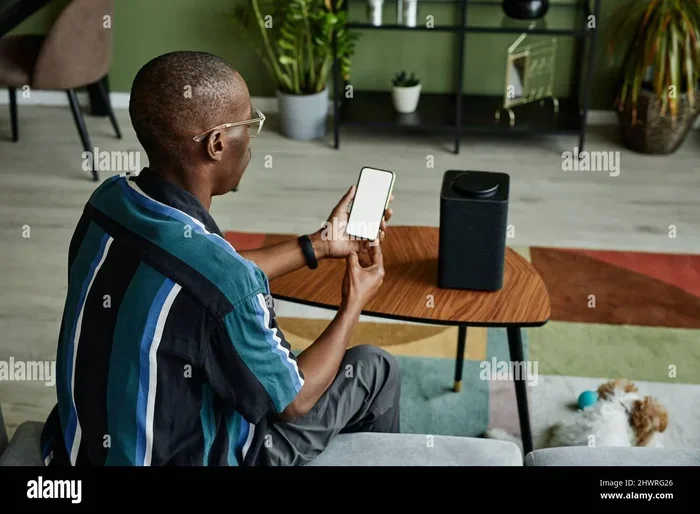
Bluetooth technology is the most common way to connect a phone to a speaker. It uses short-range radio waves to send audio from one device to another. No cables needed. No complicated setup. Just a few taps and you are streaming.
Understanding Bluetooth Basics
Bluetooth works on a specific frequency band — 2.4 GHz — which is the same band used by Wi-Fi and other wireless devices. When your phone and speaker are paired, they create a small private network between them. This network carries the audio signal from your phone to the speaker in real time.
The Bluetooth range is typically about 30 feet indoors. Walls and obstacles can reduce this distance. Newer versions of Bluetooth, like Bluetooth 5.0 and above, offer better range and more stable connections. If your phone and speaker both support the latest version, you will get the best performance.
Pairing Mode Explained
Before your phone can find a speaker, the speaker must be in pairing mode. This is a special state where the speaker is visible to other devices. Most speakers have a dedicated button for this. When you press it, a light usually flashes blue or red, indicating the speaker is ready to be found.
Some speakers enter pairing mode automatically the first time you turn them on. Others require you to hold the power button for several seconds. Always check your speaker manual for the exact steps. Getting this step right is the most important part of the whole process.
Connecting via Bluetooth: Step-by-Step Guide
Now let us walk through the actual steps. This phone pairing process works for almost all phones and Bluetooth speakers. Follow along carefully and you will be listening to music in just a few minutes.
Step 1: Turn On Your Speaker
Press the power button on your speaker. Wait for it to fully start up. You should hear a startup tone or see a light indicator. If your speaker has a battery, make sure it is charged before you begin. A low battery can cause connection problems.
Step 2: Put the Speaker in Pairing Mode
Find the Bluetooth button on your speaker. Press and hold it until the light starts flashing. This tells your phone that the speaker is ready to pair. If you cannot find a Bluetooth button, check the manual. Some speakers use a combination of buttons to enter pairing mode.
Step 3: Open Bluetooth on Your Phone
On your phone, go to Settings and then tap Bluetooth. Make sure the Bluetooth toggle is turned on. Your phone will start scanning for nearby devices. This usually takes a few seconds.
Step 4: Find and Select Your Speaker
Look through the list of available devices. Your speaker name should appear on the screen. Tap on it to begin the pairing process. You may see a confirmation message asking if you want to pair. Tap Pair or Connect to confirm.
Step 5: Test the Connection
Play some music on your phone. If you hear sound coming from the speaker, you are all set. If there is no sound, check the audio output settings on your phone. Sometimes the phone stays connected to a different device and needs to be switched manually.
Quick Tips for Bluetooth Pairing
- Keep devices close during the first pairing attempt — within 3 to 5 feet is ideal.
- Restart both devices if the speaker does not appear in the list.
- Forget old pairings if your speaker connects to a different phone nearby.
- Update your phone software to ensure the best Bluetooth compatibility.
Using Wi-Fi and Wireless Streaming Methods
Bluetooth is great for most situations. But if you want higher audio streaming quality, Wi-Fi speakers are the way to go. Wi-Fi connections carry more data than Bluetooth, which means better sound and less compression.
How Wi-Fi Speakers Work
Wi-Fi speakers connect to your home network, just like your phone or laptop. Once connected, they can receive audio streams with much higher quality. This is why Wi-Fi speaker systems are popular for home audio setups. Brands like Sonos, Google Home, and Amazon Echo use Wi-Fi as their primary connection method.
To connect your phone to a Wi-Fi speaker, you usually use a dedicated app. The app handles the setup and lets you control playback from your phone. Some speakers also support AirPlay for Apple devices and Chromecast for Android phones.
Setting Up a Wi-Fi Speaker Connection
First, download the manufacturer’s app on your phone. Open the app and follow the on-screen instructions to add your speaker to the network. Make sure your phone and speaker are on the same Wi-Fi network. Once linked, you can stream music directly from your phone or from cloud services like Spotify and Apple Music.
The wireless audio experience over Wi-Fi is noticeably smoother. There is less audio latency, meaning the sound stays perfectly in sync with videos or games. This makes Wi-Fi speakers a great choice for home entertainment.
NFC Pairing: The Quick Tap Method
If your phone and speaker both support NFC (Near Field Communication), you can connect them with a simple tap. NFC is a very short-range wireless technology. You just touch your phone against the NFC spot on the speaker, and the pairing happens instantly.
This method is super fast and works with many modern Android phones. Apple iPhones do not support NFC for audio pairing, so this method is limited to Android users. Check your device specs to see if NFC is available before trying this approach.
Wired Connection Options
Not every speaker connects wirelessly. Many speakers still use physical cables, and that is perfectly fine. In fact, wired connections can be more reliable because they do not depend on wireless signals. Here are the most common audio cable options.
Using a 3.5mm Audio Cable
The audio jack connection is the oldest and most universal method. You need a cable with a 3.5mm plug on both ends. Plug one end into your phone’s headphone port and the other into the speaker’s input port.
Many modern phones no longer have a headphone jack. If that is the case, you can use a USB-C to 3.5mm adapter. These adapters are inexpensive and work with most phones. Once the cable is connected, switch the speaker to the correct input source, and you should hear sound right away.
Using a USB Cable
Some speakers can be connected directly to your phone using a USB cable. This method is common with portable speakers that double as charging devices. Plug the USB end into your phone and the other end into the speaker. The phone may ask if you want to share audio — select Yes or Transfer Audio.
USB connections are stable and do not suffer from interference. They are a great backup option when Bluetooth is not working properly.
RCA and Optical Inputs
Larger home speakers sometimes use RCA cables or optical inputs. These are less common for phone connections but still worth mentioning. An RCA cable has red and white plugs that connect to matching ports on the speaker. An optical cable uses light to carry the audio signal. You will need the right adapter on your phone for either of these options.
Troubleshooting Common Connection Issues
Even when you follow every step correctly, things can go wrong. Speaker troubleshooting is a normal part of the process. Here are the most common problems and how to fix them fast.
Speaker Not Showing Up on Your Phone
If your phone cannot find the speaker, the first thing to do is check the distance. Move the speaker closer to your phone. Then make sure the speaker is in pairing mode. You can also try turning Bluetooth off and back on. Restarting both devices often solves this problem quickly.
Sound Keeps Cutting Out
Intermittent audio is usually caused by distance or interference. Stay within the Bluetooth range of your speaker. Remove any objects between the two devices. Other wireless devices, microwaves, and even USB 3.0 ports can cause interference. Moving away from these sources often fixes the issue.
Phone Connects but No Sound Plays
This is a common issue that is easy to fix. Check your phone’s audio output settings. Go to Settings, then Bluetooth, and find your speaker. Make sure it is set as the active audio device. On some phones, you need to tap the gear icon next to the speaker and select “Media Audio.”
Pairing Password Not Working
Some speakers require a PIN to pair. The default password is usually 0000, 1234, or 8888. Check your speaker manual for the correct code. If none of these work, try resetting the speaker to factory settings and pairing again.
Tips for Better Audio Quality
Once your phone is connected to the speaker, you can take steps to improve the listening experience. These small adjustments make a big difference in sound quality.
Adjust EQ Settings on Your Phone
Most phones have built-in equalizer settings. Go to your phone’s sound settings and look for EQ or audio effects. Boosting the bass or treble can make your music sound much richer. Experiment with different presets to find what works best for your favorite music genre.
Keep Your Speaker Firmware Updated
Manufacturers release firmware updates that improve device connectivity and audio performance. Check the speaker’s app regularly for updates. Installing the latest firmware ensures you get the best experience possible.
Position Your Speaker Correctly
Where you place your speaker affects the sound. Put it on a flat surface away from walls for the clearest audio. Avoid placing it in corners, which can make the bass sound muddy. If you are using a portable speaker outdoors, keep it at ear level for the best experience.
Control Volume from Both Devices
You can adjust volume from your phone or from the speaker itself. Using the speaker’s volume controls sometimes gives you more power and less distortion at high volumes. Try both methods and see which sounds better to your ears.
Common Mistakes to Avoid
Even experienced users make mistakes when setting up their mobile device and speaker connections. Here are the most common ones and how to avoid them.
- Skipping the pairing mode step — Your speaker must be in pairing mode for your phone to find it. Always confirm the light is flashing before you search.
- Ignoring software updates — Outdated phone or speaker software can cause compatibility problems. Keep everything up to date.
- Connecting to the wrong device — If multiple speakers are nearby, your phone might connect to the wrong one. Always double-check the device name before confirming.
- Overlooking battery levels — A low battery on either device can cause unstable connections. Charge both devices before you start.
- Forgetting to disconnect — If you do not disconnect a speaker after use, your phone may auto-connect to it next time, even when you want a different device.
Avoiding these simple mistakes saves a lot of frustration. It keeps your wireless connection smooth and your audio streaming experience enjoyable.
Expert Insights on Phone-to-Speaker Connectivity
Audio engineers and tech experts agree that the best connection method depends on your specific needs. Bluetooth pairing works well for most everyday situations. It is fast, simple, and works with nearly every device. For home setups where sound quality is the top priority, Wi-Fi speakers offer a noticeable upgrade.
Experts also recommend keeping your phone within reasonable range of the speaker. While Bluetooth range can reach 30 feet, real-world performance is often shorter due to walls and furniture. For the most reliable connection, keep your phone within 10 to 15 feet of the speaker.
Another tip from audio professionals is to use lossless audio formats when possible. Formats like FLAC or ALAC preserve more audio detail than compressed formats like MP3. When your speaker and phone support these formats, you will hear a clearer, more detailed sound.
Key Takeaways
- Bluetooth pairing is the most popular and easiest way to link your phone and speaker wirelessly.
- Wi-Fi streaming offers higher audio quality and longer range than standard Bluetooth.
- Wired connections using an audio cable or USB work when wireless options fail.
- NFC quick pairing lets you connect with a simple tap on supported devices.
- Troubleshooting steps can fix most connection problems in under two minutes.
- Audio settings on your phone control output choice, volume, and sound balance.
- Speaker compatibility matters, so always check your device specs before buying.
Conclusion
Connecting your phone to a speaker device is one of the simplest upgrades you can make to your daily audio experience. Whether you choose Bluetooth, Wi-Fi, or a wired cable, the process is straightforward and well worth the effort. You now have all the steps, tips, and troubleshooting advice you need to get started.
Remember that device connectivity improves with practice. The more you connect and disconnect your devices, the more familiar the process becomes. Do not be afraid to experiment with different methods to find what works best for your lifestyle.
Start with Bluetooth if you want speed and convenience. Choose Wi-Fi if sound quality is your top priority. Use a cable when you need a rock-solid connection. No matter which method you pick, the goal is the same — better audio, more enjoyment, and a richer listening experience.
Now that you know how easy it is to connect your phone to a speaker, go ahead and try it. Put on your favorite song, press play, and let the music fill the room. You will wonder why you did not do it sooner.
Frequently Asked Questions
Can I connect any phone to any speaker?
Most modern phones and speakers support Bluetooth, which makes them compatible with each other. However, some older speakers or niche devices may use different connection methods. Always check the speaker’s specs to confirm it can pair with your phone type.
Why does my phone keep disconnecting from the speaker?
Disconnections usually happen when the devices are too far apart or when there is interference from other wireless devices. Try moving closer to the speaker, restarting both devices, or reducing the number of active Bluetooth devices in the area.
Can I connect my phone to multiple speakers at once?
Yes, many modern speakers support multi-device pairing. Some brands like JBL and Bose allow you to link two speakers together for stereo sound. Check your speaker’s app or manual for multi-speaker setup options.
Is Bluetooth safe for audio streaming?
Absolutely. Bluetooth audio has been used safely for over two decades. The technology uses low-power radio waves that are well within safety limits. Your wireless audio connection is secure and reliable for everyday use.
What is the difference between Bluetooth and Wi-Fi speakers?
Bluetooth speakers connect directly to your phone and are portable and easy to set up. Wi-Fi speakers connect to your home network and offer better audio quality, longer range, and support for multi-room audio. Bluetooth is best for on-the-go use, while Wi-Fi excels at home setups.
Do I need an app to connect my phone to a speaker?
For Bluetooth speakers, you do not need an app. Your phone’s built-in Bluetooth settings handle everything. Wi-Fi speakers usually require a manufacturer app for initial setup and ongoing control. Some advanced features like EQ adjustments also need the app.