How Can I Share Internet From Iphone To Android Fast
Sharing internet from your iPhone to an Android device is easier than you think. Whether you need to tether via Wi-Fi hotspot, Bluetooth, or USB cable, this guide covers every fast and reliable method. You will learn step-by-step instructions, pro tips, and common mistakes to avoid when sharing internet from iPhone to Android.
There is nothing worse than running out of mobile data on your Android phone while you are on the go. Maybe your data plan expired, or your signal is weak. Whatever the reason, you do not have to sit there disconnected. Sharing internet from iPhone to Android is a simple solution that can get you back online in minutes.
You might be wondering, how can I share internet from iPhone to Android fast? The good news is that Apple makes it very easy to share your iPhone’s cellular data with other devices. And Android phones can connect to those shared networks without any hassle. In this article, we will walk you through every method step by step.
We will cover three main ways to share internet from iPhone to Android: Wi-Fi hotspot, Bluetooth tethering, and USB tethering. Each method has its own strengths. We will also share quick tips and common mistakes so you can get the best results every time. Let us dive right in.
Key Takeaways
- Personal Hotspot is the fastest method for sharing internet from iPhone to Android over Wi-Fi.
- Bluetooth tethering works without Wi-Fi and is great for low-power situations.
- USB tethering offers the most stable connection and charges your Android device at the same time.
- Setting a strong password on your hotspot keeps your data safe from unauthorized users.
- Turn off hotspot when not in use to save battery and protect your data plan.
- Check your carrier plan before sharing, as some plans limit tethering data usage.
📑 Table of Contents
- Why Share Internet From iPhone to Android?
- Method 1: Share Internet From iPhone to Android Using Personal Hotspot
- Method 2: Share Internet From iPhone to Android Using Bluetooth
- Method 3: Share Internet From iPhone to Android Using USB Tethering
- Comparison: Which Method Is Best for You?
- Quick Tips for Fast and Reliable Sharing
- Common Mistakes to Avoid When Sharing Internet From iPhone to Android
- Frequently Asked Questions
- Conclusion
Why Share Internet From iPhone to Android?
There are many real-world situations where sharing internet from iPhone to Android comes in handy. Maybe your Android phone lost its Wi-Fi connection at a coffee shop. Or perhaps you are traveling and only have your iPhone with a working data plan. Whatever the reason, knowing how to tether your iPhone to Android is a valuable skill.
Here are a few common scenarios where this comes in useful:
- Traveling abroad and your Android phone has no local data plan.
- Emergency situations when your Android phone has no signal but your iPhone does.
- Working remotely and your Android tablet needs internet for a video call.
- Saving data on your Android phone by using your iPhone’s connection instead.
- Temporary connectivity when you are between plans or waiting for a new SIM card.
The process is straightforward and does not require any third-party apps. Apple built personal hotspot features right into iOS, and Android has native support for connecting to shared networks. This means you can share internet from iPhone to Android without downloading anything extra.
Method 1: Share Internet From iPhone to Android Using Personal Hotspot
The personal hotspot method is the most popular and fastest way to share internet from iPhone to Android. It turns your iPhone into a Wi-Fi router. Your Android phone can then connect to that Wi-Fi network just like it would connect to any other wireless network.
Step-by-Step Guide to Setting Up iPhone Hotspot
Follow these simple steps to get your iPhone personal hotspot running:
- Open the Settings app on your iPhone.
- Tap on Personal Hotspot. You may need to scroll down to find it.
- Toggle Allow Others to Join to ON.
- Set a Wi-Fi password. Make it strong but something you can remember.
- Note the Wi-Fi password displayed on the screen.
Now your iPhone is broadcasting a Wi-Fi network. On your Android phone, go to Settings > Network & Internet > Wi-Fi. Find your iPhone’s hotspot name in the list of available networks. Tap on it and enter the password. You should be connected within seconds.
Tips for the Best Hotspot Experience
Here are some quick tips to make your iPhone hotspot to Android experience smoother:
- Place your iPhone close to your Android device. Walls and distance can weaken the signal.
- Use a strong password. This prevents strangers from using your data without permission.
- Turn off Bluetooth and AirDrop if you are not using them. This frees up bandwidth.
- Keep your iPhone plugged into power. Running a hotspot drains battery quickly.
- Change the hotspot name to something unique so it is easy to find on your Android device.
How to Change Hotspot Settings on iPhone
You can customize your personal hotspot settings for better performance. Go to Settings > Personal Hotspot and look for these options:
- Maximize Compatibility: Turn this ON if older devices have trouble connecting. It changes the Wi-Fi band to 2.4GHz.
- Allow Others to Join: This toggles your hotspot on and off.
- Wi-Fi Password: Change this anytime for security.
- Hotspot Name: This is the same as your iPhone name by default.
Adjusting these settings can help if your Android device is having trouble connecting to the hotspot. The maximize compatibility setting is especially helpful for older Android phones.
Method 2: Share Internet From iPhone to Android Using Bluetooth
Bluetooth tethering is the second method to share internet from iPhone to Android. It does not require Wi-Fi, which makes it useful in situations where you do not want to broadcast a wireless network. Bluetooth tethering is slower than Wi-Fi hotspot, but it uses less battery and works well for basic tasks like checking email or sending messages.
How to Connect iPhone and Android via Bluetooth Tethering
Here is how you can tether your iPhone to Android using Bluetooth:
- On your iPhone, go to Settings > Bluetooth and turn it ON.
- On your Android phone, go to Settings > Bluetooth and turn it ON.
- Make sure both devices are set to visible or discoverable.
- On your Android phone, find your iPhone in the list of available devices and tap to pair.
- Enter the pairing code if prompted. It usually appears on both screens.
- On your iPhone, go to Settings > Personal Hotspot and turn it ON.
- Under Allow Others to Join, you should see your Android device listed.
- Tap on your Android device to connect.
Once connected, your Android phone will use your iPhone’s cellular data through the Bluetooth connection. You will see a Bluetooth tethering icon in your Android notification bar.
When to Use Bluetooth Tethering
Bluetooth tethering is not the fastest option, but it has its place. Use it when:
- You are in a public place and do not want others to see your Wi-Fi network.
- Battery life is a concern. Bluetooth uses less power than Wi-Fi hotspot.
- You only need light internet access for text-based tasks.
- Wi-Fi is crowded and you want a more private connection.
Keep in mind that Bluetooth speeds are much slower than Wi-Fi. Do not use Bluetooth tethering for streaming videos or downloading large files. It works best for browsing and quick tasks.
Method 3: Share Internet From iPhone to Android Using USB Tethering
USB tethering is the third and often most stable method to share internet from iPhone to Android. You connect the two devices with a cable, and your Android phone gets internet through the wired connection. This method is fast, reliable, and charges your Android device at the same time.
Setting Up USB Tethering Between iPhone and Android
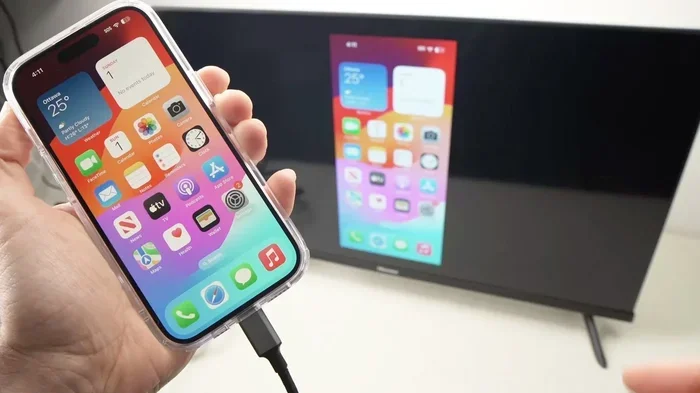
USB tethering between iPhone and Android requires a Lightning-to-USB-C cable or a Lightning-to-USB-A cable with an adapter. Here is how to set it up:
- Connect your iPhone to your Android phone using the appropriate USB cable.
- On your iPhone, tap Trust This Computer if prompted.
- On your Android phone, go to Settings > Network & Internet > Hotspot & Tethering.
- Toggle on USB Tethering. It should turn on automatically when you plug in the cable.
- Your Android phone should now have internet access through the iPhone connection.
That is it! USB tethering gives you a very stable and fast connection. Unlike Wi-Fi hotspot, there is no signal interference from walls or distance. The data travels directly through the cable.
Advantages of USB Tethering
Here is why USB tethering is a great option for sharing internet from iPhone to Android:
- Faster speeds compared to Bluetooth tethering.
- More stable connection with no dropped signals.
- Charges your Android phone while sharing data.
- No battery drain on your iPhone from broadcasting Wi-Fi.
- Private connection that others cannot intercept.
Limitations of USB Tethering
There are a few downsides to keep in mind:
- You need a physical cable between the two devices.
- Not all cables work for tethering. Some Lightning cables are charge-only.
- You cannot move around freely. The devices must stay connected by the cable.
- iPhone may not support USB tethering natively on all models. Some iPhones require third-party apps for USB sharing, though Apple has been improving this.
Expert Insight: According to tech reviewers, USB-C iPhones (iPhone 15 and later) make USB tethering much easier because they use the same connector as most modern Android phones. If you have a newer iPhone, USB tethering is the most seamless option.
Comparison: Which Method Is Best for You?
Each method for sharing internet from iPhone to Android has its own strengths. Here is a quick comparison to help you choose the right one:
| Feature | Wi-Fi Hotspot | Bluetooth Tethering | USB Tethering |
|---|---|---|---|
| Speed | Fast | Slow | Very Fast |
| Battery Usage | High | Low | Low |
| Range | Up to 30 feet | Up to 30 feet | Cable length only |
| Stability | Good | Moderate | Excellent |
| Needs Cable | No | No | Yes |
| Multiple Devices | Yes (up to 5) | One at a time | One at a time |
| Best For | Everyday use | Light tasks | Stable, fast connection |
For most people, the Wi-Fi hotspot method is the best choice. It is fast, easy, and lets multiple devices connect. But if you need a quick and private connection, Bluetooth tethering works well. And if you want the most stable link, go with USB tethering.
Quick Tips for Fast and Reliable Sharing
Want to get the most out of your iPhone to Android internet sharing? Here are some pro tips that make a big difference:
- Restart both devices before setting up the connection. This clears any network glitches.
- Update iOS and Android software to the latest versions. Updates often fix connectivity bugs.
- Turn off Low Power Mode on your iPhone before starting a hotspot. Low Power Mode can disable hotspot features.
- Use a 5GHz Wi-Fi band for faster speeds. Make sure maximize compatibility is off on your iPhone.
- Monitor your data usage on your iPhone. Tethering uses your cellular data plan quickly.
- Keep your iPhone cool. Hotspot usage generates heat, and overheating can slow things down.
- Set a data limit in your Android settings to avoid accidentally using too much data.
Common Mistakes to Avoid When Sharing Internet From iPhone to Android
Even though sharing internet from iPhone to Android is simple, people still make mistakes that cause frustration. Here are the most common ones:
Forgetting to Turn On Personal Hotspot
This sounds obvious, but many people forget to actually toggle the personal hotspot on. Make sure it is enabled in Settings > Personal Hotspot before trying to connect from your Android device.
Using the Wrong Password
The Wi-Fi password for your hotspot is shown in the Personal Hotspot settings screen. Make sure you are typing it exactly as it appears. Passwords are case-sensitive.
Ignoring Carrier Data Limits
Some mobile carriers throttle tethering data or charge extra for it. Before you start sharing, check with your carrier about their tethering policy. Going over your limit can result in slow speeds or extra charges.
Leaving Hotspot On All Day
Leaving your iPhone hotspot on when you are not using it drains battery and uses data unnecessarily. Always turn it off when you are done. You can also set a timeout so it turns off automatically after a period of inactivity.
Not Updating Software
Outdated software can cause compatibility issues between iPhone and Android devices. Always keep both phones updated to the latest operating system version for the smoothest experience.
Using a Damaged or Charge-Only Cable
If you are trying USB tethering and it is not working, the cable might be the problem. Some cables only charge devices and do not transfer data. Use a high-quality data-capable cable for best results.
Frequently Asked Questions
Can I share internet from iPhone to Android without Wi-Fi?
Yes, you can. Bluetooth tethering and USB tethering both work without Wi-Fi. Bluetooth is great for short-range, low-speed tasks. USB tethering gives you a fast and stable wired connection. Both methods are built into iOS and Android with no extra apps needed.
Is sharing internet from iPhone to Android free?
The connection itself is free. However, your cellular data plan is what gets used when you tether. If you have a limited data plan, sharing can eat through it quickly. Some carriers also charge extra for tethering, so check your plan details before you start.
Why is my Android phone not connecting to my iPhone hotspot?
There are a few common reasons. First, make sure personal hotspot is turned on on your iPhone. Second, check that you are entering the correct Wi-Fi password. Third, try restarting both devices. Fourth, make sure maximize compatibility is on if you have an older Android phone. Finally, ensure your iPhone is not in Low Power Mode, which can block hotspot functionality.
Can I share internet from iPhone to multiple Android devices at once?
Yes. When you use Wi-Fi hotspot, your iPhone can support up to five devices at the same time. Each device connects using the same Wi-Fi password. Just make sure your cellular data plan can handle the extra usage from multiple devices.
Does USB tethering work with iPhone 15 and Android phones?
Yes, and it works better than ever. iPhone 15 and newer models use USB-C, which is the same connector found on most modern Android phones. You can use a simple USB-C to USB-C cable for tethering. The connection is fast, stable, and charges your Android phone at the same time.
How do I stop sharing internet from my iPhone?
To turn off personal hotspot, go to Settings > Personal Hotspot and toggle it off. You can also turn off Bluetooth to stop Bluetooth tethering. For USB tethering, simply unplug the cable. Your Android phone will automatically switch back to its own data connection or Wi-Fi.
Conclusion
Sharing internet from iPhone to Android fast is a skill that everyone should have. Whether you are traveling, working remotely, or just dealing with a dead Wi-Fi connection, knowing how to tether your iPhone to Android keeps you connected when it matters most.
We covered three reliable methods in this guide: Wi-Fi hotspot for speed and convenience, Bluetooth tethering for private low-power sharing, and USB tethering for the most stable and fastest connection. Each method works well in different situations, and now you know exactly when to use each one.
Remember the quick tips we shared. Keep your password strong, monitor your data usage, and turn off hotspot when you are done. Avoid the common mistakes that trip up most users. And always check your carrier’s tethering policy to avoid surprise charges.
Sharing internet from iPhone to Android does not have to be complicated. With the steps in this guide, you can get connected in under five minutes. Try each method and see which one works best for your needs. Stay connected, stay productive, and never worry about running out of data again.