How Can I Delete My Email Address Permanently for Good
Deleting your email address permanently is a smart move for protecting your privacy and reducing digital clutter. This guide walks you through the exact steps to delete your email account from Gmail, Yahoo, Outlook, and other providers. You will learn how to back up data, update online accounts, and ensure the deletion is permanent and irreversible.
Deleting your email address permanently is one of the most important steps you can take for your digital privacy. Many people hold onto old email accounts they no longer use, not realizing the risks they carry. An unused email address can become a gateway for hackers, spam, and identity theft. If you have been asking yourself, “how can I delete my email address permanently,” you are in the right place. This guide covers everything you need to know about permanently removing your email from every major provider.
Whether you want to close a Gmail account, remove a Yahoo inbox, or shut down an Outlook profile, the process is simpler than you think. But it is not just about clicking a few buttons. You need to back up your data, update your online accounts, and follow the right steps to make sure the deletion is permanent. This article walks you through each provider’s process in detail. By the end, you will feel confident and ready to take action.
Key Takeaways
- Permanent deletion is possible: Every major email provider lets you close your account, but you must follow their specific process.
- Back up before you delete: Always save important emails, contacts, and files before starting the deletion process.
- Update your online accounts: Remove or change the email linked to banks, social media, and shopping sites before closing it.
- There is a grace period: Most providers give you a window to recover your account after deletion.
- Check connected services: Many apps and websites use your email for login, so you need to switch those first.
- Digital privacy matters: Deleting unused email addresses reduces your digital footprint and lowers the risk of data breaches.
- Act quickly if you change your mind: Recovery options disappear once the grace period ends.
📑 Table of Contents
- Why You Should Delete Your Email Address Permanently
- How to Delete Your Gmail Account Permanently
- How to Delete Yahoo Email Permanently
- How to Remove Your Outlook Email Account
- What Happens After You Delete Your Email Address
- Tips for a Clean Digital Exit
- Common Mistakes People Make When Deleting Email Accounts
- Expert Insights on Permanent Email Deletion
- Key Takeaways
- Conclusion
Why You Should Delete Your Email Address Permanently
Keeping old email accounts around might seem harmless. But every unused inbox is a potential security risk. Hackers love dormant accounts because they are easy targets. If someone gains access to an old email, they can reset passwords for all your other accounts. This is why email account deletion is so important for your online safety.
There are many reasons people choose to permanently remove email from their lives. Let us look at the biggest ones.
Protecting Your Email Privacy
Every email account you own adds to your digital footprint. The more accounts you have, the more data is scattered across the internet. Even if you do not actively use an old inbox, it still holds personal information. Old emails contain receipts, messages, and sign-up details. All of this data can be exploited if the account is compromised. Deleting unused accounts is one of the best ways to protect your email privacy.
Reducing Digital Clutter
Do you have five or more email accounts? Most people do. Managing multiple inboxes is exhausting. You have to check each one, sort through spam, and worry about security updates. Email address cleanup frees up mental energy and simplifies your online life. When you delete accounts you no longer need, you only focus on the ones that matter.
Lowering the Risk of Data Breaches
Every online account is a potential entry point for hackers. Even the biggest email providers face security breaches. When you delete an account you no longer use, you remove that entry point entirely. This is a key part of data removal and keeping your personal information safe.
How to Delete Your Gmail Account Permanently
Gmail is the most popular email provider in the world. If you want to delete your Gmail account, Google makes the process straightforward. But there are important things to know before you start. Let us walk through it step by step.
Step-by-Step Gmail Deletion Process
Follow these steps to close your Gmail account for good:
- Sign in to your Google Account. Go to myaccount.google.com and log in with the email you want to delete.
- Navigate to Data and Privacy. Click on this tab in the left-hand menu.
- Scroll down to Delete Your Account. Look for the section titled “Delete your Google Account.”
- Follow the on-screen prompts. Google will walk you through what will be lost. Read each step carefully.
- Confirm your password. You will need to re-enter your password to verify your identity.
- Click Delete Account. This starts the permanent removal process.
Once you confirm, Google gives you a short window before the account is fully deleted. You can cancel during this period if you change your mind.
What to Do Before You Delete Gmail
Before you start the Gmail delete account process, take these important steps:
- Back up all your emails. Use Google Takeout to download your messages. This ensures you do not lose anything important.
- Save your contacts. Export them to a file or transfer them to another email address.
- Update your online accounts. Change the email linked to banks, social media, and shopping sites.
- Cancel any active subscriptions. Make sure no services are billing to this Gmail address.
- Remove the account from other devices. Sign out of phones, tablets, and computers.
Skipping these steps can cause serious problems. You may lose access to important services or lose valuable data forever.
How to Delete Yahoo Email Permanently
Yahoo Mail has been around for decades. Many people still use it as their primary inbox. If you are ready to move on, here is how to handle Yahoo email deletion the right way.
Yahoo Account Deletion Steps
Follow this process to close your Yahoo email account:
- Go to the Yahoo Account Termination page. You can find it by searching for “Yahoo account deletion.”
- Log in to your Yahoo account. Enter your email and password when prompted.
- Follow the verification steps. Yahoo may ask you to complete a CAPTCHA or confirm your identity.
- Confirm the deletion. Yahoo will explain what happens next. Read the information carefully.
- Wait for the process to complete. Yahoo typically deactivates the account within 48 hours.
Handling Yahoo Mail Data
Before you deactivate your Yahoo email, make sure you have saved everything you need. Yahoo does not hold onto your data after deletion. Here is what you should do:
- Download all important emails to your computer or another email provider.
- Save any attachments you want to keep.
- Note down any contacts you need for future reference.
- Cancel any Yahoo services tied to this account.
Once the account is deleted, there is no going back. Yahoo does not offer email recovery after the grace period ends. So be absolutely sure before you confirm.
How to Remove Your Outlook Email Account
Outlook is Microsoft’s email service, and it is widely used for both personal and professional communication. If you want to do an Outlook account removal, the process is different from Gmail and Yahoo. Let us break it down.
Outlook Account Closure Process
Here is how to permanently close your Outlook email account:
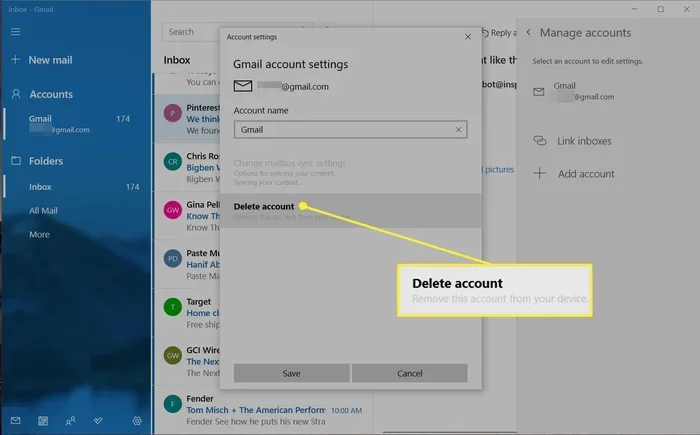
- Go to the Microsoft account closure page. Search for “close Microsoft account” to find the official link.
- Sign in with your Outlook email. Enter your credentials to access the account management page.
- Review the data you will lose. Microsoft shows you what will be deleted, including emails, files, and contacts.
- Verify your identity. You may need to enter a code sent to your phone or alternate email.
- Confirm the closure. Click the final button to start the deletion process.
Microsoft Account vs Outlook
One important thing to understand is that Outlook is tied to your Microsoft account. When you delete your Outlook email, you are actually closing your entire Microsoft account. This means you will lose access to OneDrive, Skype, Xbox, and any other Microsoft services linked to that account. If you only want to remove the email but keep other services, this is not the right approach. You need to decide whether you want to deactivate email or close the whole Microsoft profile.
What to Do Before Closing Outlook
Before you start the Outlook account removal process, take these precautions:
- Transfer any files stored in OneDrive to another cloud service or your computer.
- Update your email on all Microsoft-linked accounts.
- Save your Outlook contacts and calendar events.
- Notify anyone who regularly contacts you at this address.
- Check if your work or school uses this Outlook account. You may need IT support to close it properly.
What Happens After You Delete Your Email Address
Deleting your email is not the end of the story. There are important things that happen after you hit that final confirm button. Understanding this timeline helps you avoid surprises.
Recovery Period and Grace Window
Every major email provider gives you a grace period after deletion. During this time, you can recover your account if you change your mind. Here is how it works for each provider:
- Gmail: You have about 30 days to recover your account. After that, the data is permanently erased.
- Yahoo: The account is deactivated within 48 hours. You have a short window to cancel the deletion.
- Outlook: Microsoft gives you 60 days to recover the account before permanent deletion.
During the grace period, the account is essentially frozen. No one can send emails to it or access it. Use this time to make sure you have everything you need.
Impact on Online Accounts
This is the part most people forget. When you delete an email address, every account linked to it breaks. Here is what you need to check:
- Social media accounts. Facebook, Instagram, Twitter, and LinkedIn may use your email for login. Update them before deletion.
- Banking and financial services. Your bank, PayPal, and investment accounts need a valid email address.
- Shopping sites. Amazon, eBay, and other retailers use email for order confirmations and receipts.
- Streaming services. Netflix, Spotify, and other subscriptions may be tied to the deleted email.
- Work and school accounts. Many organizations use email as the primary login. Check with your employer or school.
If you do not update these accounts, you could lose access to important services. Take the time to go through each one carefully.
Tips for a Clean Digital Exit
Deleting an email account is just one part of the process. To truly permanently remove email from your life, you need a clean exit strategy. These tips will help you do it right.
Backing Up Your Emails
Before you delete any account, back up your emails. You never know when you might need an old message. Here are the best ways to save your inbox:
- Use the provider’s export tool. Gmail has Google Takeout. Yahoo and Outlook have similar options.
- Forward important emails. Create a new email address and forward key messages to it.
- Download attachments. Save any files you want to keep separately from your email.
- Use a third-party backup tool. Apps like MailStore or Thunderbird can help you archive emails locally.
Updating Your Online Accounts
Switching your email on all your online accounts is tedious but essential. Here is a simple approach:
- Make a list of every account linked to the email you are deleting.
- Start with the most important ones: banking, email providers, and social media.
- Work through the rest: shopping, streaming, forums, and subscriptions.
- Change the email on each account to your new address.
- Double-check that you have access to the new email before you delete the old one.
This process takes time, but it is worth it. A rushed email address cleanup can lead to locked accounts and lost data.
Unsubscribing from Services
Before you close an email account, make sure you are not missing anything. Go through your inbox and cancel email subscription to newsletters, promotions, and notifications. This keeps your new inbox clean and prevents you from losing track of important updates from services you still use.
Checking for Connected Apps
Many apps and websites let you sign in using your email address. Before you delete the account, go to your Google, Yahoo, or Microsoft security settings and remove any third-party apps that have access. This prevents those apps from trying to send emails or access data after your account is gone.
Common Mistakes People Make When Deleting Email Accounts
Even with the best intentions, people make mistakes when they close email account profiles. Here are the most common ones and how to avoid them.
Forgetting to Update Recovery Options
Many online services use your email as a recovery option. If you delete the email without updating recovery settings, you may get locked out of those accounts permanently. Always change recovery emails before closing any inbox.
Not Backing Up Contacts
Contacts are easy to overlook. When the account is deleted, all those phone numbers and addresses disappear. Export your contacts to a CSV file or phone before you start the deletion process.
Assuming Deletion Is Instant
Deleting an email account is not instant. There is always a grace period. During that time, the account still exists in a limited form. Do not assume the account is gone until the provider confirms it.
Ignoring Connected Cloud Storage
Gmail users often have files in Google Drive. Outlook users have OneDrive. Yahoo users may have Yahoo Contacts and Yahoo Calendar data. Deleting the email account deletes all connected services too. Make sure you save everything you need first.
Expert Insights on Permanent Email Deletion
Deleting an email account is not just about logging out. It is a thorough process that requires planning and attention to detail. Cybersecurity experts recommend treating email deletion like a mini project. Set aside time to go through each step carefully. Do not rush through it. The more organized you are, the smoother the process will be.
One expert tip is to keep a spreadsheet of all accounts linked to the email you are deleting. Update each one with your new email address before you close the old account. This simple step saves hours of troubleshooting later. It is one of the best email address cleanup strategies out there.
Another important insight is about internet identity removal. Your email address is tied to your online identity in ways you might not realize. Old emails can be used to find you through data brokers and people-search sites. Deleting unused accounts helps reduce your exposure and keeps your personal information safer.
Key Takeaways
- Permanent deletion is possible: Every major email provider lets you close your account, but you must follow their specific process.
- Back up before you delete: Always save important emails, contacts, and files before starting the deletion process.
- Update your online accounts: Remove or change the email linked to banks, social media, and shopping sites before closing it.
- There is a grace period: Most providers give you a window to recover your account after deletion.
- Check connected services: Many apps and websites use your email for login, so you need to switch those first.
- Digital privacy matters: Deleting unused email addresses reduces your digital footprint and lowers the risk of data breaches.
- Act quickly if you change your mind: Recovery options disappear once the grace period ends.
Conclusion
Learning how can I delete my email address permanently is more than just a technical task. It is a step toward better digital privacy and a cleaner online life. Whether you choose to delete your Gmail account, handle Yahoo email deletion, or complete an Outlook account removal, the process is manageable when you follow the right steps.
Start by backing up your data. Update every online account that uses the email. Then follow the provider’s deletion process carefully. Do not rush, and make sure you understand the consequences before you confirm. Once the account is deleted, there is no going back.
Taking control of your email address cleanup is empowering. You reduce your digital footprint, lower your risk of data breaches, and simplify your online life. The steps in this guide give you everything you need to permanently remove email from your life for good. Start today and enjoy the peace of mind that comes with a clean digital slate.
Frequently Asked Questions
Can I recover my email after permanently deleting it?
Most email providers offer a short recovery window. Gmail gives you about 30 days, Outlook gives you 60 days, and Yahoo has a brief period after deactivation. After that window closes, the data is permanently erased and cannot be recovered.
Will deleting my email account delete all my data?
Yes. When you delete an email account, all emails, contacts, files, and settings tied to that account are removed. This is why backing up your data before deletion is absolutely essential.
How long does it take to delete an email account?
The process itself takes only a few minutes. However, the full deletion may take days or weeks depending on the provider. Gmail starts the process within minutes but keeps the account recoverable for 30 days.
Can I use the same email address again after deleting it?
Usually no. Most email providers do not allow you to reclaim a deleted email address. Once the account is permanently deleted, the address is released and may be given to a new user.
Do I need to cancel email subscriptions before deleting my account?
Yes. If you do not cancel subscriptions first, you will stop receiving important updates and may lose access to services tied to that email. Go through your inbox and unsubscribe from all newsletters and promotional emails before closing the account.
Is it safe to delete an email account I no longer use?
Yes, it is actually safer. Keeping unused email accounts increases your risk of data breaches and identity theft. Deleting them reduces your digital footprint and strengthens your overall online security.