Firefox 150 Pdf Editor Explained What It Does And Doesnt Do
The Firefox 150 PDF Editor is a built-in tool inside the Firefox browser that lets you view, annotate, and fill out PDF files without installing extra software. It works great for quick edits, adding notes, and signing documents right inside your browser. However, it does not replace full PDF editing software for heavy tasks like rearranging pages or adding complex graphics.
The Firefox 150 PDF Editor is a built-in feature of the Firefox browser that handles PDF viewing and basic editing. Many people are curious about what this tool can actually do. The answer might surprise you. Firefox 150 PDF Editor offers a solid set of features for everyday PDF tasks right inside your browser. In this guide, we will walk you through everything you need to know.
If you deal with PDF files regularly, you know how frustrating it can be to switch between apps. The Firefox 150 PDF Editor solves that problem. It brings PDF annotation, form filling, and signing directly into Firefox. You do not need to download anything or install extra software. Let us explore what this tool offers and where it falls short.
Key Takeaways
- Built-In PDF Editing: Firefox 150 PDF Editor comes built into the browser, so you do not need to download or install anything extra to annotate or fill out PDFs.
- Great for Light Tasks: It handles annotation, highlighting, form filling, and basic signing with ease, making it perfect for everyday PDF needs.
- Not a Full PDF Editor: You cannot use Firefox 150 PDF Editor for advanced tasks like merging, splitting, or restructuring PDF documents.
- Open Source and Free: Because Firefox is open source, the PDF tools are free to use with no hidden fees or subscription plans.
- Privacy Focused: Since everything runs locally in your browser, your PDF files do not get uploaded to external servers.
- Best for Casual Users: If you only need occasional PDF edits, Firefox 150 PDF Editor is more than enough. Power users should look at dedicated tools.
📑 Table of Contents
- What Is Firefox 150 PDF Editor?
- What Can Firefox 150 PDF Editor Do?
- What Firefox 150 PDF Editor Cannot Do
- How To Use Firefox 150 PDF Editor
- Firefox 150 PDF Editor vs Dedicated PDF Software
- Who Should Use Firefox 150 PDF Editor?
- Quick Tips, Common Mistakes, and Expert Insights
- Final Thoughts on Firefox 150 PDF Editor
What Is Firefox 150 PDF Editor?
The Firefox 150 PDF Editor is a native PDF tool built into the Firefox browser. It lets you open, view, and interact with PDF files without leaving the browser. Mozilla designed this feature to make PDF viewing and basic editing seamless. The tool is completely free and works on Windows, Mac, and Linux systems.
Mozilla has always championed open source software. The Firefox 150 PDF Editor reflects that commitment. It is transparent, privacy-focused, and built for everyday users. Your PDF files stay on your device. Nothing gets uploaded to external servers unless you choose to do so manually. This makes Firefox 150 PDF Editor a trustworthy choice for sensitive documents.
The Firefox 150 PDF Editor is not meant to replace professional PDF editing software. It is a lightweight tool for light to moderate tasks. Think of it as a convenient companion that lives right where you already work. If you just need to highlight a paragraph, add a note, or sign a form, Firefox 150 PDF Editor handles that with ease.
What Can Firefox 150 PDF Editor Do?
The Firefox 150 PDF Editor comes with several useful features for everyday PDF work. Let us break down exactly what you can do with it. These capabilities make it a handy tool for students, professionals, and casual users alike.
Annotation and Markup Tools
One of the standout features of Firefox 150 PDF Editor is its annotation tools. You can highlight text in multiple colors. You can add sticky notes to specific parts of a document. You can also underline, strikethrough, and draw freehand on PDF pages. These tools are perfect for reviewing documents or studying materials.
For example, imagine you are reviewing a research paper. You can highlight key paragraphs in yellow, add a sticky note with your thoughts, and underline important terms. All of this happens right inside Firefox. You do not need to save the file or switch to another application. The Firefox 150 PDF Editor keeps everything streamlined and simple.
The annotation tools in Firefox 150 PDF Editor also support text boxes. You can type directly onto the PDF page to add comments or clarifications. This is especially useful when you are collaborating with others and need to leave feedback on a shared document. The Firefox 150 PDF Editor makes group reviews much easier.
Form Filling and Signing
Another great capability of Firefox 150 PDF Editor is form filling. Many PDFs contain fillable fields for names, addresses, dates, and other information. The Firefox 150 PDF Editor lets you click on these fields and type directly into them. It saves your entries and keeps the form looking clean and professional.
Digital signing is also supported in Firefox 150 PDF Editor. You can add a signature to a PDF document using your mouse or trackpad. While it is not a legally binding digital signature in all cases, it works well for internal documents and informal agreements. If you need a more secure signing solution, you may want to look at dedicated PDF signing tools.
The form filling feature in Firefox 150 PDF Editor also remembers your common entries. This means if you frequently fill out the same type of form, you can save time by reusing your saved information. It is a small detail that makes a big difference in daily use.
PDF Viewing and Navigation
Before we talk about editing, let us not forget that Firefox 150 PDF Editor excels at PDF viewing. The built-in viewer supports smooth scrolling, zoom in and out, and page navigation. You can search for specific text within a PDF document using the search bar. All of these viewing features are fast and responsive.
The Firefox 150 PDF Editor also supports bookmarks within PDF files. If the document has an outline or table of contents, you can click through the sections easily. This makes navigating long PDFs much more convenient than using a basic PDF reader. You can also adjust display settings to suit your preferences, choosing between single page view or continuous scrolling.
These PDF viewing and navigation features make Firefox 150 PDF Editor a capable browser PDF capabilities tool. It handles everything from short one-page forms to lengthy reports with ease. The reading experience is smooth and distraction-free.
What Firefox 150 PDF Editor Cannot Do
It is equally important to understand the limitations of Firefox 150 PDF Editor. Knowing what it cannot do helps you set the right expectations and choose the right tool for the job.
Advanced Editing and Layout Changes
The Firefox 150 PDF Editor does not support advanced editing features. You cannot move pages around, delete pages, or merge multiple PDFs into one file. You also cannot change the layout or formatting of the original document. If you need to rearrange pages or combine documents, you will need a dedicated PDF editing software like Adobe Acrobat or a free alternative like PDFsam.
For instance, if you receive a 50-page report and need to remove the first ten pages, Firefox 150 PDF Editor cannot do that. You would need to use a more powerful PDF editing tool. Similarly, if you want to add images or change the font in an existing PDF, the Firefox 150 PDF Editor does not offer those capabilities. These are common PDF editing limitations that users should be aware of.
This is a common limitation of browser-based PDF tools in general. They are designed for viewing and light editing, not for full document manipulation. Understanding this distinction helps you pick the right tool for each task. The Firefox 150 PDF Editor is built for convenience, not for complex document workflows.
Cloud Integration and Collaboration
Another area where Firefox 150 PDF Editor falls short is cloud integration. The tool works entirely within your browser and does not connect to cloud storage services like Google Drive or Dropbox. You cannot share annotated PDFs directly from the editor to a cloud folder. You also cannot collaborate in real time with other users on the same document.
If you need cloud-based PDF editing with collaboration features, you should look at web-based PDF editor platforms. The Firefox 150 PDF Editor is designed for local, offline use. It keeps your files on your device, which is great for privacy but limits its collaborative potential. You can always save your annotated PDF and upload it manually to your cloud storage. It is just not a seamless, built-in experience like some dedicated cloud PDF tools offer.
OCR and Image-Based PDF Editing
Firefox 150 PDF Editor does not include optical character recognition, or OCR. This means it cannot edit text inside scanned PDF images. If you have a PDF that is essentially a photo of a document, you cannot use Firefox 150 PDF Editor to change the text within it. You would need an OCR-capable tool to convert the image to editable text first.
This is a significant limitation for users who work with scanned documents frequently. Many businesses receive invoices, contracts, and forms as scanned PDFs. Without OCR support, the Firefox 150 PDF Editor can only annotate these documents, not edit the underlying text. For scanned document workflows, you will need to pair Firefox 150 PDF Editor with a dedicated OCR tool.
How To Use Firefox 150 PDF Editor
Getting started with Firefox 150 PDF Editor is simple. You do not need to install anything or change any settings. Here is how you can access it right now.
- Open Firefox 150 on your computer.
- Navigate to a PDF file. You can open a PDF from your downloads folder, a website, or an email attachment.
- Click on the PDF to open it in the browser. Firefox will display the PDF using its built-in viewer.
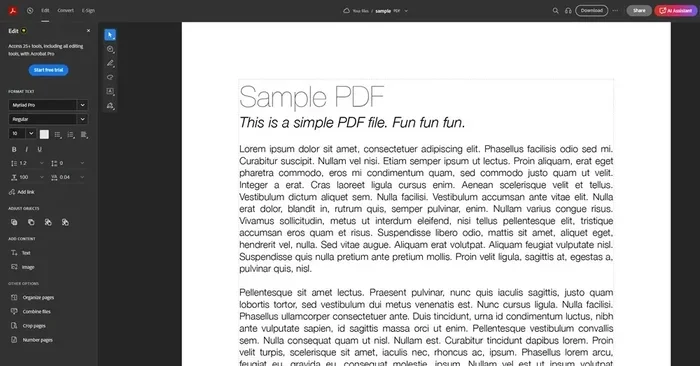
- Look for the annotation toolbar at the top of the PDF. You will see options for highlighting, adding notes, and drawing.
- Use the tools to annotate, fill forms, or sign the document.
- Save your changes when you are done. Firefox 150 PDF Editor lets you save the annotated version directly to your device.
The process is straightforward and user-friendly. Even if you are not tech-savvy, you can start using Firefox 150 PDF Editor within minutes. The interface is clean and intuitive, with all tools clearly labeled. Mozilla has done a great job making the PDF editing experience accessible to everyone.
One tip for getting the most out of Firefox 150 PDF Editor is to make sure your browser is up to date. Mozilla releases regular updates that improve PDF editing performance and add new features. Running the latest version ensures you have access to all the Firefox 150 PDF Editor capabilities. Check for updates regularly to stay current.
Firefox 150 PDF Editor vs Dedicated PDF Software
How does Firefox 150 PDF Editor compare to dedicated PDF editing software? Let us look at a side-by-side comparison to help you decide which tool is right for you.
| Feature | Firefox 150 PDF Editor | Dedicated PDF Software |
|---|---|---|
| Cost | Free | Free to several hundred dollars |
| Installation | Built into browser | Requires download and installation |
| Annotation Tools | Highlight, notes, drawing | Full suite of markup tools |
| Form Filling | Yes | Yes, with advanced field options |
| Page Rearranging | No | Yes |
| OCR Support | No | Often included |
| Cloud Integration | No | Varies by software |
| Collaboration | No | Often supported |
| System Requirements | Any device with Firefox | May require specific OS or hardware |
The table above shows that Firefox 150 PDF Editor is a lightweight, convenient option for everyday tasks. Dedicated PDF software offers more power but comes with trade-offs like cost and installation requirements. For most casual users, the Firefox 150 PDF Editor covers all the basics and more.
If you only need to annotate PDFs occasionally, there is no reason to pay for expensive software. Firefox 150 PDF Editor handles those tasks beautifully. But if your work involves heavy PDF editing, merging, or OCR, investing in dedicated tools makes sense. The best approach is to use Firefox 150 PDF Editor for quick tasks and dedicated software for complex workflows.
Who Should Use Firefox 150 PDF Editor?
The Firefox 150 PDF Editor is ideal for a wide range of users. Let us look at some specific scenarios where it shines and where it might not be the best fit.
Students will find Firefox 150 PDF Editor very useful. You can highlight textbook PDFs, add notes in the margins, and fill out assignment forms. All of this happens without leaving your browser. It keeps your study workflow simple and efficient. The Firefox 150 PDF Editor is a great companion for online learning.
Professionals who deal with routine document reviews will also benefit. If your job involves reading and commenting on PDFs, the Firefox 150 PDF Editor provides all the tools you need. Highlight key sections, add comments, and sign off on documents quickly. Small business owners can use it for filling out invoices, signing contracts, and reviewing reports. It eliminates the need to install separate PDF software on every computer.
On the other hand, power users and professionals who work with complex PDFs daily may find Firefox 150 PDF Editor too limited. If you need to create PDFs from scratch, merge documents, or perform OCR on scanned files, you should consider dedicated PDF editing software. The Firefox 150 PDF Editor is best suited for light to moderate PDF tasks. It excels at making everyday document handling faster and easier.
Quick Tips, Common Mistakes, and Expert Insights
Here are some practical tips to help you use Firefox 150 PDF Editor more effectively:
- Use keyboard shortcuts: Firefox 150 PDF Editor supports common shortcuts. Press Ctrl plus S to save your annotated PDF quickly.
- Keep your browser updated: Mozilla releases regular updates that improve PDF editing performance and add new features.
- Use highlighter colors wisely: Assign different colors to different types of notes. For example, use yellow for important points and green for questions.
- Save frequently: While Firefox 150 PDF Editor auto-saves some changes, it is a good habit to save your work often.
- Combine with other free tools: For tasks Firefox 150 PDF Editor cannot handle, pair it with free tools like PDFsam for page rearranging or Smallpdf for online editing.
Here are some common mistakes to avoid when using Firefox 150 PDF Editor:
- Expecting full editing capabilities: Many users assume the Firefox 150 PDF Editor can do everything a desktop PDF editor can. It cannot. Stick to the features it actually offers.
- Not saving before closing: Always save your annotated PDF before closing the browser tab. Unsaved changes may be lost.
- Using it for scanned documents: Remember that Firefox 150 PDF Editor does not support OCR. Do not expect to edit text in scanned PDFs.
- Ignoring browser updates: Outdated versions of Firefox may not have the latest PDF editing features. Keep your browser current.
- Assuming cloud sync: Firefox 150 PDF Editor does not sync your annotations across devices. You need to manually transfer files if you work on multiple devices.
Industry experts note that browser-based PDF editing has come a long way in recent years. Tools like Firefox 150 PDF Editor show that you do not always need heavy desktop software for everyday PDF tasks. Mozilla has invested in making Firefox a capable all-in-one browsing and document tool. The trend toward browser-based tools is growing as more users prefer options that work without installation and keep files local.
However, experts also emphasize that browser-based tools have limits. For complex PDF workflows, dedicated software remains necessary. The key is knowing when to use Firefox 150 PDF Editor and when to reach for a more powerful solution. As Firefox continues to evolve, we can expect the PDF editing capabilities to improve while maintaining the simplicity and privacy that Firefox is known for.
Final Thoughts on Firefox 150 PDF Editor
The Firefox 150 PDF Editor is a solid, free tool for everyday PDF tasks. It handles annotation, form filling, and signing with ease. It works right inside the browser without any extra installation. For casual users and light PDF work, it is more than enough. The Firefox 150 PDF Editor proves that you do not need expensive software to handle common document tasks.
At the same time, it is not a replacement for professional PDF editing software. If you need advanced features like page rearranging, OCR, or cloud collaboration, you should look elsewhere. Understanding these limits helps you use Firefox 150 PDF Editor where it truly excels. The best approach is to use it for quick, everyday tasks and rely on dedicated tools for complex workflows.
We hope this guide has given you a clear picture of what Firefox 150 PDF Editor can and cannot do. The next time you need to annotate a PDF or fill out a form, try using Firefox 150 PDF Editor first. You might be surprised at how much it can handle. Give it a try and see how it fits into your workflow. It is free, it is fast, and it is always ready when you need it.
Frequently Asked Questions
Can I edit existing text in a PDF using Firefox 150 PDF Editor?
No, Firefox 150 PDF Editor does not allow you to edit existing text in a PDF. You can annotate, highlight, and add notes, but you cannot change the original text. For editing existing PDF content, you need dedicated PDF editing software like Adobe Acrobat or Foxit.
Is Firefox 150 PDF Editor available on mobile devices?
Yes, Firefox 150 PDF Editor works on mobile devices that run the Firefox browser. The PDF viewing and annotation features are available on both Android and iOS. However, the editing experience may be slightly different on smaller screens compared to desktop use.
Do I need an internet connection to use Firefox 150 PDF Editor?
You need an internet connection to open PDFs from websites. However, once a PDF is loaded in Firefox 150 PDF Editor, you can annotate and edit it offline. Your changes are saved locally on your device. This makes it a great tool for working with documents without an internet connection.
Can Firefox 150 PDF Editor handle password-protected PDFs?
Firefox 150 PDF Editor can open password-protected PDFs if you have the correct password. However, it cannot remove password protection or add security features to a PDF. For those tasks, you need specialized PDF security tools or dedicated PDF editing software.
How does Firefox 150 PDF Editor compare to Adobe Acrobat?
Firefox 150 PDF Editor is a free, browser-based tool designed for light PDF tasks like annotation and form filling. Adobe Acrobat is a professional desktop application with advanced editing, OCR, and collaboration features. Firefox 150 PDF Editor is perfect for quick edits, while Adobe Acrobat is better for complex PDF workflows.
Will my annotations be lost if I clear my browser data?
Yes, if you clear your browser data or cache, saved annotations in Firefox 150 PDF Editor may be lost. Always save your annotated PDF as a separate file to keep your changes safe. The Firefox 150 PDF Editor does not store annotations in the cloud or sync them across devices automatically.