Does Iphone Save Wi Fi Passwords Without You Knowing
Yes, your iPhone saves Wi-Fi passwords automatically every time you connect to a network. iOS stores them securely through iCloud Keychain, and your device can even rejoin networks without asking you for the password again. In this guide, we will show you exactly how iPhone handles Wi-Fi passwords, how to find them, and how to protect your privacy.
Have you ever connected to a Wi-Fi network and wondered if your iPhone remembers it forever? The short answer is yes. Your iPhone saves Wi-Fi passwords without you even thinking about it. Every time you tap “Connect” on a wireless network, your device stores that password securely. This behavior is built right into iOS, and it works behind the scenes to make your life easier.
But here is the bigger question most people ask. Does iPhone save Wi-Fi passwords without you knowing? The answer is a bit more nuanced. Your phone does save them quietly, but Apple has built strong privacy protections into the process. You can view these passwords, delete them, and control how they are shared across your devices. In this article, we will walk you through everything you need to know about how your iPhone handles Wi-Fi passwords.
Whether you are trying to recover a forgotten password, checking which networks your phone remembers, or just curious about your privacy, this guide covers it all. We will break down the technical details in simple terms so anyone can understand what is happening with their data. Let us dive in.
Key Takeaways
- iPhone saves Wi-Fi passwords automatically: Every network you connect to gets stored securely on your device and in iCloud.
- iCloud Keychain keeps passwords synced: Your saved Wi-Fi passwords are encrypted and shared across all your Apple devices.
- You can view saved Wi-Fi passwords: iOS lets you check stored passwords through Settings or iCloud Keychain.
- iPhone rejoin feature works silently: Your phone connects to known networks in the background without prompting you.
- You have full control: You can delete saved networks, reset settings, and manage privacy preferences anytime.
- Security is strong but not perfect: Apple uses encryption, but sharing passwords between devices has some risks you should know about.
📑 Table of Contents
- How Does iPhone Handle Wi-Fi Passwords?
- Can You See Saved Wi-Fi Passwords on Your iPhone?
- Does iPhone Save Wi-Fi Passwords Without You Knowing?
- How to Manage and Delete Saved Wi-Fi Passwords
- iPhone Wi-Fi Password Security and Privacy
- Common Myths About iPhone Wi-Fi Passwords
- Expert Tips for Better Wi-Fi Management on iPhone
- Conclusion
How Does iPhone Handle Wi-Fi Passwords?
When you connect to a Wi-Fi network, your iPhone does more than just save the password for later. It creates a secure record of the network name, password, and connection settings. This record lives in a protected part of your device called the Keychain. Apple designed this system to keep your sensitive data safe from apps and hackers.
The Wi-Fi password storage process is automatic. You do not need to toggle any setting or take extra steps. As soon as you enter the correct password and connect, iOS saves it. This is part of the core iOS experience and has been a feature since the early days of the iPhone.
The Role of iCloud Keychain
If you use iCloud Keychain, your Wi-Fi passwords are not just stored on one device. They sync across all your Apple devices. This means your iPhone, iPad, and Mac can all share the same saved Wi-Fi passwords. When you join a new network on your iPhone, your iPad and Mac can connect to it too, without you re-entering the password.
iCloud Keychain uses end-to-end encryption. This means only your devices can read the stored passwords. Apple itself cannot access them. This is a strong privacy feature that sets Apple apart from many other tech companies.
Here is how iCloud Keychain works with Wi-Fi passwords:
- You connect to a new Wi-Fi network on your iPhone.
- The password is encrypted and saved to your device Keychain.
- iCloud syncs the encrypted password to your other Apple devices.
- Your other devices use the password to auto-join that network.
iOS Wi-Fi Auto-Join Feature
One of the most useful features of iPhone Wi-Fi management is auto-join. When your iPhone sees a network it has connected to before, it can join automatically. This happens without you tapping anything. Your phone just connects in the background and you are online.
This auto-join behavior is why many people think iPhone saves Wi-Fi passwords secretly. The truth is, it is not secret. It is just automatic. Apple designed it this way to provide a seamless experience. You do not need to reconnect every time you walk into your home or office.
You can control auto-join behavior in your Wi-Fi settings. If you do not want a specific network to connect automatically, you can turn off auto-join for that network. This gives you more control over your connections.
Can You See Saved Wi-Fi Passwords on Your iPhone?
Yes, you can view saved Wi-Fi passwords on your iPhone. Apple makes this possible through the Settings app. However, the process has changed over different iOS versions, and it is not always obvious where to look.
Here is the good news. You do not need a third-party app to find your saved Wi-Fi passwords. Everything you need is built right into iOS. You just need to know where to look.
Steps to View Saved Wi-Fi Passwords
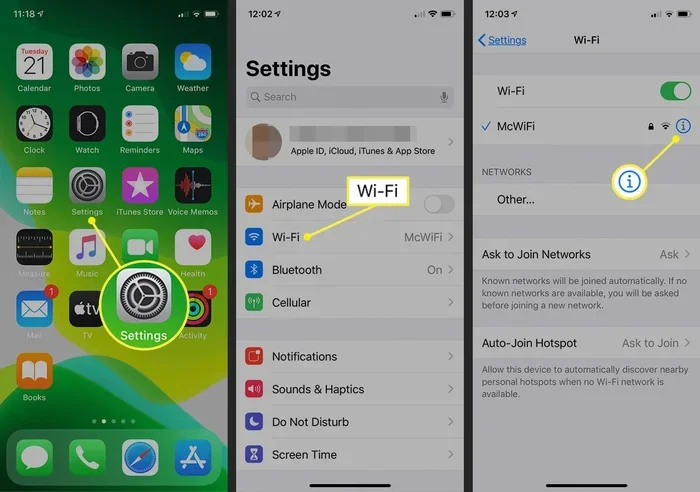
Viewing your saved Wi-Fi passwords is straightforward if you know the steps. Here is how to do it on a modern iPhone running iOS 16 or later:
- Open the Settings app on your iPhone.
- Tap on Wi-Fi.
- Find the network you want to check and tap the info icon next to it.
- Tap on Password.
- Authenticate with Face ID, Touch ID, or your passcode.
- The Wi-Fi password will be displayed on screen.
This method works for any network your iPhone has previously connected to. If you have never joined a network, it will not appear in your saved list. This is important to remember when troubleshooting connection issues.
Using iCloud Keychain to Find Passwords
If you want to see Wi-Fi passwords saved across all your Apple devices, iCloud Keychain is the way to go. You can access your saved passwords through the Passwords app on iOS 18 or later. This app gives you a centralized view of all your stored credentials, including Wi-Fi passwords.
You can also view Wi-Fi passwords on your Mac through System Settings or the Keychain Access app. The process is similar, and the passwords sync seamlessly between devices thanks to iCloud.
Some people prefer using the Passwords app because it organizes all their credentials in one place. You can search for specific networks, sort them, and even copy passwords to paste elsewhere. It is a very handy tool for managing your digital life.
Does iPhone Save Wi-Fi Passwords Without You Knowing?
This is the question that brings most people to this article. The answer is yes, but with important context. Your iPhone does save Wi-Fi passwords automatically, and it does so without asking for your permission every time. However, Apple has built transparency into the process.
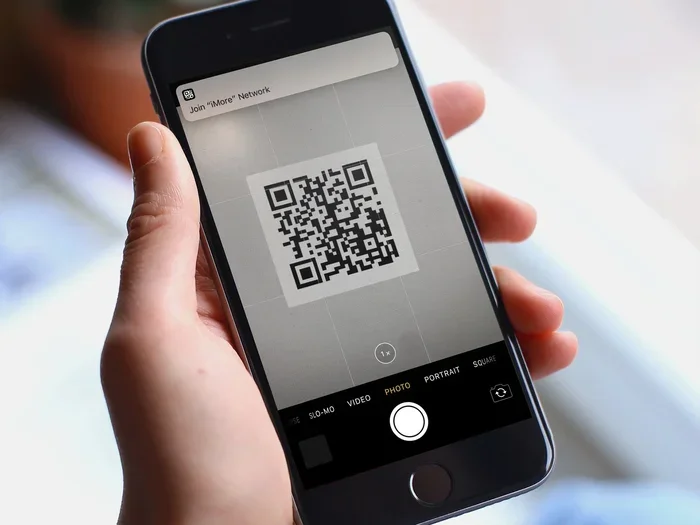
When you connect to a new Wi-Fi network, iOS shows you a prompt. It asks you to enter the password and confirms that you want to join. The password is then saved as part of that connection process. So while the saving happens automatically, it is tied to an action you took.
There is also the auto-join feature to consider. When your iPhone connects to a saved network in the background, it does not show a notification. It just connects. This can feel like your phone is doing something behind your back, but it is actually designed to provide convenience.
What Happens in the Background
When your iPhone is awake and Wi-Fi is enabled, it constantly scans for known networks. If it finds one it has saved, it may connect automatically. This is part of the iOS Wi-Fi management system and helps maintain a consistent internet connection.
Your phone also stores information about each network, including the signal strength and connection history. This data helps iOS decide which network to prioritize. For example, your iPhone will prefer your home network over a weaker public network, even if both are in range.
Here is what happens in the background when you are near a saved network:
- Your iPhone scans for available Wi-Fi networks.
- It matches the found networks against its saved list.
- If a match is found and auto-join is enabled, it connects automatically.
- The connection happens silently without any notification.
Auto-Join and Hidden Behavior
The auto-join feature is the main reason people feel like their iPhone saves Wi-Fi passwords without them knowing. It is not that the phone is hiding anything. It is just that the process is designed to be invisible.
Apple believes that seamless connectivity is a core part of the user experience. By saving and auto-joining networks, your iPhone reduces the friction of staying connected. You do not have to type a password every time you walk into your house.
However, this convenience comes with a trade-off. If you connect to a public or untrusted network, your iPhone will save that password too. This is why it is important to review your saved networks periodically and remove any you no longer use or trust.
How to Manage and Delete Saved Wi-Fi Passwords
Managing your saved Wi-Fi passwords is an important part of keeping your iPhone secure. Over time, your device can accumulate dozens of saved networks, some of which you may no longer use. Clearing out old networks helps keep your connection list clean and your data organized.
Removing Old Networks
If you want to delete a saved Wi-Fi password from your iPhone, you can do it easily. Here is the process:
- Go to Settings and tap Wi-Fi.
- Find the network you want to remove.
- Tap the info icon next to the network name.
- Tap “Forget This Network.”
- Confirm your choice.
Once you forget a network, your iPhone deletes the saved password and connection settings. You will need to re-enter the password if you want to connect to that network again in the future.
It is a good habit to forget networks you no longer use. This is especially important for public Wi-Fi networks you connected to at cafes, airports, or hotels. Removing them keeps your saved network list manageable and reduces potential security risks.
Resetting Network Settings
If you want to delete all saved Wi-Fi passwords at once, you can reset your network settings. This is a more drastic step, but it can be useful if you are experiencing connection issues or want a clean slate.
Here is how to reset network settings on your iPhone:
- Open Settings and go to General.
- Tap Transfer or Reset iPhone.
- Select Reset.
- Tap Reset Network Settings.
- Enter your passcode to confirm.
After resetting network settings, all saved Wi-Fi passwords, Bluetooth pairings, and VPN configurations will be erased. You will need to reconnect to your Wi-Fi networks and re-enter your passwords. Make sure you know your passwords before doing this.
iPhone Wi-Fi Password Security and Privacy
Apple takes Wi-Fi password security seriously. The way your iPhone stores passwords is designed with privacy and protection in mind. Understanding this can help you feel more confident about how your data is handled.
Is Your Data Safe?
Yes, your saved Wi-Fi passwords are safe on your iPhone. Apple uses hardware-based encryption to protect the Keychain. This means even if someone gains access to your device, they cannot easily read your stored passwords without your authentication.
iCloud Keychain adds another layer of protection. The passwords are encrypted before they leave your device, and they stay encrypted while syncing through Apple servers. Only your trusted devices can decrypt them.
However, no system is completely foolproof. If someone has physical access to your unlocked iPhone, they could potentially view your saved Wi-Fi passwords. This is why setting a strong passcode and using Face ID or Touch ID is so important.
Sharing Wi-Fi Passwords Securely
One of the best features of iOS is the ability to share Wi-Fi passwords between Apple devices. When a friend or family member tries to connect to your network, your iPhone can share the password automatically.
This sharing feature uses peer-to-peer encryption. The password goes directly from your device to theirs without passing through a server. Apple does not see or store the shared password. This makes it a very secure way to share Wi-Fi access.
Here are some tips for sharing Wi-Fi passwords safely:
- Only share passwords with people you trust.
- Change your Wi-Fi password regularly if you share it often.
- Use a guest network for visitors instead of sharing your main password.
- Review your saved networks after sharing to make sure nothing unexpected was added.
Common Myths About iPhone Wi-Fi Passwords
There are several myths floating around about how iPhone handles Wi-Fi passwords. Let us clear up some of the most common misconceptions.
Myth 1: iPhone stores Wi-Fi passwords in plain text. This is false. Apple encrypts all saved passwords using the Secure Enclave and iCloud Keychain. They are never stored in an unencrypted form.
Myth 2: Apple can see your Wi-Fi passwords. This is also false. Because of end-to-end encryption, Apple does not have access to your saved passwords. Even if law enforcement requests your data, Apple cannot provide readable Wi-Fi passwords.
Myth 3: Deleting a network removes it from iCloud. When you forget a network on one device, it is removed from iCloud Keychain and all synced devices. The deletion is not limited to just one device.
Myth 4: iPhone saves passwords for networks you never joined. Your iPhone only saves passwords for networks you have actually connected to. It does not scan the airwaves and store random passwords.
Expert Tips for Better Wi-Fi Management on iPhone
Managing your Wi-Fi connections on iPhone does not have to be complicated. A few simple habits can keep your network list clean and your data secure.
First, review your saved networks once a month. Go through the list and forget any networks you no longer use. This keeps your connection list lean and reduces clutter.
Second, use the auto-join feature wisely. Turn off auto-join for networks you rarely visit. This prevents your iPhone from connecting to networks you do not need, which can also save battery life.
Third, keep your iOS updated. Apple regularly patches security vulnerabilities that could affect how Wi-Fi passwords are stored and transmitted. Staying up to date is one of the best things you can do for your device security.
Fourth, consider using a strong, unique password for each Wi-Fi network you own. This way, even if one password is somehow compromised, your other networks remain safe.
Finally, take advantage of the Passwords app on iOS 18 and later. It gives you a centralized view of all your credentials, including Wi-Fi passwords. Using this tool makes password management much easier and more secure.
Conclusion
So, does iPhone save Wi-Fi passwords without you knowing? Yes, it does. But this is not something to worry about. Apple has built a robust and secure system for storing and managing your Wi-Fi passwords. Your data is encrypted, synced safely through iCloud, and protected by your device passcode.
Understanding how your iPhone handles Wi-Fi passwords gives you more control over your digital life. You can view saved passwords, delete old networks, and manage your privacy settings with confidence. The key is to stay informed and take advantage of the tools Apple provides.
Your iPhone is designed to make connectivity seamless. It saves your Wi-Fi passwords so you do not have to remember them. And with iCloud Keychain, your passwords follow you across all your Apple devices. This is not spying. It is convenience built on a foundation of strong security.
Take a few minutes today to review your saved Wi-Fi networks. Forget the ones you no longer need, update your passwords if necessary, and make sure your auto-join settings work for you. A little maintenance goes a long way in keeping your iPhone secure and your Wi-Fi experience smooth.
Your iPhone saves Wi-Fi passwords to make your life easier. Now you know exactly how it works, how to manage them, and how to keep your data safe.
Frequently Asked Questions
Can I see all my saved Wi-Fi passwords on iPhone?
Yes, you can view all saved Wi-Fi passwords through the Settings app. Go to Settings, tap Wi-Fi, select a network, and tap Password. You will need to authenticate with Face ID, Touch ID, or your passcode. On iOS 18 and later, you can also use the Passwords app to see all your saved credentials in one place.
Does iPhone save Wi-Fi passwords for networks I have never connected to?
No, your iPhone only saves passwords for networks you have actually connected to. It does not store passwords from networks you have only scanned or seen. You must enter the correct password and successfully join a network for it to be saved.
Are my Wi-Fi passwords safe in iCloud Keychain?
Yes, Apple uses end-to-end encryption for iCloud Keychain. This means your Wi-Fi passwords are encrypted before they leave your device and can only be decrypted by your trusted Apple devices. Apple itself cannot access your saved passwords.
How do I delete a saved Wi-Fi password from my iPhone?
To delete a saved Wi-Fi password, go to Settings, tap Wi-Fi, find the network, tap the info icon, and select “Forget This Network.” This removes the password from your device and from iCloud Keychain on all synced devices.
Can my iPhone connect to Wi-Fi without me knowing?
Your iPhone can auto-join saved Wi-Fi networks without showing a notification. This is part of the auto-join feature designed for convenience. You can turn off auto-join for specific networks in your Wi-Fi settings if you prefer more control.
Will resetting network settings delete my Wi-Fi passwords?
Yes, resetting network settings will delete all saved Wi-Fi passwords, Bluetooth pairings, and VPN configurations. You will need to reconnect to your Wi-Fi networks and re-enter your passwords after the reset. Make sure you know your passwords before doing this.