Chrome Delete Browsing Complete Guide To Clearing Data
Chrome Delete Browsing is the process of removing your browsing history, cookies, cache, and other stored data from the Google Chrome browser. This guide walks you through every step, from basic cleanup to advanced privacy settings, so you can keep your online footprint clean and your browser running smoothly.
Every time you browse the web, Chrome quietly saves a lot of information. It stores your search history, cookies, cached images, and even the passwords you type. Over time, all of this data builds up. It can slow your browser down and expose your private details. That is where Chrome Delete Browsing comes in. This process lets you wipe the slate clean and start fresh.
Whether you are sharing a computer with family, shopping online, or just want more privacy, clearing your Chrome data is one of the simplest things you can do. It takes only a few minutes. And once you learn how, you will never skip it again. This guide covers everything you need to know. We will walk you through each step, explain what gets deleted, and share tips to keep your browser clean and fast.
So grab a cup of coffee and let us dive in. By the end of this guide, you will be a pro at Chrome Delete Browsing. You will know exactly what to clear, when to clear it, and how to do it without losing anything important.
Key Takeaways
- Chrome Delete Browsing helps protect your privacy by removing traces of your online activity.
- Clearing cache, cookies, and history regularly keeps Chrome fast and free of clutter.
- You can choose what data to delete, giving you full control over your privacy.
- Incognito mode is a great complement to regular data cleanup habits.
- Deleting autofill and saved passwords adds an extra layer of security on shared devices.
- Setting up auto-clear routines makes browser maintenance effortless.
- Even after deletion, smart browsing habits keep your digital footprint minimal.
📑 Table of Contents
- What Is Chrome Delete Browsing?
- Why Should You Clear Your Chrome Data Regularly?
- How To Do Chrome Delete Browsing: Step-by-Step
- What Should You Delete? A Breakdown of Each Data Type
- Advanced Tips For Better Privacy When You Clear Chrome Data
- Common Mistakes To Avoid When Clearing Chrome Data
- How Often Should You Clear Your Chrome Data?
- Conclusion
What Is Chrome Delete Browsing?
When we talk about Chrome Delete Browsing, we mean removing the data that Chrome stores while you surf the internet. Think of it like cleaning out your pockets at the end of the day. You take out old receipts, loose change, and anything you do not need anymore. Your browser works the same way.
Chrome collects information to make your browsing faster and more convenient. It remembers where you have been. It saves your login details. It keeps copies of web pages so they load quicker next time. All of this is helpful. But too much stored data can become a problem. It takes up space. It can slow things down. And it can leave your personal details exposed.
What Data Does Chrome Store?
Before you start deleting your Chrome browsing data, it helps to know what is actually stored. Chrome keeps many types of information:
- Browsing history — a list of every website you visit
- Cookies — small files that track your activity on specific sites
- Cached images and files — copies of web pages saved for faster loading
- Saved passwords — credentials you have saved in Chrome
- Autofill data — names, addresses, phone numbers, and payment info
- Site permissions — settings for camera, microphone, and location access
- Download history — a record of files you have downloaded
That is a lot of data. And each type serves a different purpose. Understanding what each one does makes it easier to decide what to delete and what to keep.
Why Should You Clear Your Chrome Data Regularly?
Some people never clear their browser data. They let it pile up for months or even years. This might seem harmless. But there are real reasons to make Chrome Delete Browsing part of your routine.
Privacy Protection
Your browsing history reveals a lot about you. It shows where you shop. What you search for. Which news sites you read. If someone else uses your computer, they could see all of this. Clearing your data protects your privacy. It keeps your personal interests and habits away from prying eyes.
Better Browser Performance
Over time, cached files and cookies can slow Chrome down. Your browser has to sift through all that stored data every time you visit a site. Clearing it out gives Chrome a fresh start. Pages load faster. The browser feels snappier. You get a smoother experience overall.
Security Benefits
Stored passwords and autofill data can be risky. If your computer is compromised, someone could access your accounts. Regularly deleting this information reduces that risk. It is especially important on shared or public computers.
Freeing Up Space
Chrome cache files can take up a surprising amount of disk space. If your computer is running low on storage, clearing your browser data can help. It frees up room for more important files and apps.
How To Do Chrome Delete Browsing: Step-by-Step
Now for the fun part. Let us walk through the actual process of clearing your Chrome data. The steps are simple and easy to follow. You can do this on both desktop and mobile.
On Desktop (Windows, Mac, Linux)
Follow these steps to clear your browsing data on a computer:
- Open Google Chrome on your computer.
- Click the three dots in the top-right corner of the browser window.
- From the drop-down menu, hover over More tools.
- Click Clear browsing data.
- A new window will open. Choose your time range. You can select “Last hour,” “Last 24 hours,” “Last 7 days,” “Last 4 weeks,” or “All time.”
- Check the boxes next to the types of data you want to delete. You can choose browsing history, cookies, cached images, passwords, and more.
- Click the Clear data button.
- Wait a few seconds. Chrome will delete the selected data.
That is it. In less than a minute, your browser data is wiped clean. It is quick, easy, and makes a real difference.
On Mobile (Android and iPhone)
You can also clear Chrome data on your phone. Here is how:
- Open the Chrome app on your device.
- Tap the three dots in the top-right corner (Android) or bottom-right corner (iPhone).
- Tap Settings.
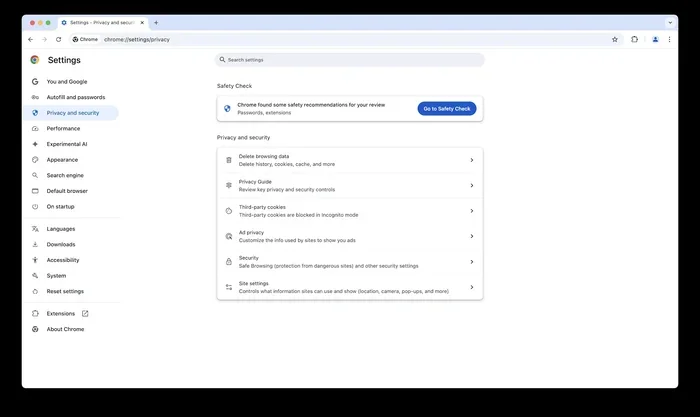
- Tap Privacy and security.
- Tap Clear browsing data.
- Choose your time range and select the data types you want to remove.
- Tap Clear data and confirm.
The mobile process is just as straightforward. Whether you are on a computer or a phone, Chrome Delete Browsing takes only a minute or two.
Quick Tips for Desktop Users
- Use the keyboard shortcut Ctrl + Shift + Delete (Windows) or Cmd + Shift + Delete (Mac) to open the clear data window instantly.
- Bookmark the clear data page if you do this often.
- Clear data after using a public or shared computer every single time.
What Should You Delete? A Breakdown of Each Data Type
When you open the clear browsing data window, you will see several options. Each one removes a different type of information. Here is what each option does and when you should use it.
| Data Type | What It Does | Should You Delete It? |
|---|---|---|
| Browsing History | Tracks every website you visit | Yes, regularly |
| Cookies | Saves login sessions and site preferences | Yes, but expect to re-login to sites |
| Cached Images and Files | Speeds up page loading | Yes, to free space and fix loading issues |
| Saved Passwords | Stores your login credentials | Only if you are concerned about security |
| Autofill Form Data | Remembers names, addresses, and payment info | Yes, especially on shared devices |
| Download History | Lists files you have downloaded | Optional, does not delete the actual files |
The right choices depend on your situation. If you are the only person using your device, you might keep saved passwords for convenience. But if you share your computer, deleting everything is the safest bet.
Time Range Matters
When you choose a time range, Chrome only deletes data from that period. If you select “Last hour,” only data from the past 60 minutes gets removed. If you choose “All time,” everything is wiped from the beginning. For a thorough cleanup, “All time” is the best option. For regular maintenance, “Last 24 hours” or “Last 7 days” works great.
Advanced Tips For Better Privacy When You Clear Chrome Data
Basic data clearing is a great start. But if you want to take your privacy to the next level, there are a few advanced steps you can take. These tips help you get the most out of Chrome Delete Browsing.
Clear Your Data on Exit
Chrome has a setting that automatically clears your data every time you close the browser. This is a fantastic option if you want hands-off privacy. To set it up:
- Go to Settings in Chrome.
- Click Privacy and security.
- Select Cookies and other site data.
- Turn on Clear cookies and site data when you quit Chrome.
Now every time you close Chrome, your cookies and site data are wiped automatically. You do not have to remember to do it yourself.
Use Extensions For Automated Cleanup
If you want more control, browser extensions can help. Several free extensions let you schedule automatic data deletion. They can clear your cache, cookies, and history at set intervals. Some popular options include Click&Clean, History AutoDelete, and Cookie AutoDelete. These tools make browser cleanup effortless.
Try Incognito Mode
Incognito mode is Chrome’s private browsing feature. When you browse in incognito, Chrome does not save your history, cookies, or site data. It is not a replacement for regular data clearing. But it is a great tool for times when you do not want any trace left behind. Think of it as a temporary privacy shield.
Check Your Sync Settings
If you use Chrome on multiple devices, your data syncs across them. This means clearing data on one device might not clear it on another. Check your sync settings to make sure you are managing data everywhere. Go to Settings > You and Google > Sync and Google services to review your options.
Common Mistakes To Avoid When Clearing Chrome Data
Even though Chrome Delete Browsing is simple, people still make mistakes. Here are some common pitfalls and how to avoid them.
Deleting Everything Without Thinking
It is tempting to click “Clear data” and check every box. But if you delete saved passwords, you will need to log back into every site. Be selective. Only delete what you truly need to remove.
Forgetting to Clear Cookies From Specific Sites
Sometimes you only need to delete data from one website. Maybe a site is not loading properly, or you want to reset your preferences. Chrome lets you clear data for individual sites. Click the lock icon next to the URL bar, then go to Site settings > Clear data.
Ignoring Download History
Clearing your download history does not delete the actual files from your computer. It only removes the record of what you downloaded. If you want to remove the files themselves, you need to do that separately.
Not Clearing Data After Using Public Computers
This is one of the biggest privacy mistakes. If you use a computer at a library, hotel, or internet cafe, always clear all your data before walking away. Otherwise, the next person who uses that computer could access your accounts.
How Often Should You Clear Your Chrome Data?
There is no single right answer. It depends on how you use your browser and how much privacy you need. Here are some general guidelines:
- Daily users: Clear cookies and cache once a week.
- Occasional users: Clear data once a month.
- Privacy-conscious users: Clear data after every browsing session or use auto-clear settings.
- Public or shared computer users: Clear data every single time you finish browsing.
The key is consistency. Making Chrome Delete Browsing a regular habit keeps your browser fast and your data safe. Even a quick weekly cleanup makes a big difference over time.
Conclusion
Chrome Delete Browsing is one of the simplest and most effective ways to protect your privacy and keep your browser running well. It takes just a few minutes, and the benefits are immediate. Your browser runs faster. Your personal data stays safer. And you have peace of mind knowing your online activity is not tracked or stored unnecessarily.
Start by making it a habit. Set a reminder to clear your data once a week. Explore the advanced settings if you want even more control. And always remember to clear everything after using a shared or public computer.
Your digital footprint matters. Taking control of your browser data is one of the easiest steps you can take toward better online privacy. So go ahead, open Chrome, and give your browser the cleanup it deserves. You will be glad you did.
Frequently Asked Questions
What happens when I delete my browsing data in Chrome?
When you delete your browsing data, Chrome removes your history, cookies, cached files, and other stored information from your device. You will be logged out of websites, and saved passwords will be erased unless you have them backed up. Sites may load slightly slower the next time you visit them because Chrome will rebuild its cache.
Can I recover my browsing history after deleting it?
Once you clear your browsing data, it is very difficult to recover. Chrome does not keep a backup of deleted history on your device. However, if you have Chrome sync enabled and had not yet synced the data, it might still exist on other devices. Act quickly if you need to recover something important.
Does clearing Chrome data delete my downloaded files?
No. Clearing your browsing data only removes the record of your downloads from the history. The actual files you downloaded remain on your computer or device. You need to delete downloaded files manually if you want to remove them.
Is it safe to clear cookies every day?
Yes, it is safe to clear cookies daily. However, doing so will log you out of most websites every time. You will need to re-enter your login credentials. For most users, clearing cookies once a week strikes a good balance between privacy and convenience.
Will clearing Chrome data improve its speed?
Yes, clearing cached files and cookies can noticeably improve Chrome’s speed. Over time, stored data can accumulate and slow down the browser. A fresh cleanup removes this buildup and allows Chrome to run more efficiently.
Can I set Chrome to automatically clear my browsing data?
Yes, Chrome has a built-in setting to clear cookies and site data when you close the browser. You can also use third-party extensions to schedule automatic cleanups. These tools give you more control over when and how your data gets deleted.
=== META TITLE ===
Chrome Delete Browsing: Complete Guide To Clearing Data
=== SEO TITLE ===
Chrome Delete Browsing Complete Guide To Clearing Data
=== URL SLUG ===
chrome-delete-browsing-complete-guide
=== OPENING SUMMARY ===
Chrome Delete Browsing is the simple process of removing your browsing history, cookies, cache, and other stored data from Google Chrome. This complete guide walks you through every step, from basic cleanup to advanced privacy settings, so you can protect your personal information and keep your browser running fast. You will learn exactly what data Chrome stores, how to clear it on both desktop and mobile, and how to set up automatic cleanup routines. Whether you share a computer or just want more privacy, these tips will help you take control of your digital footprint. Keep reading to become a pro at managing your Chrome data in minutes.