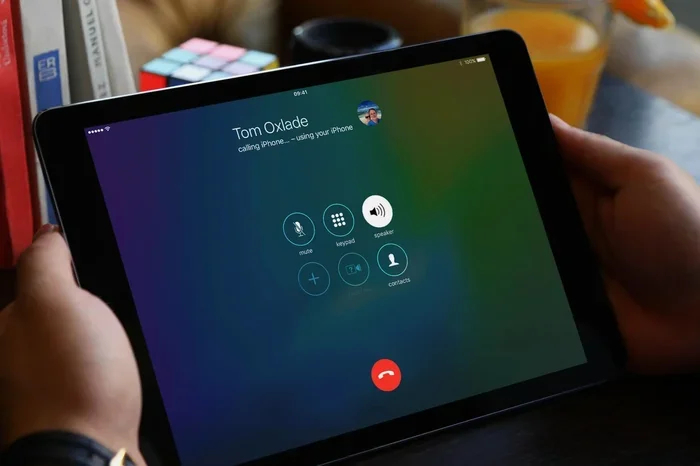
Can You Use An Ipad Mini As A Phone For Calls And Messaging
Yes, you can use an iPad Mini as a phone for calls and messaging. With a cellular data plan, Wi-Fi calling, and the right apps, your iPad Mini can handle phone calls, text messages, and video chats. Whether you want a tablet as phone backup or a full replacement, this guide covers every method, limitation, and pro tip you need to know.
Have you ever looked at your iPad Mini and thought, “Could this actually replace my phone?” It is a fair question. The iPad Mini is small enough to fit in a jacket pocket. It has a great screen, a powerful processor, and built-in wireless connectivity. So why not use it for calls and messages?
The truth is, you can use an iPad Mini as a phone in several ways. You are not limited to just browsing and watching videos. Whether you want to make FaceTime calls, send iMessages, or use VoIP apps, the iPad Mini gives you real options. This guide will show you exactly how it works, what you need to set it up, and where the limits are.
Let us walk through everything you need to know about using your iPad Mini for phone calls and text messaging. By the end, you will have a clear picture of whether this tablet as phone approach works for your lifestyle.
Key Takeaways
- Cellular iPad Mini works like a phone: You can add a data plan and use it for calls, texts, and internet on the go.
- Wi-Fi calling and FaceTime make it easy: You can make free calls over Wi-Fi without a cellular plan at all.
- VoIP apps fill the gaps: Apps like WhatsApp, Skype, and Google Voice turn your iPad Mini into a full communication device.
- iMessage and text forwarding keep you connected: Apple’s ecosystem lets you send and receive texts from your iPad.
- There are real limitations: You cannot make traditional emergency calls from a Wi-Fi-only iPad Mini, and portability is a trade-off.
- An eSIM or physical SIM unlocks cellular features: Setting up a SIM card is the key step for full phone-like functionality.
📑 Table of Contents
- How iPad Mini Handles Phone Calls
- Setting Up Messaging on Your iPad Mini
- VoIP Apps That Turn Your iPad Mini Into a Phone
- Cellular vs Wi-Fi: Which Connection Works Best
- Limitations You Should Know About
- Expert Tips for Using iPad Mini as Your Primary Phone
- iPad Mini vs Phone: A Quick Comparison
- Final Thoughts
How iPad Mini Handles Phone Calls
The iPad Mini is not a phone in the traditional sense. Apple does not sell it as a phone. But that does not mean it cannot make calls. The iPad Mini has real phone functionality built into it, especially if you choose the right model. Here is how it all works.
Cellular vs Wi-Fi Only Models
The first thing to understand is that there are two types of iPad Mini models. There is the Wi-Fi only model and the cellular model. The Wi-Fi only version connects to the internet only through wireless networks. The cellular model has a SIM card slot or eSIM support that lets it connect to mobile networks.
If you want your iPad Mini to work like a phone outside your home, you need the cellular version. The Wi-Fi only model can still make calls, but only when connected to a wireless network. For many people, that is enough. But if you want true portability, the cellular iPad Mini is the way to go.
What You Need for Cellular Calls
To use your iPad Mini for phone calls, you need a few things in place. First, you need a cellular data plan. You can add a SIM card or set up an eSIM through your carrier. Most major carriers like AT&T, Verizon, and T-Mobile support eSIM iPad setups now.
Second, you need to enable Wi-Fi calling if your carrier supports it. This feature lets you make calls over Wi-Fi when cellular signal is weak. It works great in buildings with thick walls or in rural areas. Third, you need an app or service that handles the actual calling. Apple provides built-in tools, but third-party apps give you more flexibility.
Setting Up a Phone Number for iPad
Getting a phone number for iPad is simpler than you might think. If you have a cellular iPad Mini, your carrier can assign a phone number directly to the device. Some carriers let you share your existing phone number through number sharing or call forwarding.
Another option is to use a Google Voice number. Google Voice gives you a free phone number that works with any Wi-Fi connection. You can use it on your iPad Mini for calls and texts without needing a separate cellular plan. This is a popular choice for people who want a second number or a backup line.
Setting Up Messaging on Your iPad Mini
Messaging is where the iPad Mini really shines as a tablet as phone replacement. Apple built strong messaging tools right into the operating system. You can send texts, photos, videos, and voice notes without reaching for your phone.
iMessage and Apple’s Messaging Ecosystem
iMessage is Apple’s built-in messaging service. It works between all Apple devices, including the iPad Mini. When you send a message to another iPhone or iPad user, it goes through iMessage and uses your data or Wi-Fi connection. The messages are encrypted, fast, and free.
One of the best features is text message forwarding. This lets your iPad Mini receive and send SMS texts from your iPhone. As long as both devices are on the same Apple ID and connected to Wi-Fi, your iPad Mini becomes a full messaging hub. You can reply to texts from your iPad even when your phone is in another room.
Third-Party Messaging Apps
Not everyone uses iMessage. That is perfectly fine. There are plenty of messaging apps that work on the iPad Mini. WhatsApp is one of the most popular. It lets you send texts, make voice calls, and do video calls all for free over Wi-Fi or data.
Facebook Messenger, Telegram, and Signal are other great options. Each app has its own strengths. WhatsApp is widely used around the world. Signal focuses on privacy and security. Telegram offers fast speeds and large group chats. You can install any of these on your iPad Mini and use them just like you would on a phone.
Group Chats and Media Sharing
Using your iPad Mini for messaging has some real perks. The larger screen makes group chats easier to follow. You can see more messages at once without scrolling. Sending photos and videos is also smoother because of the bigger display. If you are in a family group chat or a work chat, the iPad Mini is a great device for staying on top of conversations.
VoIP Apps That Turn Your iPad Mini Into a Phone
VoIP apps are the secret weapon for turning your iPad Mini into a phone. VoIP stands for Voice over Internet Protocol. It means you make calls using the internet instead of traditional cell towers. The iPad Mini is perfect for this because it has a good microphone, speakers, and a reliable Wi-Fi or data connection.
FaceTime and FaceTime Audio
FaceTime is Apple’s built-in video calling app. It works across all Apple devices. You can use FaceTime calls to talk face-to-face with anyone who has an iPhone, iPad, or Mac. FaceTime Audio is the audio-only version, and it uses very little data.
The best part about FaceTime is that it is completely free. You do not need a cellular plan or a third-party app. As long as both people have an Apple device and an internet connection, you can call for free. The call quality is excellent, and the iPad Mini speaker and microphone do a great job.
Skype, Zoom, and Google Voice
Skype has been around for a long time, and it still works well on the iPad Mini. You can make voice calls, video calls, and send instant messages. Skype also lets you call regular phone numbers for a small fee. This is useful if you need to reach someone who does not use VoIP apps.
Zoom is another strong option. While many people know Zoom for video meetings, it also works great for one-on-one calls. Google Voice is a fantastic free tool that gives you a phone number, voicemail, and calling features. You can use Google Voice on your iPad Mini to make and receive calls through any browser or the app.
Which VoIP App Is Best for iPad Mini?
Here is a quick comparison of the most popular VoIP apps for the iPad Mini:
- FaceTime: Best for Apple users. Free, high quality, and built right in.
- WhatsApp: Best for cross-platform use. Works with iPhone, Android, and iPad.
- Google Voice: Best for getting a free phone number with voicemail and calling.
- Skype: Best for calling regular landlines and mobile numbers.
- Zoom: Best for video calls and meetings.
Cellular vs Wi-Fi: Which Connection Works Best
When you use your iPad Mini as a phone, your connection type matters a lot. You can use cellular data, Wi-Fi, or both. Each option has pros and cons. Let us break them down.
Benefits of Cellular Data
A cellular data plan gives you true mobility. You can make calls and send messages anywhere there is cell coverage. You do not need to find a Wi-Fi network. This is the closest experience to using a real phone.
With a cellular iPad Mini, you can also use your device as a mobile hotspot. This lets you share your data connection with other devices like a laptop or a second phone. It is a handy feature for travel or when your primary internet goes down.
Benefits of Wi-Fi Calling
Wi-Fi calling is a game changer. It lets you make calls over any wireless network. This means you can call anyone even in areas with weak cell signal. Many carriers now support Wi-Fi calling at no extra cost.
The downside is that you need a Wi-Fi network. You cannot use Wi-Fi calling on the go unless you are near a wireless network. For home and office use, it works beautifully. For travel, a cellular data plan is more reliable.
Using Both Together
The best setup is to use both cellular data and Wi-Fi together. Your iPad Mini can switch between them automatically. When you are at home, it uses Wi-Fi for calls and messages. When you are out, it switches to cellular data. This gives you the best of both worlds and keeps you connected at all times.
Limitations You Should Know About
Using an iPad Mini as a phone is absolutely possible. But it is not without limitations. Being honest about these helps you set the right expectations and avoid frustration.
No Traditional Emergency Calls on Wi-Fi Only
This is the biggest limitation. If you have a Wi-Fi only iPad Mini, you cannot call emergency services like 911 directly from the device. You need a cellular connection for emergency calls. This is a serious consideration if you are thinking about replacing your phone entirely.
Even with a cellular iPad Mini, emergency calling can be less reliable than on a dedicated phone. The device does not have the same kind of GPS and antenna hardware as a smartphone. Keep this in mind if safety is a top concern.
Portability and Size
The iPad Mini is small for a tablet, but it is still bigger than a phone. It does not fit easily in a jeans pocket. You need a bag, a pocket, or a holder to carry it around. For some people, this is fine. For others, it is a dealbreaker.
If you are using the iPad Mini as a phone replacement, think about how you will carry it all day. A small pouch or a jacket with a dedicated pocket can solve this problem. But it is not as convenient as pulling a phone out of your pocket.
Call Quality and Speakerphone
The iPad Mini has decent speakers and a working microphone. But it is not designed the same way a phone is. When you hold it to your ear, the microphone is not in the same spot as a phone. You may need to use the iPad Mini on a table or use headphones for private calls.
Using the iPad Mini as a speakerphone works well in quiet environments. In noisy places like restaurants or streets, the call quality can drop. A good pair of wireless earbuds or headphones solves this problem easily.
App Compatibility
Some phone apps are designed for smaller screens. Not every messaging app or calling app works perfectly on the iPad Mini. Most major apps are well optimized, but you may run into occasional glitches with lesser-known apps. Stick to popular, well-maintained apps for the best experience.
Expert Tips for Using iPad Mini as Your Primary Phone
If you have decided to use your iPad Mini as a phone, here are some expert tips to make the experience smooth and reliable.
Invest in Good Headphones
A quality pair of wireless earbuds is essential. They give you private, clear audio for calls. They also free up your hands when you are walking or cooking. Look for earbuds with noise cancellation for the best call quality iPad experience.
Set Up Call Forwarding
If you still have a phone number on your regular phone, set up call forwarding to your iPad Mini. This way, any call that comes to your phone will also ring on your iPad. You will never miss a call, even if your phone is dead or in another room.
Keep Your iPad Charged
Using your iPad Mini for calls and messages drains the battery faster than casual use. Make sure you charge it overnight or carry a portable charger. A low battery means missed calls and messages, which defeats the purpose.
Use a Protective Case
Since you will be carrying your iPad Mini around more often, a good protective case is a must. It protects the device from drops and scratches. A case with a stand is also handy for video calls and speakerphone use.
Sync Your Apple ID Across All Devices
The Apple ecosystem integration is one of the biggest advantages of using an iPad Mini. Make sure your Apple ID is synced across your iPhone, iPad, Mac, and Apple Watch. This gives you seamless access to messages, calls, and files no matter which device you are using.
iPad Mini vs Phone: A Quick Comparison
Wondering how the iPad Mini stacks up against a regular phone? Here is a quick side-by-side look at the key differences.
Portability: A phone wins here. It fits in your pocket. The iPad Mini needs a bag or a large pocket.
Screen Size: The iPad Mini wins. The larger screen makes reading messages, watching videos, and video calls much more comfortable.
Battery Life: The iPad Mini generally has a bigger battery than a phone, but using it for calls and messages drains it faster.
Call Quality: A dedicated phone has better call hardware. But with headphones and Wi-Fi calling, the iPad Mini comes close.
Cost: A cellular iPad Mini costs more upfront. But if you already own one, using it for calls can save you from buying a second phone.
App Access: Both devices have access to the same app store. The iPad Mini gives you a better experience for most apps because of the larger screen.
The iPad vs phone comparison really comes down to your daily habits. If you spend most of your time at a desk or at home, the iPad Mini can absolutely handle your calls and messages. If you are always on the move and need something in your pocket, a phone is still the better choice.
Final Thoughts
So, can you use an iPad Mini as a phone? The answer is a clear yes. With the right setup, your iPad Mini can make calls, send messages, and keep you connected in ways that feel surprisingly natural. The cellular iPad Mini models give you the most freedom, but even the Wi-Fi only version works well at home and in the office.
The key is understanding what you need and choosing the right tools. VoIP apps, iMessage, FaceTime, and text message forwarding cover most of your daily communication needs. Add a cellular data plan or eSIM for full portability, and your iPad Mini becomes a powerful communication device.
No technology is perfect. The iPad Mini has limits, especially when it comes to portability and emergency calling. But for many people, these trade-offs are worth it. The larger screen, better speakers, and seamless Apple ecosystem integration make the iPad Mini a compelling alternative to carrying a second phone.
If you are ready to try it, start small. Set up Wi-Fi calling and iMessage on your iPad Mini. Test it for a week. See how it fits into your routine. You might be surprised at how well it works. The tablet as phone lifestyle is not just possible. It is already working for thousands of people every day.
Frequently Asked Questions
Can I make regular phone calls from an iPad Mini?
Yes, you can make regular phone calls from an iPad Mini if you have a cellular data plan or use VoIP apps. Apps like Google Voice, Skype, and WhatsApp let you call any phone number. With Wi-Fi calling enabled, your iPad Mini can also make calls through your carrier’s network.
Do I need a special SIM card for the iPad Mini?
Not necessarily. Many carriers now support eSIM for iPad Mini, which lets you activate a cellular plan without a physical SIM card. If your carrier does not support eSIM, you can use a nano-SIM card. Check with your carrier to see which option works for you.
Can I send and receive text messages on iPad Mini?
Absolutely. You can use iMessage, SMS through text forwarding from your iPhone, or third-party apps like WhatsApp and Telegram. If you have a cellular iPad Mini, you can also receive traditional SMS texts directly on the device.
Is the call quality good on iPad Mini?
Call quality on iPad Mini is generally very good, especially over Wi-Fi. The built-in speakers and microphone work well for most calls. Using wireless earbuds or headphones improves the experience further by providing clearer audio and better privacy.
Can I use iPad Mini as my only phone?
You can use an iPad Mini as your only phone if you have a cellular data plan and rely on VoIP apps and messaging services. However, the lack of a dedicated phone form factor and limited emergency calling options mean it is not ideal for everyone. It works best as a primary communication tool for people who are mostly at home or in the office.
How much does a cellular data plan for iPad Mini cost?
Cellular data plans for iPad Mini vary by carrier and data amount. Most carriers offer plans starting around $10 to $20 per month for a modest data allowance. If you only use the iPad Mini for calls and messaging, a plan with 1 to 5 GB of data is usually sufficient.
=== CONCLUSION ===
Using your iPad Mini as a phone for calls and messaging is not only possible but genuinely practical. With the right setup, you get a larger screen, better audio, and the full power of the Apple ecosystem in a portable package. Whether you use FaceTime, WhatsApp, iMessage, or a traditional cellular data plan, the iPad Mini delivers a solid communication experience.
Understand the limitations, choose the right apps, and set up your connectivity properly. The iPad Mini can be a wonderful companion device or even a full phone replacement for the right user. Give it a try and see how it fits into your daily life.