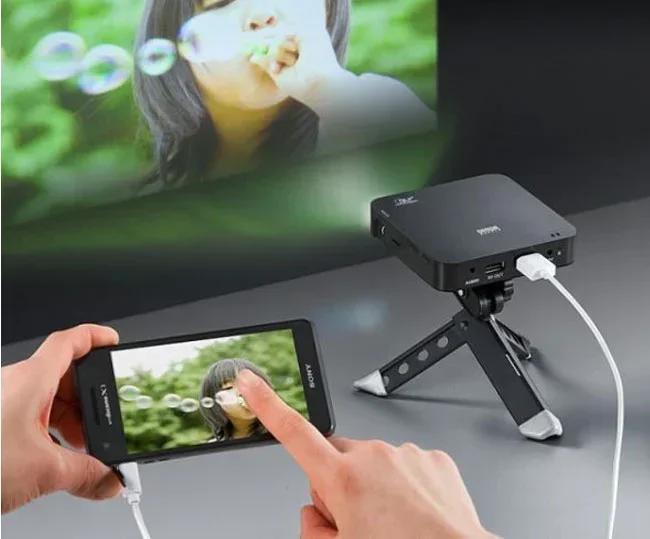
Can You Run A Projector Off Your Phone And How Simple
Yes, you can run a projector off your phone using wired or wireless methods. This guide covers everything you need to know about mobile projection, from connecting cables to using projector apps for screen mirroring. You will learn how to set up a wireless projector connection, choose the best projector apps, and avoid common mistakes for a smooth smartphone presentation every time.
Have you ever wanted to share something on your phone screen with a group of people but found the display too small? Maybe you are giving a presentation at work, hosting a movie night, or showing off vacation photos to friends. The good news is that you absolutely can run a projector off your phone. It is simpler than most people think, and you do not need to be a tech expert to make it work.
Running a projector from your phone opens up a world of possibilities. You can turn any blank wall or portable screen into a huge display. Whether you are at home, in a classroom, or at an outdoor gathering, mobile projection lets you share content with ease. In this guide, we will walk you through every method, every app, and every tip you need to get started. By the end, you will feel confident setting up your own phone to projector connection in minutes.
The process might seem tricky at first, but trust us, it really is not. You have a few simple options to choose from, and we will break them all down for you. From plugging in a cable to casting wirelessly, there is a method that fits every situation and budget. So let us dive right in and explore how you can start projecting from your phone today.
Key Takeaways
- You can connect your phone to a projector using both wired and wireless methods for mobile device projection.
- Screen mirroring and dedicated projector apps make wireless display easy and reliable for everyday use.
- An HDMI adapter is the most common way to achieve a wired projector connection from your phone.
- Wi-Fi projector and Bluetooth projector options give you freedom from cables for streaming from phone to a big screen.
- Common mistakes like wrong cable choices or outdated apps can cause lag and sync issues during projector setup.
- Quick tips for room setup and phone performance will dramatically improve your mobile projection experience.
📑 Table of Contents
- Can You Run A Projector Off Your Phone? The Short Answer
- How to Connect Your Phone to a Projector
- Best Apps for Running a Projector from Your Phone
- Wireless vs. Wired: Which Connection Is Better?
- Common Problems When Running a Projector from Your Phone (and How to Fix Them)
- Tips for Getting the Best Projecting Experience
- Final Thoughts on Running a Projector from Your Phone
Can You Run A Projector Off Your Phone? The Short Answer
The short answer is a clear yes. Can you run a projector off your phone? Absolutely. You can connect almost any smartphone to a projector and display your content on a much larger screen. The method you choose depends on your projector type, your phone model, and what you want to show.
There are two main ways to make this work. The first is a wired connection using cables and adapters. The second is a wireless connection using Wi-Fi or Bluetooth technology. Both methods are widely used and work well for different situations. Let us look at each one in detail so you can decide what fits your needs best.
What You Need to Know Before You Start
Before you try any connection method, there are a few things you should know. First, check what ports your projector has. Most modern projectors come with HDMI inputs, which are the most common. Some older models might use VGA or USB ports instead. Second, check what output options your phone supports. Newer phones often have USB-C or Lightning ports, while older models might use micro-USB.
Third, think about what you want to project. Are you sharing slides for a work meeting? Streaming a movie? Showing photos? Your use case will help you decide whether a wired or wireless method is better. For example, if you need a stable, lag-free connection for a business presentation, a wired setup might be your best bet. If you want the freedom to move around during a movie night, wireless is the way to go.
Also consider the environment. Are you projecting in a bright room or a dark room? Does the projector have built-in speakers, or do you need external audio? These small details matter and will shape your setup decisions. Taking a few minutes to think through your situation before you start will save you time and frustration later.
How to Connect Your Phone to a Projector
Now let us get into the practical steps. Connecting your phone to a projector is easier than you might expect. We will cover both wired and wireless methods so you can pick what works best for you.
Using a Wired Connection
A wired connection gives you a reliable, stable link between your phone and your projector. There is no lag, no signal drops, and no need to worry about Wi-Fi strength. This is the go-to method for anyone who needs a dependable digital projection setup. Here is how to set it up step by step.
The most common wired method uses an HDMI adapter. If your phone has a USB-C port, you can buy a USB-C to HDMI adapter. If you have an older iPhone with a Lightning port, you will need a Lightning to HDMI adapter. These adapters are small, affordable, and easy to find online or at any electronics store. A good projector cable and adapter combo costs between $10 and $25 in most cases.
Here is the step-by-step process for a wired setup:
- Plug the adapter into your phone.
- Connect an HDMI cable from the adapter to your projector.
- Turn on your projector and select the correct HDMI input.
- Your phone screen should now appear on the projector.
That is really it. You do not need to install any special software. The adapter handles the signal conversion, and your phone sends the display output directly to the projector. This method works great for digital projection of presentations, videos, and photos. The image quality is excellent because there is no compression or wireless interference involved.
One thing to keep in mind is that a wired connection limits your mobility. You are tethered to the projector by the cable. If you need to walk around or present from different spots in a room, this might feel restrictive. But for stationary setups like boardrooms or home theaters, it works perfectly and delivers the most consistent results.
Going Wireless with Screen Mirroring
Screen mirroring is the wireless alternative to cables. It lets you send your phone screen to the projector without any physical connection. This method is perfect for wireless display needs where you want freedom to move around and interact naturally with your audience.
There are several ways to achieve wireless screen mirroring:
- Wi-Fi Direct: Many modern projectors support Wi-Fi Direct. You connect your phone directly to the projector’s Wi-Fi network, and your screen appears on the big display. No router is needed.
- Miracast: This is a wireless standard built into many phones and projectors. It allows you to cast your screen without needing an internet connection. Just make sure both devices support Miracast.
- Apple AirPlay: If you have an iPhone and an AirPlay-compatible projector, you can mirror your screen effortlessly. AirPlay is built right into iOS and works seamlessly.
- Chromecast: You can use a Chromecast device plugged into the projector’s HDMI port to receive content from your phone over Wi-Fi. It is a popular and affordable option for streaming from phone to a big screen.
Each of these options gives you a different level of convenience. Miracast and AirPlay are built right into most phones, so you do not need to download anything extra. Chromecast requires a small hardware device but offers great flexibility and works with both Android and iOS phones.
For wireless projector connection, Wi-Fi quality matters a lot. Make sure you are on a strong network for the best experience. A weak Wi-Fi signal can cause lag, stuttering, or disconnections during your smartphone presentation. If possible, use a dedicated Wi-Fi network for your projector to avoid interference from other devices.
Best Apps for Running a Projector from Your Phone
Apps play a big role in making phone to projector connections smooth and feature-rich. While some methods work without any apps at all, using the right app can add features like file management, remote control, and better display settings. Here is a look at the best options available.
Free Options to Try First
You do not need to spend money to get started with projector apps. Several free options work well for basic mobile projection and screen mirroring:
- Epson iProjection: This app works with Epson projectors and lets you stream documents, photos, and web pages from your phone. It is simple to use and completely free. Great for quick presentations.
- Samsung Smart View: Samsung phone users can use this built-in app to cast content to compatible projectors and screens. It supports screen mirroring and file sharing without extra downloads.
- Google Home: This app works with Chromecast-enabled projectors and lets you cast your entire screen or specific content from apps like YouTube and Netflix. It is free and widely compatible.
- Screen Mirroring App by Singular Software: A straightforward app that works with many projector brands for basic wireless casting. It is a good starting point for beginners.
These free apps cover most basic needs. They are great for quick setups, casual movie nights, and simple presentations. You can download them from the App Store or Google Play Store in seconds. Even if you never upgrade to a paid option, these free tools will serve you well for everyday mobile projection tasks.
Premium Apps Worth Paying For
If you need more advanced features, premium projector apps offer enhanced functionality and better performance:
- LetsView: This app supports multiple platforms and offers high-quality wireless display casting. The free version has ads, but the paid version removes them and adds better resolution options for sharper digital projection.
- ApowerMirror: A powerful app that supports both wired and wireless connections. It lets you control your phone screen from the projector and even record your sessions for later review.
- TwomonUSB: This app turns your phone into a second screen for your computer, but it also works well for projecting content from your phone to a projector via USB. It is great for multitasking during smartphone presentations.
Premium apps are worth considering if you use mobile projection regularly for work or events. They offer more stability, better image quality, and extra tools that make your setup more professional. Many of them also include customer support and regular updates that fix bugs and improve compatibility with new phone and projector models.
Wireless vs. Wired: Which Connection Is Better?
This is one of the most common questions people ask when setting up projector connectivity. The answer depends on your specific needs. Let us compare both options side by side so you can make an informed decision.
| Feature | Wired Connection | Wireless Connection |
|---|---|---|
| Stability | Very stable, no signal drops | Good, but depends on Wi-Fi strength |
| Setup Speed | Quick, plug and play | Slightly slower, requires network setup |
| Mobility | Limited by cable length | Full freedom to move around |
| Image Quality | Excellent, no compression | Good, may have slight compression |
| Cost | Low, just an adapter and cable | Free if both devices support it |
| Best For | Presentations, business use | Movie nights, casual sharing |
As you can see from the table, both methods have their strengths. For professional settings where reliability is key, a wired projector cable setup is hard to beat. There is no risk of signal interference, no lag, and no dropped connections. For casual and flexible use, wireless screen share projector options offer much more convenience and freedom of movement.
Many people actually use both methods depending on the situation. At home, they might go wireless for movie nights with the family. At the office, they switch to a wired connection for important meetings where every second counts. Having both options available gives you the most flexibility and ensures you are always prepared, no matter the setting.
One thing to keep in mind is that wireless technology is improving rapidly. Newer standards like Wi-Fi 6 and Wi-Fi 7 are closing the gap between wired and wireless performance. If you are buying new equipment, look for projectors and phones that support the latest wireless standards for the best wireless projector connection experience.
Common Problems When Running a Projector from Your Phone (and How to Fix Them)
Even with the simplest setups, you might run into a few hiccups along the way. Do not worry. Most issues are easy to fix, and we have solutions for each one. Here are the most common problems and how to solve them quickly.
Lag and Delay Issues
Lag is the most common complaint when using mobile projection. You tap your phone screen, and the projector takes a second to respond. This can be frustrating, especially during presentations or while gaming. Here is what causes it and how to fix it.
- Weak Wi-Fi signal: Move closer to your router or use a Wi-Fi extender to boost the signal strength for your wireless display connection.
- Too many devices on the network: Disconnect other devices temporarily to free up bandwidth for your phone to projector streaming.
- Using a wireless method for heavy content: Streaming high-definition video wirelessly can cause delays. Switch to a wired connection for smoother playback.
- Old adapter or cable: Make sure your HDMI adapter and cables are in good condition and support the latest standards.
For wireless projector connection lag, reducing the resolution of the output can also help. Lower resolution means less data to transmit, which results in smoother performance. Also, closing background apps on your phone frees up processing power and can reduce lag significantly.
Audio and Video Sync Problems
Sometimes the audio and video on your projector get out of sync. The lips move, but the words come out a beat later. This is called audio-video sync drift, and it can ruin the viewing experience fast.
Here is how to fix sync issues:
- Check if your projector apps have an audio delay setting. Many apps let you manually adjust the sync to match the projected output.
- Restart both your phone and the projector. A simple reboot often fixes temporary sync glitches and refreshes the connection.
- Try a wired connection if you are currently using wireless. Wired setups almost always have better sync than wireless ones.
- Update your phone software and projector firmware. Manufacturers often release fixes for sync issues in updates.
Sync problems are annoying but usually easy to resolve. With the right adjustments, you can enjoy perfectly synced audio and video on your big screen. If the problem persists, try using a different app or a different cable to rule out hardware issues.
Phone Not Recognizing the Projector
Sometimes your phone simply does not detect the projector. This can happen for several reasons, and the fix is usually simple:
- The adapter is not fully plugged in. Try unplugging and reinserting it firmly until it clicks into place.
- Your projector is on the wrong input source. Use the projector remote to cycle through inputs until you find the right one.
- Your phone might need permission to output video. Check your phone display settings for any restrictions or blocked outputs.
- Restart both devices and try again. This simple step fixes the issue more often than you would think.
For wireless setups, make sure both devices are on the same network and that screen mirroring is turned on in your phone settings. Sometimes you need to enable it manually in your phone’s display or network settings. A quick toggle in your control center usually does the trick.
Tips for Getting the Best Projecting Experience
Once you have your projector setup working, a few simple tips can make a huge difference in quality and enjoyment. Here is what experienced users recommend for the best results every time.
Room Setup and Lighting
The environment where you project makes a big difference. Even the best phone to projector connection will look dull in a bright room. Here are some quick tips to improve your viewing environment:
- Dim the lights: Close curtains or blinds to reduce ambient light. The darker the room, the sharper and more vibrant your projected image will look.
- Use a white or light-colored wall: A white surface reflects light best and gives you the clearest image. Avoid projecting onto dark or textured walls if possible.
- Position the projector correctly: Place the projector at the right distance for your screen size. Most projectors have a throw ratio listed in the manual that helps you calculate the ideal placement.
- Reduce glare: Angle the projector so that light does not bounce off shiny surfaces directly into your audience’s eyes.
With the right room setup, even a basic projector can deliver stunning visuals. The environment matters just as much as the technology. A few small changes to your room can transform a mediocre image into a vivid, immersive display that impresses everyone in the room.
Phone Battery and Performance Tips
Running a projector from your phone uses a lot of battery power. Your phone is processing and sending video output continuously, which drains the battery fast. Here is how to keep your phone running smoothly during long sessions:
- Plug in your phone: Always connect your phone to a power source while projecting. This prevents battery drain and keeps your phone cool during extended mobile device projection sessions.
- Close unnecessary apps: Background apps use processing power and can slow down your streaming from phone experience. Close everything you do not need before you start projecting.
- Turn off notifications: Incoming calls and notifications can interrupt your presentation and cause distractions. Use Do Not Disturb mode during your smartphone presentation for a smooth experience.
- Lower screen brightness: Reducing your phone’s brightness slightly can save battery without affecting the projected image quality much.
These small steps add up to a much smoother and more reliable projector setup. Your phone will stay cool, charged, and focused on delivering great content to the big screen. You will also avoid the annoying situation where your phone dies in the middle of an important presentation or movie.
Quick Tips for Better Results
Here are some bonus tips that experienced users swear by:
- Always test your setup before the actual event. Do a trial run to make sure everything works smoothly and the image looks good.
- Keep a backup adapter and cable in your bag. Equipment failures happen at the worst possible times, and a spare can save the day.
- Use a phone mount or stand to keep your phone steady and at the right angle during wireless casting. This also frees up your hands.
- For movie nights, use a Bluetooth speaker connected to the projector for better audio quality than most built-in projector speakers.
- Clean your projector lens regularly. Dust and fingerprints can blur the projected image and reduce overall clarity.
- Update your projector apps and phone software regularly. Updates often include bug fixes and performance improvements for projector connectivity.
These tips might seem small, but they make a real difference in the quality and reliability of your mobile projection setup. The more you practice and refine your process, the better your results will be every single time.
Final Thoughts on Running a Projector from Your Phone
Can you run a projector off your phone? Without a doubt, yes. Whether you choose a wired HDMI adapter setup or a wireless display method, connecting your phone to a projector is easier than ever. The technology has matured, and the options available today work reliably for almost everyone.
Your choice between wired and wireless comes down to your specific needs. If you value stability and image quality above all else, go with a wired connection. If you want freedom and flexibility, wireless screen mirroring is the way to go. And if you want the best of both worlds, have both options available and switch as needed. Flexibility is the greatest advantage of using your phone as a projector source.
The right projector apps can make your experience even better. They add features, improve connectivity, and give you more control over what appears on the big screen. Try a few free options first, and upgrade to a premium app if you need more advanced tools for regular use.
Remember that practice makes perfect. The more you set up and use your phone to projector connection, the more comfortable you will become. Soon, it will feel like second nature. You will be able to set up a smartphone presentation or start a movie night in just a few minutes. Do not be afraid to experiment with different methods and apps to find what works best for you.
So go ahead and give it a try. Set up your projector setup, connect your phone, and enjoy sharing content on a big screen. You will wonder how you ever managed without it. The ability to project from your phone is a genuinely useful skill that makes your device more versatile and your entertainment more immersive.
Frequently Asked Questions
Do I need a special projector to run it from my phone?
No, you do not need a special projector. Most modern projectors with HDMI inputs work with phones using a simple adapter. Even older projectors can work with the right cable or a wireless casting device like Chromecast. The key is matching the right connection type to your phone and projector ports. Almost any projector made in the last decade can be used with a phone.
Can I use any phone to project to a projector?
Almost any phone can connect to a projector. Both Android and iPhone models support wired and wireless projection methods. The only requirement is that your phone has an output port (USB-C or Lightning) or supports wireless casting standards like Miracast or AirPlay. Even budget phones can work well for basic mobile projection needs. The experience might vary slightly depending on your phone model, but the basics remain the same.
Is screen mirroring from phone to projector safe?
Yes, screen mirroring is generally safe. When you use built-in features like AirPlay or Miracast, your data stays between your devices. Just make sure you are connecting to a trusted Wi-Fi network and avoid sharing sensitive information over public networks. Using reputable projector apps from official app stores also helps keep your connection secure and your data private.
Why does my projected image look blurry?
A blurry projected image can happen for a few reasons. Your phone resolution might be too low for the projector size. The projector lens might need cleaning. Or the room might be too bright, washing out the image. Try cleaning the lens, dimming the room lights, and adjusting your phone display settings for the best results. Sometimes simply moving the projector closer to the wall or screen can sharpen the image.
Can I project in landscape and portrait mode from my phone?
Yes, most projectors display in landscape mode by default, which matches how phones naturally orient. If you need portrait mode for something like a document or photo, you can usually rotate your phone and the projector will follow. Some projector apps let you lock the orientation if needed. Check your phone’s rotation settings and your projector’s input options for the best configuration.
What is the best budget setup for projecting from a phone?
The most affordable setup is a USB-C to HDMI adapter (about $10 to $15) plus an HDMI cable you may already have. This wired method gives you excellent image quality without any ongoing costs. If you prefer wireless, a Chromecast device (around $30) plugged into your projector’s HDMI port is a great budget option for streaming from phone to a big screen. Either way, you can get started for under $30 and enjoy a big-screen experience from your phone.