Can I Have 2 Routers With Fios Here Is Everything You Need
Yes, you can absolutely use 2 routers with Fios. Adding a second router helps extend your Wi-Fi coverage, reduce dead zones, and improve network performance in larger homes. Whether you connect via Ethernet or set up wireless repeating, the process is straightforward and budget-friendly. This guide covers every step you need to take.
If you live in a bigger home or have tons of smart devices, your Fios Wi-Fi signal might not reach every corner. Dead zones in the basement, far bedrooms, or the backyard can be super frustrating. So, can you add a second router to your Fios setup? The short answer is yes. You absolutely can use 2 routers with Fios, and it is easier than you might think.
Many people assume they need expensive mesh systems or new equipment from Verizon. But a simple second router can solve most coverage problems. It saves money and gives you more control over your home network. Whether you want better speeds, wider range, or just a stronger signal in every room, this guide has you covered.
In this article, we will walk through everything you need to know. We will cover why you might want a second router, how to set it up step by step, common problems you might face, and expert tips to get the best results. Let us dive in.
Key Takeaways
- Two routers work with Fios: You can add a second router to your Fios network without any issues.
- Bridge mode or access point mode helps: These settings prevent conflicts and improve performance.
- Ethernet connection is best: A wired link between routers gives you the fastest and most stable speeds.
- Double NAT can cause problems: Learn how to avoid it when setting up a second router.
- Placement matters a lot: Position your second router correctly for the best Wi-Fi signal.
- You don’t need expensive gear: A basic secondary router can make a big difference.
- Setup is easy: Most people can set up a second router in under 30 minutes.
📑 Table of Contents
- Why Would You Want a Second Router With Fios?
- Is It Possible to Use 2 Routers With Fios?
- How to Set Up a Second Router With Fios
- Common Problems and How to Fix Them
- Router vs. Access Point: What Is the Difference?
- Expert Tips for the Best Setup
- Fios Router Setup: What to Expect
- Key Takeaways
- Frequently Asked Questions
- Conclusion
Why Would You Want a Second Router With Fios?
Before we get into the setup details, let us talk about why you would even need a second router. Understanding the benefits helps you decide if this is the right move for your home.
Expanding Wi-Fi Coverage in Larger Homes
The Fios gateway that Verizon provides works great for small to medium homes. But if you have a two-story house or a large floor plan, the signal can weaken fast. Walls, floors, and distance all reduce your Wi-Fi strength. A second router placed in a different part of the house can fill in those gaps. You get strong signal in rooms that were previously dead zones.
Supporting More Smart Devices
Modern homes are full of connected devices. Smart TVs, phones, tablets, smart speakers, security cameras, and smart thermostats all compete for bandwidth. When too many devices connect to one router, things slow down. A second router helps spread the load. It gives your devices more room to connect without slowing the network.
Improving Gaming and Streaming Performance
If you game online or stream 4K videos, a weak signal causes lag and buffering. Placing a second router closer to your entertainment setup can make a huge difference. You get a more stable connection with less interference. This is especially helpful if your router is far from the living room or home office.
Creating a Separate Guest Network
Some people use a second router to keep guests on their own network. This protects your main network and personal devices. It is a simple way to add an extra layer of security without buying new equipment.
Is It Possible to Use 2 Routers With Fios?
The answer is a clear yes. You can connect a second router to your Fios network. But how you set it up matters a lot. The wrong setup can cause problems like slow speeds or connection drops. Let us look at what you need to know before you start.
Understanding Your Fios Gateway
Fios sends you a gateway device. This is the box that combines your modem and router into one unit. It handles the internet connection and broadcasts your Wi-Fi signal. The gateway works fine for most homes. But it has limits when it comes to range and device capacity.
Your Fios gateway has its own Wi-Fi network name and password. When you add a second router, you are essentially adding another broadcast point. The goal is to make both work together smoothly without conflicts.
The Short Answer
Yes, you can have 2 routers with Fios. You just need to connect the second router properly. Whether you use an Ethernet cable or set it up wirelessly, the key is configuring it the right way. The next section walks you through each method.
How to Set Up a Second Router With Fios
Setting up a second router is not hard. You do not need to be a tech expert. There are three main ways to connect a second router to your Fios gateway. Each method has its pros and cons. Let us go through them one by one.
Option 1: Connecting via Ethernet Cable (Best Method)
This is the best and most reliable way to set up a second router. A wired connection gives you the fastest speeds and the most stable performance. Here is how to do it.
Step 1: Plug one end of an Ethernet cable into one of the LAN ports on your Fios gateway. Do not use the WAN or internet port on the gateway.
Step 2: Plug the other end of the cable into one of the LAN ports on your second router. Never plug it into the WAN port on the second router for this method.
Step 3: Log into your second router’s settings page. You can usually find the address on the bottom of the router. It is often something like 192.168.1.1 or 192.168.0.1.
Step 4: Turn off the DHCP server on the second router. This prevents IP address conflicts with your Fios gateway. Your gateway already handles IP assignments.
Step 5: Change the Wi-Fi name and password on the second router if you want. Or keep them the same as the gateway for a seamless experience.
Step 6: Save your settings and restart both devices. Your second router should now be working.
This method gives you the best network performance. It avoids most common problems like double NAT or signal loss. If you can run an Ethernet cable between the two routers, this is the way to go.
Option 2: Using Wireless Repeater Mode
If you cannot run an Ethernet cable, you can set your second router to repeat the Fios gateway’s signal. This is called wireless repeater mode or range extender mode. Here is how it works.
Step 1: Place your second router in a location where it can still pick up a strong signal from the Fios gateway. Do not place it too far away or the repeated signal will be weak.
Step 2: Log into the second router’s admin panel. Look for a setting called “Repeater Mode,” “Range Extender Mode,” or “Bridge Mode.”
Step 3: Enable the repeater mode and connect to your Fios gateway’s Wi-Fi network. Enter the gateway’s Wi-Fi password when prompted.
Step 4: Set a different Wi-Fi channel on the second router than the gateway. This reduces interference and improves performance.
Step 5: Save and restart. Your second router now rebroadcasts the Fios signal to a wider area.
Keep in mind that wireless repeating cuts your bandwidth in half. The signal from the gateway reaches the second router, and then the second router sends it back out. This means speeds may be slower than the wired method. But it is still much better than having no coverage at all.
Option 3: Setting Up Access Point Mode
Access point mode is another great option. It turns your second router into a simple Wi-Fi broadcaster. It does not handle routing tasks. Your Fios gateway does all the heavy lifting.
Step 1: Connect the second router to the Fios gateway using an Ethernet cable. Plug the cable from the gateway’s LAN port into the second router’s LAN port.
Step 2: Log into the second router’s settings. Find the option to set it to “Access Point Mode” or “AP Mode.”
Step 3: Disable DHCP on the second router. The Fios gateway will assign all IP addresses.
Step 4: Set the Wi-Fi name and password. You can match the gateway’s settings for a seamless network or make them different if you prefer.
Step 5: Save settings and restart. Your second router now acts as a Wi-Fi access point.
Access point mode is very stable and reliable. It avoids double NAT issues and gives you the best performance for a wireless setup. Most modern routers support AP mode in their settings.
Common Problems and How to Fix Them
Even with a simple setup, you might run into a few hiccups. Here are the most common problems people face when using 2 routers with Fios and how to solve them.
Double NAT Issues
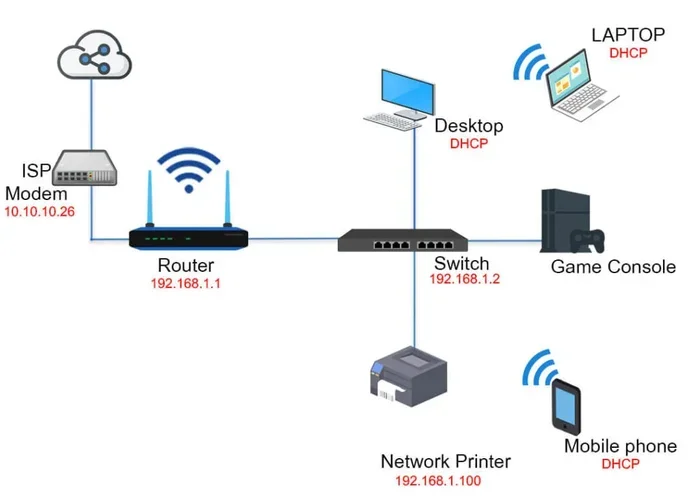
Double NAT happens when two routers both try to assign IP addresses. This can cause problems with online gaming, port forwarding, and some apps. The fix is simple. Make sure only one router handles DHCP. Turn off DHCP on the second router. This ensures your Fios gateway is the only device assigning IP addresses on your network.
IP Address Conflicts
Sometimes two routers end up with the same IP address. This causes connection drops and slow speeds. To fix this, change the IP address of your second router. For example, if your Fios gateway uses 192.168.1.1, set your second router to 192.168.1.2. This keeps each device on a unique address and prevents conflicts.
Wi-Fi Interference
When two routers broadcast on the same channel, they can interfere with each other. This slows down your network. To fix this, set each router to a different Wi-Fi channel. Use channels 1, 6, or 11 for the 2.4 GHz band. These channels do not overlap and work well together.
Slow Speeds on the Second Router
If your second router is slower than expected, check your connection method. A wireless repeater setup will always be slower than a wired connection. If possible, use an Ethernet cable between the two routers. Also, make sure your second router supports the same Wi-Fi standards as your Fios gateway, like Wi-Fi 5 or Wi-Fi 6.
Router vs. Access Point: What Is the Difference?
When setting up a second router, you might hear the terms “router” and “access point” used a lot. Understanding the difference helps you set things up correctly.
A router does two jobs. It routes traffic between your devices and the internet. It also broadcasts a Wi-Fi signal. Your Fios gateway is a router and a modem combined.
An access point only does one job. It broadcasts a Wi-Fi signal. It does not route traffic or assign IP addresses. When you set your second router to AP mode, it becomes an access point. This is the ideal setup for a second router with Fios.
Using your second router as an access point gives you the best of both worlds. You get extra Wi-Fi coverage without the complications of running two routers that both try to manage traffic.
Expert Tips for the Best Setup
Here are some pro tips to make sure your two-router Fios setup works perfectly.
Place the Second Router Strategically
Do not hide your second router in a closet or behind furniture. Place it in a central location on the floor or area where you need better coverage. Elevate it on a shelf or mount it on a wall. Signal strength improves with better placement.
Use Quality Ethernet Cables
If you go with the wired method, use a good Ethernet cable. Cat5e or Cat6 cables support fast speeds and are affordable. Avoid old or damaged cables that can slow your connection.
Keep Firmware Updated
Both your Fios gateway and your second router should have the latest firmware. Updates fix bugs, improve security, and boost performance. Check the router settings or the manufacturer’s app for updates regularly.
Match Wi-Fi Bands When Possible
If your Fios gateway supports dual-band or tri-band Wi-Fi, try to match that on your second router. This ensures consistent speeds across your home network. Devices can switch between routers without noticing a difference.
Use the Same Network Name for Seamless Roaming
If you set the same SSID and password on both routers, your devices will switch between them automatically. This is called seamless roaming. Your phone or tablet will connect to the strongest signal without you needing to do anything.
Monitor Your Network Performance
After setup, test your Wi-Fi speeds in different parts of the house. Use a speed test app to check performance. If certain areas are still slow, try adjusting the router placement or Wi-Fi channels.
Fios Router Setup: What to Expect
Setting up a second router with Fios is a straightforward process. Most people can complete it in 20 to 30 minutes. You do not need to call Verizon or schedule a technician visit. The Fios gateway gives you full access to its settings, so you can configure things exactly how you want.
One thing to keep in mind is that Verizon supports customers using their own router. You can put the Fios gateway in bridge mode and use your own router as the main device. But adding a second router on top of the gateway is a different scenario. In that case, the gateway stays active and the second router simply extends the network.
Whether you want to boost Fios internet speed in a weak area, support more devices, or just get better coverage, a second router is a practical and affordable solution. It costs a fraction of what a mesh system would cost and gives you more flexibility.
Key Takeaways
- Two routers work with Fios: You can add a second router to your Fios network without any issues.
- Bridge mode or access point mode helps: These settings prevent conflicts and improve performance.
- Ethernet connection is best: A wired link between routers gives you the fastest and most stable speeds.
- Double NAT can cause problems: Learn how to avoid it when setting up a second router.
- Placement matters a lot: Position your second router correctly for the best Wi-Fi signal.
- You don’t need expensive gear: A basic secondary router can make a big difference.
- Setup is easy: Most people can set up a second router in under 30 minutes.
Frequently Asked Questions
Can I connect a second router to my Fios gateway without calling Verizon?
Yes, you can absolutely connect a second router to your Fios gateway on your own. You do not need to contact Verizon or schedule a technician visit. The process is simple and does not require any changes to your Fios service plan. Just make sure you configure the second router correctly to avoid any network conflicts.
Will adding a second router slow down my Fios internet speed?
No, adding a second router should not slow down your internet speed. In fact, it can improve speeds in areas where your Wi-Fi signal was weak. The key is to connect the second router properly, either via Ethernet or in access point mode. A wired connection between the routers will give you the best performance.
Do I need a special router to work with Fios?
No, you do not need a special router. Any standard wireless router works with Fios. You can use your existing router or buy a new one. Just make sure it supports the Wi-Fi standards your devices use, like Wi-Fi 5 or Wi-Fi 6, for the best results.
What is the difference between bridge mode and access point mode?
Bridge mode connects two networks together and passes traffic between them. Access point mode turns a router into a Wi-Fi broadcaster only. When you add a second router to Fios, access point mode is usually the better choice. It keeps your Fios gateway in charge of routing and IP assignments while the second router just extends the Wi-Fi signal.
Can I use a mesh system instead of a second router with Fios?
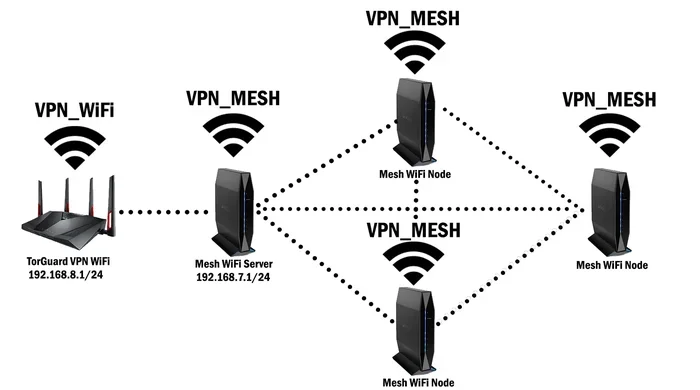
Yes, you can use a mesh Wi-Fi system with Fios. A mesh system works similarly to a second router but uses multiple nodes for broader coverage. It is more expensive but easier to manage. A second router is a more affordable option that works just as well for most homes.
How far apart should my Fios gateway and second router be?
Place the second router far enough to cover the weak areas in your home. A good rule of thumb is to place it halfway between the gateway and the area with poor coverage. Make sure the second router still gets a strong signal from the gateway, especially if you are using a wireless connection between them.
Conclusion
So, can I have 2 routers with Fios? Yes, without a doubt. Adding a second router to your Fios network is one of the smartest and most affordable ways to improve your home Wi-Fi. Whether you have a large house, too many connected devices, or weak signals in certain rooms, a second router solves these problems effectively.
You have several setup options to choose from. The wired Ethernet method is the best for performance. Access point mode is a great alternative if you want a clean and simple setup. Wireless repeating works in a pinch but will not give you the same speeds.
Avoid common pitfalls like double NAT and IP conflicts by following the steps in this guide. Take your time with placement and configuration. A little effort upfront pays off with a much better Wi-Fi experience in every corner of your home.
You do not need to spend hundreds of dollars on a mesh system. A second router works just as well for most households. Give it a try and see the difference it makes. Your Fios network can be faster, stronger, and more reliable with just one extra device.