Can You Use Rubbing Alcohol To Clean Your Laptop Fan
Yes, you can use rubbing alcohol to clean your laptop fan, and it is one of the safest and most effective methods available. Isopropyl alcohol evaporates quickly, leaves no residue, and dissolves grime without damaging sensitive electronic parts. This guide walks you through the entire process, from preparation to reassembly, so your laptop stays cool and runs smoothly.
Your laptop works hard every day. It runs programs, streams videos, and handles multitasking without complaint. But all that effort generates heat, and heat is the enemy of any electronic device. The small fan inside your laptop is the first line of defense against overheating. Over time, dust, pet hair, and debris build up around the fan blades and heat sink. This buildup restricts airflow and forces your laptop to work even harder. The result? Slower performance, loud fan noise, and potentially permanent hardware damage.
When you notice your laptop getting hotter than usual or sounding like a jet engine, it is time to clean the fan. But the real question is: can you use rubbing alcohol to clean laptop fan safely? The short answer is yes. Rubbing alcohol, specifically isopropyl alcohol, is one of the best cleaning solutions for electronics. It evaporates quickly, does not conduct electricity, and dissolves stubborn grime without leaving moisture behind. In this guide, we will walk you through everything you need to know about using rubbing alcohol to clean your laptop fan, from preparation to reassembly and beyond.
Whether you are a student, a professional, or a casual user, keeping your laptop fan clean is one of the simplest things you can do to boost laptop performance and extend your device lifespan. Let us dive into the details.
Key Takeaways
- Safe and Effective: Rubbing alcohol is a proven cleaning agent that safely removes dust and grime from laptop fans without causing damage.
- Use 90% or Higher Concentration: Lower concentrations contain too much water and can leave moisture inside your laptop.
- Always Power Off First: Never clean your laptop fan while the device is on or plugged in to avoid short circuits.
- Avoid Excess Liquid: Apply rubbing alcohol sparingly with a cloth or cotton swab to prevent liquid from seeping into internal components.
- Know When to Call a Pro: If you are uncomfortable disassembling your laptop, professional cleaning is always a safe option.
- Regular Maintenance Matters: Cleaning your laptop fan every few months prevents overheating and extends your device lifespan.
📑 Table of Contents
What Happens When Your Laptop Fan Gets Dirty
Before we get into the cleaning process, it helps to understand what dust and debris do to your laptop’s internal cooling system. A laptop fan is a small but critical component. It pulls cool air in and pushes hot air out. When the fan blades and the surrounding heat sink become coated in dust, the entire cooling system suffers.
Why Dust Builds Up Inside Your Laptop
Every laptop has tiny vents that allow air to flow through. These vents are great for cooling, but they are also open doors for dust. Over weeks and months, particles accumulate on the fan blades, the heat sink fins, and the exhaust vent. Pets shed fur that gets sucked in. Cigarette smoke leaves a sticky residue. Even the air in your room carries microscopic dust that settles inside your device.
The problem gets worse if you use your laptop on soft surfaces like beds, couches, or pillows. These surfaces block the intake vents and trap even more dust. After several months of regular use, the fan can become nearly choked with debris.
Signs Your Laptop Fan Needs Cleaning
How do you know it is time to clean your fan? Watch for these warning signs:
- Loud Fan Noise: If your laptop sounds like a small airplane taking off, the fan is working overtime to push air through blocked vents.
- Overheating: Your laptop feels hot to the touch, especially on the bottom or along the sides near the vents.
- Slow Performance: When the CPU gets too hot, it throttles its speed to prevent damage. This causes lag, stuttering, and slow load times.
- Frequent Shutdowns: Some laptops will shut down automatically when internal temperatures reach dangerous levels.
- Burning Smell: In extreme cases, trapped heat can cause the thermal paste to dry out or even damage nearby components.
If you notice any of these signs, cleaning your laptop fan should be your first step. It is quick, inexpensive, and often solves the problem entirely.
Is Rubbing Alcohol Safe for Laptop Fans?
This is the question that brings most people here, and it is a great one. The answer is a resounding yes, but with some important caveats. Not all rubbing alcohol is created equal, and not all cleaning methods are safe for electronics.
Understanding Isopropyl Alcohol
Rubbing alcohol sold in stores is typically isopropyl alcohol, also called isopropanol or IPA. This compound is a powerful solvent that breaks down grease, grime, and sticky residue. It is widely used in electronic cleaning because of two key properties:
- Fast Evaporation: Isopropyl alcohol evaporates almost instantly at room temperature. This means it does not leave behind moisture that could short-circuit your laptop’s motherboard or other components.
- Non-Conductive: Unlike water, isopropyl alcohol does not conduct electricity. This makes it safe to use around sensitive electronic parts like circuit boards, capacitors, and connectors.
However, the concentration matters a lot. You want to use 90% isopropyl alcohol or higher. Lower concentrations, such as 70%, contain more water. That extra water takes longer to evaporate and increases the risk of moisture damage. Always check the label before you buy.
What Type of Rubbing Alcohol to Use
Here is a quick breakdown of what to look for:
- 90% Isopropyl Alcohol: The gold standard for cleaning electronics. Dries fast and leaves no residue.
- 99% Isopropyl Alcohol: Even better. Used in professional electronics manufacturing and repair shops.
- 70% Isopropyl Alcohol: Acceptable in a pinch, but the higher water content means you need to be extra careful and let the laptop dry completely before powering it on.
- Avoid Ethanol or Denatured Alcohol: These can damage plastic parts and leave residues that harm electronics.
For the best results when you use rubbing alcohol to clean your laptop fan, always reach for the highest concentration available.
How To Clean Your Laptop Fan With Rubbing Alcohol
Now that you know rubbing alcohol is safe, let us walk through the actual cleaning process. Do not worry. You do not need to be a tech expert. With the right tools and a steady hand, anyone can do this at home.
Tools You Will Need
Before you start, gather these supplies:
- 90% or higher isopropyl alcohol (also called rubbing alcohol)
- Compressed air canister or an electric air blower
- Soft-bristle brush (a clean, dry toothbrush works great)
- Lint-free cleaning cloth or microfiber cloth
- Cotton swabs (Q-tips work perfectly)
- Screwdriver set (small Phillips and flathead, depending on your laptop model)
- Anti-static wrist strap (optional but recommended)
Having everything ready before you start makes the process smoother and safer. Do not rush out to buy tools in the middle of cleaning.
Step-by-Step Cleaning Process
Follow these steps carefully for a safe and thorough cleaning:
- Power Off and Unplug: Shut down your laptop completely. Unplug the power cable and remove the battery if it is removable. This is the most important safety step. Never clean internal components while the laptop is powered on.
- Ground Yourself: Touch a metal surface like a doorknob or the metal part of your desk to discharge any static electricity. Better yet, wear an anti-static wrist strap. Static discharge can damage sensitive components like the CPU and RAM.
- Open the Back Panel: Use the appropriate screwdriver to remove the screws on the bottom of your laptop. Keep the screws in a small container so you do not lose them. Carefully lift off the panel.
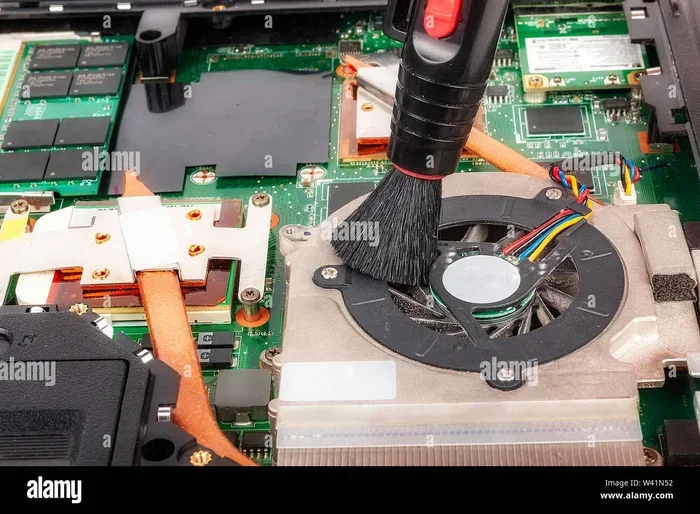
- Locate the Fan and Heat Sink: You will see the fan, which is usually connected to the heat sink by copper pipes. The fan has a small cable that plugs into the motherboard. Do not pull on the cable. Gently disconnect it if you need better access to the fan.
- Use Compressed Air First: Hold the fan blades in place with a finger or a cotton swab (this prevents the fan from spinning too fast and damaging the motor). Then use short bursts of compressed air to blow dust out of the heat sink fins and fan housing.
- Apply Rubbing Alcohol: Dampen a lint-free cloth or a cotton swab with a small amount of rubbing alcohol. Gently wipe the fan blades, the heat sink fins, and any visible dust or grime. The alcohol will dissolve sticky residue and disinfect the surface at the same time.
- Clean the Fan Housing: Use a soft brush to loosen any stubborn dust inside the fan housing. Then wipe it away with an alcohol-dampened cloth.
- Let Everything Dry: Wait at least 10 to 15 minutes for the rubbing alcohol to fully evaporate. This is critical. Even a tiny amount of residual moisture can cause a short circuit when you power the laptop back on.
- Reassemble: Once everything is completely dry, reconnect the fan cable, put the back panel back on, and secure the screws. Reinsert the battery if you removed it.
- Power On and Test: Turn on your laptop. Listen for smooth, quiet fan operation. Check that the laptop runs cooler than before.
Quick Tips for Best Results
- Work on a clean, flat surface. A kitchen table or desk is ideal. Avoid carpeted areas where static builds up easily.
- Take photos before disassembly. This helps you remember where each cable and screw goes when it is time to reassemble.
- Do not soak the fan. A lightly dampened cloth or swab is all you need. Excess liquid can drip into places you do not want it to go.
- Clean the exhaust vent too. Use compressed air on the outside vents to clear any dust that has accumulated near the openings.
- Repeat every 3 to 6 months. Regular laptop maintenance keeps dust from building up to problematic levels.
Common Mistakes To Avoid
Cleaning your laptop fan is straightforward, but a few common mistakes can cause serious damage. Here is what to watch out for.
Using Too Much Liquid
The biggest mistake people make is using too much rubbing alcohol. You do not need to soak anything. A few drops on a cloth or a lightly dampened cotton swab is plenty. If liquid drips onto the motherboard or other components, it can cause corrosion or short circuits. Always apply the alcohol to the cloth first, not directly onto the laptop parts.
Skipping the Power-Off Step
This cannot be stressed enough. Always power off your laptop completely and disconnect all cables before opening it up. Cleaning a live laptop is a recipe for disaster. Even in sleep mode, some components still carry electrical current, and a single spark from static discharge or a drop of conductive moisture can fry your system.
Forgetting About Static Electricity
Static electricity is invisible but powerful enough to destroy microchips. Many people clean their laptops without grounding themselves first. Simply touching a metal surface before you start working can discharge any static buildup. For extra protection, use an anti-static wrist strap that clips to the metal frame of your laptop.
Using the Wrong Type of Alcohol
Not all rubbing alcohol is safe for electronics. Avoid ethyl alcohol (drinking alcohol), methyl alcohol, and any cleaning solution that contains additives like fragrances or moisturizers. Stick with pure isopropyl alcohol at 90% concentration or higher for the safest and most effective cleaning.
Forcing the Fan to Spin
When using compressed air, do not let the fan spin freely at high speed. The spinning fan generates a back-EMF voltage that can damage the motherboard. Always hold the fan blades gently in place while blowing air through the housing.
Rubbing Alcohol vs Other Cleaning Methods
Rubbing alcohol is not the only way to clean a laptop fan. Let us compare the most popular methods so you can decide what works best for you.
| Method | Effectiveness | Safety | Cost | Best For |
|---|---|---|---|---|
| Rubbing Alcohol | High | Very Safe | Low | Sticky grime, deep cleaning |
| Compressed Air | Medium-High | Very Safe | Medium | Loose dust, quick cleaning |
| Vacuum Cleaner | Medium | Risky (static) | Low | Surface dust only |
| Water and Soap | Low | Dangerous | Very Low | Never use on electronics |
| Professional Cleaning | Very High | Very Safe | High | Heavy buildup, warranty concerns |
As you can see from the table, rubbing alcohol offers the best balance of effectiveness and safety. It is affordable, widely available, and incredibly effective at dissolving the sticky grime that compressed air alone cannot remove.
The ideal approach combines methods. Use compressed air first to blow out loose dust. Then use rubbing alcohol on a cloth or swab to tackle any remaining sticky residue. This two-step process gives your laptop fan a thorough and safe cleaning.
Expert Insight: Many professional laptop repair technicians use a 50/50 approach: 50% compressed air and 50% isopropyl alcohol. This combination handles both loose and stuck-on debris effectively. If you are unsure about disassembling your laptop, you can also use a cotton swab dampened with rubbing alcohol to clean the fan through the ventilation openings without fully opening the device. It is not as thorough, but it is a safe option for users who are uncomfortable with internal cleaning.
When To Seek Professional Help
While cleaning your laptop fan with rubbing alcohol is a task most users can handle, there are situations where professional help is the better choice.
Signs You Need a Technician
- Your Laptop Is Still Under Warranty: Opening the back panel may void your warranty. Check your manufacturer’s policy before you start. If your laptop is still covered, take it to an authorized service center.
- You Are Uncomfortable Disassembling: If the idea of opening your laptop makes you nervous, a professional technician can do the job safely and quickly.
- Heavy Dust Buildup: If your laptop has not been cleaned in over a year and there is thick layers of dust, a professional deep cleaning may be needed to avoid pushing debris further inside.
- Fan Is Making Grinding Noises: This could indicate a failing motor or bearing, which is not something cleaning can fix. A technician can replace the fan for you.
- Your Laptop Still Overheats After Cleaning: If cleaning the fan does not solve the overheating problem, the issue might be with the thermal paste on the CPU or GPU. Replacing thermal paste requires additional steps and expertise.
Protecting Your Laptop Warranty
Before you open your laptop, check the warranty terms. Many manufacturers consider user-initiated disassembly as a warranty void action. If your laptop is less than a year old or still covered by an extended warranty, it is worth paying a professional to clean the fan instead. The cost of a professional cleaning is usually between $30 and $80, which is a small price to pay compared to the cost of replacing a damaged motherboard.
How Often Should You Clean Your Laptop Fan?
The frequency of cleaning depends on your environment and usage habits. If you live in a dusty area or have pets, you should clean your fan every 2 to 3 months. If you use your laptop in a clean, indoor environment, every 6 months is usually sufficient.
Users who work on construction sites, in workshops, or in other dusty environments may need to clean their fans even more frequently. The key is to monitor your laptop’s temperature and fan noise. If you notice the fans getting louder or the laptop running hotter than usual, it is time for another cleaning session.
Using a cooling pad can also help reduce the workload on your laptop fan. A cooling pad provides additional airflow from below, which keeps your laptop cooler and reduces the amount of dust that gets pulled inside. It is a simple accessory that makes a real difference in long-term laptop cooling.
Final Thoughts
Can you use rubbing alcohol to clean laptop fan? Absolutely. Rubbing alcohol is one of the safest, most effective, and most affordable ways to keep your laptop’s cooling system running at its best. It evaporates quickly, does not conduct electricity, and dissolves stubborn grime without damaging sensitive electronic parts.
The process is simple: power off your laptop, gather your tools, use compressed air to remove loose dust, apply rubbing alcohol with a cloth or swab to tackle sticky residue, let everything dry completely, and reassemble. Avoid common mistakes like using too much liquid, skipping the power-off step, or using the wrong type of alcohol.
Regular laptop maintenance like fan cleaning goes a long way toward keeping your device cool, quiet, and fast. It is one of those small habits that pays off in a big way. Your laptop works hard for you every day. Taking 20 minutes a few times a year to clean the fan is a small investment that protects your hardware and keeps your laptop performance at its peak.
So the next time your laptop starts sounding like a turbine or running hot, do not panic. Grab a bottle of isopropyl alcohol, gather your tools, and get to work. Your laptop will thank you for it.
Frequently Asked Questions
Can rubbing alcohol damage my laptop fan?
No, rubbing alcohol will not damage your laptop fan when used correctly. Isopropyl alcohol is safe for electronics because it evaporates quickly and does not conduct electricity. Just make sure you use 90% or higher concentration and apply it sparingly to a cloth or cotton swab rather than pouring it directly onto components.
What happens if I use 70% rubbing alcohol instead of 90%?
70% rubbing alcohol contains more water, which takes longer to evaporate and increases the risk of moisture damage. It is not dangerous if you let the laptop dry completely for at least 30 minutes before powering it on, but 90% or higher is always the better choice for cleaning electronics.
Do I need to open my laptop to clean the fan?
You can clean the fan from the outside using compressed air and a cotton swab dampened with rubbing alcohol, but opening the laptop gives you much better access. Internal cleaning is more thorough and more effective at removing built-up dust and grime from the fan blades and heat sink.
How long should I wait after cleaning before turning my laptop back on?
Wait at least 10 to 15 minutes after applying rubbing alcohol to let it fully evaporate. If you used a generous amount, wait a bit longer. You can also use a dry cloth to gently pat the area dry before reassembling the laptop.
Can I use rubbing alcohol to clean other parts of my laptop?
Yes! Rubbing alcohol is great for cleaning the keyboard, touchpad, and exterior surfaces of your laptop. It disinfects and removes grime without damaging the plastic or metal surfaces. Just avoid getting any liquid into openings like ports or speaker grills.
Is it cheaper to clean the fan myself or hire a professional?
Cleaning the fan yourself costs almost nothing, just a bottle of isopropyl alcohol and a can of compressed air if you do not already have them. Professional cleaning typically costs between $30 and $80. If your laptop is under warranty, however, professional service is the safer choice to avoid voiding the warranty.