Can You Use A Non Bluetooth Keyboard With An Ipad Read This
Yes, you can use a non Bluetooth keyboard with an iPad. Whether you have a wired USB keyboard or a wireless keyboard that uses a USB dongle, your iPad can work with external keyboards. You just need the right adapter, a compatible connection method, and a few simple steps to get everything running. This guide covers every way to connect a non Bluetooth keyboard with an iPad and make it work perfectly.
You just got a great keyboard. Maybe it is sitting in a drawer from an old laptop. Maybe you found a cheap deal online. Maybe it came with a desktop computer you no longer use. And now you are wondering if you can put that keyboard to work with your iPad. The good news is that the answer is yes. You absolutely can use a non Bluetooth keyboard with an iPad. But how you do it depends on a few things. Let us walk through every detail so you can get typing fast.
Using a keyboard with your iPad changes everything. It makes typing faster. It makes working on documents easier. It turns your tablet into something that feels a lot like a laptop. Many people love the portability of an iPad but still want the comfort of a full sized keyboard. That is where non Bluetooth keyboards come in. They are often cheaper. They are sometimes more reliable. And they work great once you know the right way to set them up. In this article, we will cover everything you need to know about connecting a non Bluetooth keyboard with an iPad. You will learn what adapters you need, how to set things up step by step, which keyboards work best, and how to fix common problems.
Before we dive in, let us clear up one important thing. An iPad supports external keyboards. Apple knows people want to use keyboards with their tablets. That is why iPads have USB ports and support for external input devices. Whether you have an iPad Pro, iPad Air, iPad mini, or a standard iPad, you can connect an external keyboard. The method might differ slightly depending on your model. But the core process stays the same. Let us get into it.
Key Takeaways
- Non Bluetooth keyboards work with iPad: You can connect wired and wireless keyboards using adapters or USB dongles.
- You need the right adapter: A Lightning to USB or USB-C adapter is essential depending on your iPad model.
- Setup is simple: Connecting a non Bluetooth keyboard takes just a few minutes once you have the correct cable.
- Compatibility varies: Some keyboards work flawlessly while others may need driver support or troubleshooting.
- Keyboard shortcuts boost productivity: Using an external keyboard unlocks iPad features you might not know about.
- Common issues are fixable: Most connection problems have easy solutions like restarting or updating settings.
📑 Table of Contents
- Can You Connect a Non Bluetooth Keyboard to an iPad?
- Step-by-Step Setup Guide
- Which Non Bluetooth Keyboards Work Best with iPad
- Common Problems and How to Fix Them
- Bluetooth vs Non Bluetooth Keyboards for iPad
- Maximizing Productivity with an External Keyboard on iPad
- Expert Insights
- Key Takeaways
- Frequently Asked Questions
- Conclusion
Can You Connect a Non Bluetooth Keyboard to an iPad?
The short answer is yes. You can connect a non Bluetooth keyboard to an iPad. But the way you do it depends on the type of keyboard you have. There are two main kinds of non Bluetooth keyboards. The first is a wired keyboard. This is a keyboard that plugs directly into a port using a USB cable. The second is a wireless keyboard that uses a USB dongle or receiver. Both types can work with an iPad. You just need the right connection method.
Apple designed the iPad to support external accessories. This includes keyboards, mice, and trackpads. The iPad runs iPadOS, which has built in support for external input devices. That means your iPad recognizes a keyboard when you plug it in or pair it through a dongle. You do not need to download special apps in most cases. The iPad handles the connection automatically. This is great news if you want to use a non Bluetooth keyboard with an iPad without any hassle.
Now, not every keyboard will work perfectly. Some keyboards need specific drivers. Some keyboards have keys that do not map correctly to iPad functions. But for most standard keyboards, the connection is plug and play. You plug it in, and it works. Simple as that. Let us look at exactly what you need to make this happen.
What You Need to Connect a Non Bluetooth Keyboard to iPad
Before you start, gather a few things. Having the right equipment makes the process smooth. Here is what you will need:
- A non Bluetooth keyboard: This can be a wired USB keyboard or a wireless keyboard with a USB receiver.
- The right adapter: This depends on your iPad model. If your iPad has a USB-C port, you need a USB-C adapter. If it has a Lightning port, you need a Lightning to USB adapter.
- A USB cable: For wired keyboards, you need a standard USB cable. Most keyboards use USB Type A on one end.
- A powered USB hub (optional): Some keyboards draw too much power from the iPad alone. A powered hub solves this problem.
The adapter is the most important piece. Without it, you cannot connect a non Bluetooth keyboard to an iPad directly. Apple sells its own adapters, but third party options work just as well. Look for adapters from trusted brands. A Lightning to USB adapter works for older iPad models. A USB-C adapter works for newer iPads released after 2018. Make sure your adapter supports USB peripherals. Most Apple adapters do. Many third party adapters do too.
Here is a quick comparison of iPad models and the adapters they need for keyboard connections.
| iPad Model | Port Type | Adapter Needed |
|---|---|---|
| iPad Pro 2018 and newer | USB-C | USB-C to USB adapter |
| iPad Pro 2017 and older | Lightning | Lightning to USB adapter |
| iPad Air 3rd gen and newer | USB-C | USB-C to USB adapter |
| iPad Air 2 and older | Lightning | Lightning to USB adapter |
| iPad mini 6th gen and newer | USB-C | USB-C to USB adapter |
| iPad mini 5th gen and older | Lightning | Lightning to USB adapter |
| Standard iPad (8th gen+) | USB-C | USB-C to USB adapter |
| Standard iPad (7th gen and older) | Lightning | Lightning to USB adapter |
Once you have your adapter and cable, you are ready to connect. The next section walks you through the setup process step by step.
Step-by-Step Setup Guide
Setting up a non Bluetooth keyboard with your iPad is straightforward. Follow these steps and you will be typing in minutes.
Step 1: Plug In the Adapter
Take your Lightning to USB adapter or USB-C to USB adapter. Plug it into the charging port on your iPad. You should see a message appear on screen. It might say something like “This accessory may not be supported.” Do not worry. This is normal. It just means the iPad is checking the connection.
Step 2: Connect the Keyboard
Now plug your keyboard into the adapter. If you have a wired keyboard, use the USB cable that came with it. Connect one end to the keyboard and the other end to the adapter. If you have a wireless keyboard with a USB dongle, plug the dongle into the adapter instead. The dongle is the small USB receiver that came with the keyboard when you bought it.
Step 3: Wait for the Connection
Give the iPad a few seconds to recognize the keyboard. You should see the keyboard appear on screen. If it does not show up right away, try unplugging and plugging it back in. Sometimes the iPad needs a moment to detect the new device.
Step 4: Test the Keyboard
Open any app where you can type. Notes, Pages, or Messages all work well for testing. Start typing. If letters appear on screen, congratulations. Your keyboard is connected and working. If nothing happens, move on to the troubleshooting section below.
Step 5: Adjust Keyboard Settings (Optional)
You can fine tune your keyboard settings in the iPad settings. Go to Settings, then General, then Keyboard. Here you can enable features like auto capitalization, predictive text, and shortcut keys. You can also adjust keyboard repeat rates. These settings help you get the most out of your external keyboard.
That is really all there is to it. The process takes less than five minutes once you have the right adapter. Now let us talk about which keyboards work best.
Which Non Bluetooth Keyboards Work Best with iPad
Not all keyboards are created equal when it comes to iPad compatibility. Some keyboards work perfectly out of the box. Others might give you trouble. Here are the types of non Bluetooth keyboards that work well with iPads.
Wired USB Keyboards
Standard wired USB keyboards are the easiest to connect. They do not need any special setup. Just plug in the adapter and cable, and they work. Most brands work great. Logitech keyboards are a popular choice. Microsoft keyboards also work well. Even budget keyboards from lesser known brands usually function fine. The key thing to look for is a standard USB connection. Avoid gaming keyboards with lots of extra buttons. Those extra buttons may not map correctly to iPadOS.
Wireless Keyboards with USB Dongles
Many wireless keyboards use a small USB receiver or dongle. These are not Bluetooth. They use a different wireless signal, usually 2.4 GHz. You can connect these to an iPad using the same adapter method. Plug the dongle into your adapter, and the iPad should recognize the keyboard. Logitech makes many keyboards with USB dongles that work well with iPads. Some users prefer these because they keep the desk area less cluttered. No Bluetooth pairing is needed.
Compact and Portable Keyboards
If you travel often, a compact keyboard is a great option. Small keyboards connect to iPads just like full sized ones. They use the same adapters and cables. The advantage is portability. You can slip a compact keyboard into a bag easily. Brands like Logitech, Anker, and Keychron make good portable options. These keyboards often use USB-C cables directly, which simplifies the connection for newer iPads.
Keyboards with Built-In Battery
Some wireless keyboards have built in rechargeable batteries. These often come with a USB cable for charging. You can plug the keyboard into the iPad adapter while using it. This way, the keyboard stays charged while you type. Just make sure the keyboard does not draw too much power. If it does, you may need a powered USB hub.
Common Problems and How to Fix Them
Sometimes things do not go smoothly. Connecting a non Bluetooth keyboard with an iPad can come with a few hiccups. Here are the most common problems and how to solve them.
Keyboard Not Recognized by iPad
If the iPad does not recognize the keyboard, try these fixes. First, unplug the adapter and plug it back in. Sometimes a simple reseat fixes the issue. Second, try a different USB cable. A damaged cable can prevent the connection. Third, restart your iPad. A fresh start can clear up temporary glitches. Fourth, check your adapter. Make sure it is an Apple certified adapter or a reputable third party option.
Keys Typing Wrong Characters
If some keys type the wrong letters, this is a common issue. It usually happens with keyboards from different regions or layouts. Go to Settings, then General, then Keyboard, then Hardware Keyboard. Here you can change the keyboard layout. Select the layout that matches your keyboard. For example, if you have a UK keyboard, select the UK layout. This should fix the character mapping issue.
Keyboard Keeps Disconnecting
A wireless keyboard with a USB dongle might disconnect randomly. This often happens when the dongle loses power. The iPad USB port may not supply enough power. Using a powered USB hub can fix this. It provides steady power to the dongle. For wired keyboards, try a shorter USB cable. Longer cables can lose signal strength.
Special Keys Do Not Work
Keys like media controls, function keys, or shortcut keys might not work on iPadOS. This is normal. iPadOS does not support every keyboard shortcut. Standard typing keys like letters, numbers, and symbols will work. But special function keys may not map correctly. Check iPadOS updates. Newer versions add more keyboard shortcut support. Apple adds new features with each update.
Quick Tips for a Smooth Experience
- Use an Apple certified adapter to avoid compatibility issues.
- Keep your iPadOS updated to the latest version.
- Use a short, high quality USB cable for wired keyboards.
- If using a wireless dongle, keep it close to the iPad.
- Consider a powered USB hub if the keyboard needs extra power.
Bluetooth vs Non Bluetooth Keyboards for iPad
You might wonder why someone would choose a non Bluetooth keyboard over a Bluetooth one. Both types work with iPad. But they have different advantages. Let us compare them.
Bluetooth keyboards connect wirelessly without any adapter. You pair them through the iPad Bluetooth settings. They are convenient and cable free. But they need batteries or charging. And sometimes Bluetooth connections can be unstable. A non Bluetooth keyboard uses a wired connection or a USB dongle. This often gives a more stable connection. There is no pairing process. You plug it in and it works. The trade off is a cable or a dongle sticking out of your iPad.
For many users, a non Bluetooth keyboard is the better choice. It is simpler. It is more reliable. And it often costs less. If you already have a non Bluetooth keyboard at home, there is no need to buy a new Bluetooth one. Just use the adapter and start typing. You save money and time.
When to Choose Bluetooth
Bluetooth keyboards are better if you want a clean desk setup. No cables at all. They are also better if you switch between devices often. You can pair the keyboard with your iPad, phone, and laptop. Just switch Bluetooth connections. But if simplicity and reliability matter most, a non Bluetooth keyboard wins.
When to Choose Non Bluetooth
Non Bluetooth keyboards are better for fixed setups. You use them at a desk with your iPad. They are better if you want zero connection hassle. No pairing, no batteries to manage, no signal drops. They are also great for people who already own a keyboard and do not want to buy a new one.
Maximizing Productivity with an External Keyboard on iPad
Once your non Bluetooth keyboard is connected, you can unlock a lot of productivity features. iPadOS supports many keyboard shortcuts. These shortcuts make navigating your iPad faster and easier. Here are some useful shortcuts to try.
- Command + Space: Opens Spotlight search.
- Command + H: Goes to the home screen.
- Command + Tab: Switches between open apps.
- Command + Shift + 3: Takes a screenshot.
- Command + Shift + 4: Takes a screenshot of a selected area.
- Command + Option + D: Hides or shows the dock.
These shortcuts work just like on a Mac. They make using an external keyboard on an iPad feel much more natural. You will find yourself getting work done faster every day. The keyboard shortcut iPad support is one of the best reasons to connect an external keyboard. It transforms your tablet into a powerful productivity tool.
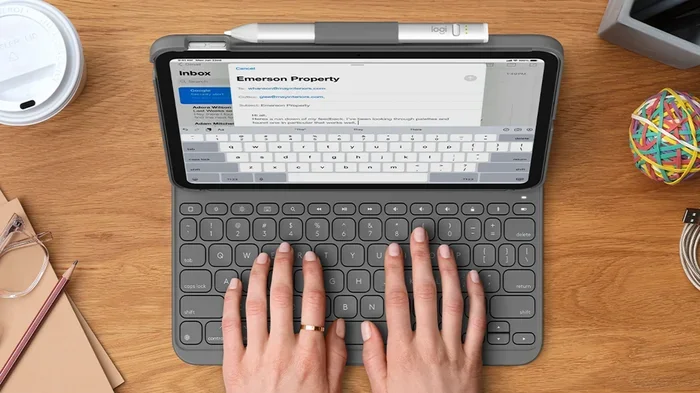
You can also use the iPad with a keyboard and mouse together. iPadOS supports mouse cursor functionality now. This means you can connect a keyboard and a mouse or trackpad. It gives you a laptop like experience. Many people set up their iPad with an external keyboard at a desk. They use it for writing, browsing, and work tasks. It is a versatile setup that works surprisingly well.
Expert Insights
Technology experts agree that using an external keyboard with an iPad boosts productivity significantly. According to reviews from trusted tech sites, the connection experience has improved greatly with newer iPadOS versions. The operating system now handles external input devices much better than it did a few years ago. Users report that wired keyboards and USB dongle keyboards both work reliably. The main thing to watch out for is the adapter quality. Cheap adapters can cause connection drops and lag. Investing in a good adapter or a powered USB hub solves most issues.
Experts also recommend checking your keyboard layout settings. Many users skip this step and wonder why certain keys do not work. Taking two minutes to set the correct layout saves hours of frustration. Also, keeping your iPad updated ensures the best compatibility with external devices. Apple regularly improves external accessory support in iPadOS updates.
One more tip from the pros. If you use your iPad for work, consider a keyboard with a built in stand. This creates a comfortable typing angle. It turns your iPad into a laptop like setup. You get the best of both worlds. A portable tablet and a productive workstation.
Key Takeaways
- Non Bluetooth keyboards work with iPad: You can connect wired USB keyboards and wireless keyboards with USB dongles to any iPad model.
- You need the right adapter: A Lightning to USB or USB-C adapter bridges the gap between your keyboard and iPad.
- Setup takes minutes: Plug in the adapter, connect the keyboard, and start typing.
- Most keyboards are compatible: Standard keyboards from major brands work without extra software.
- Troubleshooting is simple: Most connection issues resolve with a cable swap, adapter check, or iPad restart.
- Keyboard shortcuts add huge value: Using an external keyboard unlocks productivity features you cannot access with the on screen keyboard.
Frequently Asked Questions
Can I use any wired USB keyboard with my iPad?
Most wired USB keyboards work with an iPad. You just need the correct adapter for your iPad model. Standard keyboards from brands like Logitech, Microsoft, and Dell connect without issues. Avoid keyboards that need special drivers. Basic keyboards with standard USB connections work best with iPadOS.
Do I need an Apple adapter to connect a non Bluetooth keyboard?
You need an adapter that matches your iPad port. Apple makes official adapters, but third party options work too. Look for adapters that support USB peripherals. A Lightning to USB adapter works for older iPads. A USB-C adapter works for newer iPads. The adapter is the key piece that makes the connection possible.
Will my wireless keyboard with a USB dongle work with iPad?
Yes, wireless keyboards with USB dongles work with iPads. Plug the dongle into your adapter, and the iPad should recognize the keyboard. The dongle uses a 2.4 GHz wireless signal, not Bluetooth. This method is stable and does not require pairing. Just plug and play.
Can I use a gaming keyboard with my iPad?
You can use a gaming keyboard with an iPad, but some features may not work. Standard typing keys will function normally. Extra gaming keys and macros might not map to iPadOS functions. If you mainly type and use the keyboard for general tasks, a gaming keyboard works fine. Just keep expectations realistic about specialized keys.
Why is my keyboard not showing up on my iPad?
Try unplugging the adapter and plugging it back in. Check that your cable is not damaged. Restart your iPad and try again. Make sure your adapter supports USB peripherals. If the problem continues, try a different adapter or cable. Most connection issues are solved by these simple steps.
Can I use a keyboard with a built in stand with my iPad?
Yes, keyboards with built in stands work great with iPads. They provide a comfortable typing angle. They also hold the iPad at a good viewing angle. This creates a laptop like setup. You can type comfortably and see your screen clearly. It is a popular choice for people who use their iPad for work.
Conclusion
Using a non Bluetooth keyboard with an iPad is simple, affordable, and incredibly useful. Whether you have a wired USB keyboard sitting at home or a wireless keyboard with a USB dongle, your iPad can work with it. You just need the right adapter and a few minutes of your time. The setup process is straightforward. The connection is stable. And the productivity gains are real.
External keyboards transform the iPad experience. They make typing faster. They make working more comfortable. They turn your tablet into a device that can handle serious tasks. You do not need to buy a fancy Bluetooth keyboard to get these benefits. A non Bluetooth keyboard works just as well. In many cases, it works better because it is simpler and more reliable.
Now that you know how to connect a non Bluetooth keyboard to your iPad, you can get started right away. Grab your adapter, plug in your keyboard, and enjoy a better typing experience on your iPad. The setup takes minutes. The benefits last for years. Your iPad is capable of so much more than you might think. Give it a try and see the difference for yourself.