Can You Set Up Dual Monitors With A Splitter Right Now
You can absolutely set up dual monitors with a splitter if your computer has limited ports. A monitor splitter clones or extends your display, turning one output into two. This guide covers HDMI, VGA, and USB-C splitters, common mistakes, and how to choose the right display adapter for your dual screen setup.
You have one free port on your PC and two monitors sitting on your desk. The dream of a dual screen setup feels just out of reach. Then you spot a little box called a monitor splitter. The question pops up immediately: Can You Set Up Dual Monitors With A Splitter? The short answer is yes, but the full picture is a bit more nuanced.
Many people assume a splitter will magically turn one output into two independent screens. In reality, most splitters mirror the same image to both displays. That is still incredibly useful for sharing your screen in a meeting or doubling the size of a single game. However, if you want an extended desktop where each monitor shows different content, a simple splitter won’t cut it. You need a display adapter that can handle multiple independent outputs.
This guide walks you through exactly how a splitter works, when it makes sense, and what to buy. You will learn about HDMI, VGA, and USB-C options, discover common pitfalls, and find the best gear for your PC setup. By the end, you will know whether a splitter is the right move for your multi-monitor rig.
Key Takeaways
- A splitter can mirror displays: it sends the same signal to two screens, which is great for presentations but not for extending your desktop.
- You must match the splitter to your port type: HDMI, VGA, DVI, and USB-C splitters are not interchangeable.
- Resolution and refresh rate may drop: splitting a signal often halves the bandwidth, so 4K at 60Hz might become 1080p at 60Hz.
- A powered splitter is better for long cable runs: it boosts the signal and reduces flickering.
- USB-C docking stations offer a smarter alternative: they can provide true extended desktop support with multiple outputs.
- Check your graphics card first: some GPUs cannot drive two independent outputs from a single splitter without extra hardware.
- A splitter is a quick fix, not a permanent solution: for serious productivity, a multi-port graphics card or dock is the better long-term choice.
📑 Table of Contents
- What Is a Monitor Splitter and How Does It Work?
- Can You Set Up Dual Monitors With A Splitter? Yes, Here’s How
- Limitations You Need to Know Before Buying
- Quick Tips for a Flawless Dual Screen Setup
- Best Splitters for Dual Monitor Setups
- Common Mistakes and How to Avoid Them
- Final Verdict: Is a Splitter Worth It?
What Is a Monitor Splitter and How Does It Work?
A monitor splitter is a small device that takes a single video input and splits it into two or more identical outputs. Think of it like a garden hose splitter. Water flows in one pipe, and the splitter sends the same water down two paths. In your case, the “water” is the video signal from your graphics card.
Most splitters are passive, meaning they do not amplify the signal. They simply divide it. A few models are active and include a small chip to boost the signal over longer cable runs. The type of splitter you choose depends entirely on the ports available on your computer and your monitors.
The Difference Between Mirroring and Extending
This is the most important concept to grasp. A splitter creates a mirror display. Both screens show the exact same pixels. You cannot drag a window from one monitor to the other because the computer sees them as a single display. This is perfect for digital signage, teaching a class, or playing a movie on a big TV while you keep your laptop screen free for notes.
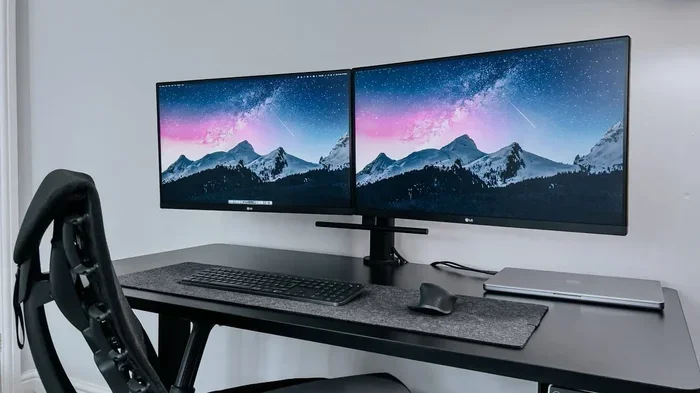
An extended desktop treats each monitor as a separate canvas. Your mouse can travel freely from one screen to the other. You can have a spreadsheet open on the left and a video on the right. To get an extended desktop from a single port, you need a display adapter that can generate multiple independent outputs, not just a passive splitter.
Types of Splitters You Will Encounter
Splitters come in several flavors based on the connector type. Here are the most common ones you will see on the market.
- HDMI Splitter: The most popular option today. It supports high resolutions and audio. A basic 1×2 HDMI splitter is cheap and works well for most home setups.
- VGA Splitter: An older analog standard. It is still found in offices with legacy projectors or monitors. The image quality is lower, and it does not carry audio.
- DVI Splitter: Common in older workstations. It can carry digital or analog signals depending on the cable. DVI splitters are less common now but still useful for certain workstation productivity tasks.
- USB-C Splitter or Dock: Modern laptops often have a single USB-C port. A USB-C docking station can split the signal into HDMI and DisplayPort, giving you true multi-monitor support with extended desktops.
Can You Set Up Dual Monitors With A Splitter? Yes, Here’s How
The answer is yes, but the method changes depending on what kind of splitter you use. Below you will find step-by-step instructions for the three most common scenarios.
Step-by-Step Setup for HDMI Splitters
HDMI splitters are the easiest to set up. Follow these steps for a smooth dual monitor configuration.
- Plug the HDMI cable from your graphics card into the input port on the splitter.
- Connect two HDMI cables from the splitter outputs to your two monitors.
- Power on the splitter if it is an active model (some splitters need a USB cable for power).
- Turn on both monitors and set them to the correct input channel.
- Right-click your desktop and select Display Settings. You should see two displays labeled 1 and 2.
- Choose the display mode. For a mirrored setup, select “Duplicate these displays.” For extended mode, you will need a different device like a dock.
Quick tip: If the image looks fuzzy, check that both monitors support the same resolution. A splitter will output the lowest common resolution to both screens.
Using a VGA Splitter for Older PCs
If your computer only has a VGA port, do not worry. A VGA splitter works the same way. Connect the VGA cable from your PC to the splitter, then run two VGA cables to your monitors. You may need a VGA to HDMI converter if your modern monitor only has HDMI inputs.
Keep in mind that VGA is an analog signal, so you might notice some ghosting or blurriness. Adjust the sharpness settings in your monitor’s on-screen menu to compensate. For a cleaner picture, consider upgrading to an HDMI or DisplayPort connection.
USB-C and DisplayPort Alternatives for True Extended Desktops
If your goal is an extended desktop from a single port, a passive splitter will not work. You need a USB-C docking station or a DisplayPort MST hub. These devices act as a small graphics processor. They take the single stream from your laptop and create two independent outputs.
Here is how to set one up:
- Plug the USB-C or Thunderbolt dock into your laptop.
- Connect one monitor via HDMI and the second via DisplayPort or another HDMI port on the dock.
- Install the dock’s driver if prompted.
- Go to Display Settings and choose “Extend these displays.”
This setup gives you a true multi-monitor rig with separate windows on each screen. It is the best solution for workstation productivity on the go.
Limitations You Need to Know Before Buying
Splitters are handy, but they come with trade-offs. Understanding these limitations will save you from frustration and wasted money.
Resolution and Refresh Rate Trade-Offs
When you split a signal, the bandwidth has to be shared. A single HDMI 2.0 port can push 4K at 60Hz to one monitor. When you split that same signal to two monitors, the maximum resolution often drops to 1080p at 60Hz. Some high-end splitters can maintain 4K at 30Hz on both screens, but you will notice a lack of smoothness in motion.
If you need two 4K monitors for video editing or graphic design, a splitter is not the right tool. You need a graphics card with multiple native outputs or a premium dock with its own display processing power.
Input Lag and Signal Quality
Passive splitters introduce a tiny amount of signal degradation. For most office work and movie watching, this is invisible. However, competitive gamers might notice input lag or screen tearing. Active splitters with signal amplification help, but they cannot eliminate the issue entirely. If you are building a gaming multi-monitor setup, invest in a graphics card with enough native ports instead.
When a Splitter Simply Won’t Work
There are situations where a splitter is not the answer at all. If your graphics card has only one video output and you need an extended desktop, a passive splitter will just mirror the screen. You must use a docking station or add a second graphics card. Also, some laptops with USB-C ports only support one external display natively, no matter what dock you use. Always check your laptop’s specifications for multi-display support.
Quick Tips for a Flawless Dual Screen Setup
A few small adjustments can make a huge difference in your daily workflow. Use these tips to get the most out of your dual screen setup.
- Match your cables: Use the same brand and length for both monitor cables to ensure consistent signal quality.
- Mind the cable length: Keep HDMI or VGA cables under 15 feet for passive splitters. Longer runs need active signal boosters.
- Use a surge protector: Power your splitter and monitors through a surge protector to prevent damage from electrical spikes.
- Adjust Windows display settings: Drag the monitor icons in Display Settings to match their physical arrangement on your desk for a natural mouse flow.
- Turn off unused monitors: When you are not using both screens, turn one off to save energy and reduce eye strain.
- Update your graphics drivers: A simple driver update can fix flickering or detection issues with splitters and docks.
Best Splitters for Dual Monitor Setups
Not all splitters are created equal. The table below compares the top options based on port type, supported resolution, and best use case.
| Splitter Type | Input Ports | Output Ports | Max Resolution | Price Range | Best For |
|---|---|---|---|---|---|
| HDMI Splitter (Passive) | 1 x HDMI | 2 x HDMI | 1080p at 60Hz | $10 – $25 | Mirroring presentations and movies |
| HDMI Splitter (Active) | 1 x HDMI + USB power | 2 x HDMI | 4K at 30Hz | $25 – $50 | Longer cable runs and 4K mirroring |
| VGA Splitter | 1 x VGA | 2 x VGA | 1080p (analog) | $8 – $20 | Older PCs and legacy projectors |
| USB-C Docking Station | 1 x USB-C | 1 x HDMI + 1 x DisplayPort | 4K at 60Hz (extended) | $50 – $150 | True extended desktop on laptops |
| DisplayPort MST Hub | 1 x DisplayPort | 2 x DisplayPort | 4K at 60Hz | $40 – $100 | Desktop PCs with DisplayPort outputs |
The right choice depends on your ports and your goal. For a simple mirror setup, an inexpensive HDMI splitter is perfect. For a productivity workstation productivity boost, a USB-C docking station is worth the investment.
Common Mistakes and How to Avoid Them
Even with the right splitter, people make avoidable errors that cause headaches. Here are the top mistakes and how to steer clear of them.
Buying the Wrong Splitter Type
This is the most common error. Someone buys a VGA splitter because it is cheap, but their PC only has HDMI outputs. Always check the ports on your graphics card and your monitors first. A mismatch means you will need an additional converter, which adds cost and potential signal loss.
Ignoring Your Graphics Card Limits
Some graphics cards can only drive one external display per output, even when a splitter is used. If you plug a splitter into a single HDMI port and try to extend the desktop, it will not work. The computer sees only one display. You must use a dock or a card with multiple native outputs for extended mode.
Overlooking Cable Length and Quality
Long, cheap cables cause signal degradation. If your splitter is on the floor and your monitors are on the other side of the room, use a high-quality, shielded cable. For runs over 10 feet, choose an active splitter with built-in signal amplification. This prevents flickering and keeps the image crisp.
Forgetting to Set the Correct Display Mode
After connecting everything, go to Display Settings immediately. If you leave it on “Duplicate,” you will think the splitter is broken when you try to drag a window to the second screen. Switching to “Extend” (with a dock) or keeping it on “Duplicate” (with a splitter) makes all the difference.
Final Verdict: Is a Splitter Worth It?
Can You Set Up Dual Monitors With A Splitter? Absolutely, but only for mirroring. A monitor splitter is a simple, affordable way to share one screen with a second display. It is perfect for teaching, gaming on a big TV, or running digital signage in a small office.
If you need an extended desktop where each monitor works independently, a splitter alone will not do the job. You need a USB-C docking station or a DisplayPort MST hub that can create multiple independent outputs. These devices act as a small graphics processor and give you the true multi-monitor rig experience.
For most people, a splitter is a great quick fix. It costs under $30, takes two minutes to set up, and immediately doubles your screen real estate for mirrored content. Just know its limits. If your work demands an extended desktop across two screens, invest in a proper docking solution. That is the path to real workstation productivity and a seamless PC setup that grows with your needs.
Start with a simple HDMI splitter if you just need to mirror. Upgrade to a dock when you are ready to extend. Either way, you are one cable away from a better dual screen setup right now.
Frequently Asked Questions
Can a splitter extend my desktop instead of mirroring?
No, a passive splitter can only mirror the same image to both screens. To extend your desktop, you need a USB-C docking station or a DisplayPort MST hub that acts as a small graphics processor and creates independent outputs.
What resolution will I get with a dual monitor splitter?
Most passive HDMI splitters max out at 1080p at 60Hz on both screens. Active splitters can support 4K at 30Hz. The resolution drops because the single output must share its bandwidth between two displays.
Do I need a powered splitter?
For short cable runs under 6 feet, a passive splitter works fine. If you need longer cables or are using 4K resolution, an active splitter with a power source is recommended. It boosts the signal and prevents flickering or signal loss.
Can I use a splitter with a laptop?
Yes, if your laptop has an HDMI or VGA output. However, most laptops with only USB-C ports will need a USB-C docking station to run two monitors. Check your laptop’s specs for multi-display support before buying.
Will a splitter cause input lag or screen tearing?
Passive splitters introduce a tiny amount of signal degradation, but it is usually invisible for office work and movies. Competitive gamers may notice slight input lag or tearing. For gaming, a dedicated graphics card with multiple native ports is a better choice than a splitter.
How do I choose the right splitter for my ports?
Match the splitter to the output on your graphics card. If you have HDMI, buy an HDMI splitter. If you have VGA, buy a VGA splitter. If you have only USB-C, a docking station is the smarter option. Never mix connector types without the proper adapters.