Can You Screen Record On An Acer Aspire Laptop Easily
Yes, you can screen record on an Acer Aspire laptop with ease. Whether you use Windows built-in tools like Xbox Game Bar or free software like OBS Studio, recording your screen is simple and quick. This guide covers every method, tool, and tip you need to start recording today.
Key Takeaways
- Built-in recording tools work on Acer Aspire: You do not need extra software to start screen recording on your laptop.
- Xbox Game Bar is the easiest option: It comes pre-installed on Windows 10 and 11 and works great for most users.
- Free software gives you more control: Tools like OBS Studio and ShareX offer advanced features for better recordings.
- Audio and video settings matter: Adjusting these before you record saves time and improves quality.
- Screen recording is useful for many tasks: From tutorials to gaming, it helps you capture and share what is on your screen.
- Avoid common mistakes: Simple tweaks like closing extra apps can make your recordings smoother and cleaner.
📑 Table of Contents
- Can You Screen Record On An Acer Aspire Laptop Easily?
- Understanding Screen Recording on Acer Aspire Laptops
- Built-In Screen Recording Options on Acer Aspire
- Best Free Screen Recording Software for Acer Aspire
- How to Record Your Screen Step by Step
- Tips for High-Quality Screen Recordings
- When to Use Screen Recording on Your Acer Aspire
- Expert Tips for Better Screen Recordings
- Conclusion
Can You Screen Record On An Acer Aspire Laptop Easily?
The short answer is yes. Can you screen record on Acer Aspire laptops? Absolutely. You can do it right now with tools already on your computer. No downloads needed for basic recording. No fancy equipment required. Just a few clicks and you are capturing your screen.
Many people think screen recording is hard. They think it needs expensive software or technical skills. That is not true at all. Your Acer Aspire laptop has everything you need built right in. Whether you want to capture a tutorial, save a video call, or record gameplay, the process is straightforward.
This guide walks you through every method. We cover built-in tools, free software, and pro tips. By the end, you will know exactly how to record your screen with confidence. Let us dive in.
Understanding Screen Recording on Acer Aspire Laptops
What Is Screen Recording?
Screen recording means capturing everything that happens on your display as a video file. Think of it like filming your screen with a camera. But instead of a camera, you use software or a built-in Windows tool. The result is a video that shows your mouse movements, clicks, typing, and everything else on screen.
Screen recording is different from taking a screenshot. A screenshot is a single image. A screen recording is a full video. You can capture audio, mouse highlights, and even your webcam at the same time.
Why Screen Record on Your Acer Aspire?
There are many reasons to record your screen on an Acer Aspire laptop. Here are some of the most common ones:
- Creating tutorials: Show others how to use a program or website step by step.
- Saving video calls: Keep a record of important meetings or online classes.
- Recording gameplay: Capture your best gaming moments on your Acer Aspire.
- Reporting bugs: Show a tech support team exactly what is going wrong.
- Making content: Create YouTube videos, social media clips, or presentations.
- Learning and reviewing: Record lectures or training videos to watch later.
No matter your reason, screen recording on Windows laptops like the Acer Aspire is simple and accessible. You just need to know where to look.
Built-In Screen Recording Options on Acer Aspire
Your Acer Aspire runs Windows 10 or Windows 11. Both versions come with free, built-in tools for screen recording without installing anything. This is the easiest way to get started.
Using Xbox Game Bar
The Xbox Game Bar is probably the most popular built-in screen recorder for Windows. Many people do not even know it exists. It is not just for gaming. You can use it to record almost anything on your screen.
Here is how to use it:
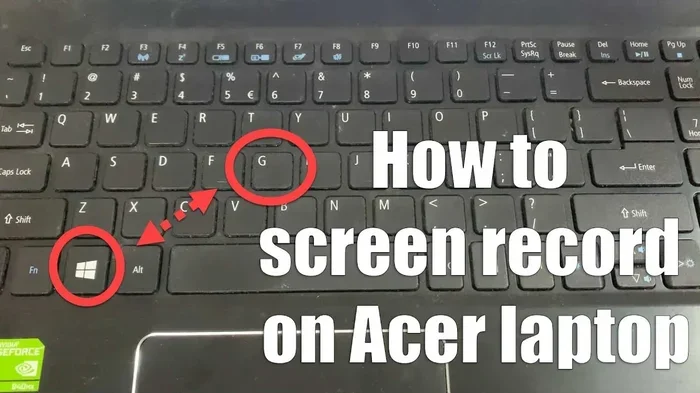
- Press the Windows key plus G on your keyboard.
- The Game Bar overlay will appear on your screen.
- Click the record button or press Windows key plus Alt plus R.
- Start doing what you want to capture.
- Click the stop button or press the same shortcut again.
That is it. Your recording saves automatically. You can find the video in the Videos folder under Captures. The Xbox Game Bar also lets you record audio from your microphone and system sounds at the same time.
One thing to note. The Game Bar works best for full-screen apps and games. It may not record your desktop or File Explorer by default. If you need to record your desktop, check the settings in the Game Bar to enable desktop recording.
Using the Windows Snipping Tool
Windows 11 updated the Snipping Tool to include a screen recording feature. This is a newer option and works well for quick recordings.
To use it:
- Open the Snipping Tool from your Start menu.
- Click the screen recording button (it looks like a camera icon).
- Select the area of your screen you want to capture.
- Click Record and start your activity.
- Click Stop when you are done.
The Snipping Tool is great for short, quick recordings. It is simple and clean. But it does not have as many features as dedicated recording software.
Best Free Screen Recording Software for Acer Aspire
While built-in tools work well, sometimes you need more features. Free screen recording software opens up many possibilities. Here are the best options for your Acer Aspire laptop.
OBS Studio
OBS Studio is the gold standard for free screen recording. It is used by millions of people around the world. Streamers, teachers, and content creators all rely on it.
Why choose OBS Studio?
- It is completely free and open source.
- You can record in high quality, up to 4K resolution.
- It supports multiple audio sources, including microphones and desktop audio.
- You can add overlays, text, and scenes for professional-looking recordings.
- It works on all Acer Aspire models regardless of age.
OBS Studio has a learning curve. The interface looks a bit complex at first. But once you set it up, it works beautifully. There are many tutorials online that walk you through the setup process in minutes.
ShareX
ShareX is another excellent free tool. It is lightweight and fast. It is perfect for quick screen recordings without any fuss.
Key features of ShareX include:
- Quick screen capture and recording with customizable shortcuts.
- Built-in GIF recording, which is great for short clips.
- Upload to cloud services directly after recording.
- Simple interface that beginners can use right away.
ShareX is ideal if you want a lightweight tool that does not slow down your Acer Aspire. It runs in the background and uses very little system resources.
FlashBack Express
FlashBack Express is a user-friendly option for those who want a simple recording experience. It has a clean interface and easy-to-use controls.
It offers:
- No watermarks on your recordings.
- Easy scheduling so you can record at specific times.
- Webcam overlay if you want to record yourself while recording your screen.
- No time limits on recordings, unlike some other free tools.
FlashBack Express is a solid choice for beginners who want a no-nonsense recording tool on their Acer Aspire.
Comparison Table
| Tool | Free? | Built-In? | Best For | Ease of Use |
|---|---|---|---|---|
| Xbox Game Bar | Yes | Yes | Quick recordings and gaming | Very Easy |
| Snipping Tool | Yes | Yes | Short, simple clips | Very Easy |
| OBS Studio | Yes | No | High-quality and advanced recordings | Moderate |
| ShareX | Yes | No | Quick captures and GIFs | Easy |
| FlashBack Express | Yes | No | Simple, no-fuss recording | Very Easy |
How to Record Your Screen Step by Step
Now that you know your options, let us walk through the actual process. Here is a simple guide to screen recording on your Acer Aspire from start to finish.
Step 1: Choose Your Recording Tool
Decide what you need. If you just want to record something quickly, use the Xbox Game Bar or Snipping Tool. If you need more features and better quality, download OBS Studio or ShareX. Think about what you are recording and how long the video will be.
Step 2: Adjust Your Settings
Before you hit record, take a moment to check your settings. This is an important step that many people skip.
- Resolution: Set it to match your Acer Aspire display. Most laptops use 1920×1080 (Full HD).
- Frame rate: 30 frames per second is enough for most tasks. Use 60 fps for gaming or smooth animations.
- Audio: Choose whether you want to record system sound, microphone audio, or both.
- Storage: Recordings can take up space. Make sure you have enough free room on your hard drive.
Step 3: Start Recording
Close any unnecessary programs before you start. This frees up memory and keeps your recording smooth. Open your chosen tool, set your capture area, and press record.
Talk clearly if you are adding a voiceover. Keep your mouse movements steady. Try not to rush through the steps you are demonstrating. A calm, clear pace makes your recording much easier to follow.
Step 4: Save and Share Your Recording
When you finish, stop the recording. Your video will be saved to a folder on your laptop. Most tools save recordings in MP4 format, which works on almost every device.
You can now edit the video, trim out mistakes, and share it. Upload it to YouTube, send it to a colleague, or keep it for your own reference. The whole process from start to finish takes just a few minutes once you get comfortable with it.
Tips for High-Quality Screen Recordings
Getting good recordings on your Acer Aspire is easier than you think. A few small adjustments make a big difference.
Audio Quality Matters
Bad audio ruins a good video. If you are recording your voice, use a decent microphone. Your laptop built-in mic works in a pinch. But a USB microphone or headset gives you much clearer sound. Reduce background noise by closing windows and turning off fans if possible.
Optimize Your Screen Resolution
Make sure your display is set to its native resolution. On most Acer Aspire laptops, this is 1920×1080. A clean, sharp display makes your recordings look professional. You can find this setting in Display Settings under Screen Resolution.
Close Unnecessary Programs
Running too many programs while recording can slow things down. Close browsers with many tabs, stop heavy downloads, and quit apps you do not need. This gives your laptop more power to focus on recording smoothly.
Use a Clean Desktop
Before you start recording, organize your desktop. Remove personal files or sensitive information from view. A clean desktop looks better on camera and protects your privacy.
Do a Test Recording
Always do a short test recording before your actual session. Play it back to check the audio, video quality, and frame rate. Fixing problems before a long recording saves you from starting over.
Common Mistakes to Avoid
Here are some mistakes people make when they record their screen on an Acer Aspire:
- Forgetting to check audio settings. This leads to silent recordings or echoing sound.
- Recording at too low a resolution. Your video will look blurry and unprofessional.
- Not clearing notifications. Pop-up messages can distract viewers and reveal private information.
- Ignoring storage space. Long recordings can fill up your hard drive quickly.
- Rushing through the content. Speak slowly and clearly so viewers can follow along.
When to Use Screen Recording on Your Acer Aspire
Screen recording is useful in many situations. Here are some of the best ways to use it on your Acer Aspire laptop.
For Tutorials and How-To Videos
If you are teaching someone how to use a program or website, screen recording is the best way. You can show every click and every step. Viewers can pause, rewind, and watch at their own pace. This is far more effective than written instructions alone.
For Gaming and Streaming
Gamers love to record gameplay on their Acer Aspire laptops. The Xbox Game Bar makes this easy. You can capture your best moments, funny glitches, or impressive wins. ShareX and OBS Studio are also great for longer gaming sessions.
For Work and Presentations
Screen recording helps in the workplace. You can record a presentation to share with teammates who could not attend the meeting. You can also create training videos for new employees. It saves time and keeps everyone on the same page.
For Tech Support and Troubleshooting
When something goes wrong with your laptop, a screen recording can show exactly what is happening. Send the video to a tech support team instead of trying to describe the problem in words. It makes troubleshooting much faster and more accurate.
For Personal Use and Learning
Record online lectures, webinars, or YouTube tutorials to watch later. You can speed up the parts you already know and focus on the new content. This is a great way to learn more efficiently on your Acer Aspire.
Expert Tips for Better Screen Recordings
Want to take your recordings to the next level? Here are some expert tips that make a real difference.
Use keyboard shortcuts. They let you start and stop recording without taking your hands off the keyboard. This keeps your recording smooth and professional.
Record in a quiet environment. Background noise like fans, air conditioning, or street sounds can distract viewers. Find a quiet spot and close windows if needed.
Add annotations during editing. Arrows, circles, and text callouts help highlight important parts of your recording. Most editing tools let you add these after you finish recording.
Keep recordings focused. Try not to ramble or go off-topic. A tight, well-structured recording is much more valuable than a long, wandering one.
Back up your recordings. Save important videos to an external drive or cloud storage. This protects them if your laptop ever has a problem.
Conclusion
So, can you screen record on an Acer Aspire laptop easily? The answer is a clear yes. You have multiple options right at your fingertips. The Xbox Game Bar and Snipping Tool give you quick, built-in recording without any downloads. Free tools like OBS Studio, ShareX, and FlashBack Express offer more features and better quality for advanced users.
Screen recording on Acer Aspire laptops is simple, fast, and free. You do not need to be a tech expert. Follow the steps in this guide, use the tips provided, and you will be recording your screen like a pro in no time.
Start with the built-in tools. Experiment with free software as you get more comfortable. Soon, screen recording will be a regular part of how you work, learn, and create. Your Acer Aspire is a powerful tool for capturing everything on your screen. Now go ahead and try it out.
Can I screen record on Acer Aspire without downloading any software?
Yes, you can. Windows 10 and 11 come with the Xbox Game Bar and the Snipping Tool, both of which include screen recording features. These built-in tools work right out of the box on your Acer Aspire without any extra downloads.
Is screen recording free on Acer Aspire laptops?
Absolutely. The built-in Windows tools are completely free. OBS Studio, ShareX, and FlashBack Express are also free to use. You can start recording your screen today without spending a single dollar on your Acer Aspire.
What is the best free screen recorder for Acer Aspire?
OBS Studio is widely considered the best free screen recorder. It offers high-quality recording, multiple audio sources, and professional features. However, if you want something simpler, ShareX and FlashBack Express are excellent alternatives that are easy to use.
Can I record audio along with my screen on Acer Aspire?
Yes, you can. The Xbox Game Bar and most free recording tools let you capture both system audio and microphone audio at the same time. Just check the audio settings before you start recording to make sure everything is set up correctly.
How long can I screen record on my Acer Aspire?
There is no strict time limit. The recording length depends on your available storage space and your laptop’s performance. A typical HD recording uses about 1 to 2 GB per hour. Make sure you have enough free disk space before starting a long recording session.
Do I need a good internet connection to screen record?
No, you do not. Screen recording happens locally on your laptop. Your internet connection does not affect the recording process. However, if you plan to upload or stream your recording afterward, a stable internet connection will help with that step.
Frequently Asked Questions
What is Can You Screen Record On Acer Aspire?
Can You Screen Record On Acer Aspire is an important topic with many practical applications.