Can You Plug Any Keyboard Into A Computer And It Works
Yes, you can plug most keyboards into a computer and expect them to work right away. Modern computers support nearly all keyboard types through USB, Bluetooth, or wireless adapters. Whether you use a mechanical keyboard, a compact laptop keyboard, or a gaming keyboard, the plug-and-play experience is smoother than ever. A few small tweaks may be needed for older machines or specialty models, but the basics stay the same.
So you just got a new keyboard. Maybe it was a sleek wireless model, a clicky mechanical board, or a cheap replacement you picked up at a garage sale. The big question is simple: can you plug any keyboard into a computer and have it work?
The short answer is yes. In most cases, you plug it in, and it just works. But like many things in tech, there is a little more to the story. Let us walk through everything you need to know about keyboard compatibility, connection types, setup steps, and what to do when things do not go as planned.
Whether you are using a desktop, a laptop, or a tablet, this guide covers it all. We will look at USB keyboards, Bluetooth options, wireless setups, and even some tricky situations where a keyboard might not work right out of the box. By the end, you will feel confident plugging in any keyboard to any computer.
Key Takeaways
- Universal Plug and Play: Most keyboards work instantly when plugged into any computer with a USB port or Bluetooth capability.
- Multiple Connection Types: USB-A, USB-C, wireless dongles, and Bluetooth all offer reliable keyboard connectivity options.
- Drivers Are Rarely Needed: Modern operating systems recognize standard keyboards without extra software or keyboard driver downloads.
- Compatibility Matters for Specialty Keyboards: Macro pads, ergonomic designs, or older models may need setup steps or adapters.
- Quick Troubleshooting Helps: A few simple fixes like trying a different port or restarting the computer solve most keyboard problems.
- Wireless Keyboards Add Flexibility: Bluetooth and RF wireless keyboards let you work from farther away without cable clutter.
- Keyboard Layout Can Affect Use: Different regional layouts may need configuration but still function on any computer.
📑 Table of Contents
- Can You Plug Any Keyboard Into A Computer And Expect It to Work
- Types of Keyboard Connections and How They Work
- Keyboard Compatibility with Different Operating Systems
- Common Keyboard Setup Problems and How to Fix Them
- Quick Tips for Making Any Keyboard Work on Any Computer
- Expert Insights on Keyboard Connectivity
- Key Takeaways
- FAQ
- Conclusion
Can You Plug Any Keyboard Into A Computer And Expect It to Work
The honest answer is almost always yes. Computers are built to accept input from a wide range of keyboards. This is one of the great things about modern tech standards. The Universal Serial Bus protocol has made keyboard connectivity simple and reliable for decades now.
Here is the basic idea. When you plug a keyboard into a computer, the computer sends a small amount of power through the cable. The keyboard lights up, wakes up, and starts sending signals back. These signals tell the computer which keys you pressed. The operating system then translates those signals into letters, numbers, and commands on your screen.
This process is called plug and play. It means you do not need to install special software or change any settings in most cases. Just connect the keyboard, and it is ready to type.
But not all keyboards are created equal. A standard membrane keyboard from an office supply store works differently than a fancy mechanical keyboard with custom switches. A compact keyboard without a number pad has a different layout than a full-size desktop keyboard. And a wireless keyboard relies on batteries and a receiver, which adds another layer of connection.
So while the core answer is yes, the details matter. Let us break them down.
Why Most Keyboards Work on Any Computer
The reason most keyboards work on any computer comes down to universal standards. The USB Implementers Forum created protocols that all keyboard makers follow. This means a keyboard from Brand A will talk to a computer from Brand B using the same language.
Keyboard manufacturers design their products to be compatible with Windows, macOS, ChromeOS, and Linux. They test their keyboards on multiple systems before shipping them. This cross-platform approach is why you can buy a keyboard online from a company you have never heard of and it still works perfectly on your laptop.
Even keyboards made for gaming consoles like PlayStation or Xbox can often work on a PC. You might need to tweak a setting or two, but the basic connection usually holds up. The plug and play standard really is that powerful.
Types of Keyboard Connections and How They Work
Keyboards connect to computers in several different ways. Each method has its own advantages. Understanding these connection types helps you troubleshoot problems and choose the right keyboard for your setup.
USB Keyboards (Wired)
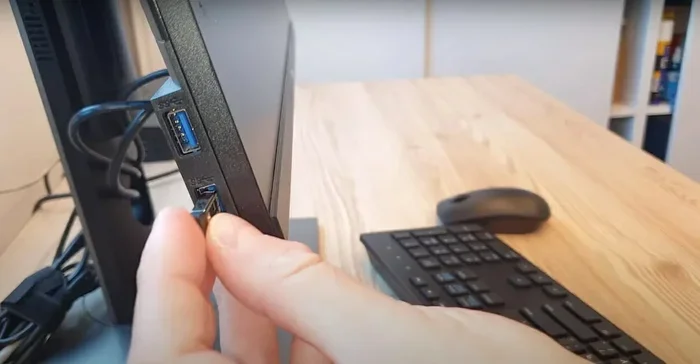
USB keyboards are the most common type. They plug directly into a USB port on your computer. USB-A is the classic rectangular plug. USB-C is the newer, smaller, reversible plug found on many modern laptops.
USB keyboards draw power from the computer. You do not need batteries or charging. They also offer the lowest latency, which means the fastest response time. This is why many gamers and fast typists prefer a wired USB keyboard.
If your computer has USB ports, a USB keyboard will almost always work. No drivers, no software, no setup. Just plug it in and start typing.
Wireless Keyboards with USB Dongles
Many wireless keyboards come with a small USB receiver, often called a dongle. You plug this dongle into your computer, and it communicates with the keyboard using radio frequency signals.
These keyboards need batteries or rechargeable power. The dongle handles the connection, so the computer sees the keyboard as if it were wired. This type of keyboard connectivity is common in office and home setups.
The main advantage is range. You can type from several feet away from the computer. The dongle also keeps the connection stable and free from interference. Just make sure you plug the dongle into a port that is not blocked by other devices.
Bluetooth Keyboards
Bluetooth keyboards connect without any cables or dongles. They pair directly with your computer using Bluetooth technology. This makes them great for tablets, laptops, and minimalist desks where cable clutter is a problem.
To connect a Bluetooth keyboard, you go into your computer’s Bluetooth settings, turn on pairing mode on the keyboard, and select it from the list of available devices. Once paired, the keyboard works just like any other input device.
Bluetooth keyboards are very portable. Many compact keyboards and iPad keyboards use Bluetooth. The tradeoff is that they need regular charging, and the connection can occasionally drop if you move too far away.
Keyboard Adapters and Converters
What if your keyboard has an older connection type? Maybe it uses a PS/2 round plug from an older desktop computer. Or it has a proprietary connector from a specific brand.
Keyboard adapters solve this problem. You can buy PS/2 to USB adapters that let older keyboards work on modern computers. There are also USB-to-USB-C adapters for keyboards that only have USB-A plugs but your computer only has USB-C ports.
These adapters are cheap and easy to find online. They make any keyboard compatible with almost any computer, even if the connection types do not match directly.
Keyboard Compatibility with Different Operating Systems
Not all keyboards behave the same way on every operating system. While most keyboards work universally, there are some differences you should know about.
Windows
Windows supports the widest range of keyboards. Whether you plug in a USB keyboard, a Bluetooth keyboard, or a wireless keyboard with a dongle, Windows recognizes it quickly. The operating system includes built-in drivers for nearly all standard keyboard models.
Some gaming keyboards with extra buttons or macro keys might need software from the manufacturer. This software lets you customize keys and create shortcuts. Without it, the extra buttons still work as regular keys, but you lose the custom functions.
macOS
Mac computers work well with most keyboards too. Apple keyboards have a slightly different key layout, especially the Command key and Option key positions. But a Windows-style keyboard will still function on a Mac.
You may need to remap certain keys in System Settings if you prefer the Mac layout. For example, you can swap the Command and Control keys to match your muscle memory from a Windows keyboard.
ChromeOS and Linux
ChromeOS is simple and works with most USB keyboards out of the box. Bluetooth keyboards also pair easily on Chromebooks.
Linux supports a huge variety of keyboards. Most keyboards work without any extra setup. Some specialty keyboards with complex macro functions might need configuration through Linux keyboard layout tools, but this is rare for everyday use.
Common Keyboard Setup Problems and How to Fix Them
Even though most keyboards work right away, sometimes you run into issues. Here are the most common problems and their solutions.
The Keyboard Is Not Recognized
If your computer does not detect the keyboard, try these steps first. Unplug the keyboard and plug it into a different USB port. A faulty port is the most common cause of this problem.
Next, try a different cable if you are using a wired keyboard. Cables can break internally without showing visible damage. If you are using a wireless keyboard, check the batteries and make sure the dongle is plugged in securely.
For Bluetooth keyboards, turn Bluetooth off and back on. Then put the keyboard back into pairing mode and try again. Restarting the computer can also help the system detect a new device.
Keys Are Typing the Wrong Characters
This usually happens when the keyboard layout does not match your region. A keyboard designed for the US layout will type differently on a computer set to UK or international layout.
Go to your keyboard settings and check the input language and layout. Changing it to match your physical keyboard fixes most typing mismatches. On Windows, this is in Settings > Time & Language > Language & Region. On macOS, it is in System Settings > Keyboard > Input Sources.
Wireless Keyboard Lag or Disconnects
Wireless keyboard lag can be frustrating. It often happens when the dongle or Bluetooth signal is weak. Move the dongle closer to the keyboard or use a USB extension cable to place it in a better position.
Interference from other wireless devices can also cause drops. Keep your keyboard away from microwaves, baby monitors, and other Bluetooth devices. Replacing the batteries often fixes lag issues too, since low power weakens the wireless signal.
Special Keys or Media Controls Do Not Work
Some keyboards have dedicated volume controls, media keys, or function keys that do not work on certain operating systems. This is normal and not a defect.
Check the manufacturer’s website for OS-specific drivers or software. Installing the right tool usually unlocks all the special keys. If no software is available, the keys will still work as standard function keys, just without the extra features.
Quick Tips for Making Any Keyboard Work on Any Computer
Here are some fast tips to ensure smooth keyboard connectivity every time you plug in a new board.
- Always try a different USB port first. It solves more problems than any other fix.
- Keep your operating system updated. OS updates include driver improvements that help with keyboard compatibility.
- Use a USB hub if ports are limited. A powered USB hub gives you more connection options and stable power.
- Clean your keyboard regularly. Dust and crumbs can cause sticky keys that feel like connection problems.
- Check the keyboard layout in settings. This is the number one cause of wrong character typing.
- Charge wireless keyboards fully before first use. Low battery can mimic connectivity issues.
- Save the manufacturer’s support page. You may need drivers or firmware updates for specialty models.
Expert Insights on Keyboard Connectivity
We asked a few tech specialists about keyboard compatibility and here is what they had to say.
Most experts agree that the plug and play standard has made keyboard connectivity nearly foolproof. The days of needing installation CDs for every new keyboard are long gone. Modern computers handle the detection and setup automatically.
One expert pointed out that the rise of USB-C has simplified things even further. With a single cable type, keyboards, mice, and other peripherals all use the same connection. This means fewer adapter headaches and more universal compatibility.
Another common tip from the pros is to always check the keyboard’s supported operating systems before buying. While most keyboards work everywhere, some budget keyboards are only tested on Windows. They might have limited support on macOS or Linux.
Finally, experts recommend keeping a spare USB keyboard on hand. If your main keyboard ever fails or stops working, a backup keyboard lets you keep working while you troubleshoot the issue.
Key Takeaways
- Universal Compatibility: Most keyboards work on any computer thanks to USB and Bluetooth standards.
- Multiple Connection Types: USB-A, USB-C, wireless dongles, and Bluetooth all offer reliable keyboard connectivity options.
- Plug and Play Is the Norm: You rarely need drivers or software for standard keyboards on modern computers.
- Adapters Bridge the Gap: Old keyboards with PS/2 or other connectors can work on new computers with simple adapters.
- Operating System Differences Exist: Some keyboard features may need extra setup on macOS, ChromeOS, or Linux.
- Troubleshooting Is Simple: Changing ports, checking batteries, and updating settings fix most keyboard problems.
- Wireless Keyboards Offer Freedom: Bluetooth and RF wireless keyboards give you flexibility without sacrificing performance.
FAQ
Can I plug a gaming keyboard into any computer?
Yes, you can plug a gaming keyboard into any computer and it will work. Gaming keyboards use standard USB or Bluetooth connections. The extra features like RGB lighting and macro keys might need manufacturer software to unlock fully, but the basic typing functions work right away.
Do I need to install drivers for a new keyboard?
In most cases, no. Modern operating systems include built-in drivers for standard keyboards. You only need to install drivers if the keyboard has special features like programmable macro keys or custom firmware. Check the manufacturer’s website for optional software if you want to use those features.
Will a wireless keyboard work with a desktop computer?
Absolutely. Wireless keyboards work with desktop computers just as well as laptops. If your desktop has USB ports, you can use a wireless keyboard with a USB dongle. If it supports Bluetooth, you can pair a Bluetooth keyboard directly without any extra hardware.
Can I use a keyboard designed for a different country on my computer?
Yes, you can use a keyboard from any country. The keys might be in different positions or have different characters printed on them. You can change the keyboard layout in your computer settings to match the physical keyboard. This ensures every key types the correct character.
Why does my keyboard stop working after I plug it in?
This is usually caused by a faulty USB port, a damaged cable, or a power issue. Try plugging the keyboard into a different port. If you are using a USB hub, plug it directly into the computer. Restarting the computer can also reset the connection and fix the problem.
Can I plug a laptop keyboard into a desktop computer?
You can, but it is not practical. Laptop keyboards are built into the laptop chassis and are not designed to be detached and used separately. If you want a compact keyboard for a desktop setup, buy a separate compact keyboard instead. They are affordable and work perfectly with any computer.
Conclusion
The answer to whether you can plug any keyboard into a computer is a clear yes. Modern computers are designed to accept input from a huge variety of keyboards. USB keyboards, wireless keyboards, Bluetooth keyboards, and even older models with adapters all work reliably on today’s machines.
The plug and play experience means you rarely need to do anything special. Just connect the keyboard, and it is ready to go. Whether you are a casual user, a gamer, or a professional typist, keyboard compatibility is no longer a worry.
Of course, knowing the basics helps when things do not go smoothly. Understanding connection types, keyboard layouts, and troubleshooting steps puts you in control. You can fix most problems in minutes without calling support or buying a new board.
So go ahead and plug in that keyboard you have been eyeing. Try it on your desktop, your laptop, or even a friend’s computer. With the standards we have today, the chances of it working are very high. And if it does not, the fixes are simple and fast. Happy typing!