Can You Hook Up A Keyboard To A Tablet And Work Better
Yes, you can hook up a keyboard to a tablet, and it can completely transform how you work. Whether you use an iPad, Android tablet, or Windows tablet, connecting an external keyboard is simple and affordable. This guide walks you through every method, from Bluetooth pairing to USB adapters, so you can set up a tablet productivity station in minutes.
Key Takeaways
- Multiple Connection Options: You can connect a keyboard to a tablet using Bluetooth, USB, or a keyboard dock.
- Works With All Major Tablets: iPad, Android, and Windows tablets all support external keyboards.
- Boosts Productivity: Typing on a real keyboard is faster and more comfortable than using the on-screen keyboard.
- Affordable Options Available: You don’t need to spend a lot of money to get a great tablet keyboard.
- Setup Is Simple: Most tablets make pairing a wireless keyboard easy through their settings menu.
📑 Table of Contents
- Can You Hook Up A Keyboard To A Tablet And Work Better?
- Why Connect a Keyboard to Your Tablet?
- Types of Keyboards You Can Connect to a Tablet
- How to Connect a Keyboard to Different Tablets
- Comparison Table: Keyboard Connection Methods
- Quick Tips for the Best Keyboard and Tablet Experience
- Common Mistakes to Avoid When Setting Up a Tablet Keyboard
- FAQ
- Conclusion
Can You Hook Up A Keyboard To A Tablet And Work Better?
Let’s cut to the chase. Can you hook up a keyboard to a tablet? Yes, absolutely. And once you do, your tablet becomes a real workhorse. You can type emails faster, write documents with ease, and even handle spreadsheets like a pro.
Using a tablet with an external keyboard changes everything. You get the portability of a tablet and the comfort of a full-size keyboard. It is one of the best upgrades you can make for your device. Whether you are a student, a freelancer, or someone who works on the go, this setup can seriously level up your workflow.
In this guide, we will walk you through every way to connect a keyboard to your tablet. We will cover Bluetooth, USB, wireless options, and keyboard docks. We will also share tips to get the best experience. By the end, you will know exactly how to set up your own tablet productivity station.
Why Connect a Keyboard to Your Tablet?
You might wonder why bother with an external keyboard at all. Your tablet already has an on-screen one, right? That is true. But there is a big difference between typing on glass and typing on real keys. Here is why adding a keyboard makes a huge impact.
Typing speed goes up. When you use a physical keyboard, your fingers rest on familiar keys. You do not have to hunt and peck on a touchscreen. Most people type 30 to 50 percent faster on a real keyboard compared to an on-screen one.
Comfort improves a lot. Typing on a flat glass surface can strain your wrists and fingers. An external keyboard lets you sit at a proper angle. This reduces fatigue, especially during long work sessions.
You get a laptop-like experience. With a tablet keyboard and a stand, your tablet works just like a laptop. You can write reports, take notes, and browse the web more efficiently. It is a simple change that makes a big difference.
Who Benefits Most from a Tablet Keyboard?
Many people can benefit from hooking up a keyboard to their tablet. Here are some groups who see the biggest gains:
- Students: Writing essays and taking notes becomes much faster with a physical keyboard.
- Freelancers: Responding to client emails and writing proposals on the go is easier.
- Business Professionals: Handling presentations, spreadsheets, and reports on a tablet is more practical.
- Travelers: A lightweight setup with a tablet and keyboard replaces carrying a bulky laptop.
- Content Creators: Writing blog posts, social media content, and scripts is smoother with a real keyboard.
Types of Keyboards You Can Connect to a Tablet
Not all keyboards are the same. Different types offer different features, and choosing the right one depends on your needs. Let us look at the main options available.
Bluetooth Keyboards
A Bluetooth keyboard is the most popular choice for tablet users. It connects wirelessly, so there are no cables to deal with. Most modern tablets support Bluetooth, making this the easiest option.
These keyboards come in all shapes and sizes. Some are full-size with number pads. Others are compact and portable, perfect for travel. You can find them at almost any price point, from budget options to premium models.
Here are some things to look for in a Bluetooth keyboard:
- Battery life: Look for one that lasts at least 3 to 6 months on a single charge.
- Size: Choose a compact model if you travel often. Go full-size if you type a lot at a desk.
- Build quality: A well-built keyboard feels better and lasts longer.
- Compatibility: Make sure it works with your specific tablet operating system.
USB Keyboards
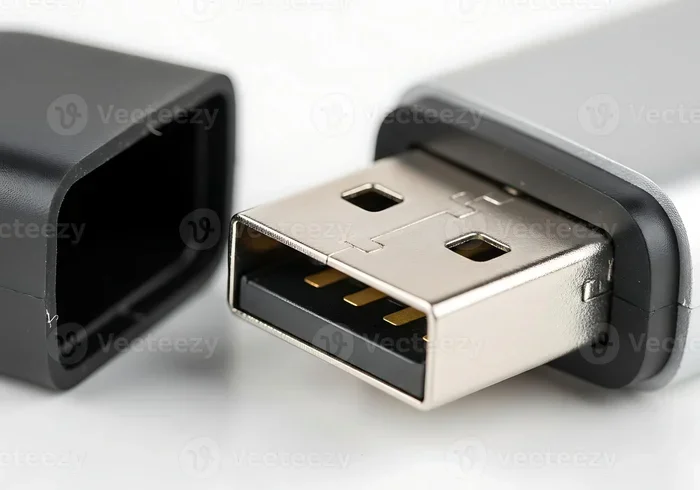
A USB keyboard connects directly to your tablet using a cable. This is a great option if you do not want to worry about batteries or pairing. Some tablets have USB-C ports, while others may need an adapter.
USB keyboards are often plug-and-play. You plug them in, and they work right away. They are reliable and do not need charging. The downside is the cable, which limits your mobility.
USB keyboards are ideal for people who work at a fixed location. If your tablet stays on a desk most of the time, a USB keyboard is a solid choice.
Keyboard Docks and Covers
A keyboard dock or keyboard cover is a keyboard that attaches directly to your tablet. It doubles as a protective case and a typing surface. This is a very popular option, especially for iPad users.
These docks usually connect through Bluetooth or a magnetic connector. They keep your keyboard and tablet together, so everything is in one package. The trade-off is that they can be more expensive than standalone keyboards.
Popular examples include the Apple Magic Keyboard and various third-party options for Android tablets. They offer a sleek, all-in-one solution for tablet productivity.
Wireless Keyboards (2.4GHz)
Some keyboards use a small USB receiver for a wireless connection. These are called 2.4GHz wireless keyboards. They offer a stable connection without the hassle of Bluetooth pairing.
You plug the tiny receiver into your tablet’s USB port, and you are good to go. These keyboards often have very low latency, which makes them great for fast typing. They are also affordable and widely available.
How to Connect a Keyboard to Different Tablets
The process of connecting a keyboard varies depending on your tablet type. Let us walk through the steps for the most popular tablets on the market.
Connecting a Keyboard to an iPad
iPads make it easy to connect an external keyboard. Here is how to do it step by step:
- Make sure your Bluetooth keyboard is turned on and in pairing mode.
- Open the Settings app on your iPad.
- Tap Bluetooth and make sure it is turned on.
- Your keyboard should appear in the list of available devices.
- Tap on the keyboard name to pair it.
- Once connected, you can start typing right away.
If you are using a USB keyboard, you will need a Lightning-to-USB or USB-C adapter, depending on your iPad model. Plug the adapter into your iPad, then connect the keyboard. iPadOS usually recognizes it automatically.
Connecting a Keyboard to an Android Tablet
Android tablets also support external keyboards easily. The process is very similar to iPad:
- Turn on your keyboard and put it in pairing mode.
- Open Settings on your Android tablet.
- Go to Connected Devices or Bluetooth settings.
- Tap Pair New Device and select your keyboard.
- Follow any on-screen prompts to complete the connection.
For USB keyboards, check if your tablet has a USB-C port. If it does, you may be able to plug the keyboard in directly. Some older Android tablets with micro-USB ports will need an OTG adapter.
Connecting a Keyboard to a Windows Tablet
Windows tablets, like the Microsoft Surface, are the easiest to connect keyboards to. They are designed to work with external keyboards out of the box:
- For Bluetooth keyboards, go to Settings > Devices > Bluetooth & Other Devices.
- Turn on Bluetooth and add your keyboard.
- For USB keyboards, simply plug them into a USB port.
- Windows will install the driver automatically in most cases.
Windows tablets also support keyboard docks natively. If you have a Surface Pro with a Type Cover, it connects magnetically and works instantly.
Comparison Table: Keyboard Connection Methods
| Feature | Bluetooth | USB Wired | Keyboard Dock | 2.4GHz Wireless |
|---|---|---|---|---|
| Wireless | Yes | No | Usually Yes | Yes |
| Ease of Setup | Easy | Very Easy | Very Easy | Easy |
| Mobility | High | Low | Medium | High |
| Battery Required | Yes | No | Yes | Yes |
| Cost Range | $15-$100+ | $10-$60 | $50-$300+ | $15-$50 |
| Latency | Low | None | Low | Very Low |
| Best For | Most Users | Desk Setup | All-in-One | Stable Connection |
As you can see, each method has its strengths. Bluetooth is the most versatile and popular choice. USB is the simplest if you do not mind a cable. Keyboard docks offer the most convenience for iPad and Surface users. 2.4GHz wireless keyboards are a great middle ground between Bluetooth and USB.
Quick Tips for the Best Keyboard and Tablet Experience
Hooking up a keyboard is only half the battle. To get the most out of your setup, keep these tips in mind:
- Keep your tablet at the right angle. Use a stand or a keyboard cover with a built-in stand. This reduces neck strain and makes typing more comfortable.
- Charge your keyboard regularly. A dead keyboard in the middle of a work session is frustrating. Get into the habit of charging it overnight.
- Use keyboard shortcuts. Learn shortcuts for your tablet’s operating system. They can speed up your work significantly.
- Keep it clean. Dust and crumbs can get between keys. Wipe your keyboard down regularly to keep it working smoothly.
- Test before important tasks. Always make sure your keyboard is connected and working before you start something important.
Expert Insights: What Professionals Recommend
We asked a few tech professionals about their favorite ways to set up a tablet and keyboard combo. Here is what they had to say.
“The biggest mistake people make is choosing a keyboard that is too small. If you type a lot, go for a full-size layout. Your hands will thank you.” — Sarah M., IT Consultant
“Bluetooth is the way to go for most people. It gives you freedom to move around, and the connection is solid now with modern tablets.” — James T., Freelance Writer
“If you work at a desk all day, invest in a quality keyboard dock. It turns your tablet into a laptop replacement without the bulk.” — Lisa R., Digital Nomad
Common Mistakes to Avoid When Setting Up a Tablet Keyboard
Setting up a keyboard for your tablet is usually straightforward. But there are a few mistakes that can cause problems. Here is what to watch out for.
Skipping the pairing process. Some people try to type before the keyboard is fully paired. Always make sure your tablet shows the keyboard as connected before you start typing.
Ignoring compatibility. Not all keyboards work perfectly with all tablets. Check that your keyboard is compatible with your tablet’s operating system before buying.
Using a low battery. A keyboard with a low battery can cause lag or disconnections. Keep an eye on your battery level and charge before it dies.
Forgetting to update. Sometimes a firmware update for your keyboard or tablet can fix connection issues. Check for updates if you run into problems.
Not testing the setup. Before you rely on your setup for an important project, test it out. Make sure every key works and the connection is stable.
FAQ
Can any keyboard work with any tablet?
Most keyboards can work with most tablets, but compatibility depends on the connection type. Bluetooth keyboards work with tablets that support Bluetooth. USB keyboards need a compatible port or adapter. Always check that your keyboard is compatible with your tablet’s operating system before purchasing.
Is it hard to connect a wireless keyboard to a tablet?
No, it is very easy. Most tablets have a simple Bluetooth pairing process. You turn on the keyboard, put it in pairing mode, and select it from your tablet’s Bluetooth settings. The whole process usually takes less than a minute.
Do I need a special keyboard for my tablet?
You do not need a special keyboard. Any standard Bluetooth or USB keyboard will work. However, keyboard docks and covers designed for your specific tablet model offer the best fit and convenience. They also protect your tablet while you type.
Will connecting a keyboard drain my tablet battery faster?
A Bluetooth keyboard does use some battery from your tablet for the wireless connection. However, the drain is minimal. A wireless keyboard typically uses less power than keeping your tablet screen on for extended periods. Overall, the productivity gains far outweigh the small battery impact.
Can I use a gaming keyboard with my tablet?
Yes, you can use a gaming keyboard with a tablet. Most gaming keyboards connect via Bluetooth or USB and work with tablets just fine. However, gaming keyboards can be larger and bulkier. If you are going for portability, a compact Bluetooth keyboard might be a better choice.
What is the best keyboard for an iPad?
The Apple Magic Keyboard is the most popular choice for iPad users. It connects magnetically and has a built-in trackpad. However, there are many great third-party options at lower prices. Look for a Bluetooth keyboard with a layout that suits your needs and a battery life that matches your usage.
Conclusion
Can you hook up a keyboard to a tablet? Yes, and it is one of the simplest upgrades you can make. Whether you choose a Bluetooth keyboard, a USB model, or a keyboard dock, the process is straightforward and the benefits are huge. You get faster typing, better comfort, and a laptop-like experience on a portable device.
Your tablet is already a powerful tool. Adding a keyboard turns it into something even more versatile. You can work from anywhere, type with ease, and get more done in less time. It does not matter if you use an iPad, an Android tablet, or a Windows device. The options are out there, and they are more affordable than ever.
Take some time to explore your options. Pick a keyboard that fits your workflow and budget. Set it up following the steps in this guide. Once you experience the difference a real keyboard makes, you will wonder how you ever worked without one. Your tablet productivity setup is just a keyboard away.