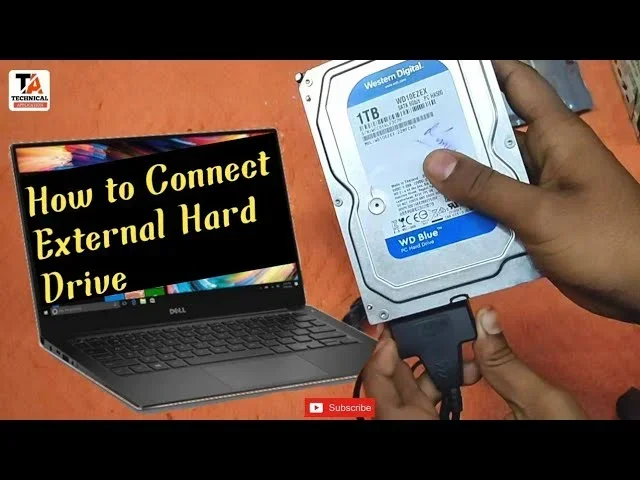
Can Any External Hard Drive Work On Any Laptop With Ease
Yes, most external hard drives work on any laptop, but compatibility depends on factors like file system format, connection type, and operating system. Understanding these basics saves you time, money, and frustration. This guide breaks down everything you need to know about external hard drive compatibility in simple terms.
Have you ever plugged in a brand-new external hard drive and hoped it would just work? Maybe you bought one online, excited to expand your laptop storage, only to find it refuses to cooperate. This happens more often than you might think, and it leaves people wondering, can any external hard drive work on any laptop? The short answer is yes, but with some important caveats. Understanding these details before you buy or connect a drive can save you hours of frustration and maybe even some money.
External hard drives come in all shapes, sizes, and configurations. Some work perfectly with every laptop on the market, while others need a little extra setup. The key is knowing what to look for. In this guide, we will walk you through everything you need to know about external hard drive compatibility. We will cover connection types, file systems, operating system differences, and common troubleshooting steps. By the end, you will feel confident choosing and using any external drive with your laptop.
Key Takeaways
- Universal Plug and Play: Most external hard drives connect to any laptop using standard USB cables and work right out of the box.
- File System Matters: The drive’s format (NTFS, exFAT, FAT32, or HFS+) determines whether it works across Windows, Mac, or both.
- Connection Types Vary: USB-A, USB-C, and Thunderbolt ports all affect how your external drive connects and performs.
- Formatting Solves Most Issues: Reformatting a drive can fix compatibility problems, but always back up data first.
- Power Requirements Differ: Some larger drives need extra power, which not all laptops can provide through USB alone.
- SSDs vs HDDs: Solid-state drives offer faster speeds and better durability, while hard disk drives offer more storage for less money.
- Always Check Specifications: Verify connection type, file system, and power needs before buying an external drive for your laptop.
📑 Table of Contents
- What Is an External Hard Drive and How Does It Connect?
- Understanding File Systems and Why They Matter
- USB Connections: What You Need to Know
- Mac vs Windows: Cross-Platform Compatibility
- Common Problems When Using External Hard Drives on Laptops
- How to Choose the Right External Hard Drive for Your Laptop
- Setting Up Your External Hard Drive for the First Time
- Expert Insights: What Tech Professionals Recommend
- Conclusion
What Is an External Hard Drive and How Does It Connect?
An external hard drive is a portable storage device that connects to your laptop through a cable. It lets you store, back up, and transfer files without using your laptop’s internal storage. Think of it as an extra pocket for your digital life. These drives come in two main types: hard disk drives (HDDs) and solid-state drives (SSDs).
Hard Disk Drives (HDDs)
HDDs use spinning metal disks to read and write data. They are affordable and offer lots of storage space. You can easily find HDDs with 1TB, 2TB, or even 4TB of capacity at very reasonable prices. However, they are slower than SSDs and more fragile because of the moving parts inside.
Solid-State Drives (SSDs)
SSDs have no moving parts. They use flash memory to store data, which makes them much faster and more durable. External SSDs are ideal if you need quick file transfers or want a drive that can survive drops and bumps. The trade-off is price. SSDs cost more per gigabyte than HDDs, but the speed difference is well worth it for many users.
Both types connect to laptops using cables and ports. The most common connection is USB. Older drives use USB-A ports, while newer models often use USB-C or Thunderbolt connections. The good news is that most laptops today have at least one USB port, which means the physical connection is rarely a problem.
Understanding File Systems and Why They Matter
Here is where things get interesting. When you buy an external hard drive, it comes preformatted with a specific file system. This file system determines how data is organized and stored on the drive. It also decides which operating systems can read and write to the drive. If the file system does not match your laptop, the drive may not work properly.
NTFS (Windows)
NTFS is the default file system for Windows laptops. If you buy an external hard drive for a Windows computer, it most likely comes formatted as NTFS. Windows laptops can read and write to NTFS drives without any extra software. However, Mac computers can only read NTFS drives by default. They cannot write to them without third-party software.
exFAT (Cross-Platform)
exFAT is the best choice if you use both Windows and Mac computers. It works seamlessly on both operating systems. Many modern external drives come preformatted as exFAT for this reason. If you want a drive that works on any laptop regardless of the operating system, look for one formatted as exFAT.
FAT32 (Older but Universal)
FAT32 is an older file system that works on almost everything. Windows, Mac, Linux, and even some TVs and game consoles can read FAT32 drives. The big limitation is file size. FAT32 cannot handle individual files larger than 4GB. If you plan to store large video files or disk images, FAT32 is not the best choice.
HFS+ (Mac Only)
HFS+ is the file system used by Mac computers. Windows laptops cannot read or write to HFS+ drives without special software. If you buy a drive formatted for Mac and try to use it on a Windows laptop, you will run into compatibility issues right away.
Quick Tip: How to Check Your Drive Format
On Windows, right-click the drive in File Explorer and select Properties. Look for the file system type. On Mac, open Disk Utility and select your drive. The format will be listed there. Knowing your current format helps you decide if you need to reformat for better compatibility.
USB Connections: What You Need to Know
The physical connection between your external hard drive and laptop matters more than most people realize. Different USB versions and connector types affect speed, compatibility, and convenience. Let us break down the most common options.
USB-A (Standard USB)
USB-A is the classic rectangular connector. It has been around for decades and is still found on most laptops and desktop computers. USB 3.0 USB-A ports offer fast transfer speeds of up to 5 Gbps. USB 2.0 USB-A ports are much slower but still work fine for basic file transfers. Almost every external hard drive uses a USB-A connection, either directly or through a cable.
USB-C (Modern and Versatile)
USB-C is the newer, smaller, reversible connector. Many modern laptops now feature USB-C ports, including most MacBooks and Windows ultrabooks. USB-C supports faster data transfer speeds and can also carry power and video signals. External SSDs especially benefit from USB-C connections because of the higher speeds available.
Thunderbolt (Fastest Option)
Thunderbolt ports look similar to USB-C but offer much faster speeds. Thunderbolt 3 can transfer data at up to 40 Gbps, and Thunderbolt 4 doubles that. These ports are found on high-end laptops and are perfect for professionals who need to move large files quickly. However, not all laptops have Thunderbolt ports, so check your laptop specifications before buying a Thunderbolt drive.
One thing to keep in mind is that you can use adapters to connect drives with different connectors. A USB-C to USB-A adapter is cheap and widely available. This means even if your laptop has USB-C ports and your drive uses USB-A, you can still make it work. The reverse is also true with the right adapter.
Quick Tip: Match Your Speeds
If you buy a fast external SSD, make sure your laptop supports the same speed standard. A USB-C SSD plugged into a USB 2.0 port will not deliver its full speed. Always check both your drive and laptop specifications to get the best performance.
Mac vs Windows: Cross-Platform Compatibility
One of the most common compatibility questions is whether an external hard drive works across different operating systems. Many people use Windows laptops at work and Macs at home, or they share drives with friends and family who use different systems. Understanding cross-platform compatibility helps you avoid headaches.
For a drive to work on both Mac and Windows without extra software, it needs to be formatted as exFAT or FAT32. These formats are recognized by both operating systems out of the box. NTFS drives work on Windows but only read on Mac. HFS+ drives work on Mac but are not recognized by Windows without additional tools.
How to Reformat a Drive for Cross-Platform Use
Reformatting erases all data on the drive, so back up everything first. On Windows, use the built-in Disk Management tool. Right-click the drive, select Format, and choose exFAT. On Mac, open Disk Utility, select the drive, click Erase, and choose exFAT as the format. The process takes just a few minutes and makes the drive fully compatible with both operating systems.
Some external drives come with dedicated software that handles cross-platform compatibility automatically. Brands like WD and Seagate offer utilities that let you switch between formats without losing data. These tools are helpful if you do not want to go through the reformatting process yourself.
Common Problems When Using External Hard Drives on Laptops
Even with the right drive and cable, you might run into issues. External hard drive problems are common, but most have simple solutions. Let us look at the most frequent issues and how to fix them.
Drive Not Recognized by the Laptop
This is the most common problem. If your laptop does not detect the external drive, start by trying a different USB port. A faulty port can prevent the drive from showing up. Also, try a different cable. Damaged cables are a surprisingly frequent cause of connection problems. If neither of those works, check your disk management tool to see if the drive appears there but not in File Explorer or Finder.
Drive Shows Up But You Cannot Access Files
This usually happens because of a file system mismatch. If a drive formatted for Mac shows up on a Windows laptop, you might see it but cannot open the files. The fix is to reformat the drive to a compatible file system. Remember to back up your data before reformatting.
Drive Works Intermittently
Intermittent connection issues often point to power problems. Some external hard drives, especially larger HDDs, need more power than a single USB port can provide. Try connecting the drive to a powered USB hub or use the drive’s separate power adapter if it has one. SSDs rarely have this problem because they consume less power.
Slow Transfer Speeds
If your external drive feels slow, check the USB port version. Plugging a USB 3.0 drive into a USB 2.0 port will limit your speed. Also, check if the drive is connected through a hub or extension cable. These can reduce transfer speeds. For the best performance, connect the drive directly to a port on your laptop.
Drive Makes Clicking or Grinding Noises
Unusual sounds from an HDD are a warning sign. Clicking noises often indicate mechanical problems. Stop using the drive immediately and try to recover your data. SSDs do not make noise, so any sound from a drive means it is likely an HDD with a physical issue.
How to Choose the Right External Hard Drive for Your Laptop
With so many options on the market, choosing the right external hard drive can feel overwhelming. But it does not have to be. Focus on a few key factors, and you will find the perfect drive for your needs.
Consider Your Storage Needs
Think about what you plan to store on the drive. If you just need to back up documents and photos, 1TB is usually enough. For large video files, game libraries, or full system backups, look at 2TB or larger drives. SSDs are available in smaller capacities but cost more per gigabyte than HDDs.
Think About Portability
If you carry your drive around, choose a compact and lightweight option. Portable SSDs are small enough to fit in your pocket and are much more durable than traditional HDDs. Desktop drives are larger and need external power, so they work best when kept in one place, like on your desk at home.
Check Compatibility Before You Buy
Before purchasing, verify that the drive is compatible with your laptop. Check what ports your laptop has. If your laptop only has USB-C, make sure the drive either uses USB-C or comes with a USB-A to USB-C cable. Also check the file system. exFAT drives give you the most flexibility across different laptops and operating systems.
Brand Reputation and Warranty
Stick with reputable brands like Western Digital, Seagate, Samsung, and SanDisk. These companies offer reliable drives with good customer support and warranty coverage. A solid warranty gives you peace of mind if something goes wrong. Most quality external drives come with a one- to three-year warranty.
Budget Considerations
External HDDs offer the best value for large storage needs. You can get 2TB of storage for around $60 to $80. External SSDs cost more but deliver much faster speeds and better durability. If speed and reliability matter more than raw storage capacity, an SSD is worth the extra investment.
Quick Tip: Buy a Drive with a Built-In Backup Tool
Many external drives come bundled with backup software. This software automates the backup process, so you do not have to remember to copy your files manually. Automatic backups protect your data and give you peace of mind. Look for drives that include software like WD Backup or Seagate Toolkit.
Setting Up Your External Hard Drive for the First Time
Once you have chosen the right drive, setting it up properly ensures smooth performance going forward. The setup process is simple and takes only a few minutes.
First, plug the drive into your laptop using the included cable. Most modern operating systems will recognize the drive automatically and assign it a drive letter or mount it on your desktop. You should see it appear in File Explorer on Windows or Finder on Mac.
If the drive does not show up, open your disk management tool. On Windows, search for Disk Management in the Start menu. On Mac, open Disk Utility from your Applications folder. Look for the new drive in the list. If it appears but shows as unallocated or unformatted, you will need to format it.
When formatting, choose exFAT for the best cross-platform compatibility. This format works on Windows, Mac, and Linux without any extra software. If you only use one operating system, you can choose NTFS for Windows or APFS for Mac. After formatting, your drive is ready to use. Drag and drop files just like you would with any folder on your laptop.
Expert Insights: What Tech Professionals Recommend
Technology professionals often emphasize a few key habits when using external hard drives. First, always eject the drive properly before unplugging it. On Windows, click the Safely Remove Hardware icon in the system tray. On Mac, drag the drive icon to the Trash or click Eject in Finder. Pulling the cable out without ejecting can corrupt files or damage the drive.
Second, keep your drive in a safe, dry place. External hard drives are sensitive to moisture, dust, and extreme temperatures. A small padded case goes a long way in protecting your investment. Third, do not rely on a single external drive as your only backup. Follow the 3-2-1 backup rule: keep three copies of your data, on two different types of media, with one copy stored offsite.
Finally, update your laptop drivers regularly. Outdated USB drivers can cause connection issues with external drives. Windows Update and Mac system updates usually include driver improvements that keep everything running smoothly.
Conclusion
The answer to can any external hard drive work on any laptop is a reassuring yes, with a few conditions. The right file system, the correct connection type, and basic setup knowledge make all the difference. Most external drives work out of the box on any laptop that has a matching port. When they do not, the fix is usually straightforward, whether it is reformatting the drive, using an adapter, or updating a driver.
Understanding your laptop’s ports and your drive’s format gives you the confidence to buy any external drive without worry. Whether you choose an affordable HDD or a fast SSD, the key is matching the drive to your needs and your laptop’s capabilities. Take a few minutes to check compatibility before you buy, and you will enjoy a seamless experience every time.
External hard drives are one of the most useful and affordable tools for expanding your laptop storage. They make backups easy, file transfers quick, and extra storage convenient. With the knowledge you have gained from this guide, you are now equipped to choose, set up, and troubleshoot any external hard drive with confidence. Happy storing.
Frequently Asked Questions
Will an external hard drive formatted for Mac work on a Windows laptop?
Not by default. Mac-formatted drives use the HFS+ file system, which Windows cannot read without third-party software. To make the drive work on both systems, reformat it as exFAT. Remember to back up your data before reformatting, as the process erases everything on the drive.
Do I need to install drivers for an external hard drive?
In most cases, no. Modern operating systems like Windows 10, Windows 11, and macOS recognize external hard drives automatically through plug and play. You should not need to download or install any special drivers. If the drive is not recognized, try a different USB port or cable first before looking for drivers.
Can I use an external hard drive with a Chromebook?
Yes, most Chromebooks support external hard drives. Chromebooks work best with drives formatted as exFAT or FAT32. NTFS drives may not be recognized by Chrome OS without additional software. Check your Chromebook’s specifications to confirm USB support and compatible file systems.
Why does my external hard drive keep disconnecting from my laptop?
Frequent disconnections usually happen for three reasons: a faulty cable, a weak USB port, or insufficient power. Try a different cable first, then a different port. If the drive has its own power adapter, make sure it is plugged in. Desktop drives need more power than what a single USB port can provide, so always use the included power cable.
Is it safe to leave an external hard drive plugged in all the time?
It is generally safe for short periods, but leaving it plugged in 24/7 increases the risk of data corruption if the drive gets accidentally bumped or unplugged. It also exposes the drive to more wear and heat over time. For regular backups, connect the drive when needed and eject it properly when finished.
Can I use an external SSD instead of an external HDD for the same tasks?
Absolutely. External SSDs work the same way as HDDs but offer faster speeds, better durability, and no noise. They are ideal for storing and transferring large files, running applications directly from the drive, or carrying your data on the go. The only downside is the higher price per gigabyte compared to traditional HDDs.