Can You Connect Keyboard and Mouse Via Bluetooth Made Easy
Yes, you can absolutely connect keyboard and mouse via Bluetooth without any cables or USB receivers. Most modern computers support bluetooth connectivity for wireless peripherals, making your workspace cleaner and more flexible. In this guide, you will learn the exact steps to pair your devices, fix common issues, and choose the best bluetooth keyboard and mouse combo for your needs.
Key Takeaways
- Bluetooth pairing is simple: Most keyboards and mice can be paired in under two minutes using their dedicated pairing mode.
- Check compatibility first: Not all devices support bluetooth, so confirm your computer and peripherals have built-in bluetooth capability.
- Bluetooth vs. USB receivers: Each option has pros and cons, including differences in latency, range, and ease of setup.
- Troubleshooting is straightforward: Common issues like connection drops often have quick fixes involving re-pairing or driver updates.
- Battery life matters: Bluetooth wireless devices typically last weeks on a single charge, but usage habits affect longevity.
- Multi-device switching is a real perk: Many modern bluetooth peripherals can connect to multiple devices simultaneously.
- Signal range and interference: Keep your devices within range and away from other wireless signals for the best performance.
📑 Table of Contents
- Can You Connect Keyboard and Mouse Via Bluetooth? A Complete Guide
- Why Connect Keyboard and Mouse Via Bluetooth?
- How to Connect Keyboard and Mouse Via Bluetooth: Step-by-Step
- Bluetooth vs. Wireless USB: Which Is Better?
- Common Issues When Connecting Bluetooth Keyboard and Mouse
- Best Bluetooth Keyboards and Mice for Easy Pairing
- Tips for Maintaining a Strong Bluetooth Connection
- Key Takeaways
- Conclusion
Can You Connect Keyboard and Mouse Via Bluetooth? A Complete Guide
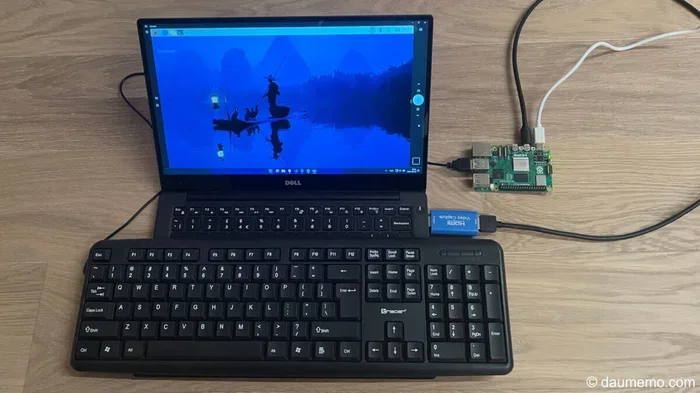
Tired of tangled cables on your desk? Connecting keyboard and mouse via Bluetooth is one of the easiest ways to create a clean, wireless workspace. The good news is that most modern computers, laptops, and tablets come with built-in bluetooth support. This means you can pair your favorite input devices without buying extra adapters or dealing with USB receivers.
Whether you are working from home, gaming, or just browsing, a bluetooth connection gives you freedom of movement and a clutter-free desk. But the process is not always plug-and-play. You might run into pairing issues, compatibility questions, or concerns about signal lag. This guide walks you through everything you need to know about wireless peripherals and how to get them working smoothly with your setup.
We will cover the step-by-step pairing process, compare bluetooth to other wireless options, and share tips to keep your connection strong. By the end, you will feel confident connecting any bluetooth keyboard and mouse to your computer. Let us get started.
Why Connect Keyboard and Mouse Via Bluetooth?
Before we dive into the how, let us talk about the why. There are some really solid reasons to go wireless with your input devices. Here is why so many people are making the switch.
A Cleaner, More Organized Workspace
The most obvious benefit is a tidier desk. No cables running across your keyboard tray. No USB receivers sitting in a USB port that you barely use. A bluetooth connection removes all of that physical clutter. You get a sleek, minimal setup that looks great and works great.
Greater Flexibility and Mobility
With a wireless connection, you are not stuck sitting right next to your computer. You can sit on the couch, work from the kitchen table, or even stand up while you type. Bluetooth signal range typically reaches about 30 feet, so you have plenty of room to move around.
Easy Multi-Device Pairing
Many bluetooth keyboards and mice support multi-device connectivity. This means one device can pair with your laptop, tablet, and phone at the same time. You simply switch between devices with the press of a button. For people who use multiple gadgets, this feature is a game changer.
Long Battery Life
Modern wireless peripherals are designed to sip power. Many bluetooth mice last for months on a single battery. Some keyboards can go weeks without needing a recharge. This is far better than you might expect from a wireless device.
How to Connect Keyboard and Mouse Via Bluetooth: Step-by-Step
The actual pairing process is straightforward. However, the exact steps can vary slightly depending on your computer operating system and device brand. Below, we cover the most common methods for Windows, Mac, and other systems.
Step 1: Check That Your Computer Has Bluetooth
Not every computer has bluetooth enabled by default. Before you start pairing, confirm your system supports it.
- Windows: Go to Settings and look for Bluetooth & Devices. If you see it, your PC has bluetooth support. If not, you may need a bluetooth adapter plugged into a USB port.
- Mac: Click the Apple menu and select System Settings. Look for Bluetooth in the sidebar. Most Macs made after 2012 have built-in bluetooth.
- Chromebook: Open Settings and navigate to Bluetooth. Most modern Chromebooks include this feature.
- Tablets and phones: Most modern tablets and smartphones include bluetooth hardware.
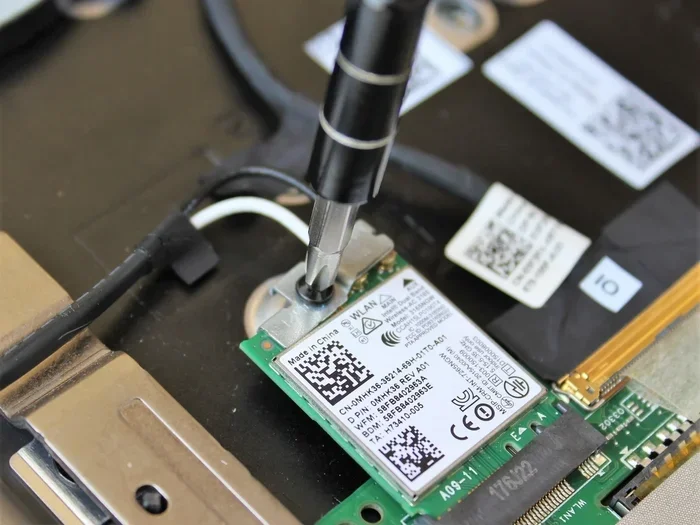
If your computer does not have built-in bluetooth, a small usb receiver or external bluetooth adapter solves the problem. These are inexpensive and easy to set up.
Step 2: Put Your Keyboard and Mouse in Pairing Mode
Every bluetooth device has a pairing mode. This is usually activated by holding down a dedicated button for a few seconds. Look for a small button on the back or bottom of your device.
- Keyboards: Many models have a Bluetooth toggle switch or a pairing button on the rear panel. Flip the switch to the bluetooth icon, then hold it until an LED light starts blinking.
- Mice: Similar process. Press and hold the pairing button until the light flashes rapidly. This signals that the mouse is ready to be discovered.
Some devices use a device pairing mode that is activated through a software button on-screen. Check your device manual if you are unsure. The key sign is a blinking LED or an on-screen indicator that says pairing mode is active.
Step 3: Pair the Device Through Your Computer
Now go to your computer and open the bluetooth settings.
- Turn on bluetooth if it is not already enabled.
- Click “Add Device” or “Pair New Device.” Your system will scan for nearby devices.
- Select your keyboard from the list of discovered devices.
- Follow any on-screen prompts. Some systems ask you to type a verification code on the keyboard itself.
- Repeat the same process for your mouse.
Once paired, your devices should connect automatically whenever bluetooth is turned on. The whole process usually takes less than three minutes per device.
Step 4: Test Your Connection
After pairing, move your mouse around and type a few words on the keyboard. Make sure everything responds smoothly. If the cursor moves accurately and keystrokes register without delay, you are all set. If not, do not worry. We cover troubleshooting tips later in this guide.
Bluetooth vs. Wireless USB: Which Is Better?
People often compare bluetooth connectivity to traditional wireless setups that use a USB receiver. Both are valid options, but they serve different needs. Here is a detailed comparison to help you decide.
| Feature | Bluetooth | Wireless USB Receiver |
|---|---|---|
| Setup | Simple pairing process, no extra hardware needed if your PC has bluetooth | Requires inserting a small USB dongle into a port |
| Latency | Very low on modern devices, but slightly higher than USB receivers in some cases | Often the lowest latency, ideal for competitive gaming |
| Signal Range | Typically 30 feet or more | Similar range, around 30 to 50 feet depending on the receiver |
| Port Usage | Uses no USB ports | Occupies one USB port for the receiver |
| Multi-Device | Many models support switching between multiple devices | Usually limited to one device per receiver |
| Compatibility | Works with any device that has bluetooth | Works universally but needs the receiver plugged in |
For most everyday users, bluetooth keyboard and mouse combos are the better choice. They are cleaner, more versatile, and just as responsive. However, if you are a serious gamer who needs ultra-low input lag, a USB receiver setup might edge ahead. The difference is small and often unnoticeable in regular use.
Understanding Bluetooth Versions
Not all bluetooth technology is the same. The version matters for speed, range, and power consumption.
- Bluetooth 4.0: Introduced low energy mode. Good for basic peripherals.
- Bluetooth 5.0: Faster data transfer, longer range, and better battery efficiency. This is the current sweet spot for most wireless peripherals.
- Bluetooth 5.2 and above: Adds features like multi-point connection, allowing a device to stay linked to two systems at once.
When shopping for a bluetooth mouse or keyboard, look for version 5.0 or higher. You will get a more reliable wireless connection with fewer dropouts.
Common Issues When Connecting Bluetooth Keyboard and Mouse
Even with the best equipment, things can go wrong. Here are the most common problems people face and how to fix them quickly.
Device Not Showing Up in Bluetooth Settings
This is the most frequent issue. The device is not in pairing mode, or bluetooth is not fully enabled on your computer.
- Make sure the battery is fresh. A low battery can prevent pairing.
- Confirm you pressed the pairing button long enough. Most devices need a 3 to 5 second hold.
- Turn bluetooth off and back on your computer, then scan again.
- Move the device closer to your computer. The signal range might be limited if you are too far away.
Connection Drops or Lag
If your wireless peripherals disconnect randomly or feel sluggish, try these fixes:
- Check for interference from other wireless devices, Wi-Fi routers, or USB 3.0 ports. These can disrupt bluetooth connectivity.
- Update your computer bluetooth drivers. Outdated drivers are a common culprit.
- Reduce the distance between the devices and your computer.
- Switch to a different USB port if you are using an adapter.
Cursor Jumps or Keyboard Inputs Are Delayed
This can be frustrating. Often it is caused by a weak connection or a device running low on power. Replace batteries with fresh ones or recharge the device fully. Also, make sure no other bluetooth devices are competing for bandwidth. Too many paired devices can slow things down.
Keyboard Not Typing After Pairing
Sometimes the keyboard pairs but does not type. This usually happens because the wrong device profile was selected. Go to your input settings and make sure the correct keyboard language and layout are selected. Restarting the computer can also reset the connection properly.
Best Bluetooth Keyboards and Mice for Easy Pairing
Not all wireless peripherals are created equal. Some are designed specifically for effortless device pairing and rock-solid performance. Here are a few top picks across different budgets and use cases.
Best Overall Combo
Look for a keyboard and mouse set that shares the same bluetooth chip or ecosystem. Many brands now sell matched pairs that pair together with a single button press. These combos offer the smoothest setup experience and consistent performance.
Best for Productivity
If you type a lot, choose a full-sized bluetooth keyboard with a comfortable layout and hotkeys for productivity apps. Pair it with a precision bluetooth mouse that has adjustable DPI settings. This combination gives you the control and comfort needed for long work sessions.
Best for Portability
Travel-friendly keyboards and compact mice are designed to fit in a bag. These devices prioritize small size without sacrificing bluetooth connectivity. Many use rechargeable batteries and support fast charging, so you are never stuck with a dead device.
Best for Multi-Device Users
If you switch between a laptop, desktop, and tablet, pick peripherals that support multi-device bluetooth. The best models let you store up to three or four device profiles. Switching takes a single button press or a short key combination. This eliminates the hassle of re-pairing every time you change computers.
Tips for Maintaining a Strong Bluetooth Connection
Once you have your devices paired, a few habits will keep everything running smoothly for years.
Keep Batteries Charged
Low battery is the number one cause of connection problems. Most bluetooth mice and keyboards show a battery indicator in your system settings when the charge drops below 20 percent. Charge or replace batteries before they get too low. A well-charged device maintains a stronger, more consistent signal.
Update Your Drivers and Firmware
Manufacturers occasionally release firmware updates for their wireless peripherals. These updates improve pairing stability and fix known bugs. Check the manufacturer website or companion app periodically. On Windows, make sure your bluetooth drivers are up to date through Device Manager.
Minimize Wireless Interference
Bluetooth operates on the 2.4 GHz frequency band. This is the same band used by Wi-Fi routers, baby monitors, and some USB 3.0 devices. To reduce interference:
- Keep your computer and peripherals within 10 to 15 feet of each other when possible.
- Avoid placing your computer right next to a Wi-Fi router.
- If you use a USB 3.0 hub, keep bluetooth devices at least a foot away from the cables.
Use Quick Tips for Everyday Care
- Turn off bluetooth on devices you are not actively using. This saves battery and reduces connection confusion.
- Restart your devices once a week. A simple reboot clears temporary connection glitches.
- Store your wireless peripherals in a cool, dry place. Extreme heat or cold damages bluetooth technology components over time.
Expert Insights: What Professionals Want You to Know
Tech professionals consistently recommend checking compatibility before purchasing any wireless connection accessories. They also stress the importance of choosing devices that support the latest bluetooth version. An older device may pair fine, but it could limit your signal range and battery performance. Investing in current-generation bluetooth peripherals pays off in reliability and longevity.
Another insider tip is to avoid daisy-chaining too many wireless devices through the same system. Computers that have multiple bluetooth connections sometimes struggle with bandwidth allocation. Keeping your active device list lean helps every peripheral perform at its best.
Key Takeaways
To wrap up, here are the most important things to remember about connecting your devices wirelessly.
- Bluetooth pairing takes minutes: Once you know the steps, connecting any bluetooth keyboard and mouse is a quick two-to-five-minute process.
- Compatibility is key: Always check that your computer and devices both support bluetooth connectivity before attempting to pair.
- Bluetooth is practical for most users: It offers a clean setup, solid performance, and great flexibility for everyday tasks.
- Troubleshooting is manageable: Most issues stem from low battery, outdated drivers, or wireless interference and are easy to fix.
- Invest in quality devices: A well-made wireless peripherals combo with modern bluetooth technology delivers a smoother experience than a budget setup.
Conclusion
So, can you connect keyboard and mouse via Bluetooth? Absolutely. The process is user-friendly, widely supported, and incredibly convenient. Whether you are setting up a brand-new computer, decluttering your desk, or building a portable workstation, bluetooth connectivity for your input devices is the smartest choice available today.
Follow the step-by-step pairing guide in this article, keep your devices maintained, and you will enjoy a reliable wireless connection for a long time. The days of messy cables and fumbling with USB receivers are over. A clean, wireless setup is just a few clicks away. Start with your bluetooth keyboard and mouse today and experience the freedom of a truly wireless workspace.
Frequently Asked Questions
Can I connect a Bluetooth keyboard and mouse to a laptop without built-in Bluetooth?
Yes, you can. Purchase a small external bluetooth adapter that plugs into a USB port. These adapters are inexpensive and widely available. Once plugged in, your laptop will detect them as a standard bluetooth source, and you can pair your devices normally.
Is Bluetooth good enough for gaming with a wireless mouse and keyboard?
For most casual and mid-level gaming, bluetooth performs excellently. However, competitive gamers who need the absolute lowest input lag might prefer a wireless USB receiver setup. The difference is minimal for everyday play, but pro-level responsiveness sometimes favors the dedicated USB dongle.
How far can a Bluetooth keyboard and mouse work from the computer?
Most bluetooth peripherals work reliably up to about 30 feet (roughly 10 meters) in open spaces. Walls and other obstacles reduce this signal range. For best results, keep your devices within the same room as your computer.
Can I connect multiple Bluetooth keyboards and mice to one computer?
Yes. Most computers support multiple simultaneous bluetooth connections. You can pair several keyboards and mice at once. However, only one keyboard and one mouse will be actively controlling the computer at a time unless you use special multi-input software.
Why does my Bluetooth mouse keep disconnecting?
The most common causes are low battery, outdated drivers, and wireless interference from Wi-Fi routers or USB 3.0 ports. Try replacing or recharging the battery, updating your bluetooth drivers, and moving the mouse closer to the computer. These steps usually resolve the issue quickly.
Do Bluetooth keyboards and mice need special drivers to work?
Most modern bluetooth keyboards and mice work right out of the box without installing extra drivers. Windows, Mac, and Chrome OS recognize them as standard input devices. However, some gaming or productivity models may offer optional software for customizing buttons and settings. The basic typing and clicking functions always work without additional software.