Can You Boot From Usb Without Bios Try These Simple Steps
Yes, you absolutely can boot from USB without BIOS using alternative methods like UEFI settings, boot menus, or external tools. This guide covers simple step-by-step instructions, troubleshooting fixes, and expert tips to help you boot your computer from a USB drive quickly and confidently.
Key Takeaways
- Boot from USB without BIOS is possible: You can use UEFI, boot menus, or third-party tools to boot from a USB drive without accessing traditional BIOS settings.
- Multiple methods exist: Whether your computer supports UEFI, has a boot menu, or needs external software, there is always a way to boot from USB.
- Preparation matters: Your USB drive must be properly formatted and made bootable before you can use it to start your computer.
- Troubleshooting is straightforward: Most USB booting issues have simple fixes like checking boot order, updating firmware, or recreating the bootable drive.
- USB booting is versatile: You can install operating systems, run live Linux, recover data, or troubleshoot system problems using a bootable USB.
- Safety is generally not a concern: Booting from USB without BIOS is safe as long as you use trusted and verified USB drives and software.
📑 Table of Contents
- Can You Boot From USB Without BIOS? Try These Simple Steps
- What Does It Mean to Boot From USB Without BIOS?
- Why Would You Want to Boot From USB Without BIOS?
- How to Boot From USB Without BIOS: Step-by-Step Guide
- Common Problems When Booting From USB Without BIOS
- Tips to Improve Your USB Booting Experience
- Is Booting From USB Without BIOS Safe?
- Frequently Asked Questions About Booting From USB Without BIOS
- Conclusion
Can You Boot From USB Without BIOS? Try These Simple Steps
Boot from USB without BIOS is something many computer users wonder about. Maybe your BIOS is acting up, or perhaps you cannot figure out how to access the settings. Whatever the reason, the good news is that you can absolutely boot from a USB drive without touching the traditional BIOS. There are several simple methods that work on most modern computers.
In this guide, we will walk you through every method step by step. You will learn how to boot your computer from a USB drive using UEFI settings, boot menus, and even third-party tools. We will also cover common problems and quick fixes. By the end, you will feel confident about USB booting like a pro.
Whether you want to install a new operating system, run a live Linux environment, or recover important files, this article has you covered. Let us dive right in and explore how to boot from USB without BIOS.
What Does It Mean to Boot From USB Without BIOS?
Before we get into the steps, let us clear up what this actually means. When you turn on your computer, it goes through a boot process. Normally, the BIOS (Basic Input/Output System) controls this process. It checks your hardware and tells the computer where to find the operating system.
Booting from USB without BIOS means starting your computer from a USB flash drive without entering the BIOS setup screen. Instead of changing settings inside BIOS, you use alternative methods to tell your computer to use the USB drive as the boot device.
Understanding the Boot Process
Every computer follows a specific boot sequence when you press the power button. Here is a simplified version:
- Your computer powers on and runs a hardware check.
- The BIOS or UEFI firmware looks for a boot device.
- It finds the operating system on that device.
- The operating system loads and your computer is ready to use.
When you want to boot from USB, you are essentially interrupting this sequence. You want the computer to look at your USB drive first instead of the usual hard drive or SSD.
BIOS Versus UEFI
It is important to understand the difference between BIOS and UEFI. Most modern computers use UEFI instead of the older BIOS. UEFI is faster, more secure, and easier to work with. The good news is that UEFI makes booting from USB simpler in many cases. You often do not need to enter any settings at all.
Why Would You Want to Boot From USB Without BIOS?
There are several reasons why someone would want to boot from a USB drive without accessing BIOS. Let us look at the most common ones.
Installing a New Operating System
One of the biggest reasons is OS installation. Whether you are installing Windows, Linux, or another operating system, you need a bootable USB. Many users prefer to install an OS directly from USB without messing with BIOS settings.
Running a Live Linux Environment
Linux users often want to try Linux before installing it. A live Linux USB lets you run the entire operating system from a USB drive. You do not need to install anything on your computer. This is perfect for testing or temporary use.
System Recovery and Troubleshooting
When your computer crashes, a USB recovery drive can save the day. You can boot from USB to access recovery tools, restore your system, or recover lost files. This works even when your main operating system fails to load.
Security and Privacy
Some users prefer to carry their own portable operating system on a USB drive. This keeps your data safe and separate from the computer you are using. It is a great option for public or shared computers.
How to Boot From USB Without BIOS: Step-by-Step Guide
Now let us get to the good part. Here are several methods you can use to boot from USB without BIOS. Each method works on different types of computers, so you may need to try more than one.
Method 1: Use the Boot Menu
The easiest way to boot from USB is through the boot menu. Most computers have a built-in boot menu that lets you choose your boot device without entering BIOS.
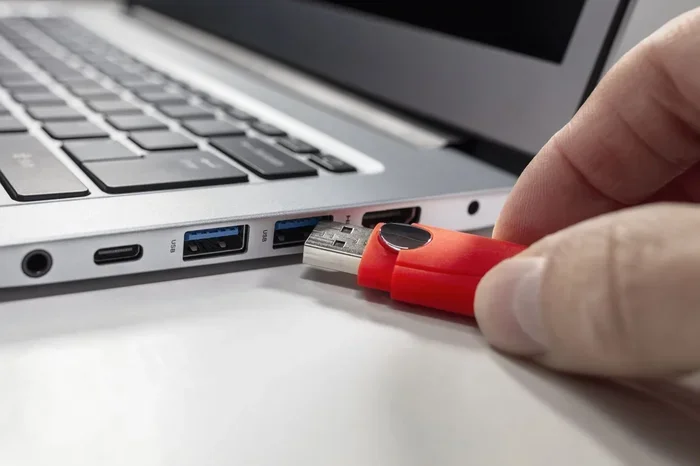
- Plug your bootable USB drive into your computer.
- Turn on your computer.
- Press the boot menu key immediately after the screen lights up. Common keys include F12, F8, F11, or Esc.
- A menu will appear showing all available boot devices.
- Select your USB drive from the list.
- Your computer will now boot from USB directly.
This method is quick, simple, and does not require any BIOS access. It works on most modern computers from brands like Dell, HP, Lenovo, and ASUS.
Quick Tip: Look at your computer manual or search online for your specific model to find the correct boot menu key. Missing the timing is the most common mistake here. Press the key repeatedly as soon as you power on.
Method 2: Use UEFI Boot Settings
If your computer uses UEFI firmware, you have another option. UEFI often allows you to change the boot priority without entering a full settings menu.
- Connect your USB bootable drive to your computer.
- Restart your computer.
- Look for a UEFI boot option on the startup screen. This sometimes appears briefly as a notification.
- Alternatively, go to your computer’s UEFI settings by pressing a specific key during startup. Common keys include Del, F2, or F10.
- Navigate to the Boot or Startup section.
- Change the boot order to put USB first.
- Save and exit. Your computer will now boot from USB.
Expert Insight: UEFI systems often have a feature called “Secure Boot.” This can sometimes block booting from USB. If your USB drive is not being recognized, check whether Secure Boot is enabled and temporarily disable it if needed.
Method 3: Use Third-Party Boot Tools
Sometimes you need extra help to boot from USB without BIOS. Several third-party tools can create bootable USB drives that work seamlessly.
- Rufus: A free and lightweight tool for creating bootable USB drives. It works with Windows and Linux ISO files.
- Ventoy: This tool lets you put multiple ISO files on one USB drive. You can choose which one to boot from every time.
- UNetbootin: Another popular option for creating Linux bootable USB drives.
- balenaEtcher: Simple and easy to use. Great for beginners who want to flash an ISO to USB.
These tools handle the technical side of making your USB drive bootable. Once your USB is ready, you can use the boot menu method from above to boot from USB.
Method 4: Direct Boot via External Drive Settings
Some computers have a setting that lets you boot directly from an external drive without any menu selection. This is less common but worth checking.
- Go to your computer’s settings or firmware options.
- Look for a section labeled External Boot or USB Boot.
- Enable the option if it is disabled.
- Restart with your USB connected, and the computer may boot directly from USB.
Common Problems When Booting From USB Without BIOS
Even with simple methods, you might run into problems. Here are the most common issues and how to fix them when you try to boot from USB without BIOS.
Problem 1: USB Drive Not Recognized
This is the most common issue. Your computer simply does not see your USB drive as a boot device.
- Make sure your USB drive is properly formatted and bootable.
- Try a different USB port. Some ports may not support booting.
- Check if your USB drive is working by testing it on another computer.
- Recreate the bootable USB using a tool like Rufus or balenaEtcher.
Problem 2: Secure Boot Blocking USB
As mentioned earlier, Secure Boot can block unauthorized operating systems. This is a security feature in UEFI systems.
- Access your UEFI settings during startup.
- Find the Secure Boot option under the Security tab.
- Disable Secure Boot temporarily.
- Try booting from USB again.
Problem 3: Wrong Boot Order
Sometimes the boot sequence is set to ignore USB drives entirely.
- Enter your firmware settings.
- Go to the Boot section.
- Set USB as the first boot priority.
- Save changes and restart.
Problem 4: USB Drive Not Made Properly Bootable
This is a crucial point. Not every USB drive with files on it is bootable. You need to use the right tool and format.
- Use a reliable tool like Rufus, Ventoy, or balenaEtcher.
- Choose the correct ISO file for your purpose.
- Select the right file system (usually FAT32 or NTFS).
- Make sure the entire USB drive is wiped and rewritten during the process.
Problem 5: Computer Freezes or Shows Black Screen
If your computer freezes after selecting USB, the bootable USB might be corrupted.
- Delete all files on the USB drive completely.
- Recreate the bootable USB drive from scratch.
- Try a different USB drive if the problem continues.
- Check your ISO file for corruption before creating the USB.
Tips to Improve Your USB Booting Experience
Want to make booting from USB smoother and more reliable? Here are some practical tips.
Always Use High-Quality USB Drives
Not all USB drives are created equal. A cheap, low-quality USB flash drive may fail during the boot process. Invest in a reliable, high-speed USB drive for best results. USB 3.0 or higher is recommended for faster USB booting.
Keep Your USB Bootable Tools Updated
If you use tools like Rufus or Ventoy, always use the latest version. Updates fix bugs and improve compatibility with newer operating systems. This ensures your bootable USB works every time.
Test Your USB Before You Need It
Do not wait until your computer crashes to test your USB recovery drive. Test it on a working computer beforehand. This way, you know it works when you need it most.
Label Your USB Drives Clearly
If you have multiple bootable USB drives, label them clearly. This avoids confusion about which USB contains which operating system or recovery tool.
Back Up Important Data First
Before attempting any boot from USB method that involves changing system settings, back up your important files. This protects your data in case something goes wrong during the process.
Is Booting From USB Without BIOS Safe?
Yes, booting from USB without BIOS is generally very safe. However, there are a few things to keep in mind.
- Use trusted USB drives: Only use USB drives you trust. A compromised USB can potentially harm your computer.
- Verify your ISO files: Always check the integrity of your ISO files before creating a bootable USB. Use checksum tools to verify.
- Disable Secure Boot carefully: Only disable Secure Boot when necessary. Re-enable it after you are done booting from USB.
- Do not remove USB during boot: Never pull out your USB drive while the computer is booting from it. This can cause data corruption.
Overall, as long as you follow basic safety practices, USB booting is a reliable and safe method for installing operating systems, running live environments, and recovering your system.
Frequently Asked Questions About Booting From USB Without BIOS
Can I boot from USB without accessing BIOS on any computer?
Most modern computers support booting from USB without BIOS through the boot menu or UEFI settings. However, very old computers may require BIOS access. If your computer is from the last 10 years, you should be able to use at least one of the methods described above.
What is the fastest way to boot from USB without BIOS?
The fastest way is to use the boot menu. Simply press the boot menu key during startup (usually F12, F8, or Esc), select your USB drive, and your computer will boot directly from it. This takes less than 10 seconds once you know the right key.
Do I need a special USB drive to boot without BIOS?
You do not need a special USB drive, but it must be made bootable. Use tools like Rufus, Ventoy, or balenaEtcher to create a bootable USB from an ISO file. A regular USB drive with files on it will not work for booting.
Why does my computer not show USB in the boot menu?
This usually happens because the USB drive is not bootable or the boot order is set incorrectly. Try recreating the bootable USB and make sure Secure Boot is not blocking it. Also, try different USB ports, especially USB 2.0 ports which sometimes have better compatibility.
Can I run Linux from USB without changing BIOS settings?
Absolutely. Linux is one of the most popular USB operating systems to run without BIOS changes. Use the boot menu method or create a live Linux USB with tools like Rufus or balenaEtcher. You can run Linux entirely from USB without installing it on your computer.
Is it better to boot from USB or change BIOS settings?
It depends on your needs. Booting from USB without BIOS through the boot menu is faster and less invasive. Changing BIOS settings gives you more control over the boot sequence but takes more time. For one-time tasks like OS installation, the boot menu is usually the better choice.
Conclusion
Booting from USB without BIOS is entirely possible and surprisingly easy. Whether you use the boot menu, UEFI settings, or third-party tools, you have multiple options to get your computer started from a USB flash drive. The key is to make sure your USB is properly bootable and that your computer supports external booting.
We covered everything from the basic boot process to troubleshooting common problems. You now know how to install operating systems, run live Linux, and recover your system using a bootable USB without ever touching the BIOS. These skills are valuable for any computer user.
Remember to always test your USB bootable drive before you need it, use trusted tools, and keep your data backed up. With these simple steps, you can confidently boot from USB on almost any computer. Give it a try the next time you need to install an OS or recover your system. You will be glad you learned this skill.