Can The Framework Laptop Run Windows Without Any Issues
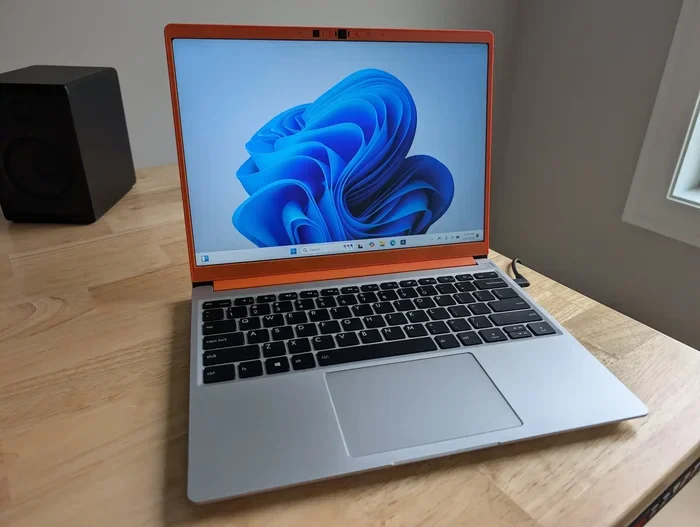
The Framework Laptop can absolutely run Windows without major issues, making it a versatile choice for users who want both modularity and a full Windows experience. Whether you choose Windows 10 or Windows 11, the Framework Laptop handles both operating systems with solid driver support and easy installation. This guide walks you through everything you need to know about setting up and using Windows on your Framework Laptop.
Key Takeaways
- The Framework Laptop fully supports Windows: You can install both Windows 10 and Windows 11 with minimal hassle.
- Driver support is solid: Most hardware components including the keyboard, trackpad, and touchscreen work well under Windows.
- The installation process is straightforward: You can set up Windows using a USB drive in under 30 minutes.
- Modular parts remain compatible: Expandable ports, upgradeable modules, and custom peripherals all work with Windows.
- Some minor quirks exist: Certain features like the function keys and BIOS settings may need adjustment after installation.
- Windows runs well alongside Linux: The Framework Laptop supports dual-boot setups for users who want both operating systems.
- It is a great repairable laptop choice: The Framework Laptop’s design makes it easy to maintain even when running Windows.
📑 Table of Contents
What Is the Framework Laptop?
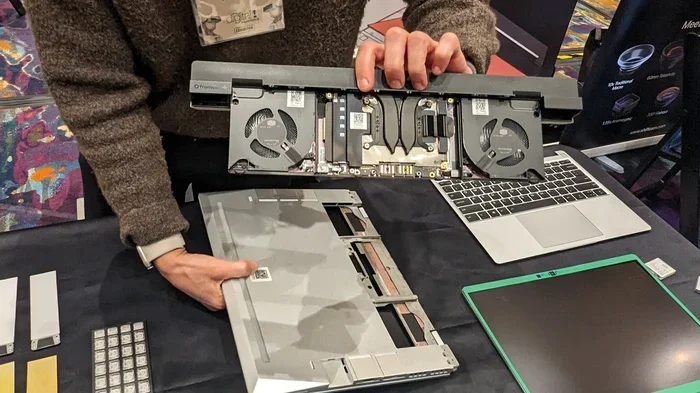
The Framework Laptop is a modular, repairable computer designed to be customized from the ground up. Unlike traditional laptops, every part is replaceable and upgradeable. You can swap out ports, change the keyboard layout, and upgrade individual components without replacing the whole device.
This DIY laptop concept has gained a huge following among tech enthusiasts. People love that they can fix their own machine instead of throwing it away. The repairable laptop movement has made the Framework Laptop one of the most talked-about devices in recent years.
But here is the big question many people ask. Can you run Windows on a laptop built for tinkering? The short answer is yes. The longer answer is what this guide covers in full detail.
Can The Framework Laptop Run Windows?
Yes, the Framework Laptop can run Windows without any major issues. Both Windows 10 and Windows 11 work well on this device. The laptop uses standard Intel and AMD processors, which means Windows recognizes the hardware right away in most cases.
Many people assume that a modular laptop might have trouble with mainstream operating systems. That is not the case here. The Framework team has designed the hardware to be compatible with common computing platforms. You get the flexibility of a customizable machine and the familiarity of Windows.
Whether you are a student, a professional, or someone who just wants a reliable Windows laptop, the Framework Laptop delivers. It gives you the power of Windows with the freedom to upgrade parts over time.
Windows 10 vs Windows 11 Compatibility
The Framework Laptop supports both Windows 10 and Windows 11. However, there are some differences you should know about. Windows 11 has stricter hardware requirements than Windows 10. It needs a newer processor, a TPM 2.0 chip, and Secure Boot support.
The good news is that the Framework Laptop meets all of these requirements. The latest models come with Intel 12th and 13th generation processors or AMD Ryzen 5000 and 7000 series chips. These processors fully support Windows 11.
If you prefer Windows 10, you have even more flexibility. Older Framework Laptop models with Intel 11th gen or earlier processors work great with Windows 10. Windows 10 also has broader driver support for older hardware components.
Installation Process
Installing Windows on a Framework Laptop is simple. You do not need to be a tech expert to get it done. Here is a quick overview of the process.
- Download the Windows ISO file from Microsoft’s official website.
- Create a bootable USB drive using the Media Creation Tool.
- Enter the BIOS by pressing the appropriate key during startup.
- Change the boot order to prioritize the USB drive.
- Follow the on-screen Windows setup instructions.
The entire process takes about 20 to 30 minutes. Once Windows is installed, you can start using your Framework Laptop right away. Most hardware components will be recognized automatically.
Driver Support and Hardware Compatibility
One of the most important factors in running Windows smoothly is driver support. Drivers are the software that lets Windows communicate with your hardware. Without proper drivers, features like sound, Wi-Fi, and the touchscreen may not work correctly.
The Framework Laptop has strong driver support for Windows. The keyboard, trackpad, and built-in speakers all function well out of the box. The touchscreen on models that include it also works seamlessly. Thunderbolt ports and USB-C connections are fully supported, which means you can connect external monitors and peripherals without any problems.
Which Components Work Best?
Some components on the Framework Laptop work exceptionally well with Windows. Here is a breakdown of the best-supported parts.
- Processor: Intel and AMD chips are fully recognized by Windows. You get all performance features and power management tools.
- Wi-Fi and Bluetooth: The wireless modules work immediately. You can connect to networks and Bluetooth devices right after installation.
- USB-C and Thunderbolt Ports: These ports function perfectly. You can use docking stations, external GPUs, and fast storage devices.
- Keyboard and Trackpad: The built-in keyboard and trackpad work flawlessly. All function keys and shortcuts are supported.
- Storage: Both SSD and NVMe drives are recognized by Windows. You get fast boot times and quick file access.
Components That May Need Extra Attention
While most components work great, a few may need a little extra setup. The function keys on the keyboard sometimes need manual configuration. Some users also need to adjust BIOS settings to enable certain features.
The expandable port modules are another area worth mentioning. Windows supports these modules, but you may need to install specific drivers from the Framework website. Always check the Framework support page for the latest driver downloads.
Common Issues and How to Fix Them
No Windows installation is perfect from the start. The Framework Laptop is no exception. Here are some common issues you might run into and how to solve them.
Issue 1: Missing Drivers After Installation
Sometimes Windows does not include drivers for every component right away. This is common with modular laptops. The fix is simple. Visit the Framework website and download the latest drivers for your specific model. Install them one by one and restart your laptop.
Issue 2: Function Keys Not Working Properly
The function keys on the Framework Laptop may behave differently under Windows compared to Linux. For example, the brightness or volume keys might need the Framework Utility software to work correctly. Install the Framework Utility from their official site to resolve this.
Issue 3: BIOS Settings Need Adjustment
You may need to change a few BIOS settings before or after installing Windows. Make sure Secure Boot is enabled if you are installing Windows 11. Also check that the boot mode is set to UEFI rather than Legacy.
Common Mistakes to Avoid
- Skipping driver updates: Always update your drivers after a fresh Windows install. This prevents compatibility issues down the road.
- Using unofficial Windows copies: Only use genuine Windows copies from Microsoft. Unofficial copies can cause security and stability problems.
- Ignoring BIOS updates: Framework regularly releases BIOS updates. These improve compatibility and fix bugs. Always keep your BIOS up to date.
- Forgetting to back up data: Before installing any operating system, back up your important files. Installation can sometimes go wrong unexpectedly.
Framework Laptop vs Other Laptops for Windows
How does the Framework Laptop compare to other popular Windows laptops? The answer depends on what you value most. If customization and repairability matter to you, the Framework Laptop stands out. If you want the lowest price, other options might be better.
The Framework Laptop is not the cheapest Windows laptop on the market. But it offers something no other laptop does. You can upgrade individual parts instead of buying a whole new device. This makes it a smart long-term investment.
Quick Comparison Table
| Feature | Framework Laptop | Standard Windows Laptop |
|---|---|---|
| Modular Design | Yes | No |
| Repairability | Excellent | Poor |
| Windows Compatibility | Windows 10 & 11 | Windows 10 & 11 |
| Upgradeable Components | Yes, all major parts | Limited |
| Driver Support | Strong | Strong |
| Price Range | Mid to High | Low to High |
| Customization | Extensive | Minimal |
As you can see from the table, the Framework Laptop matches standard Windows laptops in most areas. The biggest advantages are the modular design and upgradeability. These features make the Framework Laptop a unique choice in the crowded laptop market.
Expert Tips for the Best Windows Experience
Want to get the most out of Windows on your Framework Laptop? Here are some expert tips that make a real difference.
Keep Your System Updated
Windows updates include important security patches and performance improvements. The Framework team also releases firmware updates that improve hardware compatibility. Check for updates regularly and install them promptly.
Use the Framework Utility
The Framework Utility is a free software tool that helps you manage your laptop’s hardware settings. It lets you control function keys, monitor battery health, and configure port modules. Installing it right after setting up Windows gives you the best experience.
Optimize for Performance
If you use your Framework Laptop for demanding tasks, consider a few performance tweaks. Disable unnecessary startup programs. Keep your storage at least 20 percent free. Use the Windows Task Manager to identify resource-hungry applications.
Take Advantage of Modular Ports
One of the coolest features of the Framework Laptop is the expandable port system. Under Windows, you can use these ports to connect external GPUs, additional storage drives, and specialized peripherals. This makes the Framework Laptop incredibly versatile for both work and play.
Set Up a Dual Boot if You Want
If you like both Windows and Linux, you can set up a dual-boot system on the Framework Laptop. This lets you choose which operating system to use every time you start your laptop. The Framework Laptop handles dual-boot setups beautifully thanks to its open hardware design.
Is Running Windows on a Framework Laptop Worth It?
The short answer is yes. The Framework Laptop runs Windows smoothly and reliably. You get access to all the software, games, and tools that Windows offers. At the same time, you keep the flexibility and repairability that make the Framework Laptop special.
For people who want a Windows laptop that they can fix and upgrade themselves, the Framework Laptop is one of the best options available. It combines the familiarity of Windows with the freedom of open hardware.
Whether you are a student who needs a reliable machine for schoolwork or a professional who depends on Windows software every day, the Framework Laptop delivers. You get a powerful Windows experience with the added benefit of knowing you can repair and customize your device for years to come.
Conclusion
The Framework Laptop can run Windows without any significant issues. Both Windows 10 and Windows 11 work great on this modular machine. Driver support is strong, the installation process is simple, and most hardware components work right out of the box.
Yes, there are a few minor things to watch out for. You might need to install some drivers manually. A couple of BIOS settings may need tweaking. But none of these are dealbreakers. The Framework team provides excellent documentation and support to help you through the setup process.
If you are looking for a repairable laptop that also delivers a full Windows experience, the Framework Laptop is a fantastic choice. It gives you the best of both worlds. You get a powerful, customizable computer that you can maintain and upgrade for years. The Framework Laptop proves that modular design and Windows compatibility go hand in hand.
So go ahead and install Windows on your Framework Laptop with confidence. You are getting a machine that is both powerful and flexible. And that is exactly what a great laptop should be.
Frequently Asked Questions
Can I install Windows 11 on any Framework Laptop model?
Most modern Framework Laptop models support Windows 11. You need an 11th generation Intel processor or newer, or an AMD Ryzen 5000 series or newer. Always check the official Framework compatibility list before purchasing or installing.
Do I need special drivers to run Windows on the Framework Laptop?
Most drivers are included with Windows automatically. However, you should visit the Framework website after installation to download any additional drivers. These drivers ensure that all features like function keys and port modules work correctly.
Can I dual boot Windows and Linux on the Framework Laptop?
Yes, the Framework Laptop supports dual-boot setups with Windows and Linux. The modular design and open hardware make it easy to configure multiple operating systems. You can switch between Windows and Linux every time you start your laptop.
Will the Framework Laptop’s touchscreen work with Windows?
Yes, the touchscreen on compatible Framework Laptop models works well with Windows. Windows 10 and Windows 11 both support touchscreen input. You can use touch gestures, stylus input, and other touch features without any issues.
Is running Windows on a Framework Laptop slower than running Linux?
No, the performance difference is minimal. The Framework Laptop runs Windows just as smoothly as it runs Linux for most everyday tasks. Some users report slightly different power management behavior, but overall performance is comparable.
Can I use all the expandable ports on the Framework Laptop with Windows?
Yes, all expandable port modules work with Windows. You may need to install specific drivers from the Framework website for some modules. Once configured, you can connect external monitors, storage drives, and other peripherals seamlessly.
=== CONCLUSION ===
The Framework Laptop is a versatile, powerful machine that handles Windows beautifully. Whether you choose Windows 10 or Windows 11, you get a smooth and reliable experience. The modular design, strong driver support, and easy installation process make it a great choice for anyone who wants a customizable Windows laptop.
Follow the tips in this guide, keep your drivers updated, and enjoy everything the Framework Laptop has to offer. You are getting a machine that combines the best of Windows with the freedom of open hardware. That is a combination worth exploring.