How Do I Transfer Passwords From Iphone To Iphone Easily
Transferring passwords from iPhone to iPhone is easier than you think and can be done using built-in Apple tools like iCloud Keychain and Quick Start. Whether you are setting up a new device or just want your saved passwords on another iPhone, this guide walks you through every method step by step. You will learn how to sync Wi-Fi passwords, app logins, and even credit card details securely without losing a single credential. Follow our simple instructions and have all your passwords ready on your new iPhone in minutes.
Switching to a new iPhone is exciting. You get a fresh device, a new camera lens, and maybe even a different color. But one thing nobody wants to deal with is setting up everything from scratch. Your passwords are the backbone of your digital life. They unlock your apps, your email, your bank accounts, and even your smart home devices. Losing them or having to retype every single one is a nightmare.
So how do you transfer passwords from iPhone to iPhone? The good news is Apple makes this process really smooth. You have several options, and most of them are automatic. In this guide, we will walk you through every method. We will cover iCloud Keychain, Quick Start, and even computer-assisted transfers. By the end, you will know exactly which method works best for you.
Whether you are upgrading to the latest iPhone model or helping a family member set up their new device, this guide has you covered. Let us dive right in and make your password transfer as painless as possible.
Key Takeaways
- iCloud Keychain is the easiest way to automatically sync all your saved passwords across iPhones
- Quick Start migration lets you transfer everything, including passwords, when setting up a new device
- You can also use a Mac or computer as a middleman to move passwords between iPhones
- Always back up your data first before attempting any transfer to avoid losing credentials
- Two-factor authentication adds extra security during the password transfer process
- Check your settings after transferring to make sure every password synced correctly
📑 Table of Contents
- Why Transferring Passwords Between iPhones Matters
- Method 1: Use iCloud Keychain to Sync Passwords
- Method 2: Use Quick Start for a Full Device Transfer
- Method 3: Transfer Passwords Using a Mac or Computer
- Method 4: Use a Third-Party Password Manager
- Security Best Practices After Transferring Passwords
- Common Mistakes to Avoid When Transferring Passwords
- Quick Tips for a Seamless Password Transfer
- How to Handle Passwords If You Do Not Have the Old iPhone
- FAQ
Why Transferring Passwords Between iPhones Matters
Passwords are the keys to your digital world. When you get a new iPhone, you do not want to spend hours resetting every account. Beyond convenience, there are security reasons too. Manually re-entering passwords increases the chance of mistakes. You might choose weaker passwords out of frustration. Or worse, you might reuse an old one that is no longer secure.
Using Apple’s built-in tools ensures your passwords stay encrypted and secure during the transfer. You also keep your strong, unique passwords intact. This means better security and less stress. Think of it as moving houses but not having to re-pack every box yourself.
The Risks of Not Transferring Properly
If you skip the transfer process and try to remember or reset passwords manually, several problems can arise. You might forget important login details. Some apps store session tokens that expire, forcing you to verify your identity again. You could also lose saved payment methods and Wi-Fi connections. All of this adds up to wasted time and frustration.
Some people try writing passwords on sticky notes or in plain text files. This is a huge security risk. It exposes your sensitive data to anyone who might access your device. Using Apple’s official transfer methods keeps everything safe and organized.
Method 1: Use iCloud Keychain to Sync Passwords
iCloud Keychain is Apple’s built-in password manager. It stores your passwords, Wi-Fi passwords, and credit card information securely. When you set up a new iPhone, iCloud Keychain can automatically sync all of this data. It is by far the most popular method for transferring passwords from iPhone to iPhone.
Here is how it works. When both iPhones are signed into the same Apple ID, iCloud Keychain keeps everything in sync. Any password you save on one device appears on the other. It is seamless. It is automatic. And it requires almost zero effort from you.
Step-by-Step: Setting Up iCloud Keychain
Follow these steps to make sure iCloud Keychain is enabled on both devices:
- Open the Settings app on your old iPhone.
- Tap your Apple ID at the top of the screen.
- Select iCloud from the menu.
- Tap Keychain and toggle it on.
- Repeat the same steps on your new iPhone.
Once both devices have iCloud Keychain enabled, your passwords will begin syncing. This might take a few minutes depending on how many credentials you have saved. Make sure both phones are connected to Wi-Fi during this process. A stable connection ensures nothing gets interrupted.
Checking If Your Passwords Synced
After the sync is complete, you should verify that everything transferred correctly. Go to Settings on your new iPhone. Tap Passwords and authenticate with Face ID or Touch ID. Browse through your saved logins. If you see your usual accounts, the transfer was successful.
If some passwords are missing, do not panic. Check that both devices are using the same Apple ID. Also make sure you have a stable internet connection. Sometimes a simple restart on both devices fixes sync issues.
Method 2: Use Quick Start for a Full Device Transfer
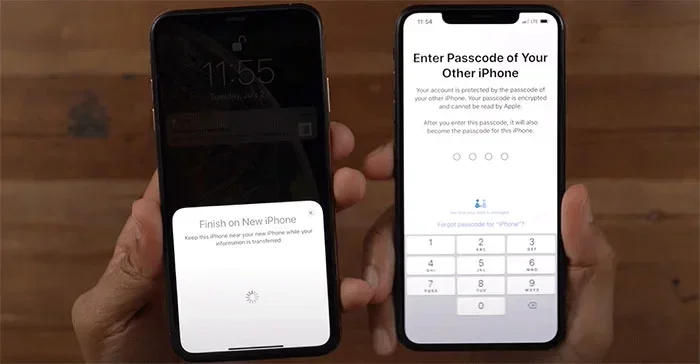
Quick Start is Apple’s migration tool. It activates automatically when you set up a new iPhone near your old one. It transfers everything — photos, contacts, apps, settings, and yes, all your passwords. This is the most comprehensive method available.
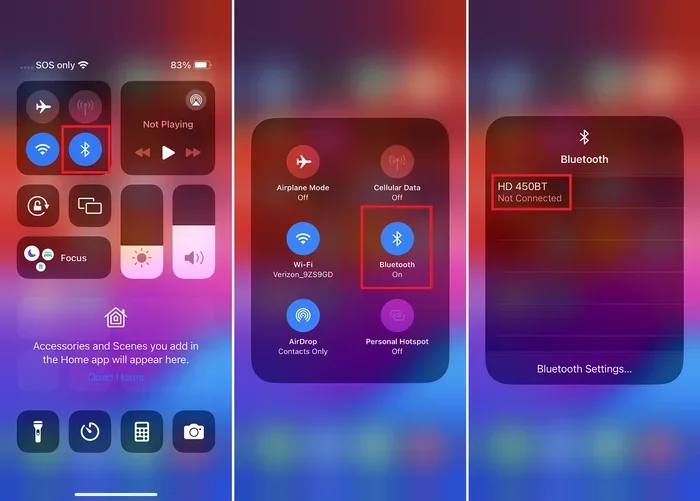
Quick Start uses a combination of Bluetooth and peer-to-peer Wi-Fi to create a secure connection between the two devices. Your data transfers directly from one phone to the other. Nothing goes through a server. This means your passwords stay private throughout the entire process.
How to Use Quick Start
Here is the process for using Quick Start to move passwords between iPhones:
- Turn on your new iPhone and place it near your old iPhone.
- A Quick Start prompt will appear on your old device.
- Tap Continue and point your old iPhone at the new one.
- Scan the animated pattern that appears on the new screen.
- Follow the on-screen prompts to complete the transfer.
During the setup, you will be asked whether to transfer from iCloud or directly from the old device. Choose the direct transfer option for the fastest and most complete result. The process can take anywhere from 10 minutes to over an hour depending on how much data you have.
Tips for a Smooth Quick Start Transfer
- Keep both iPhones plugged into power during the transfer.
- Make sure both devices have at least 50% battery if you cannot plug them in.
- Stay within close proximity — Bluetooth range is about 30 feet.
- Do not switch between apps on either device during the transfer.
- Be patient — large transfers take time and should not be interrupted.
One thing that makes Quick Start so convenient is that it mimics your old iPhone’s setup exactly. Your home screen layout, app arrangements, and even your wallpaper carry over. It truly feels like you just picked up where you left off.
Method 3: Transfer Passwords Using a Mac or Computer
Not everyone wants to use iCloud or Quick Start. Some people prefer a more hands-on approach. You can transfer passwords from iPhone to iPhone using a Mac or a Windows computer. This method gives you more control over what gets transferred.
Using a computer as a middleman is especially useful when setting up a brand-new iPhone that has never been used before. It also works well when your old iPhone has issues and you need a backup plan.
Using Finder on Mac
If you use a Mac, the Finder app makes iPhone backups and restores straightforward. Here is what to do:
- Connect your old iPhone to your Mac using a USB cable.
- Open Finder and select your iPhone from the sidebar.
- Click Back Up Now and wait for the backup to complete.
- Connect your new iPhone to the Mac.
- Choose Restore Backup and select the most recent backup.
Your passwords, settings, and all other data will be restored to the new iPhone. This method is thorough and reliable. It is one of the best options if you want a complete device clone.
Using iTunes on Windows
For Windows users, iTunes serves the same purpose. The steps are very similar:
- Install the latest version of iTunes on your Windows PC.
- Connect your old iPhone with a USB cable.
- Click the device icon in iTunes.
- Select Back Up Now under the Backups section.
- Connect your new iPhone and choose Restore Backup.
Make sure you encrypt your backup. Encrypted backups include your passwords. Without encryption, your saved passwords will not be included in the backup file. This is a common mistake that catches people off guard.
Method 4: Use a Third-Party Password Manager
While Apple’s built-in tools work great, some people prefer dedicated password managers. Apps like 1Password, LastPass, and Bitwarden offer cross-platform support. They work on iPhones, Android phones, computers, and tablets.
If you already use a third-party password manager, transferring your credentials to a new iPhone is straightforward. You simply install the app on your new device and log in with your existing account. All your saved passwords will sync automatically.
Benefits of Third-Party Password Managers
- Cross-platform compatibility — works on any device, not just Apple products.
- Advanced security features like breach monitoring and password health reports.
- Secure sharing — you can share passwords with family members safely.
- Auto-fill support across browsers and apps beyond just Safari.
Using a third-party manager also means you are not locked into one ecosystem. If you ever switch from iPhone to Android, your passwords go with you. This flexibility is appealing to many users.
For those looking to simplify their overall tech setup, you might also explore gadgets that make life easier — some of these tools can complement your password management strategy by streamlining how you interact with your devices daily.
Security Best Practices After Transferring Passwords
Once your passwords are on your new iPhone, you should take a few steps to make sure everything is secure. Transferring is only half the battle. Protecting your credentials going forward is equally important.
Enable Two-Factor Authentication
Two-factor authentication adds a second layer of protection to your Apple ID. Even if someone gets hold of your password, they cannot access your account without a verification code. Go to Settings > Apple ID > Password & Security to turn it on.
Review Your Saved Passwords
Take a few minutes to review your saved passwords on the new device. Look for any duplicates or weak passwords. Apple now includes a Passwords app that flags reused or compromised credentials. Use this tool to strengthen your security posture.
Turn On Face ID or Touch ID for Passwords
Apple allows you to use biometric authentication to access your saved passwords. This means you do not have to type in your master password every time you need a login. Go to Settings > Passwords and enable Face ID or Touch ID. It is a small change that makes a big difference in daily convenience.
Common Mistakes to Avoid When Transferring Passwords
Even with Apple’s straightforward tools, mistakes can happen. Here are some common errors to watch out for:
- Skipping the backup step. Always back up your old iPhone before starting any transfer. This is your safety net.
- Using different Apple IDs. Both devices must be signed into the same Apple ID for iCloud Keychain to work.
- Forgetting to encrypt backups. Unencrypted backups do not include passwords. Always check this box.
- Interrupting the transfer. Do not disconnect cables or turn off devices mid-transfer. It can corrupt your data.
- Not verifying the transfer. Always check your passwords after the transfer to confirm everything is there.
Avoiding these mistakes saves you time and headaches. It also ensures your sensitive data stays intact and secure throughout the process.
Quick Tips for a Seamless Password Transfer
Here are some quick tips to make your iPhone-to-iPhone password transfer as smooth as possible:
- Update both iPhones to the latest iOS version before starting. Compatibility issues can cause problems with older software.
- Clear storage space on your new iPhone if needed. You need room for the incoming data.
- Use a strong Wi-Fi connection for iCloud-based transfers. A weak signal can slow things down or cause errors.
- Keep your Apple ID password handy. You will need it to sign in on the new device.
- Be patient. Large transfers with lots of data take time. Let the process finish completely.
These small preparations make a huge difference. They prevent interruptions and ensure your passwords arrive exactly where they should be — safely on your new iPhone.
How to Handle Passwords If You Do Not Have the Old iPhone
What if your old iPhone is lost, stolen, or broken? You can still get your passwords onto a new device. iCloud backups store your data securely. As long as you had iCloud Keychain enabled, your passwords are saved in the cloud.
Simply sign into your new iPhone with your Apple ID and restore from an iCloud backup. Your passwords will be there. This is why enabling iCloud Keychain and regular backups is so important. It is your insurance policy against unexpected device loss.
If you never set up iCloud Keychain, you can still recover some passwords. Apple sends verification codes to your trusted devices and phone numbers. You can also check your saved passwords in Safari on any synced Mac. It is not as seamless, but it works in a pinch.
FAQ
Can I transfer passwords from iPhone to iPhone without iCloud?
Yes, you can. Quick Start transfers data directly between two iPhones without using iCloud. You can also use a Mac or Windows computer with Finder or iTunes to create a local backup and restore it on your new device. Both methods bypass iCloud entirely while still moving your passwords securely.
How long does it take to transfer passwords between iPhones?
The transfer time depends on the method and the amount of data. iCloud Keychain syncs passwords almost instantly if both devices are online. Quick Start can take anywhere from 10 minutes to over an hour depending on how much content you are moving. Computer-based backups vary based on file size and connection speed.
Will I lose any passwords during the transfer?
If you follow the steps correctly, you should not lose any passwords. However, always back up your old iPhone first as a precaution. After the transfer, review your saved passwords on the new device to confirm everything is intact. This quick check gives you peace of mind.
Do I need the same Apple ID on both iPhones?
Yes, both iPhones must be signed into the same Apple ID for iCloud Keychain and Quick Start to work properly. If you use different Apple IDs, your passwords and other synced data will not transfer automatically. You can always sign out of one ID and sign into the other before starting the transfer.
Is it safe to transfer passwords wirelessly?
Absolutely. Apple uses end-to-end encryption for all iCloud data, including passwords stored in iCloud Keychain. Quick Start also uses a peer-to-peer encrypted connection. Your passwords are never exposed to third parties or unsecured networks during the transfer process.
What should I do if some passwords did not transfer?
First, make sure both devices are connected to Wi-Fi and signed into the same Apple ID. Try toggling iCloud Keychain off and back on. If that does not work, restart both devices and attempt the sync again. You can also sign out of iCloud and sign back in to force a fresh sync of your keychain data.