Here Is How To Get Firefox Out Of Kiosk Mode Quickly
Getting Firefox out of kiosk mode is easier than you think. Whether a setting, shortcut, or startup flag trapped your browser, this guide walks you through every fix. You will learn quick keyboard exits, preference changes, and advanced tweaks to regain full control of your Firefox kiosk mode browser.
You are sitting at your computer, and Firefox is stuck in a locked-down view. The address bar is hidden. The menus are gone. You cannot even see the tabs. This is Firefox kiosk mode, and it can feel like a trap. But do not worry. You are not stuck forever.
Getting Firefox out of kiosk mode is a straightforward process once you know where to look. This guide covers every method, from simple keyboard shortcuts to deep configuration changes. Whether your browser entered kiosk mode by accident or someone set it up on purpose, you will find the solution here.
We will walk through each fix step by step. No guesswork. No confusing tech jargon. Just clear instructions that anyone can follow. By the end, your Firefox browser will look and behave like a normal, everyday browser again.
Key Takeaways
- Press F11 or Alt+F4: The fastest way to exit full screen or kiosk mode in Firefox.
- Check your startup settings: Kiosk mode often launches automatically from a saved preference or shortcut.
- Use about:config to disable kiosk flags: This is the most reliable method for stubborn cases.
- Remove kiosk extensions: Some add-ons force Firefox into a locked browser display mode.
- Reset Firefox profile settings: A fresh reset can clear any lingering kiosk configurations.
- Check command line arguments: The –kiosk flag in shortcuts or scripts triggers kiosk mode automatically.
- Safe Mode helps diagnose the issue: Launching Firefox in Safe Mode bypasses extensions and custom settings.
📑 Table of Contents
- What Is Firefox Kiosk Mode?
- Method 1: Use Keyboard Shortcuts to Exit
- Method 2: Check and Edit Startup Settings
- Method 3: Use about:config to Disable Kiosk Settings
- Method 4: Remove or Disable Kiosk Extensions
- Method 5: Fix Command Line Arguments and Scripts
- Method 6: Reset Firefox Entirely
- Preventing Firefox from Entering Kiosk Mode Again
- Quick Tips for Common Kiosk Mode Scenarios
- Common Mistakes to Avoid
- Expert Insights on Browser Kiosk Management
- Comparison of Methods to Exit Firefox Kiosk Mode
- Conclusion
What Is Firefox Kiosk Mode?
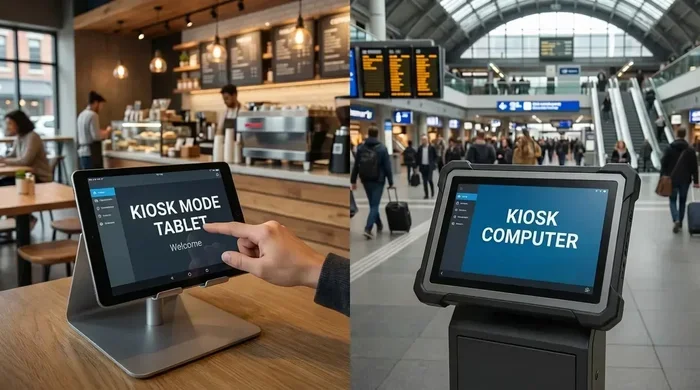
Firefox kiosk mode is a special display setting that hides all browser chrome. The chrome includes the address bar, menu bar, toolbars, and tab strips. The browser takes up the entire screen. Users cannot type in a new URL or access settings. It is designed for public displays, digital signage, and information kiosks.
In kiosk mode, the browser display shows only the webpage content. There are no navigation controls. No way to close the window. No way to open a new tab. This makes it perfect for museums, libraries, and retail stores. But when it shows up on your personal computer, it can be very frustrating.
Why Does Firefox Enter Kiosk Mode?
There are several reasons Firefox might launch in kiosk mode. A common cause is a command line argument. Someone or something added the --kiosk flag to the launch command. Another cause is a saved preference in the browser profile. A third reason is a malicious or misconfigured extension. Sometimes it happens after a system update or a profile reset.
Method 1: Use Keyboard Shortcuts to Exit
The simplest way to exit kiosk mode in Firefox is by using keyboard shortcuts. These work in most situations and take only a second.
Try F11 First
Press the F11 key on your keyboard. This toggles full screen mode on and off. If Firefox is in full screen but not true kiosk mode, this will restore the toolbars and address bar immediately.
If F11 does not work, try pressing Alt+F4. This closes the current Firefox window. When you reopen Firefox, it should return to normal mode. This is a quick fix for browser full screen exit situations.
Use Alt to Reveal the Menu Bar
Press the Alt key on your keyboard. This temporarily reveals the menu bar at the top of the Firefox window. From there, you can click View and then Toolbars to re-enable the address bar and navigation buttons.
Once the menu bar is visible, you can also go to Settings and adjust the browser display settings. This prevents kiosk mode from returning after a restart.
Method 2: Check and Edit Startup Settings
If keyboard shortcuts do not work, the next step is to check your startup settings. Firefox kiosk mode often persists because a saved preference forces it on every launch.
Inspect Your Firefox Shortcut
Right-click your Firefox shortcut on the desktop or taskbar. Select Properties. Look at the Target field. If you see --kiosk at the end of the path, that is the culprit.
Remove the --kiosk flag from the target field. Click Apply and then OK. Relaunch Firefox. It should now open in normal mode. This is one of the most common causes of persistent kiosk browser configuration issues.
Check Windows Registry for Kiosk Flags
On Windows, kiosk settings can also be stored in the registry. Open the Run dialog by pressing Windows+R. Type regedit and press Enter. Navigate to HKEY_LOCAL_MACHINE\SOFTWARE\Policies\Mozilla\Firefox.
Look for any keys related to kiosk mode or locked browser settings. If you find them, delete or modify them carefully. Always back up the registry before making changes. This step resolves many stubborn exit kiosk mode cases.
Method 3: Use about:config to Disable Kiosk Settings
The Firefox configuration editor is a powerful tool. It gives you access to advanced browser preferences. You can use it to disable kiosk mode even when other methods fail.
Accessing about:config Safely
Type about:config in the Firefox address bar and press Enter. You will see a warning page. Click the Accept Risk and Continue button. This takes you to the preference search page.
In the search bar, type kiosk. Look for any preferences that have a value set to true. Common ones include browser.kiosk.mode or similar locked preferences.
Reset Kiosk-Related Preferences
Click the toggle button next to any kiosk-related preference you find. This resets it to the default value. Most kiosk preferences should be set to false for normal browsing.
After making changes, restart Firefox. The browser should now launch in regular mode. If you are unsure what a preference does, search for it online before changing it. This ensures you do not accidentally change something important.
Clear Firefox Profile Data
Sometimes the Firefox profile itself stores the kiosk configuration. To fix this, you can create a new Firefox profile. Type about:profiles in the address bar. Click Create a New Profile. Follow the wizard and set the new profile as the default.
Launch Firefox with the new profile. It should open in normal mode. You can then migrate your bookmarks and settings from the old profile. This is a clean way to remove any lingering browser lockdown settings.
Method 4: Remove or Disable Kiosk Extensions
Some Firefox add-ons can force the browser into kiosk mode. This is especially common with display management extensions or parental control tools. Removing these add-ons often solves the problem.
Launch Firefox in Safe Mode
Safe Mode disables all extensions and custom themes. To start Firefox in Safe Mode, hold down the Shift key while clicking the Firefox icon. A dialog will appear asking if you want to start in Safe Mode. Click Start in Safe Mode.
Once in Safe Mode, check if the browser looks normal. If it does, an extension is causing the issue. Go to Add-ons and Themes in the menu. Review your installed extensions. Remove any that you do not recognize or that are related to display control.
Identify Suspicious Extensions
Look for extensions with names like Kiosk Launcher, Display Lock, Browser Lock, or Full Screen Control. These are common culprits. Even extensions you installed months ago can cause issues after a browser update.
Disable all extensions first. Then re-enable them one by one. This helps you identify exactly which extension is triggering Firefox full screen mode on startup. Once you find it, remove it completely.
Method 5: Fix Command Line Arguments and Scripts
If Firefox is launched through a script, batch file, or task scheduler, the –kiosk argument may be embedded in the command. This is common in office environments and public computers.
Check Windows Task Scheduler
Open Task Scheduler by searching for it in the Start menu. Look for any tasks that launch Firefox. Double-click each task and check the Actions tab. If the action includes --kiosk, remove it.
This is a frequent source of kiosk mode shortcut problems in shared computer environments. Many organizations set up automated browser launches for digital signage or information displays.
Review Batch Files and Scripts
If you have batch files or PowerShell scripts that launch Firefox, open them in a text editor. Search for the word kiosk. Remove any --kiosk or -kiosk flags from the commands.
Save the file and relaunch Firefox manually. It should now open normally. This method is especially important for users who manage multiple computers or public terminals.
Method 6: Reset Firefox Entirely
If none of the above methods work, you can reset Firefox to its default state. This is the nuclear option, but it is very effective. It removes all custom settings, extensions, and preferences that might be locking the browser in kiosk mode.
How to Refresh Firefox
Open Firefox and go to Settings. Scroll down to the Firefox Profile section. Click Refresh Firefox. A confirmation dialog will appear. Click Refresh Firefox again to proceed.
This resets your browser to factory defaults while saving your bookmarks, passwords, and browsing history. All extensions and custom preferences are removed. After the refresh, launch Firefox again. It should open in normal browsing mode.
Reconfigure Your Browser After Reset
After a reset, you will need to reinstall your extensions and adjust your preferences. Go through your settings one by one. Make sure kiosk mode is not enabled. Set your homepage and startup behavior to your preference.
This is a clean slate approach to solving kiosk mode removal problems. It takes a few extra minutes but guarantees a fresh start.
Preventing Firefox from Entering Kiosk Mode Again
Once you have successfully exited kiosk mode, you want to make sure it does not happen again. A few simple steps can protect your browser from accidental or unwanted kiosk activation.
Lock Down Your Shortcuts
Right-click your Firefox shortcut and select Properties. Check the Target field. Make sure there are no extra arguments like --kiosk or -full-screen. Lock the shortcut with a password if other users have access to your computer.
Review Extensions Regularly
Set a monthly reminder to review your installed extensions. Remove anything you no longer use. Keep only trusted extensions from verified developers. This reduces the risk of a rogue add-on changing your browser display settings.
Keep Firefox Updated
Regular updates patch security vulnerabilities and fix bugs. Sometimes a bug in an older version of Firefox causes unexpected kiosk mode activation. Keeping your browser current prevents these issues.
Use a Standard User Account
If multiple people use the same computer, create a standard user account for daily browsing. Reserve the administrator account for system changes. This prevents accidental or unauthorized changes to Firefox preferences and startup settings.
Quick Tips for Common Kiosk Mode Scenarios
- Kiosk mode after a system update: Restart Firefox and press F11. Updates sometimes reset display preferences.
- Kiosk mode on a Chromebook or shared device: Check device management policies. The admin may have enforced kiosk mode remotely.
- Kiosk mode with no menu bar visible: Press Alt to temporarily reveal the menu. Then navigate to View to restore toolbars.
- Kiosk mode on a touchscreen device: Use the keyboard shortcut F11 or Alt+F4. Touch gestures alone may not exit kiosk mode.
- Kiosk mode after installing a new extension: Start Firefox in Safe Mode and remove the new extension.
Common Mistakes to Avoid
- Ignoring the shortcut target: Many users try every fix except checking the shortcut properties. Always start with the simplest explanation.
- Not using Safe Mode: Safe Mode is the best diagnostic tool. Skipping it means you might waste time on the wrong solution.
- Editing about:config without research: Changing random preferences can cause new problems. Only change preferences you understand.
- Forgetting to back up your profile: Before making major changes, back up your bookmarks and profile data. This protects your information.
- Assuming it is a virus: Kiosk mode is usually caused by a setting or flag, not malware. Check the obvious fixes first.
Expert Insights on Browser Kiosk Management
Kiosk mode is a powerful feature when used correctly. It is widely used in retail environments, information terminals, and public access computers. The browser lockdown settings prevent unauthorized access to the operating system and other applications.
However, managing kiosk mode requires careful configuration. IT administrators often use group policies and mobile device management tools to enforce kiosk settings across multiple devices. These tools provide centralized control over Firefox startup settings and browser behavior.
For individual users, the key is understanding how kiosk mode gets activated in the first place. Once you know the trigger, preventing it becomes much easier. Regular maintenance of your browser settings and extensions goes a long way toward a smooth browsing experience.
Comparison of Methods to Exit Firefox Kiosk Mode
Not all methods work in every situation. Here is a quick comparison to help you choose the right approach.
| Method | Difficulty | Best For | Success Rate |
|---|---|---|---|
| Keyboard Shortcuts (F11, Alt+F4) | Easy | Quick accidental activation | High |
| Check Shortcut Properties | Easy | Persistent kiosk on launch | Very High |
| about:config Editor | Medium | Stubborn preferences | High |
| Safe Mode + Extension Removal | Medium | Extension-triggered kiosk | Very High |
| Registry Edit (Windows) | Advanced | Policy-enforced kiosk mode | High |
| Firefox Refresh/Reset | Easy | All other methods fail | Very High |
Start with the easiest method and work your way down the list. Most users resolve the issue with the first or second method. Only advanced users typically need to edit the registry or reset Firefox entirely.
Remember that getting Firefox out of kiosk mode is not complicated. It just requires knowing the right steps. With the methods in this guide, you will be able to restore your browser to normal operation quickly and confidently.
Conclusion
Firefox kiosk mode can feel like a locked door with no key. But as you have seen, there are many ways to open it. From simple keyboard shortcuts to deep configuration changes, you now have a complete toolkit at your fingertips.
Start with the quick fixes like F11 and Alt+F4. If those do not work, check your startup settings and shortcut properties. Move on to about:config and Safe Mode if needed. The Firefox refresh option is always there as a last resort.
The most important takeaway is this: you have full control over your browser. Kiosk mode is just a setting, and settings can be changed. Apply what you learned in this guide, and your Firefox browser will return to normal in no time. Bookmark this page for future reference, and share it with anyone who might need help exiting kiosk mode in their browser.
Frequently Asked Questions
What is Firefox kiosk mode and why is it enabled?
Firefox kiosk mode is a display setting that hides all browser controls and shows only the webpage content. It is often enabled by a command line flag, a saved preference, or a browser extension. It is commonly used for public displays and digital signage setups.
Can I exit kiosk mode without losing my bookmarks?
Yes, absolutely. Most methods like keyboard shortcuts and preference changes do not affect your bookmarks or saved data. Even a Firefox refresh preserves your bookmarks and passwords while removing custom settings.
Why does F11 not exit kiosk mode in Firefox?
If F11 does not work, your kiosk mode may be enforced by a saved preference or a script rather than a simple full screen toggle. Try Alt+F4 to close the window, or check your startup settings and shortcut properties for hidden flags.
Is kiosk mode the same as full screen mode in Firefox?
They are similar but not the same. Full screen mode hides the toolbars but keeps the address bar accessible. Kiosk mode hides everything, including the address bar and menus, creating a more locked-down browser display experience.
How do I prevent Firefox from entering kiosk mode again?
Check your Firefox shortcut for extra command line arguments, remove any kiosk-related extensions, and review your startup settings regularly. Keeping your browser updated and using a standard user account also helps prevent unwanted changes.
Can a virus or malware trigger kiosk mode in Firefox?
While rare, some malware can modify browser settings to force kiosk mode. If you suspect malware, run a full system antivirus scan. Also check your Firefox extensions and about:config preferences for anything unusual or suspicious.