How Do I Connect to WiFi QR Code on iPhone Step by Step
Connecting to a WiFi QR code on iPhone is one of the easiest ways to join a wireless network without typing a long password. You simply scan the QR code using your iPhone camera or a free QR scanner app, and your device connects automatically. This guide walks you through every step, from scanning to troubleshooting, so you can get online in seconds.
Have you ever been at a coffee shop, a friend’s house, or a hotel room and needed to get online fast? Typing in a long WiFi password on your iPhone can be annoying. That is where a WiFi QR code iPhone connection comes in handy. Instead of typing letters and numbers, you just point your camera at a square code, and boom, you are connected.
This guide will show you exactly how to connect to WiFi QR code on iPhone in simple steps. We will also cover how to create your own QR code, the best apps to use, and how to fix common problems. Whether you are a tech beginner or someone who just wants a faster way to get online, this guide has you covered.
The whole process takes less than a minute once you know how. Let us dive in and make your WiFi life a whole lot easier.
Key Takeaways
- Scanning a WiFi QR code on iPhone is fast: You can use the built-in camera or a free app to connect instantly.
- No password typing needed: QR codes contain all the network details, so you skip the hassle entirely.
- Creating your own WiFi QR code is easy: You can share your network with guests using a simple generator.
- Common issues are fixable: Most problems with WiFi QR code iPhone connections have simple solutions.
- Third-party apps add extra features: Some scanner apps let you save and manage multiple WiFi QR codes.
- Security matters: Always verify the source of a WiFi QR code before scanning it.
📑 Table of Contents
- What Is a WiFi QR Code on iPhone?
- How to Connect to WiFi QR Code on iPhone Step by Step
- Best Apps for Scanning WiFi QR Codes on iPhone
- How to Create a WiFi QR Code on iPhone
- Common Problems When Connecting to WiFi QR Code on iPhone
- Expert Insights for a Seamless WiFi QR Code iPhone Experience
- Conclusion
What Is a WiFi QR Code on iPhone?
A WiFi QR code is a special square barcode that holds your network information. When you scan it with your iPhone, the device reads the code and connects to the WiFi network automatically. You do not need to type in the password or the network name.
Think of it like a shortcut. Instead of going through the Settings app and filling in forms, the QR code does all the work for you. It stores the network name, the password, and the type of security the network uses.
How Does a WiFi QR Code Work?
When someone creates a WiFi QR code, they encode the network details into a scannable image. The format usually looks something like this:
WIFI:T:WPA;S:NetworkName;P:Password;;
Your iPhone reads this format when you scan the code. The camera app or a QR scanner picks up the data and prompts you to join the network. One tap is all it takes to connect to WiFi QR code iPhone users rely on every day.
Why Use WiFi QR Codes?
There are many reasons why scanning a QR code beats typing a password:
- Speed: You connect in seconds, not minutes.
- Accuracy: No typos or mistyped passwords.
- Convenience: Perfect for guests, offices, and public spaces.
- Security: You can share a code without shouting the password out loud.
- Ease of use: Anyone can do it, even kids and older adults.
How to Connect to WiFi QR Code on iPhone Step by Step
Connecting to a WiFi QR code on iPhone is straightforward. You do not need any special skills or expensive equipment. Here is the exact process you should follow.
Step 1: Open Your Camera App
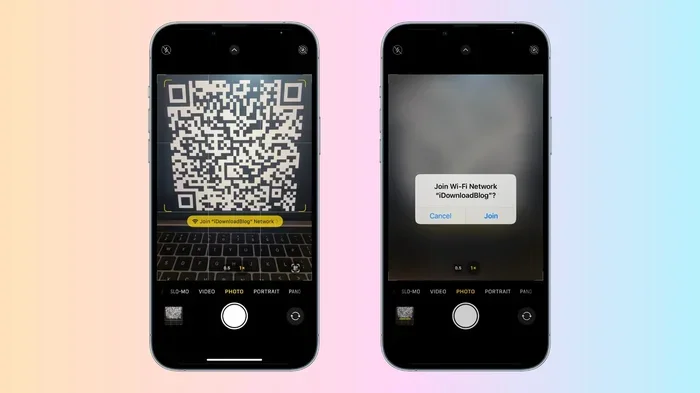
Launch the native Camera app on your iPhone. You can do this from the home screen or by swiping up from the lock screen. Make sure you are using the rear camera, not the front-facing one.
The iPhone camera has built-in QR scanning since iOS 11. This means you do not need to download anything extra just to scan a basic code. The feature works seamlessly with the WiFi QR code iPhone setup process.
Step 2: Point Your Camera at the QR Code
Hold your iPhone about 6 to 12 inches from the QR code. Make sure the code fits inside the viewfinder on your screen. Keep your phone steady and wait for a notification to appear.
When your iPhone recognizes the code, a yellow banner will pop up at the top of the screen. This banner shows the network name and asks if you want to join. Tap the notification to proceed.
Step 3: Tap to Connect
After tapping the notification, your iPhone will attempt to connect to the WiFi network. You should see the WiFi icon appear in the top-right corner of your screen within a few seconds.
If the network requires a password and the QR code was created correctly, your iPhone will enter the password automatically. You will not see the password on screen. This is by design, and it keeps your connection secure.
Step 4: Confirm Your Connection
To make sure you are connected, open Safari or any app that uses the internet. If the page loads, you are good to go. You can also check by going to Settings and tapping WiFi. Your network name should appear with a checkmark next to it.
And that is it! You have successfully connected to WiFi QR code on iPhone without typing a single character. It really is that simple.
Best Apps for Scanning WiFi QR Codes on iPhone
The built-in camera works great for most QR codes. But sometimes you need a dedicated app for better performance or extra features. Here are some of the best options available.
1. Apple Camera (Built-In)
The default camera app on your iPhone is more than enough for scanning WiFi QR codes. It is fast, reliable, and does not require any extra downloads. This is the first choice for most people who want to connect to WiFi QR code on iPhone quickly.
2. QR Code Reader by Scan
This free app is popular and well-reviewed. It supports WiFi QR codes and many other types of codes. The interface is clean and easy to use. It also keeps a history of your scans, which can be handy.
3. Kaspersky QR Scanner
Kaspersky offers a lightweight scanner that focuses on security. It checks QR codes for potential threats before you open them. This is a great choice if you scan codes from unfamiliar sources.
4. Google Lens
Google Lens works well on iPhone through the Google app. It can scan QR codes and pull up network details quickly. It also offers visual search features that go beyond just WiFi codes.
Comparison Table: Best QR Scanner Apps
| App Name | Free? | WiFi QR Support | Security Features |
|---|---|---|---|
| Apple Camera | Yes | Yes | Built-in iOS security |
| Scan QR Reader | Yes | Yes | Basic scanning |
| Kaspersky QR Scanner | Yes | Yes | Threat detection |
| Google Lens | Yes | Yes | Google safe browsing |
Quick Tips for Choosing a Scanner App
- Stick with well-known brands like Kaspersky or Google.
- Check reviews before downloading any app.
- Avoid apps that ask for unnecessary permissions.
- The built-in camera should be your first try.
How to Create a WiFi QR Code on iPhone
Did you know you can also make your own WiFi QR code? This is super useful when you have guests over or when you want to share your network at work. Let us walk through how to do it.
Using a Free Online Generator
Go to any WiFi QR code generator website on your iPhone. Some popular options include QRCode Monkey, GoQR, and The QR Code Generator. These sites are free and work right in your Safari browser.
On the generator page, you will see fields for the network name, password, and security type. Fill in your WiFi details carefully:
- Enter your network name (SSID).
- Type in your WiFi password.
- Select the security type (usually WPA/WPA2).
- Tap the generate button.
- Save or share the QR code image.
Now you have a custom QR code that anyone can scan to connect to your WiFi QR code iPhone network. Print it out or send it digitally to your guests.
Using Third-Party Apps to Generate Codes
If you prefer an app over a website, several options work well on iPhone. Apps like QR Code Generator and iQR allow you to create and save WiFi codes directly on your device. Some apps even let you customize the design of your QR code with colors and logos.
Quick Tips for Creating Secure WiFi QR Codes
- Never share your QR code publicly online. It contains your password.
- Change your WiFi password regularly if you share the QR code often.
- Use a guest network when sharing your QR code with visitors.
- Test the code yourself before sharing it with others.
Common Problems When Connecting to WiFi QR Code on iPhone
Even though the process is simple, you might run into issues from time to time. Here are the most common problems and how to fix them.
Problem 1: The QR Code Does Not Scan
If your iPhone camera does not recognize the QR code, try these fixes. First, make sure your camera lens is clean. A smudge or fingerprint can block the scanner. Next, move your phone closer to or farther from the code. Sometimes the angle matters too, so try tilting your phone slightly.
Also, check that QR scanning is enabled in your settings. Go to Settings, then Camera, and make sure Scan QR Codes is turned on. This setting is essential for connecting to WiFi QR code on iPhone using the camera app.
Problem 2: The Network Will Not Connect After Scanning
If you scan the code but your iPhone fails to connect, the QR code might be incorrect. The network name or password inside the code could be wrong. Ask the person who gave you the code to double-check it.
Another common cause is that your iPhone is stuck on a previous network. Go to Settings, tap WiFi, and forget the network. Then try scanning the QR code again.
Problem 3: The Yellow Banner Does Not Appear
Sometimes the camera recognizes the code but no banner shows up. This can happen if your camera app is not set to the standard mode. Switch to Photo mode and try again. Also, make sure nothing is blocking the camera lens.
If you still see no banner, try using a third-party QR scanner app instead. The built-in camera is great, but a dedicated app can sometimes handle tricky codes better.
Problem 4: Connection Drops After Scanning
If you connect but then lose the signal right away, your router might be the issue. Restart your router by unplugging it for 30 seconds and plugging it back in. Also, check if other devices can connect to the same network.
Common Mistakes to Avoid
- Scanning codes from unknown or untrusted sources.
- Using a damaged or blurry QR code.
- Forgetting to check your WiFi settings after scanning.
- Ignoring the security type when creating your own code.
Expert Insights for a Seamless WiFi QR Code iPhone Experience
Getting the most out of WiFi QR codes on your iPhone comes down to a few smart habits. Here is what experienced users and tech pros recommend.
Always Verify the Source
Only scan QR codes from people you trust or from reputable businesses. A malicious QR code could redirect you to a fake WiFi portal or worse. When in doubt, ask the person who shared the code what network it connects to.
Save Your Favorite QR Codes
If you scan a WiFi QR code at a friend’s house or office, save the image to your Photos app. This way, you have a backup if you ever need to reconnect. Some scanner apps let you save network details directly inside the app for easy access later.
Update Your iPhone Regularly
Apple releases iOS updates that improve QR scanning and WiFi connectivity. Keeping your iPhone up to date ensures you get the best performance when scanning codes and joining networks.
Use WiFi QR Codes for Smart Home Devices
Many smart home devices now support WiFi QR code setup. Instead of typing long passwords into tiny screens on a thermostat or smart speaker, you can scan a code. This makes the setup process much faster and less frustrating.
Key Takeaways
- Scanning is instant: The iPhone camera handles WiFi QR codes with ease.
- Creating codes is free: Use online generators or apps to share your network.
- Troubleshooting is simple: Most issues have quick fixes like cleaning the lens or restarting the router.
- Security is key: Only scan codes from trusted sources and never share your QR code publicly.
- Third-party apps help: Use them when the built-in camera struggles with a code.
Conclusion
Connecting to WiFi QR code on iPhone is one of the simplest and most useful skills you can learn. It saves time, prevents password typos, and makes sharing your network a breeze. Whether you are scanning a code at a cafe, setting up a guest network, or creating your own QR code for visitors, the process is quick and straightforward.
Remember to use the built-in camera first, keep a reliable scanner app handy, and always verify the source of any code you scan. If you run into issues, the troubleshooting tips in this guide should help you get back online fast.
Now that you know how easy it is to connect using a WiFi QR code iPhone method, you will never want to type a password again. Try it out today and see how much smoother your WiFi experience can be.
Frequently Asked Questions
Can I connect to a WiFi QR code on iPhone without downloading an app?
Yes, you can. The native Camera app on iPhone has built-in QR scanning support since iOS 11. Simply open the Camera, point it at the WiFi QR code, and tap the notification that appears. No app download is required for basic scanning.
Is it safe to scan WiFi QR codes on my iPhone?
It is generally safe as long as you trust the source of the QR code. Scanning codes from known contacts or reputable businesses is low risk. However, avoid scanning codes from strangers or suspicious locations, as they could contain malicious links or fake network details.
Why does my iPhone not recognize a WiFi QR code?
This can happen if your camera lens is dirty, if QR scanning is disabled in settings, or if the QR code is damaged or blurry. Go to Settings, then Camera, and make sure Scan QR Codes is turned on. Clean your lens and try again with a clearer code.
Can I create my own WiFi QR code on iPhone?
Absolutely. You can use free websites like QRCode Monkey or GoQR through Safari on your iPhone. Enter your network name, password, and security type, and the site will generate a scannable QR code. You can then save the image and share it however you like.
What should I do if the WiFi QR code connects but I have no internet?
This usually means the QR code has the correct network details but the router itself has no internet connection. Restart your router by unplugging it for 30 seconds. Also check if other devices can access the internet on the same network.
Can I save WiFi QR codes for future use on my iPhone?
Yes, you can save the QR code image to your Photos app for later reference. Some third-party QR scanner apps also let you store network details directly in the app. This is helpful if you frequently connect to the same network at home or work.
=== CONCLUSION ===
Learning how to connect to WiFi QR code on iPhone opens up a faster, easier way to get online. You no longer need to hunt for passwords or deal with typos. With just a quick scan, your iPhone joins the network automatically.
Use the built-in camera for everyday scanning, explore trusted third-party apps when needed, and create your own WiFi QR codes to share with friends and family. Keep the troubleshooting tips in mind for those rare moments when things do not go smoothly.
Start using WiFi QR codes today and enjoy a smoother, smarter way to stay connected. Your iPhone makes it incredibly easy, and once you try it, you will wonder how you ever lived without it.