Does Lexmark Printer Work With Wifi And How To Set It Up
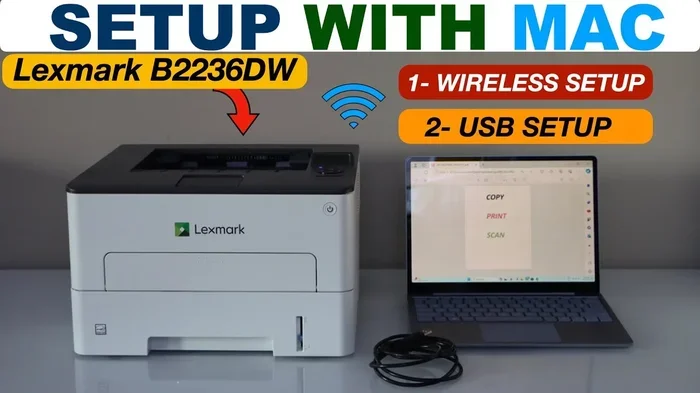
Yes, Lexmark printers work with WiFi, and setting one up is easier than most people think. Whether you own a home office Lexmark or a business-grade model, this guide walks you through the entire WiFi setup process step by step. You will learn how to connect your printer, troubleshoot common issues, and get wireless printing running fast.
So, does Lexmark printer work with WiFi? The short answer is absolutely yes. Lexmark has been making wireless printers for years, and their current lineup supports WiFi connections right out of the box. If you have been wondering how to get your Lexmark printer online without a tangled mess of cables, you are in the right place.
Setting up a Lexmark printer WiFi connection might feel intimidating at first, but it really is not that hard. This guide breaks everything down into simple, easy-to-follow steps. We will cover setup methods, troubleshooting tips, and expert advice to make sure your wireless printing experience is smooth from day one.
Whether you are a home user printing from a laptop or an office worker sharing a printer across a network, understanding WiFi connectivity makes a huge difference. Let us dive in and get your Lexmark printer connected.
Key Takeaways
- Lexmark printers fully support WiFi connectivity: Most modern Lexmark models include built-in wireless capabilities.
- Setup is straightforward: You can use the WPS method, WiFi setup wizard, or USB-assisted setup to connect.
- Troubleshooting is simple: Common issues like connection drops or IP conflicts have easy fixes.
- WiFi Direct lets you print without a router: This feature is great for quick mobile printing.
- Security matters: Always use WPA2 or WPA3 encryption for your wireless printer network.
📑 Table of Contents
- Does Lexmark Printer Work With Wifi? Yes, Here Is How
- How To Set Up Lexmark Printer WiFi Connection
- Lexmark Printer WiFi Troubleshooting
- WiFi Direct: Print Without a Router
- Securing Your Lexmark Printer WiFi Connection
- Lexmark Printer WiFi Range and Performance
- Lexmark Printer WiFi vs. Wired Ethernet
- Lexmark Printer WiFi Setup Tips From The Pros
- Common Mistakes To Avoid When Setting Up Lexmark WiFi
- Final Thoughts
Does Lexmark Printer Work With Wifi? Yes, Here Is How
Lexmark printers are designed to work seamlessly with WiFi networks. Almost all Lexmark models released in the last decade include wireless capabilities. This means you can print from your phone, tablet, laptop, or desktop computer without needing a physical cable.
The WiFi connection allows you to place your printer anywhere within range of your wireless router. No more stretching cables across the room or sitting right next to the printer to print a document. Wireless printing gives you real freedom and convenience.
What Makes Lexmark Printers WiFi-Compatible?
Lexmark builds WiFi directly into the hardware of their printers. Here is what makes it possible:
- Built-in wireless adapter: Every WiFi-enabled Lexmark printer has a wireless network adapter built into the circuit board.
- WiFi Direct support: Many models support WiFi Direct, which lets you connect your phone or computer directly to the printer without a router.
- Dual-band connectivity: Some Lexmark models support both 2.4 GHz and 5 GHz WiFi bands for faster and more stable connections.
- Mobile app compatibility: Lexmark printers work with the Lexmark Mobile Print app for iOS and Android devices.
If you are unsure whether your specific model supports WiFi, check the product label on the back or bottom of the printer. Look for the WiFi symbol or the word “Wireless.” You can also visit the Lexmark support website and enter your model number to see the full feature list.
How To Set Up Lexmark Printer WiFi Connection
Setting up your Lexmark printer WiFi setup is a straightforward process. There are a few different methods you can use depending on your preference and what devices you have available. Let us walk through each one.
Method 1: Use the WiFi Setup Wizard
The WiFi setup wizard is the most common way to connect your Lexmark printer to a wireless network. Here is how it works:
- Turn on your Lexmark printer and make sure it is in a ready state.
- Press the WiFi button on the control panel. On some models, you may need to press the gear or settings button first.
- Navigate to the Network or Wireless Settings menu using the arrow buttons.
- Select WiFi Setup Wizard from the list of options.
- The printer will scan for available networks. Select your WiFi network from the list.
- Enter your WiFi password using the on-screen keyboard.
- Wait for the printer to connect. You will see a confirmation message when the connection is successful.
This method works great for most home users. It takes about two to three minutes, and you do not need a computer to complete it.
Method 2: Use the WPS Push Button
If your wireless router supports WPS (Wi-Fi Protected Setup), this is the fastest method. WPS lets you connect your printer with the push of a button.
- Make sure your router has a WPS button. Most modern routers do.
- Press the WPS button on your router. You usually have about two minutes to complete the connection.
- On your Lexmark printer, press and hold the WiFi button until the WiFi light starts flashing.
- The printer and router will automatically pair. This takes about 30 seconds.
- Once connected, the WiFi light on the printer will stay solid.
The WPS method is super quick and does not require you to type in a password. However, not all routers support WPS, so check your router documentation first.
Method 3: USB-Assisted Setup
If you are having trouble connecting wirelessly, you can use a USB cable to assist the setup process. This method is especially helpful for people who are not comfortable navigating the printer’s small screen.
- Connect your Lexmark printer to your computer using a USB cable.
- Download the Lexmark printer driver from the official Lexmark website.
- Run the installer and follow the on-screen prompts.
- When the installer asks about the connection type, select Wireless or WiFi.
- The software will transfer your WiFi network name and password to the printer.
- Once complete, you can unplug the USB cable and print wirelessly.
This method ensures your network credentials are entered correctly, which eliminates one of the most common setup mistakes.
Lexmark Printer WiFi Troubleshooting
Even with a straightforward setup, you might run into issues now and then. Wireless printer connectivity problems are common, but they are almost always fixable. Here are the most frequent issues and how to solve them.
Printer Not Finding Your WiFi Network
If your Lexmark printer does not see your WiFi network during the setup wizard, try these steps:
- Check if your router is on: This sounds obvious, but a powered-off router is the culprit more often than you would think.
- Move the printer closer to the router: WiFi signal strength drops with distance. Try placing the printer within 10 to 15 feet of the router.
- Check if you are on a 5 GHz network: Some Lexmark models only support the 2.4 GHz band. If your router is set to 5 GHz only, you may need to enable a dual-band or 2.4 GHz network.
- Restart both devices: Power cycle your printer and router. Turn off the router, wait 30 seconds, turn it back on, then try again.
Printer Connects But Won’t Print
If your Lexmark printer WiFi connection shows as active but print jobs are not going through, here is what to check:
- Check the printer queue: Sometimes a stuck print job blocks new ones. Open your print queue and cancel any pending jobs.
- Reinstall the printer driver: An outdated or corrupted driver can cause communication failures. Download the latest driver from Lexmark’s website.
- Check the IP address: Your printer needs a valid IP address on the network. You can find this in the printer’s network settings menu.
- Firewall or antivirus blocking: Some security software blocks printer communication. Temporarily disable your firewall to test if it is the cause.
Printer Keeps Losing WiFi Connection
A printer that frequently drops its WiFi connection is frustrating. This usually happens for a few reasons:
- Weak signal: If the printer is too far from the router, the signal may be too weak to maintain a stable connection.
- Interference: Other electronic devices like microwaves, baby monitors, and cordless phones can interfere with the 2.4 GHz band.
- Router settings: Some routers have a feature that disconnects idle devices to save bandwidth. Check your router settings and disable any “energy saving” or “AP isolation” features.
One thing to keep in mind: if you are having trouble getting your printer on the network, you might want to check Can I Connect To Wifi Without Wifi Adapter for general WiFi troubleshooting tips that apply to any wireless device.
WiFi Direct: Print Without a Router
Did you know you can print directly from your device to your Lexmark printer without needing a WiFi router at all? This is called WiFi Direct, and it is a built-in feature on most Lexmark wireless printers.
WiFi Direct creates a direct wireless connection between your device and the printer. Think of it like a personal WiFi network just for printing. This is incredibly useful in situations where you do not have access to a router or when the network is down.
How To Use WiFi Direct on Lexmark Printers
- On your Lexmark printer, go to the WiFi settings menu and enable WiFi Direct.
- The printer will display a network name (SSID) and password.
- On your phone or computer, go to WiFi settings and connect to the printer’s network.
- Once connected, you can send print jobs directly to the printer.
- When you are done, disconnect from the printer’s WiFi network on your device.
WiFi Direct is perfect for quick prints when you are on the go or in a location without a traditional wireless network. Keep in mind that print speeds may be slightly slower since the connection is direct between two devices rather than through a router.
Securing Your Lexmark Printer WiFi Connection
Security is an important part of any WiFi device, and printers are no exception. Your wireless printer is connected to your home or office network, which means it could be a potential entry point for unauthorized access if not properly secured.
Best Practices for Printer WiFi Security
- Use WPA2 or WPA3 encryption: These are the most secure WiFi encryption standards available. Avoid using WEP, as it is outdated and easily cracked.
- Change the default admin password: Lexmark printers come with a default admin password. Change it to something strong and unique during setup.
- Keep firmware updated: Lexmark releases firmware updates that patch security vulnerabilities. Check for updates regularly through the printer’s settings menu or the Lexmark website.
- Disable WiFi Direct when not in use: If you are not actively using WiFi Direct, turn it off to prevent unauthorized connections.
- Use a guest network: If your router supports it, put your printer on a separate guest network. This isolates it from your main devices and adds an extra layer of protection.
If you are managing a home network with multiple devices, you might also want to learn about Can I Block A Device From Using My Wifi Xfinity to understand how to control which devices can access your wireless network.
Lexmark Printer WiFi Range and Performance
The wireless range of your Lexmark printer depends on several factors, including the printer model, your router’s signal strength, and your home or office layout.
Most Lexmark printers use a standard 2.4 GHz WiFi radio, which typically provides a range of about 50 to 100 feet indoors. The 5 GHz band, available on some newer models, offers faster speeds but a shorter range.
Here are some tips to improve your Lexmark printer wireless performance:
- Place the printer in a central location: This gives it the best chance of receiving a strong signal from your router.
- Avoid walls and obstacles: Thick walls, metal objects, and large appliances can block WiFi signals. Keep the printer in an open area when possible.
- Use a WiFi range extender: If your printer is too far from the router, a WiFi extender can boost the signal. You can also Can I Add Mesh Wifi To Existing Router to improve overall network coverage in your home.
- Keep the printer firmware updated: Firmware updates often include improvements to WiFi performance and stability.
If you are dealing with a larger home or office where WiFi coverage is inconsistent, a mesh WiFi system is a great investment. Mesh networks use multiple nodes to blanket your entire space with strong WiFi, which ensures your printer stays connected no matter where you place it.
Lexmark Printer WiFi vs. Wired Ethernet
While WiFi offers convenience, there are times when a wired Ethernet connection might be better. Let us compare the two options to help you decide which is right for your situation.
| Feature | WiFi | Wired Ethernet |
|---|---|---|
| Convenience | Very high — no cables needed | Lower — requires a cable |
| Speed | Good (varies by signal strength) | Excellent — consistent and fast |
| Reliability | Good — can be affected by interference | Excellent — stable connection |
| Setup Difficulty | Easy — wireless setup wizard | Moderate — requires cable and configuration |
| Mobility | Full — place the printer anywhere | None — printer must be near the router |
| Security | Good with WPA2/WPA3 | Better — harder to intercept |
For most home users, WiFi is the clear winner because of the convenience and flexibility it offers. Wired Ethernet is better suited for office environments where speed, reliability, and security are top priorities.
Lexmark Printer WiFi Setup Tips From The Pros
After helping countless users set up their Lexmark printers, here are some expert tips that can save you time and frustration:
- Write down your WiFi password before starting: You will need it during setup, and having it ready prevents interruptions.
- Update the printer firmware first: Before connecting to WiFi, check for firmware updates. Newer firmware often fixes WiFi bugs and improves compatibility.
- Use the Lexmark Print Utility: This free software tool helps you manage your printer settings, including WiFi configuration, from your computer.
- Keep your printer on the same network as your devices: If your phone is on a guest network and your printer is on the main network, they will not be able to communicate.
- Restart regularly: Like any electronic device, giving your printer a fresh start by powering it off and on can resolve many minor connectivity issues.
Common Mistakes To Avoid When Setting Up Lexmark WiFi
Avoiding common setup mistakes can save you a lot of headaches. Here is what to watch out for:
- Entering the wrong WiFi password: WiFi passwords are case-sensitive. Double-check for uppercase and lowercase letters before confirming.
- Skipping the driver installation: The printer driver is what allows your computer to communicate with the printer. Without it, even a connected printer will not work.
- Ignoring the 2.4 GHz vs. 5 GHz issue: Some Lexmark models only support 2.4 GHz. If you are trying to connect to a 5 GHz-only network, the printer will not see it.
- Not restarting the printer after setup: A restart ensures all new settings are applied correctly.
- Placing the printer too far from the router: Distance and obstacles weaken the WiFi signal. Keep the printer within reasonable range for the best experience.
One last thing to consider: if your router is older or not performing well, it might be time for an upgrade. You can check Can I Change Out My Router With Spectrum for guidance on getting a better router for your home network.
Final Thoughts
The answer to does Lexmark printer work with WiFi is a resounding yes. From setup to daily use, Lexmark wireless printers deliver a reliable and convenient printing experience. Whether you use the setup wizard, WPS, USB-assisted setup, or WiFi Direct, getting your printer online is a process you can complete in just a few minutes.
Remember to keep your firmware updated, secure your WiFi connection with strong encryption, and place your printer within good range of your router. If you run into issues, the troubleshooting steps in this guide should help you resolve most problems quickly.
Wireless printing has become an essential part of modern computing, and Lexmark makes it easy to join the wireless revolution. Set up your Lexmark printer today and enjoy the freedom of printing from anywhere in your home or office.
Frequently Asked Questions
Can I connect my Lexmark printer to WiFi without a computer?
Yes, you can. Most Lexmark printers have a built-in WiFi setup wizard on the control panel that lets you connect to your wireless network without using a computer. You simply navigate the on-screen menu, select your network, and enter the password.
Why is my Lexmark printer not showing up on the WiFi network?
This usually happens when the printer is too far from the router, the router is off, or the printer is set to a different frequency band. Try moving the printer closer to the router, restarting both devices, and making sure you are connected to a 2.4 GHz network if your printer does not support 5 GHz.
Can I print from my phone to a Lexmark printer over WiFi?
Absolutely. Lexmark printers support mobile printing through the Lexmark Mobile Print app for both iOS and Android devices. As long as your phone and printer are on the same WiFi network, you can print wirelessly from your phone.
What is WiFi Direct on a Lexmark printer?
WiFi Direct is a feature that lets you connect directly to your Lexmark printer without a router. It creates a temporary wireless network between your device and the printer, which is useful for quick prints or when you do not have access to a WiFi router.
How do I find the IP address of my Lexmark printer on WiFi?
You can find the IP address by going to the Network or Wireless Settings menu on your Lexmark printer’s control panel. The IP address will be displayed there. You can also find it from your router’s admin panel under the list of connected devices.
Is WiFi printing secure on Lexmark printers?
Yes, as long as you use proper security settings. Lexmark printers support WPA2 and WPA3 encryption, which are the most secure WiFi standards available. Always change the default admin password and keep your firmware updated for the best security.
=== CONCLUSION ===
Does Lexmark printer work with WiFi? Yes, and setting it up is a breeze once you know the steps. Whether you prefer the WiFi setup wizard, WPS, USB-assisted setup, or WiFi Direct, Lexmark gives you multiple options to get connected. Keep your printer firmware updated, secure your network with strong encryption, and place your printer within good range of your router for the best experience.
If you run into any issues, refer back to the troubleshooting section or check your router settings. With a properly connected Lexmark wireless printer, you can enjoy the convenience of printing from any device, anywhere in your home or office. Happy printing!