Can I Use My Own Router With Suddenlink Internet Service
Yes, you can use your own router with Suddenlink internet service. Many homeowners want to ditch the rental fees and upgrade their network performance. This guide covers everything you need to know about Suddenlink router compatibility, setup, and how to get the best results.
Have you been paying Suddenlink a monthly fee to rent their router? If so, you are not alone. Many internet users feel stuck with equipment that underperforms or costs too much. The good news is that you can use your own router with Suddenlink internet service.
Using a personal router gives you more control over your home network. You get better speed, stronger WiFi coverage, and advanced features. But before you rush out to buy a new router, there are a few things you should know. This guide walks you through everything step by step.
Whether you are a tech beginner or a seasoned user, this article has you covered. We will talk about compatibility, setup, common mistakes, and expert tips. By the end, you will feel confident about making the switch.
Key Takeaways
- You can use your own router with Suddenlink: Suddenlink allows third-party routers as long as they are compatible with their network.
- Save money on rental fees: Using your own router can save you $10 to $15 per month compared to renting Suddenlink equipment.
- Check DOCSIS compatibility: Your modem must support DOCSIS 3.0 or 3.1 and work with Suddenlink’s network speeds.
- Bridge mode is key: You may need to enable bridge mode on your Suddenlink gateway to avoid double NAT issues.
- Setup is straightforward: The process involves connecting your router, changing settings, and testing your connection.
- Performance improves: A quality third-party router often delivers better WiFi range, speed, and features than the standard Suddenlink gateway.
📑 Table of Contents
- Can I Use My Own Router With Suddenlink?
- Suddenlink Equipment vs. Third-Party Routers
- How to Check Router Compatibility With Suddenlink
- How to Set Up Your Own Router With Suddenlink
- Bridge Mode: Why It Matters for Suddenlink Users
- Common Mistakes to Avoid When Using Your Own Router
- Expert Tips to Maximize Your Suddenlink Network
- Benefits of Using Your Own Router With Suddenlink
- Is It Worth Switching to Your Own Router?
- Final Thoughts
Can I Use My Own Router With Suddenlink?
The short answer is yes. Suddenlink allows customers to use their own equipment. However, there are some requirements you must meet. Not every router will work seamlessly with Suddenlink’s network.
Suddenlink uses a cable internet system based on DOCSIS technology. This means your equipment needs to support this standard. If you want to bring your own router, you also need a compatible modem or gateway device.
Here is what you need to know before making the switch:
- Your modem must be Suddenlink approved: Check their list of compatible devices.
- Your router must support your internet speed: If you have a 1 Gbps plan, your router needs to handle that speed.
- You may need to enable bridge mode: This prevents conflicts between your Suddenlink gateway and your new router.
Suddenlink does not block third-party routers. They simply want to make sure your equipment works with their network. As long as you follow their guidelines, you can use your own router without any issues.
Why People Switch to Their Own Router
There are many reasons homeowners choose to use their own router with Suddenlink. Let us look at the most common ones.
Cost savings is the number one reason. Suddenlink charges around $10 to $15 per month for their rental equipment. Over a year, that adds up to $120 to $180. A good third-party router pays for itself within a few months.
Better performance is another big factor. Suddenlink gateway devices are often basic. They may not deliver the fastest WiFi speeds or the strongest signal. A quality router can make a huge difference in your home network.
More features also attract users. Third-party routers come with advanced settings. You get better parental controls, guest networks, and security options. These features are often missing or limited on Suddenlink-provided equipment.
Suddenlink Equipment vs. Third-Party Routers
Before you decide to switch, it helps to compare Suddenlink’s rental equipment with a third-party router. This gives you a clear picture of what you gain and what you might lose.
Suddenlink Gateway Devices
Suddenlink provides a modem or a modem-router combo, often called a gateway. This device handles both your internet connection and WiFi. It is convenient because everything is in one box.
However, there are downsides. Suddenlink gateways are often basic models. They may not support the latest WiFi standards. The range and speed can be limited. And you are stuck paying a rental fee every month.
Third-Party Routers
A personal router gives you more power and flexibility. You can choose a model that matches your needs. Whether you need a router for a small apartment or a large home, there is an option for you.
Popular brands include ASUS, Netgear, TP-Link, and Linksys. These routers offer better WiFi ranges, faster speeds, and more customization options.
Comparison Table
| Feature | Suddenlink Gateway | Third-Party Router |
|---|---|---|
| Monthly Cost | $10 – $15 | One-time purchase ($80 – $250) |
| WiFi Standard | Usually WiFi 5 or basic WiFi 6 | WiFi 6 and WiFi 6E options |
| Speed Support | Limited to basic plans | Supports gigabit and faster |
| Range | Basic coverage | Extended coverage with mesh options |
| Customization | Limited settings | Full access to advanced settings |
| Security Features | Basic firewall | Advanced security and parental controls |
| Warranty | Covered by Suddenlink | Manufacturer warranty |
As you can see, a third-party router offers more value in most cases. The upfront cost is higher, but the long-term savings and performance gains make it worth it.
How to Check Router Compatibility With Suddenlink
Not every router works with Suddenlink. Before you buy, you need to confirm compatibility. This saves you time, money, and frustration.
Start by checking the DOCSIS standard. Suddenlink uses cable internet, so your modem must be DOCSIS 3.0 or DOCSIS 3.1 compatible. The router itself does not need to be DOCSIS certified, but the modem does.
Next, check the speed rating. If your Suddenlink plan offers 500 Mbps, your router should support at least that speed. Look for routers labeled “Gigabit Ethernet” or “WiFi 6” for the best results.
Here is a quick checklist to follow:
- Verify your Suddenlink plan speed: Check your account or bill for your current speed tier.
- Choose a router that matches or exceeds that speed: A router rated for 1 Gbps or higher is ideal.
- Check Suddenlink’s approved device list: Visit their website or call customer service.
- Ensure your modem is separate or set to bridge mode: This prevents double NAT issues.
If you are unsure, call Suddenlink support. They can confirm whether your chosen router will work with their network. This simple step can save you a lot of headaches.
How to Set Up Your Own Router With Suddenlink
Setting up your own router with Suddenlink is easier than you might think. You do not need to be a tech expert. Follow these steps, and you will be online in no time.
Step 1: Get the Right Equipment
Before you start, make sure you have everything you need. You need a Suddenlink-compatible modem, your new router, an Ethernet cable, and your Suddenlink account information.
If you already have a Suddenlink modem, great. If not, you may need to purchase one separately. Make sure it is on Suddenlink’s approved list. Using an unapproved modem can cause connection problems.
Step 2: Connect Your Modem
Plug your Suddenlink modem into the cable outlet on your wall. Connect the power adapter and turn it on. Wait about 2 to 3 minutes for the modem to fully boot up.
Check the lights on the modem. You should see a solid online light or a green indicator. This means your modem is connected to Suddenlink’s network.
Step 3: Connect Your Router to the Modem
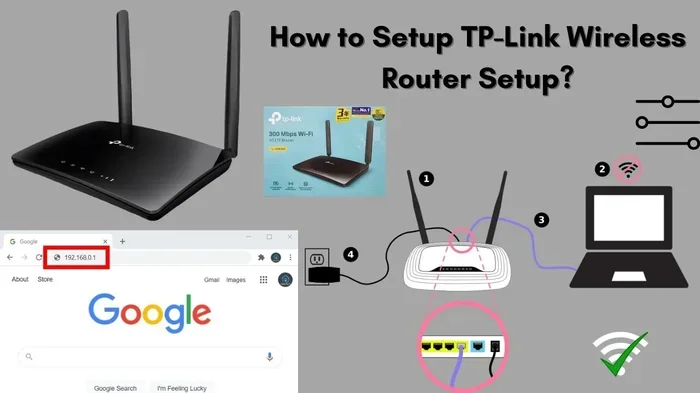
Take your Ethernet cable and plug one end into the modem. Plug the other end into the WAN or Internet port on your new router. The WAN port is usually a different color from the other ports.
Now plug in your router and turn it on. Wait another 2 to 3 minutes for it to fully start up.
Step 4: Access the Router Settings
Open a web browser on your computer or phone. Type in your router’s default IP address. This is usually 192.168.0.1 or 192.168.1.1. Check your router’s manual if you are not sure.
Log in with the default username and password. These are often printed on a sticker on the router itself. Common defaults are “admin” for both the username and password.
Step 5: Configure Your WiFi Settings
Once you are in the settings page, go to the wireless setup section. Choose a new network name (SSID) and set a strong password. Use WPA3 or WPA2 encryption for the best security.
Save your settings and reconnect your devices. You should now be using your own router with Suddenlink internet.
Step 6: Test Your Connection
Run a speed test to make sure everything is working. You can use websites like Speedtest.net or Fast.com. Compare your results to your Suddenlink plan speed.
If the speed is lower than expected, try moving closer to the router. Check for interference from other devices. You can also update your router’s firmware for better performance.
Bridge Mode: Why It Matters for Suddenlink Users
If you use a separate modem and router, you need to understand bridge mode. This is one of the most important concepts for Suddenlink router setup.
Bridge mode turns your Suddenlink gateway into a simple modem. It stops the gateway from performing routing functions. This prevents conflicts when you connect your own router.
Without bridge mode, you may run into double NAT issues. Double NAT happens when two routers both try to manage your network. This can cause slow speeds, connection drops, and problems with online gaming or video calls.
Here is how to enable bridge mode:
- Log into your Suddenlink gateway admin page.
- Find the bridge mode or operating mode setting.
- Switch it to bridge mode.
- Save and restart the gateway.
If you cannot find the bridge mode option, call Suddenlink support. They can enable it remotely for you. This is a free service and usually takes just a few minutes.
Common Mistakes to Avoid When Using Your Own Router
Switching to your own router is exciting. But there are some common mistakes that can cause problems. Avoid these pitfalls to ensure a smooth setup.
Skipping the Bridge Mode Step
This is the most common mistake. If you do not enable bridge mode on your Suddenlink gateway, you will likely face double NAT. This can break port forwarding, cause slow speeds, and create connectivity issues.
Buying an Incompatible Modem
Not every modem works with Suddenlink. Before you buy, check their approved device list. Using an unapproved modem can lead to connection failures and extra support calls.
Ignoring Firmware Updates
Router firmware keeps your device secure and running smoothly. Check for updates regularly. Outdated firmware can cause speed drops and security vulnerabilities.
Placing the Router in a Poor Location
Where you place your router matters a lot. Keep it in a central location, away from walls and metal objects. Avoid placing it near microwaves or cordless phones. These can interfere with your WiFi signal.
Not Updating WiFi Passwords
When you set up a new router, change the default login credentials. Use a strong, unique password. This protects your network from unauthorized access.
Expert Tips to Maximize Your Suddenlink Network
Getting your own router set up is just the beginning. Here are some expert tips to help you get the most out of your Suddenlink internet connection.
Update Your Router Firmware Regularly
Firmware updates fix bugs and improve performance. Check your router’s admin panel once a month for updates. Most modern routers also have an auto-update feature. Turn it on to stay protected.
Use a Mesh WiFi System for Large Homes
If you live in a large home or have dead zones, consider a mesh WiFi system. Brands like Google Nest WiFi, Eero, and TP-Link Deco are great options. These systems use multiple nodes to cover your entire home with strong WiFi.
Optimize Your WiFi Channel
WiFi interference from neighbors can slow down your connection. Use your router’s settings to switch to a less crowded channel. The 5GHz band usually has less interference than the 2.4GHz band.
Enable Quality of Service (QoS)
QoS lets you prioritize certain devices or activities. For example, you can give your work laptop higher priority over a smart TV. This ensures smooth video calls and fast downloads when you need them most.
Restart Your Equipment Regularly
Just like any electronic device, routers benefit from regular restarts. Reboot your router once a week to clear the cache and refresh the connection. This simple habit can improve your network stability.
Benefits of Using Your Own Router With Suddenlink
Switching to your own router comes with many advantages. Here are the key benefits you can expect.
- Cost savings: Stop paying monthly rental fees. Your router pays for itself within a few months.
- Better speed and range: Modern routers deliver faster WiFi speeds and wider coverage.
- Advanced features: Access parental controls, guest networks, and security tools.
- More control: Customize every aspect of your network to suit your needs.
- Future-proofing: A good router supports the latest WiFi standards and stays relevant for years.
- No rental surprises: You own your equipment. There are no unexpected fee increases from Suddenlink.
Is It Worth Switching to Your Own Router?
For most Suddenlink customers, the answer is yes. The cost savings alone make it worthwhile. Plus, you get a much better internet experience with faster speeds and stronger coverage.
The setup process is simple and takes less than 30 minutes. Once configured, your network will run smoother than ever. You also gain access to features that Suddenlink gateways simply do not offer.
If you are a heavy internet user, gamer, or work from home, a personal router is almost a necessity. The rental equipment from Suddenlink simply cannot match the performance of a quality third-party router.
Final Thoughts
Using your own router with Suddenlink is a smart move. It saves you money, improves your internet speed, and gives you more control over your home network. The process is straightforward, and the results are well worth the effort.
Make sure you check compatibility before you buy. Enable bridge mode to avoid double NAT. And take advantage of the tips and expert advice shared in this guide. Your Suddenlink internet experience will never be the same.
Take action today. Research routers, check Suddenlink’s approved list, and make the switch. You will wonder why you did not do it sooner.
Frequently Asked Questions
Can I use any router with Suddenlink internet?
Most routers work with Suddenlink as long as they are compatible with DOCSIS technology. You need a Suddenlink-approved modem and a router that supports your internet speed. Check Suddenlink’s approved device list before purchasing.
Do I need to contact Suddenlink before using my own router?
It is a good idea to call Suddenlink and let them know you are switching to your own router. They can enable bridge mode on your gateway remotely. This prevents double NAT and ensures a smooth setup.
Will using my own router improve my internet speed?
Yes, in most cases. Suddenlink gateway devices are often basic and may limit your speed. A quality third-party router can deliver faster WiFi speeds and better range, especially on higher-tier plans.
What happens if I do not enable bridge mode?
Without bridge mode, you may experience double NAT issues. This can cause slow speeds, connection drops, and problems with online gaming or video streaming. Always enable bridge mode when using a separate router with Suddenlink.
Can I return my Suddenlink gateway after using my own router?
Yes, you can return the Suddenlink gateway. Contact Suddenlink customer service to arrange the return. Once returned, you will no longer be charged the monthly rental fee for that equipment.
What is the best router to use with Suddenlink?
The best router depends on your needs and budget. Popular choices include the ASUS RT-AX86U, Netgear Nighthawk R7000, TP-Link Archer AX73, and Linksys Velop for mesh systems. Choose a router that supports your Suddenlink speed tier and has good reviews.