How Can I Tell If My Router Is Going Bad Right Now
Your router shows clear warning signs before it completely dies, from persistent slow speeds and frequent disconnects to overheating and outdated hardware. Knowing these symptoms early helps you fix small issues or replace your router before your entire home network goes down. This guide walks you through every telltale sign and what to do about it.
Your router is the unsung hero of your home network. It works quietly in the background, keeping all your devices connected to the internet. But just like any other piece of tech, routers wear out over time. The problem is, they don’t always give you a clear warning before they fail. Instead, they show subtle signs that something is wrong.
If you have been dealing with slow internet speeds or random disconnects, your router might be the culprit. Learning how can I tell if my router is going bad is easier than you think. You do not need to be a tech expert to spot the warning signs. In this guide, we will walk you through every signal your router gives you before it completely gives out.
Understanding these signs early can save you from a frustrating network outage. It can also help you decide whether to troubleshoot or replace your device. Let us dive into the most common symptoms of a failing router and what you can do about each one.
Key Takeaways
- Slow and inconsistent speeds are often the first sign your router is failing and needs attention.
- Frequent disconnects and dropped connections point to hardware degradation or overheating issues.
- Blinking or unresponsive indicator lights can reveal serious problems with your router’s internal components.
- Outdated firmware and old hardware make your router vulnerable and prone to performance issues.
- Overheating and strange noises are physical red flags that your router may be on its way out.
- Knowing when to replace vs. troubleshoot saves you time, money, and frustration with your home network.
📑 Table of Contents
Slow Internet Speeds That Do Not Go Away
One of the earliest signs of a dying router is a noticeable drop in internet speed. Now, slow speeds can happen for many reasons. Maybe someone in your house is streaming a movie, or there are too many devices connected at once. But if your speeds stay slow even when nobody else is using the network, that is a red flag.
Here is a simple test you can run. Run a speed test on your phone or computer while standing right next to your router. Then run the same test in another room. If both results are much slower than what your internet plan promises, your router might be struggling. A healthy wireless router should deliver speeds close to what your Internet Service Provider (ISP) advertises.
Why Does a Failing Router Cause Slow Speeds?
Over time, a router’s internal components degrade. The processor slows down, the memory gets overwhelmed, and the wireless radio weakens. Older routers also struggle to handle modern bandwidth demands. If your router is more than five years old, it may simply not be built to keep up with today’s smart homes and heavy internet usage.
Before you assume the worst, try a few quick fixes. Restart your router by unplugging it for 30 seconds. Check if any firmware update is available in the router settings. Sometimes a simple update can bring an old router back to life. But if the speeds stay slow after all of that, the hardware itself is likely the problem.
Frequent Disconnects and Dropped Connections
Nothing is more annoying than your Wi-Fi cutting out at random moments. A little bit of network fluctuation is normal. But if your devices drop off the network multiple times a day, that is not normal. Frequent disconnects are one of the clearest signals that your router is going bad.
Pay attention to when the disconnects happen. Do they occur at the same time every day? Do they happen more when multiple devices are connected? These patterns can help you pinpoint the issue. If the problem persists even after a full router reset, the hardware is likely failing.
Is It the Router or the Modem?
Sometimes people confuse router problems with modem problems. Your modem connects to your ISP, while your router distributes the signal to your devices. If only one device loses connection, the issue might be with that device. But if every device drops at the same time, your router or modem is probably the cause.
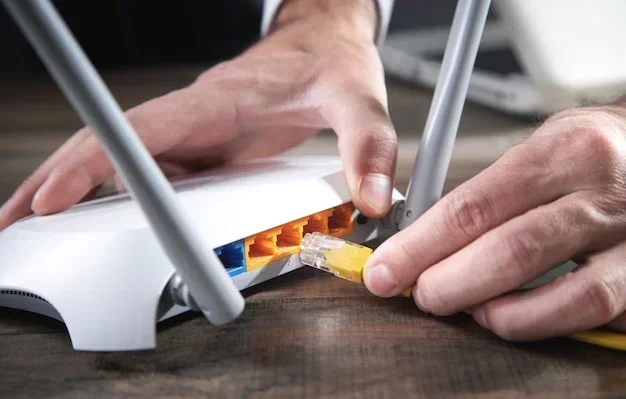
Try connecting your computer directly to the modem with an Ethernet cable. If the connection stays stable, the router is likely the problem. You can also check whether your PC can connect to Wi-Fi without an Ethernet cable to help isolate the issue. If your wireless connection keeps failing but the wired one works fine, your router’s wireless radio may be dying.
Unresponsive or Blinking Indicator Lights
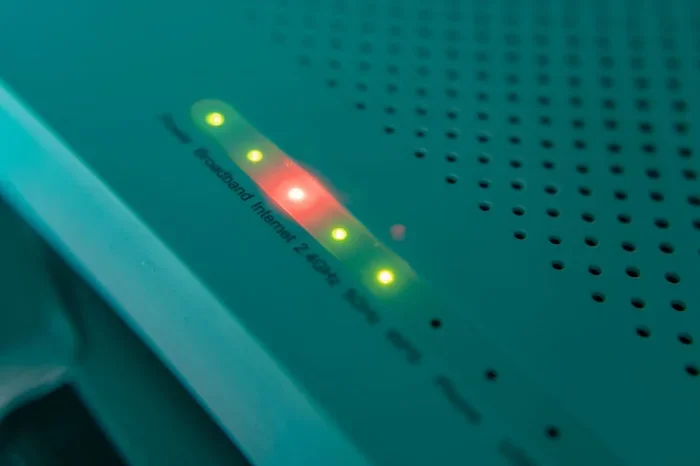
Your router has several small lights on the front or back. Each one serves a purpose. The power light, the internet light, and the Wi-Fi light all tell you something about the router’s health. When these lights start behaving oddly, it is time to pay attention.
Here are some light patterns that signal trouble:
- No power light at all: The router is not turning on. This could mean a power supply failure or a dead unit.
- Internet light is red or off: The router cannot connect to your ISP, even though the modem works fine.
- Wi-Fi light blinking erratically: The wireless radio is struggling to maintain a stable connection.
- All lights are on but nothing works: The router is powered on but not processing data, which points to a frozen or failing system.
If your router’s lights look nothing like they did when you first set it up, consult your router’s manual. Every brand has a slightly different light pattern. But in general, any major change in your router lights behavior is worth investigating.
Overheating and Strange Noises
Routers generate heat. That is completely normal. But there is a big difference between warm and dangerously hot. If your router feels burning hot to the touch or makes clicking, buzzing, or grinding sounds, something is seriously wrong.
Overheating happens for a few reasons. Ventilation blocksages are the most common cause. If your router sits inside a closed cabinet or behind a pile of stuff, it cannot breathe properly. Dust buildup inside the unit can also clog the internal fans and cause overheating.
Can Overheating Damage a Router?
Yes, absolutely. Prolonged overheating shortens the lifespan of your router’s internal components. The capacitors, processor, and memory all degrade faster when they run too hot. In some cases, a router that overheats regularly will die much sooner than one that stays cool.
Place your router in an open, ventilated area. Keep it off the floor and away from other electronics that generate heat. If your router is old and still overheating even in a perfect spot, the internal cooling system has likely failed. That is a strong sign it is time for a router replacement.
Outdated Firmware and Old Hardware
Every router needs software updates to stay secure and perform well. These updates are called firmware updates. When a router stops receiving firmware updates from the manufacturer, it is essentially on borrowed time. Old firmware means security vulnerabilities and poor compatibility with newer devices.
Here is how you can check if your router’s firmware is up to date:
- Log into your router’s admin panel (usually by typing 192.168.1.1 or 192.168.0.1 into your browser).
- Look for a section called “Firmware Update” or “Software Update.”
- If there is no update available and your router is more than four or five years old, the manufacturer has likely stopped supporting it.
Using a router with outdated firmware also means you miss out on Wi-Fi performance improvements and new features. Newer devices in your home may not connect properly or may experience slow speeds because the router cannot handle modern network protocols efficiently.
When Should You Replace Your Router?
A good rule of thumb is to replace your router every four to five years. Technology moves fast, and routers from even three or four years ago may not support the latest Wi-Fi standards. If you are still on Wi-Fi 4 or Wi-Fi 5 and a Wi-Fi 6 router is available at a reasonable price, upgrading can make a huge difference.
If you are considering buying a new one, check out whether you can buy your own Wi-Fi box instead of renting from your ISP. Owning your own router often gives you better performance and more control over your network settings.
How to Troubleshoot Before You Replace
Not every router problem means the end is near. Before you run out and buy a new one, try these troubleshooting steps. They are simple, free, and might save you some money.
Step 1: Restart Your Router
A good old-fashioned restart fixes more router problems than people realize. Unplug the router, wait 30 seconds, and plug it back in. This clears the memory and refreshes the connection. Give it a few minutes to fully boot up before testing again.
Step 2: Factory Reset the Router
If a simple restart does not help, try a factory reset. Most routers have a small reset button on the back. Press and hold it for about 10 seconds with a paperclip. This will wipe all your settings and restore the router to its original state. You will need to set it up again, but it can resolve many stubborn issues.
Step 3: Check for Interference
Sometimes the problem is not the router at all. Microwaves, baby monitors, Bluetooth devices, and even your neighbors’ Wi-Fi networks can cause interference. Try changing your Wi-Fi channel in the router settings. Switching to the 5GHz band instead of the 2.4GHz band can also reduce interference and improve speeds.
Step 4: Update the Firmware
As mentioned earlier, a firmware update can fix bugs and improve performance. Always check for updates before assuming your router is dying. If no updates are available and your router is several years old, it is probably time to move on.
When to Call a Professional
Most router problems can be solved with the steps above. But there are times when you should call in the experts. If your router is under warranty, contact the manufacturer first. They may offer a free replacement if the unit is defective.
If you have tried everything and your network is still unreliable, it might be time to call your ISP. They can run diagnostics on your line and modem to rule out issues on their end. Sometimes what looks like a bad router is actually a problem with the connection coming into your home.
For more complex setups, like adding mesh Wi-Fi to your existing router, a professional can help ensure everything is set up correctly for full home coverage.
Conclusion
So, how can I tell if my router is going bad? The answer is simpler than you might think. Slow speeds, frequent disconnects, unusual lights, overheating, and outdated hardware all point to a router that is on its last legs. The good news is that most of these signs show up gradually, giving you time to act before your network completely fails.
Start with basic troubleshooting. Restart, reset, and update your router. If none of that works and the signs keep piling up, do not be afraid to invest in a new one. A modern router can transform your home network, giving you faster speeds, better range, and stronger security.
Your router does not have to suffer through its final days in silence. Watch for these warning signs, take action early, and keep your home network running smoothly. A little attention today can save you from a major headache tomorrow.
Frequently Asked Questions
How long does a typical router last before it goes bad?
Most routers last between four and five years with normal use. After that, the hardware starts to wear out and firmware support ends. Heavy usage, poor ventilation, and power surges can shorten a router’s lifespan significantly. If your router is older than five years, start planning a replacement even if it still works.
Can a router go bad suddenly without any warning signs?
Yes, but it is rare. Most routers give you plenty of warning through slow speeds, disconnects, and unusual behavior. Sudden failure usually happens after a power surge or physical damage. Using a surge protector can help prevent unexpected router death and protect your investment.
Is it better to replace a router or just restart it every day?
Restarting helps with temporary software glitches, but it does not fix hardware problems. If you find yourself restarting your router multiple times a week, the hardware is likely failing. A replacement will save you frustration and give you much better long-term performance.
Can a bad router damage other devices on my network?
A failing router will not physically damage other devices, but it can cause connection problems for everything on your network. Devices may struggle to stay connected, experience slow speeds, or lose access to shared resources like printers and file drives. Replacing a bad router protects the overall health of your home network.
What is the difference between a router going bad and a modem going bad?
A router distributes Wi-Fi to your devices, while a modem connects your home to the internet. If all your Wi-Fi devices lose connection but wired devices still work, the router is likely the problem. If nothing works at all, the modem or your ISP connection might be the issue. You can also check whether your PC connects to Wi-Fi without Ethernet to help narrow it down.
Should I buy a new router or upgrade to mesh Wi-Fi?
If you have a larger home or struggle with dead zones, mesh Wi-Fi is a great upgrade. It uses multiple nodes to spread coverage evenly throughout your home. If you already have a decent router, you can add mesh Wi-Fi to your existing router for better coverage without replacing everything. But if your router is old and weak, a full mesh system is the better long-term solution.