How Can I Speed Up My Xfinity Wi Fi and Boost Signal
Slow Xfinity Wi-Fi is frustrating, but you can fix it. This guide covers simple steps to speed up your Xfinity Wi-Fi and boost your signal, from router placement to firmware updates. You will learn quick tweaks and advanced settings that make a real difference in your home network speed and reliability.
Slow internet is one of the most annoying things in modern life. You are trying to stream a movie, join a video call, or just browse the web, and everything crawls. If you are an Xfinity customer, you have probably asked yourself, “How can I speed up my Xfinity Wi-Fi?”
The good news is that you do not need to be a tech expert to fix slow wifi. Most solutions are simple, free, and take just a few minutes. In this guide, we walk you through every proven method to boost your Xfinity signal and get faster internet at home. Whether you live in a small apartment or a large house, these tips will help.
We cover everything from basic router placement to advanced settings like DNS configuration and channel switching. By the end, you will know exactly what to do to make your Xfinity network run like it should. Let us dive in.
Key Takeaways
- Router placement matters: Moving your Xfinity gateway to a central spot can dramatically improve signal strength.
- Firmware updates keep things fast: Regular updates fix bugs and improve performance for your home network.
- Change your Wi-Fi channel: Switching to a less crowded channel reduces interference and boosts speed.
- Use an ethernet connection when possible: Wired connections always outperform wireless for speed and stability.
- Consider a wifi extender or mesh system: These devices eliminate dead zones and extend coverage throughout your home.
- Check your internet plan: Sometimes slow speeds mean you need a higher-tier Xfinity plan.
- Limit connected devices: Too many devices on one network causes congestion and slows everyone down.
📑 Table of Contents
Understand Why Your Xfinity Wi-Fi Is Slow
Before fixing the problem, it helps to understand what causes slow wifi in the first place. Several factors can drag down your Xfinity internet speed, and knowing them puts you ahead of the game.
Network Congestion
When too many devices connect to the same network, they share the available bandwidth. Think of it like a highway during rush hour. The more cars on the road, the slower everyone moves. If you have smart home gadgets, phones, laptops, and streaming boxes all connected at once, your network gets crowded.
Wi-Fi Interference
Other electronic devices can interfere with your wireless signal. Microwaves, baby monitors, cordless phones, and even neighboring routers all operate on similar frequencies. This interference weakens your signal and slows down your connection.
Outdated Equipment
Older routers and modems simply cannot keep up with modern internet speeds. If your Xfinity equipment is several years old, it may be the bottleneck holding everything back. Upgrading your gear can make a huge difference.
Poor Router Placement
Where you place your router affects everything. A router tucked behind a TV stand or in a basement will struggle to reach every room. Walls, floors, and large furniture all block wireless signals and reduce speed.
Simple Fixes to Speed Up Xfinity Wi-Fi Today
You do not need expensive tools or technical skills to get started. These simple fixes often deliver immediate results and take less than ten minutes each.
Restart Your Router Regularly
Unplug your Xfinity gateway, wait 30 seconds, and plug it back in. This simple step clears the cache, refreshes connections, and often fixes temporary slowdowns. Make it a habit to restart your router once a week for best results.
Move Your Router to a Better Location
Place your router in a central, open area of your home. Avoid closets, cabinets, and corners. The more open space around the router, the better the signal spreads. Elevating the router on a shelf also improves coverage.
Check for Xfinity Outages
Sometimes the problem is not your equipment at all. Xfinity occasionally experiences service outages in certain areas. Check the Xfinity status page or app to see if there is a known issue in your neighborhood.
Use an Ethernet Connection for Key Devices
For devices that need maximum speed, plug them directly into your router with an ethernet cable. Gaming consoles, desktop PCs, and smart TVs benefit greatly from wired connections. A wired connection is always faster and more stable than wireless.
If you do not have an ethernet port available, consider adding Wi-Fi to your PC with a USB adapter for better connectivity options.
Optimize Your Xfinity Router Settings
Once you have covered the basics, diving into your router settings can unlock another level of performance. These adjustments take a bit more time but deliver lasting improvements.
Change Your Wi-Fi Channel
Your router broadcasts on specific channels. If your neighbors use the same channel, interference increases and speeds drop. Log into your Xfinity router admin panel and switch to a less crowded channel. Channels 1, 6, and 11 are the best starting points for the 2.4 GHz band.
Update Your Router Firmware
Firmware updates fix bugs, patch security holes, and improve performance. Xfinity gateways usually update automatically, but it is worth checking manually. Go to the Xfinity app or admin portal and look for any available updates. Keeping your firmware current is one of the easiest ways to maintain fast speeds.
Adjust Your DNS Settings
Your DNS server translates website names into IP addresses. The default DNS provided by Xfinity works fine, but switching to a faster public DNS like Google DNS (8.8.8.8) or Cloudflare DNS (1.1.1.1) can speed up browsing. This small change reduces the time it takes to load websites.
Enable Quality of Service (QoS)
QoS lets you prioritize certain types of traffic on your network. If you are a gamer or a remote worker, enabling QoS ensures your video calls and game traffic get priority over background downloads. You can find this setting in your Xfinity router dashboard under advanced settings.
Separate Your 2.4 GHz and 5 GHz Bands
Dual-band routers broadcast on two frequencies. The 2.4 GHz band covers more distance but is slower. The 5 GHz band is faster but has a shorter range. If possible, set up separate network names for each band. This lets you choose the right connection for each device.
Upgrade Your Equipment and Plan
Sometimes the best fix is investing in better gear or a faster plan. Here is when to consider an upgrade.
Upgrade Your Xfinity Internet Plan
If your household has multiple heavy users, your current plan may simply not be enough. Xfinity offers several tiers from basic to ultra-fast gigabit plans. Run a speed test first to see what you are actually getting, then compare it to your plan’s advertised speeds. If you are consistently below what you pay for, it may be time to upgrade.
Get Your Own Personal Router
Xfinity provides a gateway, but you can replace it with your own personal router for better performance. Third-party routers often have superior hardware, better antennas, and more advanced features. If you want more control over your network, purchasing your own equipment is a great option.
Before making the switch, check if having your own personal wifi router is compatible with Xfinity’s network requirements.
Add a Wi-Fi Extender or Mesh System
If your home has dead zones where the signal never reaches, a wifi extender or mesh system solves the problem. Mesh systems like the Xfinity xFi pods or third-party options like Google Nest Wi-Fi create seamless coverage throughout your entire home. They are especially helpful for larger houses with multiple floors.
Consider a Wired Backhaul for Mesh Systems
For the best mesh performance, use an ethernet cable to connect the main hub to satellite nodes. This wired backhaul delivers the fastest possible speeds between devices and eliminates wireless bottlenecks.
Advanced Tips for Power Users
Ready to go deeper? These advanced techniques squeeze every bit of performance out of your Xfinity network.
Reduce Network Congestion by Limiting Devices
Every device connected to your network uses bandwidth, even when idle. Smart TVs, phones, tablets, and IoT devices all consume resources. Disconnect devices you are not actively using. You can also block specific devices from using your Xfinity wifi to free up bandwidth for important tasks.
Use a VPN for Consistent Speeds
Believe it or not, a VPN can sometimes improve your connection. Internet service providers occasionally throttle certain types of traffic. A VPN encrypts your data and prevents throttling, which can result in more consistent speeds during peak hours.
Perform Regular Speed Tests
Run a speed test at least once a month using sites like Speedtest.net or the Xfinity Speed Test tool. Tracking your speeds over time helps you identify patterns and catch problems early. If your speeds drop significantly, you know it is time to troubleshoot.
Adjust Router Antennas for Better Coverage
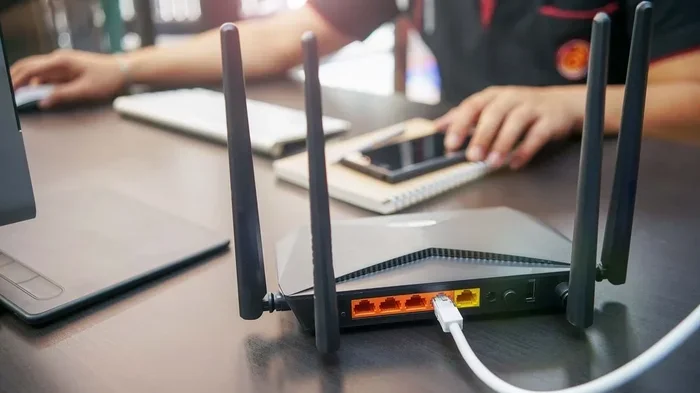
If your Xfinity gateway has external antennas, try adjusting their position. Pointing antennas perpendicular to each other (one vertical, one horizontal) provides better coverage across different floors and orientations. This simple trick often improves signal in hard-to-reach areas.
Common Mistakes That Slow Down Your Wi-Fi
Avoid these common pitfalls that many people fall into without realizing it.
- Placing the router on the floor: Signals spread outward and downward. Floor placement blocks half your coverage.
- Ignoring firmware updates: Outdated firmware causes performance issues and security vulnerabilities.
- Keeping old devices connected: Legacy devices running outdated wifi standards drag down your entire network.
- Overloading one band: Letting every device connect to the 2.4 GHz band creates a traffic jam.
- Not restarting equipment regularly: Routers need periodic restarts to clear memory and refresh connections.
- Using cheap or damaged cables: Faulty ethernet cables between your modem and router limit your speeds no matter what else you do.
When to Contact Xfinity Support
If you have tried everything and your Xfinity Wi-Fi is still slow, it is time to reach out for help. Xfinity customer support can run remote diagnostics on your line and equipment. They can also send a technician to your home if the issue is hardware-related.
Before calling, have your account information ready and run a speed test so you can share the results. This helps the support team diagnose the problem faster. You can also check options for getting just Wi-Fi at home if you are considering alternative setups.
Final Thoughts
Speeding up your Xfinity Wi-Fi does not have to be complicated. Start with the simple fixes like restarting your router, improving placement, and updating settings. Then move on to more advanced steps like changing channels, adjusting DNS, and upgrading equipment. Each small change adds up to a faster, more reliable connection.
Remember that your internet speed depends on many factors, from your plan to your hardware to your home layout. Be patient, test regularly, and make adjustments as needed. With the right approach, you can enjoy fast, stable Xfinity Wi-Fi in every corner of your home. Take action today, and you will feel the difference immediately.
Frequently Asked Questions
Why is my Xfinity Wi-Fi so slow all of a sudden?
Sudden slowdowns are often caused by network congestion, outdated firmware, or too many connected devices. Try restarting your router first, then check for Xfinity outages in your area. If the problem persists, run a speed test and compare it to your plan’s advertised speeds.
How can I boost my Xfinity Wi-Fi signal for free?
You can boost your signal for free by repositioning your router to a central location, updating firmware, changing your Wi-Fi channel, and reducing the number of connected devices. These simple steps often deliver noticeable improvements without any cost.
Do Wi-Fi extenders really work for Xfinity?
Yes, Wi-Fi extenders and mesh systems work well for expanding coverage in larger homes. They eliminate dead zones and provide stronger signals in areas that your main router cannot reach. Choose a mesh system for the best seamless experience.
What is the best Wi-Fi channel for Xfinity?
For the 2.4 GHz band, channels 1, 6, and 11 are the best choices because they do not overlap with each other. Use a Wi-Fi analyzer app to see which channels are least crowded in your area, then switch your router to that channel for better performance.
Should I upgrade my Xfinity internet plan?
If you consistently get speeds well below what your plan promises and you have multiple heavy users in your household, upgrading is worth it. Run a speed test first to confirm the gap, then contact Xfinity to discuss higher-tier options that fit your needs.
Can I replace my Xfinity gateway with my own router?
Yes, you can replace the Xfinity gateway with your own compatible router. This gives you more control over settings and often delivers better performance. Just make sure your router is compatible with Xfinity’s network and return the rental equipment to avoid monthly fees.