How Can I See All Devices Connected To My Network Now
Finding out how can I see all devices connected to my network is easier than you think. You can check your router dashboard, use a free network scanner app, or look at your computer’s settings. This guide walks you through every method step by step so you can take control of your home network today.
This is a comprehensive guide about How Can I See All Devices Connected To My Network.
Key Takeaways
- Router Admin Panel: The fastest way to view all connected devices is through your router’s login page.
- Network Scanner Apps: Free apps like Fing and Advanced IP Scanner make device discovery simple and visual.
- Unknown Devices Are a Red Flag: If you spot a device you don’t recognize, it could mean someone is using your Wi-Fi.
- Multiple Methods Exist: You can check from your router, phone, computer, or even through your internet provider’s app.
- Security Matters: Regularly reviewing your connected devices helps protect your data and keep your internet speed fast.
[FEATURED_IMAGE_PLACEHOLDER]
Have you ever wondered who else might be using your Wi-Fi right now? Maybe your internet feels slow, or you just want to know every gadget hooked up to your home network. Either way, learning how can I see all devices connected to my network is a skill every internet user should have.
The good news is that it is not hard at all. You do not need to be a tech expert. In fact, most people can check their connected devices in under five minutes. Whether you use a phone, a laptop, or just your router, there is a simple way to find out. This guide will show you every method that works.
We will also talk about what to do if you find a device you do not recognize. And we will share easy tips to keep your network safe and fast. By the end, you will feel confident managing every gadget on your home network. Let us get started.
Why Checking Your Connected Devices Matters
Your home network is like a door to your digital life. Every device that connects to it can access your internet, and in some cases, your shared files. If an unknown device sneaks in, it could slow down your connection or even put your privacy at risk.
Here are a few reasons why you should check your network regularly:
- Internet Speed: Too many devices sharing your Wi-Fi can make everything slower. Streaming, gaming, and video calls all suffer when the bandwidth is split among too many gadgets.
- Security: An unknown device could mean a neighbor or stranger is using your Wi-Fi without permission. This opens the door to potential data theft.
- Device Management: Knowing what is connected helps you organize your smart home setup. You can see which gadgets are using the most data or causing interference.
- Peace of Mind: Simply knowing who is on your network gives you confidence that your family’s online activity is safe.
The process of checking your devices is quick and does not cost anything. You just need to know where to look. Let us walk through the different methods you can use right now.
How to See All Devices on Your Network Through Your Router
The router is the brain of your home network. Every device that connects to your Wi-Fi passes through it. That means your router keeps a list of all connected gadgets. Accessing this list is the most reliable way to see everything on your network.
Step-by-Step: Logging Into Your Router
Follow these simple steps to view your connected devices through the router admin panel:
- Find your router’s IP address. On most routers, it is 192.168.1.1 or 192.168.0.1. You can also check the sticker on the back of your router for the exact address.
- Open a web browser. Type the IP address into the address bar and press Enter.
- Log in. Enter your username and password. If you never changed them, the default login is often “admin” for both fields. Check the router sticker if you are unsure.
- Look for a section called “Connected Devices,” “Device List,” or “DHCP Client List.” This is where you will see every device currently on your network.
Once you are in, you will see a list that shows each device’s name, IP address, and MAC address. The MAC address is a unique identifier for every gadget. If you see a name you do not recognize, that is a sign to investigate further.
Tips for Navigating Your Router Dashboard
Every router brand looks a little different. TP-Link, Netgear, ASUS, and Xfinity routers all have their own layout. But the general steps are the same. Look for tabs like “Attached Devices,” “Device Map,” or “Network Map.”
If you have trouble finding the right section, try searching online for your specific router model plus “view connected devices.” Most manufacturers also have a mobile app that makes this process even easier. For example, if you are wondering can I get Wi-Fi from my phone, the answer is yes, and many router apps let you manage everything right from your phone screen.
Use a Network Scanner App to Find Connected Devices
If logging into your router feels too technical, do not worry. There is an easier way. Network scanner apps let you see every device on your network with just a few taps. These apps work on both phones and computers.
Best Free Network Scanner Apps
Here are some popular apps that make device discovery simple:
- Fing (iOS and Android): This is one of the most popular network scanner apps. It shows you every connected device, its brand name, and even what type of device it is. You can also run a speed test right inside the app.
- Advanced IP Scanner (Windows): A free desktop tool that scans your local network and lists all devices. It is fast, simple, and does not require any setup.
- NetSpot (Mac and Windows): Great for viewing your Wi-Fi network map and seeing which devices are connected and how strong their signal is.
- Angry IP Scanner (Windows, Mac, Linux): A lightweight, open-source tool that works across all major operating systems.
These apps work by sending a quick scan across your local network. They read the responses from each device and display them in a clean list. Most of them are free and do not require any technical knowledge to use.
How to Use Fing to Scan Your Network
Here is how simple it is to use Fing:
- Download Fing from the App Store or Google Play.
- Open the app and make sure your phone is connected to your home Wi-Fi.
- Tap the big “Scan” button.
- Wait a few seconds. The app will show you every device on your network.
Each device will show its name, IP address, and manufacturer. If you see a device that does not belong to anyone in your household, you now know it is time to take action.
Check Connected Devices Through Your Computer
You can also check your network from a computer without downloading any extra software. Both Windows and Mac computers have built-in tools that let you view connected devices.
On Windows
Open the Command Prompt by typing “cmd” in the Windows search bar. Then type arp -a and press Enter. This command shows a list of all IP addresses that have communicated with your computer. It is a quick way to see what is on your network without installing anything.
Another option is to open your web browser and type your router’s IP address, just like we covered above. This works on any computer connected to the same network.
On Mac
On a Mac, open the Terminal app and type arp -a as well. You can also go to System Settings, then Network, and look at your Wi-Fi details to see connected devices through your router’s interface.
Using Your Internet Provider’s App
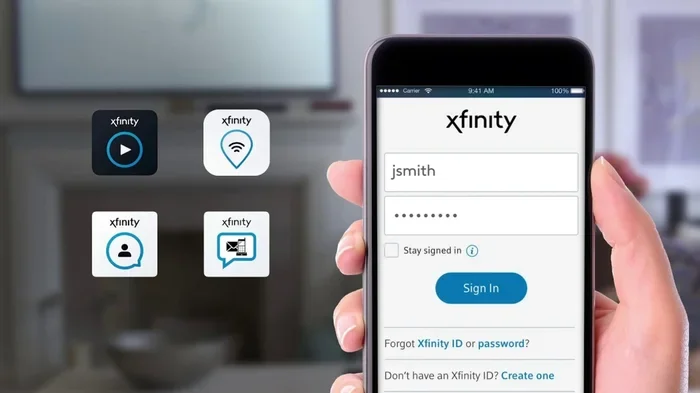
Many internet providers now offer apps that let you manage your network from your phone. Xfinity, AT&T, and Spectrum all have apps that show connected devices. If you use Xfinity, you might want to check if can I block a device from using my Wi-Fi Xfinity — and the answer is yes, directly from the Xfinity app.
These provider apps are convenient because they combine device management with other useful tools like speed tests and parental controls. They are a great all-in-one option for managing your home network.
What to Do If You Find an Unknown Device
So you checked your network and found a device you do not recognize. Do not panic. This happens more often than you might think, and there are clear steps you can take to fix it.
Step 1: Identify the Device
First, try to figure out what the device actually is. Look at its name and manufacturer in your device list. Sometimes a smart TV, a smart speaker, or a new appliance will show up with a brand name you recognize but forgot about. Check around your home to see if there is a device you overlooked.
Step 2: Change Your Wi-Fi Password
If you are sure the device does not belong to anyone in your home, the next step is to change your Wi-Fi password. This immediately kicks off any unauthorized devices. Go to your router settings and update the password. Make sure to use a strong, unique password that is hard to guess.
Step 3: Enable Network Encryption
Make sure your Wi-Fi network uses WPA3 or WPA2 encryption. These are the most secure options available. Avoid using WEP, as it is outdated and easy to crack. If you are not sure which encryption your network uses, you can check it in the same router settings page where you view connected devices.
Step 4: Enable MAC Address Filtering
Some routers let you set up MAC address filtering. This means only devices with approved MAC addresses can connect to your network. It adds an extra layer of security, though it is not foolproof on its own.
Tips to Keep Your Network Secure and Under Control
Once you know how to see all your connected devices, keeping your network safe becomes much easier. Here are some simple habits that make a big difference.
Update Your Router Firmware Regularly
Router manufacturers release firmware updates to fix security bugs and improve performance. Check your router settings at least once a month to see if an update is available. Many modern routers update automatically, but it is always good to double-check.
Rename Your Wi-Fi Network
Change your default network name (SSID) to something unique. Avoid using personal information like your name or address. A creative but neutral name helps keep your network profile low.
Set Up a Guest Network
If friends or family visit often, give them access to a guest network instead of your main one. This keeps your primary devices and files separate and secure. Most modern routers have a guest network feature that is easy to set up.
Restart Your Router Periodically
Restarting your router every few weeks clears the connection list and can improve performance. It also disconnects any devices that may have been quietly using your network in the background.
Monitor Your Bandwidth Usage
Some routers and apps let you see how much data each device uses. This helps you identify which gadgets are hogging your bandwidth. If a device is using way more data than it should, that could be another sign of an unauthorized connection.
Regular monitoring is one of the best ways to maintain a clean and efficient home network. You do not need to check every day — a quick review once a week or every two weeks is plenty.
Common Mistakes People Make When Managing Network Devices
Even when people try to manage their connected devices, they sometimes make mistakes that cause problems. Here are a few to avoid.
- Ignoring unknown devices: Many people see an unfamiliar device in the list and just ignore it. This is a mistake. Even one unknown device can compromise your network security.
- Using weak passwords: Simple passwords like “123456” or “password” are easy targets. Always use a mix of letters, numbers, and symbols.
- Never restarting the router: A router that runs for months without a restart can develop performance issues and security vulnerabilities.
- Not updating firmware: Outdated router firmware is one of the most common reasons networks get compromised.
- Sharing your password too freely: Be selective about who you give your Wi-Fi password to. The more people who have it, the harder it is to control who is actually on your network.
Avoiding these simple mistakes keeps your network running smoothly and your data safe. It takes just a little effort to stay ahead of potential problems.
How Often Should You Check Your Connected Devices?
There is no strict rule, but checking once a week or every two weeks is a great habit. If you notice your internet slowing down for no clear reason, it is worth checking right away. You should also review your connected devices after having guests over or if you have added new smart devices to your home.
Think of it like checking the locks on your doors. You do not need to do it every hour, but a regular check gives you confidence that everything is secure.
Final Thoughts
Now you know exactly how can I see all devices connected to my network and what to do about it. You have several powerful tools at your fingertips, from your router admin panel to free scanner apps and built-in computer tools. Each method is simple, and they all give you the same goal: full visibility into who is using your network.
Taking a few minutes to review your connected devices regularly is one of the smartest things you can do for your home network. It protects your privacy, keeps your internet speed fast, and gives you peace of mind. Start today, and make it a part of your routine.
Your network, your rules. Take control now and enjoy a safer, faster internet experience for every device in your home.
Frequently Asked Questions
Can I see all devices connected to my network for free?
Yes, absolutely. You can check your router’s admin panel for free, and apps like Fing and Advanced IP Scanner are also free to download and use. You do not need to pay anything to see which devices are connected to your Wi-Fi.
What does a MAC address tell me about a connected device?
A MAC address is a unique identifier assigned to every network device. It can tell you the manufacturer of the device, which helps you figure out if an unknown device belongs to a brand you recognize, like Apple, Samsung, or Google.
How do I know if a device on my network is unauthorized?
Compare the device list with everyone and everything in your home. If you see a device name or manufacturer that does not match any of your gadgets, a friend’s device, or a visitor’s phone, it is likely unauthorized. Change your password immediately to remove it.
Will changing my Wi-Fi password disconnect all devices?
Yes, changing your Wi-Fi password will disconnect every device currently connected. You will need to reconnect all your trusted devices with the new password. This is actually a good way to ensure only approved devices stay on your network.
Can I see connected devices from my phone without downloading an app?
Yes, you can open your phone’s web browser and type your router’s IP address to access the admin panel. This works just like using a computer. However, using a dedicated app like Fing gives you a much easier and more visual experience.
Is it normal to see more than 20 devices on my network?
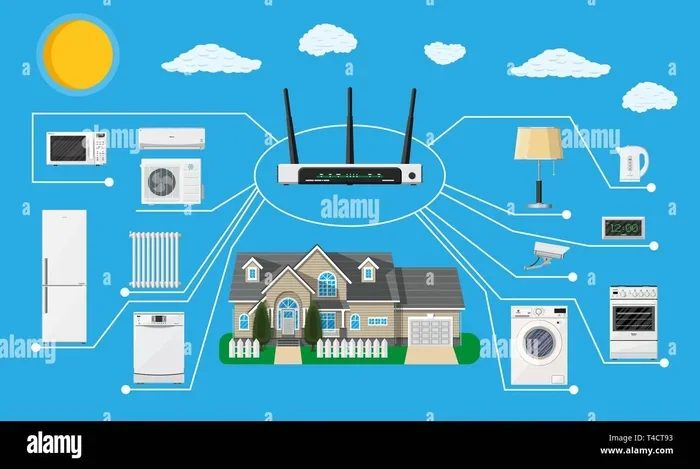
In a smart home with many IoT devices, it is completely normal to see 20 or more connected gadgets. Smart bulbs, thermostats, cameras, speakers, and appliances all connect to Wi-Fi. The key is to make sure every one of them is a device you recognize and authorized.