Can I Put Linux On My Windows Laptop And Run It Now
Yes, you can put Linux on your Windows laptop and run it right now. Whether you want to dual boot, use WSL, or try Linux from a USB drive, the process is simpler than most people think. This guide walks you through every option with clear steps and practical tips.
Have you been wondering whether you can put Linux on your Windows laptop and actually make it work? The short answer is a confident yes. You can put Linux on your Windows laptop and run it in several different ways. You can dual boot it, run it inside Windows using WSL, or even test it out from a USB drive without changing anything on your hard drive.
Linux has come a long way over the past decade. It is no longer just for programmers and tech experts. Today, millions of regular users run Linux on their everyday laptops. The operating system is fast, secure, and completely free. If your Windows laptop feels slow or you are curious about open source software, Linux might be exactly what you need.
In this guide, we will walk you through everything you need to know. We will cover compatibility, the best Linux distributions for Windows laptops, how to install Linux, and how to run it without installing anything at all. By the end, you will have a clear picture of what works and what to expect.
Key Takeaways
- Yes, you can put Linux on your Windows laptop: You have multiple options including dual boot, WSL, live USB, and virtual machines.
- Most Windows laptops run Linux without problems: Modern hardware is highly compatible with Linux distributions.
- Linux Mint and Ubuntu are the best starting points: They are beginner friendly and work great on Windows laptops.
- You do not need to delete Windows: You can run Linux alongside Windows using dual boot or WSL.
- Creating a bootable USB is the first step: All you need is a USB drive and the right software.
- Driver support has improved a lot: Most laptops handle Wi-Fi, sound, and graphics drivers in Linux with ease.
- Try Linux before you commit: Use a live USB or WSL to test Linux without making any changes to your laptop.
📑 Table of Contents
- Understanding What Happens When You Put Linux On Your Windows Laptop
- Can I Put Linux On My Windows Laptop? The Short Answer
- Best Linux Distributions For Windows Laptops
- How To Install Linux On A Windows Laptop
- Running Linux On Your Windows Laptop Without Installing It
- Common Problems And How To Fix Them
- Is Switching To Linux Worth It For Your Windows Laptop?
- Quick Tips For A Smooth Linux Experience
- Final Thoughts On Putting Linux On Your Windows Laptop
Understanding What Happens When You Put Linux On Your Windows Laptop
What Is Linux, and Why Would You Want It?
Linux is an open source operating system. This means anyone can use it, change it, and share it for free. Unlike Windows, which is owned by Microsoft, Linux is built by a global community of developers. It powers most of the world’s servers, smartphones, and supercomputers.
When you put Linux on your Windows laptop, you are replacing or adding a completely different operating system. Think of it like swapping the engine in a car. The car body stays the same, but everything under the hood changes. Your laptop hardware stays the same, but the software that runs it becomes Linux.
People choose Linux for many reasons. Some want more privacy. Others want a free operating system that does not track their data. Many developers prefer Linux because it gives them more control. And some people simply want a faster, lighter experience on an older laptop.
How Does Linux Work Alongside Windows?
There are several ways Linux and Windows can live together on the same laptop. You do not always have to choose one or the other.
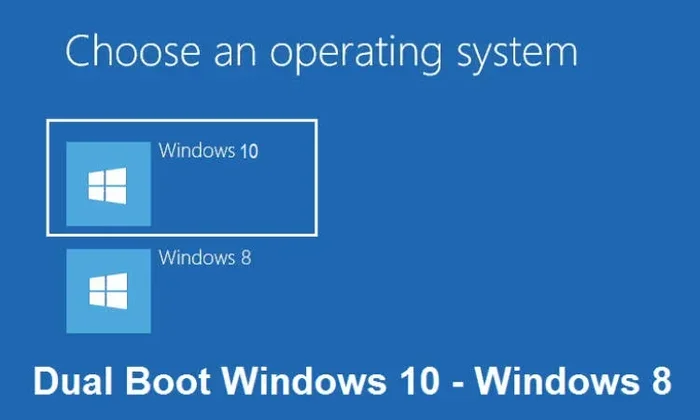
- Dual Boot: You install Linux alongside Windows. When you start your laptop, a menu lets you pick which operating system to use.
- WSL (Windows Subsystem for Linux): Linux runs inside Windows as an app. You do not need to restart or change anything on your hard drive.
- Live USB: You run Linux directly from a USB stick. Nothing gets installed on your laptop.
- Virtual Machine: Linux runs inside a window on your Windows desktop, like any other app.
Each method has its own benefits. We will explore all of them in detail below.
Can I Put Linux On My Windows Laptop? The Short Answer
The answer is almost always yes. Most Windows laptops from the last ten years can run Linux without any issues. Whether you have a Dell, HP, Lenovo, Asus, or Acer laptop, Linux will likely work on it. The key is to check a few things before you start.
Older laptops sometimes need a little extra attention. Very new laptops with the latest hardware might need you to tweak a few settings. But in general, putting Linux on a Windows laptop is straightforward and well supported.
Checking Your Laptop Compatibility
Before you install Linux, it helps to know what kind of laptop you have. Here are a few quick checks you can do right now.
- Check your processor: Most modern Intel, AMD, and Apple Silicon processors work great with Linux. If your laptop uses an older chip, it will probably still run Linux just fine.
- Check your RAM: Linux runs well with as little as 2 GB of RAM. But for a smooth experience, 4 GB or more is ideal.
- Check your storage type: If your laptop has an SSD, Linux will run very fast. Even older hard drives work with Linux, though they will be slower.
- Check your Wi-Fi card: This is the one area where some laptops need extra setup. Most modern laptops use Wi-Fi chips that Linux supports out of the box.
If you are unsure about any of these, do not worry. Most popular Linux distributions include the drivers you need. You can always test Linux first using a live USB before you commit to installing it.
BIOS and UEFI Settings You Need To Know
Before you install Linux, you will need to access your laptop’s BIOS or UEFI settings. This is the basic setup screen that controls how your laptop starts up.
To enter BIOS, restart your laptop and press a key like F2, F12, Del, or Esc right when it turns on. The key you need depends on your laptop brand. Once inside, look for these settings:
- Secure Boot: Turn this off. Linux does not always work well with Secure Boot enabled.
- Boot Order: Make sure your USB drive is listed first so your laptop boots from it.
- Legacy Boot or UEFI Mode: Match this to how you plan to install Linux. Most modern Linux installers work in UEFI mode.
These settings might sound technical, but they are really just a few simple toggles. Changing them takes about two minutes and makes a big difference.
Best Linux Distributions For Windows Laptops
Not all Linux distributions are the same. Some are designed for servers. Others are built for older hardware or advanced users. If you are new to Linux, you want a distribution that is easy to use and works well on a Windows laptop right out of the box.
Ubuntu Linux
Ubuntu is the most popular Linux distribution in the world. It is a great choice for beginners who want to put Linux on their Windows laptop. Ubuntu has a clean interface, a huge community, and excellent hardware support.
When you install Ubuntu, it comes with a web browser, office tools, media players, and more. You do not need to download anything extra to get started. Ubuntu also receives regular updates and security patches, so your laptop stays safe.
One thing to note: Ubuntu uses the GNOME desktop environment. This means your desktop looks and feels a bit different from Windows. After a few days, most users find it just as easy to use.
Linux Mint
If you want something that feels closer to Windows, Linux Mint is an excellent choice. It was designed specifically to be familiar to people coming from Windows. The layout, the start menu, and the file manager all feel intuitive.
Linux Mint is based on Ubuntu, so you get the same stability and support. But the desktop environment is simpler and less overwhelming for new users. Many people who are hesitant about switching to Linux find Mint to be the perfect middle ground.
Linux Mint also comes with all the software you need preinstalled. You get a browser, media codecs, office tools, and even some games. It is ready to use the moment you finish installation.
Fedora Linux
Fedora is another great option for Windows laptops. It is known for being up to date with the latest software and hardware support. Fedora uses the KDE Plasma desktop by default, which is fast and customizable.
Fedora is slightly more advanced than Ubuntu or Mint, but it is still very beginner friendly. If you want a Linux experience that feels modern and polished, Fedora is worth considering.
| Distribution | Best For | Difficulty Level | Desktop Environment |
|---|---|---|---|
| Ubuntu | General use and beginners | Easy | GNOME |
| Linux Mint | Windows switchers | Very Easy | Cinnamon |
| Fedora | Up to date software | Easy to Medium | KDE Plasma |
| Zorin OS | Windows-like experience | Very Easy | Zorin Desktop |
| Pop!_OS | Gamers and developers | Easy | GNOME |
All of these distributions work well on Windows laptops. You really cannot go wrong with any of them. Pick the one that sounds most appealing and give it a try.
How To Install Linux On A Windows Laptop
Installing Linux on a Windows laptop is easier than you might think. The process takes about 20 to 30 minutes, and you do not need to be a tech expert. Here is a step by step walkthrough.
Step One: Download Your Linux Distribution
Go to the website of the Linux distribution you want to use. For Ubuntu, visit ubuntu.com. For Linux Mint, visit linuxmint.com. Download the ISO file. This is a single file that contains the entire Linux operating system.
Make sure you download the correct version for your laptop. Most modern laptops need the 64-bit version. If your laptop is older, check whether it supports 32-bit.
Step Two: Create a Bootable USB Drive
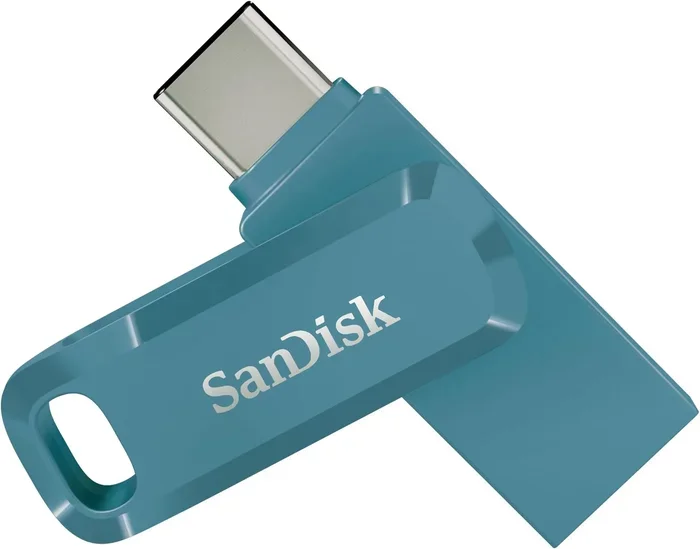
You need a USB flash drive with at least 8 GB of storage. This will hold the Linux installer and let you boot from it.
To make the USB drive bootable, use a free tool like Rufus or BalenaEtcher. Here is how:
- Plug your USB drive into your Windows laptop.
- Open Rufus or BalenaEtcher.
- Select the ISO file you downloaded.
- Click Start or Flash.
- Wait for the process to finish.
That is it. Your USB drive is now ready to install Linux. You can also use this same USB drive to test Linux without installing anything, which we will cover in a later section.
Step Three: Boot From the USB Drive
Restart your laptop and enter the BIOS or boot menu. This is usually done by pressing F12, F2, Del, or Esc during startup. Select your USB drive as the boot device.
Your laptop will now start Linux from the USB drive. You will see a menu with options like “Try Linux” and “Install Linux.” Try Linux first to make sure everything works on your laptop. Check your Wi-Fi, sound, display, and trackpad.
Step Four: Install Linux
When you are ready, click “Install Linux.” The installer will walk you through the process step by step. You will be asked to:
- Choose your language and keyboard layout.
- Select your time zone.
- Choose whether to install Linux alongside Windows or erase the entire disk.
- Create a user name and password.
If you want to keep Windows and add Linux, choose the option to install alongside Windows. This sets up a dual boot system. If you want to replace Windows completely, choose to erase the disk.
Important: Back up your important files before you install Linux. Even though the installation process is safe, it is always better to be careful.
Dual Boot vs Full Installation
Dual booting means Linux and Windows both live on your laptop. When you turn it on, you choose which one to use. This is the most popular option for people who are not ready to leave Windows behind.
A full installation means Linux replaces Windows completely. Your laptop runs only Linux from that point on. This gives you the best performance and the most storage space.
Here is a quick comparison:
- Dual Boot Pros: You keep Windows. You can switch between operating systems. You have a safety net.
- Dual Boot Cons: You need to restart your laptop to switch. You share disk space between both systems.
- Full Install Pros: Better performance. More storage. A cleaner, simpler experience.
- Full Install Cons: You lose access to Windows. Some Windows-only software will not work.
Most people start with dual booting. It gives you the freedom to explore Linux without any pressure. Once you are comfortable, you can always switch to a full Linux installation later.
Running Linux On Your Windows Laptop Without Installing It
Not ready to install Linux just yet? That is perfectly fine. There are several ways to run Linux on your Windows laptop without making any permanent changes.
Using WSL (Windows Subsystem for Linux)
WSL is a built-in feature in Windows 10 and Windows 11. It lets you run Linux commands and tools directly inside Windows. You do not need to restart your laptop or change any settings.
To set up WSL, open the Start menu and type “WSL.” Click on “Windows Subsystem for Linux” and follow the prompts. You can install Ubuntu, Debian, or other Linux distributions as apps from the Microsoft Store.
WSL is perfect for developers and people who just want to try Linux commands. However, it does not give you a full Linux desktop experience. It is more of a command line tool than a replacement for Windows.
Using a Live USB
A live USB lets you run Linux entirely from your USB drive. Nothing gets installed on your laptop. You can browse the web, use office tools, and test the operating system to see if you like it.
When you boot from the live USB, you will see the “Try Linux” option. Click on it, and Linux will load into your laptop’s memory. You can use it for as long as you want. When you restart and remove the USB, Windows comes back exactly as it was.
This is the safest way to test Linux. You get a real feel for the operating system without any risk to your files or Windows installation.
Using a Virtual Machine
A virtual machine is a software program that runs a complete operating system inside a window on your desktop. You can install Linux inside a virtual machine and use it just like any other app on Windows.
Popular virtual machine software includes VirtualBox and VMware Workstation Player. Both are free to use. To set one up, you simply create a new virtual machine, point it to your Linux ISO file, and let the software do the rest.
Virtual machines are great for testing and development. However, they use more of your laptop’s resources. If your laptop has 8 GB of RAM or less, a virtual machine might feel a bit slow.
Common Problems And How To Fix Them
Installing Linux on a Windows laptop is usually smooth, but sometimes you run into small issues. Here are the most common problems and how to solve them.
Wi-Fi Does Not Work After Installation
This is the most common issue people face when they put Linux on a Windows laptop. Some laptops use Wi-Fi chips that need extra drivers. To fix this, connect your laptop to the internet using an Ethernet cable or a USB tethering connection from your phone. Then open a terminal and run the driver installation commands for your specific laptop model.
Most modern Linux distributions include drivers for the most popular Wi-Fi chips. If yours does not, a quick search online will find the solution. The Linux community is very helpful and has answers for almost every hardware issue.
Laptop Does Not Boot After Installation
Sometimes after installing Linux, your laptop gets stuck and will not boot into either operating system. This usually happens because of a bootloader issue with GRUB.
To fix this, boot from your Linux USB drive again. Choose “Try Linux” and open a terminal. Run the boot repair commands. The GRUB bootloader will be fixed, and you will see the dual boot menu when you restart.
Touchpad or Function Keys Do Not Work Properly
Some laptop touchpads and function keys need additional configuration in Linux. This is rare with modern distributions, but it can happen. Check your laptop manufacturer’s website for Linux drivers and support documents. Many brands like Dell, Lenovo, and HP now offer official Linux support.
Sound Is Missing or Crackling
Audio issues in Linux are uncommon but not impossible. They usually happen with very new laptops that use the latest audio hardware. Check the Linux distribution’s forums for your specific model. There is almost always a fix available.
Is Switching To Linux Worth It For Your Windows Laptop?
Whether switching to Linux is worth it depends on what you use your laptop for. If you mainly browse the web, use office apps, stream videos, and do light work, Linux will serve you very well. It is fast, secure, and free.
If you rely on specific Windows software like Adobe Photoshop or Microsoft Office, Linux might not be the best fit. Some software only runs on Windows. However, many Windows programs have Linux alternatives. LibreOffice replaces Microsoft Office. GIMP replaces Photoshop. Firefox and Chrome work on both platforms.
Many people find that switching to Linux gives their old laptop a second life. A laptop that struggled with Windows 10 might run Linux like a dream. The operating system uses fewer resources and leaves more power for your apps.
You do not have to switch completely. Use WSL or dual boot to get the best of both worlds. Run Linux for development and personal projects. Keep Windows for the apps you cannot live without. This hybrid approach works great for many users.
Quick Tips For A Smooth Linux Experience
- Always back up your files before installing Linux.
- Start with Linux Mint or Ubuntu if you are new to Linux.
- Test Linux on a live USB before you install it.
- Join the Linux community forums for help and support.
- Keep your Linux system updated for security and performance.
- Use the software center to install apps instead of downloading from websites.
- Give yourself a few weeks to get used to the new interface.
Final Thoughts On Putting Linux On Your Windows Laptop
The answer to whether you can put Linux on your Windows laptop and run it now is a clear and definite yes. You have more options than ever before. You can dual boot, use WSL, run from a live USB, or install a virtual machine. Each method lets you experience Linux without risking your Windows setup.
Linux is a powerful, flexible, and free operating system. It works on almost every Windows laptop made in the last decade. The installation process is simpler than it has ever been, and the community support is outstanding. Whether you are a curious beginner or a seasoned tech user, Linux has something to offer you.
Start small. Try a live USB. Test a few distributions. See how Linux feels on your laptop. You might be surprised at how natural the transition feels. Once you experience the speed, security, and freedom of Linux, you might never go back to Windows.
So go ahead. Put Linux on your Windows laptop and run it now. You have nothing to lose and a whole new world of computing to gain.
Frequently Asked Questions
Can I put Linux on my Windows laptop without losing my files?
Yes, you can. When you install Linux alongside Windows using dual boot, your Windows files stay intact. Just make sure to back up your important data before starting the installation process. The installer will give you the option to keep your existing Windows partition.
Is it hard to learn how to use Linux on a Windows laptop?
Not at all. Modern Linux distributions like Linux Mint and Ubuntu are designed to be easy to use. The interface is similar to Windows in many ways. Most people feel comfortable within a few days. There are also thousands of tutorials and guides available online to help you get started.
Can I run Windows software on Linux?
Some Windows software can run on Linux using compatibility layers like Wine. However, not all programs work perfectly. For the best experience, use Linux-native alternatives. Most common tasks have excellent free Linux apps that work just as well or better than their Windows counterparts.
Do I need a powerful laptop to run Linux?
No. Linux runs well on almost any laptop, including older and lower-spec machines. Even laptops with 2 GB of RAM can run Linux comfortably. Lightweight distributions like Lubuntu are designed specifically for older hardware and will breathe new life into slow laptops.
What is the difference between WSL and dual boot?
WSL runs Linux inside Windows as an application. You do not need to restart your laptop. Dual boot installs Linux as a separate operating system, and you choose which one to use when you start your laptop. WSL is best for developers, while dual boot gives you a full Linux desktop experience.
Can I uninstall Linux and go back to Windows?
Yes, you can. If you set up a dual boot system, you can remove the Linux partition and restore your Windows bootloader. However, it is always best to back up your data before making changes to your partitions. If you used WSL or a virtual machine, removing Linux is even simpler and does not affect your Windows installation at all.
=== CONCLUSION ===
Can I put Linux on my Windows laptop and run it now? The answer is yes. You have every tool and option you need to get started today. Whether you choose to dual boot, use WSL, or test Linux from a live USB, the process is straightforward and well supported. Linux is free, fast, and secure, and it works on almost every Windows laptop. Give it a try and see what a difference a new operating system can make.