Does Offline Mean No Service Or Is Something Wrong
Does offline mean no service? Not necessarily. Your device might display offline even when a working network is nearby. This guide explains why your phone or computer says offline and gives you simple steps to fix it fast. You will learn the real difference between offline mode and a true service problem.
Have you ever looked at your phone or laptop and seen the word offline staring back at you? It can feel frustrating. You know you are in a place where the internet should work. Yet your device insists it has no connection. The question does offline mean no service comes up more often than you might think.
The short answer is no. Offline does not always mean you have zero service. Sometimes it is a simple settings issue. Other times it points to a deeper network connectivity problem. This article breaks down everything you need to know. We will cover what offline really means, why your device shows it, and how to fix it. You will also learn when offline is perfectly normal and expected.
Key Takeaways
- Offline does not always mean no service: Your device may show offline due to settings, not a real network outage.
- Airplane mode and Wi-Fi toggles are the top culprits: A simple toggle fix often solves the problem instantly.
- Different devices handle offline status differently: Phones, laptops, and tablets all display offline in unique ways.
- Network outages and DNS issues can mimic offline status: The problem might be on your service provider’s end.
- Quick troubleshooting steps can save you time: Restarting your device or checking signal strength often resolves offline issues.
- Offline capability has real benefits: Many apps and tools work without an active internet connection.
- Prevention is easier than fixing: Regular device maintenance keeps your network connectivity stable.
📑 Table of Contents
- What Does Offline Actually Mean?
- Why Does Your Device Show Offline?
- Does Offline Mean No Service On Different Devices?
- Quick Troubleshooting Steps When You Are Offline
- When Being Offline Is Normal And Expected
- How To Prevent Going Offline in the Future
- Expert Insights on Offline and Network Issues
- Key Takeaways
- Conclusion
What Does Offline Actually Mean?
When your screen says offline, it means your device is not currently connected to the internet or a network. But here is the key detail. Offline does not always mean your service provider has cut you off completely. It just means your device cannot reach the internet right now.
Think of it like a door between your device and the online world. When the door is closed, you are offline. The door might be closed because you turned it off yourself. Or it might be closed because something is blocking the way. Either way, the result looks the same on your screen.
Many people confuse offline mode with having no service at all. These are two very different things. Offline mode means your device is set to work without a connection. No service means your device cannot find any network to connect to. Understanding this difference is the first step to fixing the problem.
Your phone, tablet, or laptop uses different signals to stay connected. Wi-Fi signals and cellular service are the two main ways devices get online. When either of these signals drops, your device may show offline. But the underlying network connectivity issue could be very different in each case.
Offline Mode Versus No Service
Here is a simple way to think about it. Offline mode is like working in a library. You have access to your files and tools. You just cannot reach the outside world. No service is like being in a building with no library at all. There is nothing to connect to.
When you enable offline mode on your browser or app, you are telling your device to save and use local data. This is very useful for offline capability in many apps. Music players, note-taking tools, and maps often work great without the internet. They just cannot sync or fetch new data until you reconnect.
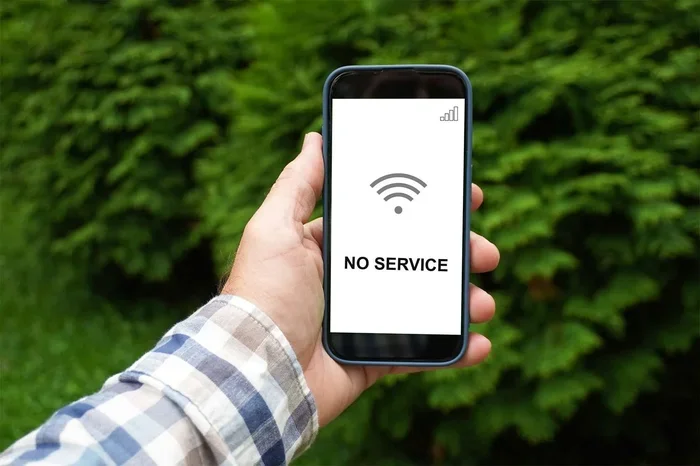
No service, on the other hand, means your device cannot find any usable network. It is not a choice. It is a lack of available connection. Your device shows no signal bars or displays a “no service” message. This is different from seeing offline on a connected device.
Why Does Your Device Show Offline?
There are many reasons your device might say offline. Some are simple fixes. Others need a bit more attention. Let us walk through the most common causes. Each one is something you can check yourself at home.
Airplane Mode Is On
This is the number one reason people see offline on their devices. Airplane mode turns off all wireless connections. It disables your Wi-Fi signal and cellular service at the same time. Many people accidentally turn it on by pressing the wrong button.
Check your quick settings panel. On most phones, you swipe down from the top of the screen. Look for the airplane icon. If it is highlighted or colored, airplane mode is on. Tap it once to turn it off. Your device should reconnect within a few seconds.
Wi-Fi Is Turned Off
Sometimes your mobile data is working fine, but your Wi-Fi signal is off. This happens when you toggle Wi-Fi off in your device settings and forget to turn it back on. Your device shows offline because it cannot find a Wi-Fi network to join.
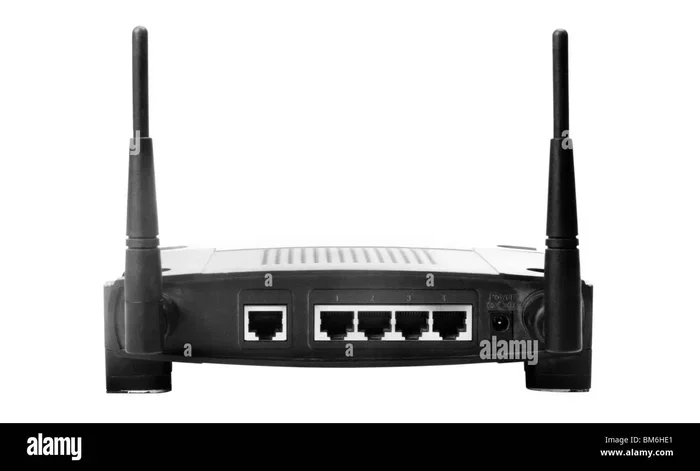
Go to your settings menu and look for the Wi-Fi option. Make sure it is switched on. If it is on, check whether your router settings are working properly. A simple router restart often fixes this issue in minutes.
Network Outage in Your Area
Sometimes the problem is not your device at all. A network outage can knock out service for thousands of people in your area. Storms, construction, and equipment failures can all cause outages.
Check with your service provider to see if there is a known outage in your neighborhood. Most providers have outage maps on their websites. You can also call their support line or check social media for updates from other users in your area.
DNS or IP Address Problems
Your device needs the right DNS settings to connect to the internet. DNS stands for Domain Name System. It is like a phonebook for the internet. When your DNS settings are wrong, your device cannot find websites even though it shows a signal.
This is one of the trickier connection issues to diagnose. Your device might show signal bars but still display offline. Flushing your DNS cache or changing your DNS server can fix this. Many people switch to public DNS services like Google DNS or Cloudflare DNS for a more stable connection.
Network Adapter or Hardware Issues
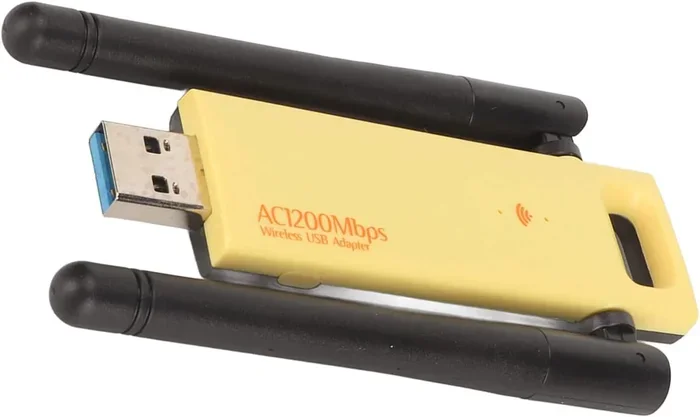
On laptops and desktops, your network adapter handles all internet connections. If this hardware component has a problem, your device will show offline. Driver updates can fix most adapter issues. You can check for updates through your device manager on Windows or system settings on Mac.
On phones, a damaged antenna or loose internal connection can cause offline problems. These hardware issues usually need professional repair. If your device has been dropped or exposed to water, hardware damage is a real possibility.
Does Offline Mean No Service On Different Devices?
Different devices handle offline status in different ways. Your phone, laptop, and tablet all have unique ways of showing you that something is wrong. Understanding how each device displays offline helps you troubleshoot faster.
Smartphones and Tablets
On smartphones, offline usually shows up as a small icon at the top of your screen. You might see crossed-out Wi-Fi symbols or no signal bars at all. iPhones and Android phones handle this slightly differently, but the core meaning is the same.
On iPhones, you might see “No Service” in the status bar. On Android devices, you may see “Offline” or “Disconnected” near the signal icons. Both mean your device cannot reach the internet or make calls through the cellular network.
Tablets work the same way. Wi-Fi-only tablets will show offline when they cannot find a Wi-Fi network. Cellular tablets can also show offline if the SIM card has issues or the plan has expired.
Laptops and Desktop Computers
Laptops display offline status through their network icon in the taskbar or menu bar. You might see a yellow triangle, a crossed-out globe, or a message saying “No Internet.” Each of these means your network connectivity is broken in some way.
Desktops are similar but may show offline through a wired or wireless connection indicator. Ethernet cables can also fail, causing offline status even when the router settings are fine. A loose cable is often the simplest explanation.
Smart Home Devices
Smart home devices like speakers, cameras, and smart plugs also show offline when they lose connection. These devices rely on your home Wi-Fi signal to work. When your network goes down, all connected devices may show offline at the same time.
This is a good clue for troubleshooting. If multiple devices go offline together, the problem is likely your router or internet plan. If only one device shows offline, the issue is probably with that specific device.
Quick Troubleshooting Steps When You Are Offline
When you see offline on your screen, do not panic. Most offline problems are easy to fix. Here are the troubleshooting steps you should try first. Work through them in order for the best results.
- Turn Airplane Mode On and Off: This refreshes all your wireless connections. Swipe down on your screen, tap airplane mode, wait ten seconds, and tap it again.
- Check Your Wi-Fi and Mobile Data: Make sure Wi-Fi is on and mobile data is enabled. These two settings control your internet access on most devices.
- Restart Your Device: A simple restart clears temporary glitches. Turn your device off completely, wait thirty seconds, and turn it back on.
- Check Signal Strength: Move closer to your router or a window. Weak signal strength can cause offline status even when the network is working.
- Forget and Reconnect to Wi-Fi: Go to your Wi-Fi settings, forget the network, and reconnect with your password. This resets the connection.
- Check for Network Outages: Contact your service provider or check their website for reported outages in your area.
- Reset Network Settings: As a last resort, reset your network settings to factory defaults. This clears all saved networks and connection data.
Quick Tips
- Always keep your device software updated. Updates often fix connection issues and improve network troubleshooting performance.
- Restart your router at least once a month. This keeps your home network running smoothly.
- Save important work before troubleshooting. A restart might cause you to lose unsaved data.
- Use airplane mode as a quick reset tool. It works faster than a full device restart in most cases.
Common Mistakes People Make When Troubleshooting
Many people make the same mistakes when trying to fix offline problems. Avoid these common mistakes to save time and frustration.
- Assuming the problem is always your device: Sometimes the issue is with your service provider or the website you are trying to reach. Always check if other websites or apps work before blaming your device.
- Ignoring airplane mode: It sounds too simple, but airplane mode is the cause in many cases. Always check it first.
- Not restarting the router: A router that has been running for weeks can develop connection problems. A quick restart often solves everything.
- Forgetting to check data limits: Some plans cut off internet access when you hit your data cap. This can make your device show offline even when the signal is strong.
- Skipping software updates: Outdated software can cause network connectivity problems. Keep your device and apps up to date.
When Being Offline Is Normal And Expected
Not all offline status is a problem. In fact, being offline can be intentional and useful. Many apps and devices are designed to work without an internet connection. This is called offline capability, and it is a great feature to understand.
Offline Mode in Apps and Tools
Many apps let you work offline and sync later. Google Docs, for example, lets you edit documents without the internet. When you reconnect, it saves your changes automatically. Spotify and Netflix let you download music and videos for offline listening and watching.
Navigation apps like Google Maps offer offline maps. You can download map data for your city or travel destination before you leave home. This means you can navigate without any internet access at all.
Messaging apps like WhatsApp and Telegram also have offline features. You can send messages that queue up and deliver once your device reconnects. This is very helpful in areas with weak Wi-Fi signals or during network outages.
Airplane Mode for Focused Work
Many people use offline mode intentionally. Airplane mode is a popular tool for focused work sessions. It removes distractions from notifications and calls. Some people find that working offline helps them be more productive.
Students use offline mode to study without interruptions. Writers use it to focus on drafting without checking social media. Offline mode can be a powerful productivity tool when used on purpose.
Travel and Remote Areas
When you travel to remote areas, being offline is normal. Mountains, forests, and rural areas often have weak or no cellular service. Planning ahead by downloading offline maps and content is smart travel preparation.
Hikers and campers frequently rely on offline tools. GPS devices and offline trail maps help them navigate without internet access. Knowing how to use offline features is a valuable skill for outdoor adventures.
How To Prevent Going Offline in the Future
Preventing offline problems is easier than fixing them. A few simple habits can keep your network connectivity strong and stable. Here is what you can do to reduce offline issues.
- Keep your router in a central location: A central router position improves signal strength throughout your home. Avoid placing it near walls or metal objects.
- Update your router firmware regularly: Firmware updates fix bugs and improve performance. Check your router settings once a month for updates.
- Use a mesh network for large homes: Mesh systems eliminate dead zones. They give you strong Wi-Fi signal in every room of your house.
- Monitor your data usage: Stay within your plan limits to avoid service cuts. Most carriers offer data tracking tools in their apps.
- Restart your devices weekly: A weekly restart clears temporary files and refreshes connections. This simple habit prevents many offline issues.
- Use Ethernet when possible: A wired connection is more stable than Wi-Fi. It eliminates connection issues caused by wireless interference.
Taking these steps does not guarantee you will never see offline again. But it significantly reduces how often it happens. Prevention is always better than troubleshooting after the fact.
Expert Insights on Offline and Network Issues
Network professionals often see the same offline problems over and over. Here are some insights from experts in the field of network troubleshooting and connectivity.
Check the basics first. Experts always recommend starting with the simplest fixes. Airplane mode, Wi-Fi toggles, and router restarts solve the majority of offline issues. There is no need to jump to complex solutions right away.
Your DNS settings matter more than you think. Many offline problems are actually DNS resolution failures. Your device thinks it is offline, but the real issue is that it cannot translate website names into IP addresses. Switching to a reliable DNS server often fixes this instantly.
Signal interference is a hidden culprit. Microwaves, baby monitors, and even neighboring Wi-Fi networks can interfere with your Wi-Fi signal. Moving your router to a different location or switching to a less crowded channel can improve your connection dramatically.
Keep your device drivers updated. Outdated network adapter drivers are a common cause of offline problems. Setting your device to auto-update drivers can prevent many connection issues before they start.
Key Takeaways
- Offline does not always mean no service: Your device may show offline due to settings, not a real network outage.
- Airplane mode and Wi-Fi toggles are the top culprits: A simple toggle fix often solves the problem instantly.
- Different devices handle offline status differently: Phones, laptops, and tablets all display offline in unique ways.
- Network outages and DNS issues can mimic offline status: The problem might be on your service provider’s end.
- Quick troubleshooting steps can save you time: Restarting your device or checking signal strength often resolves offline issues.
- Offline capability has real benefits: Many apps and tools work without an active internet connection.
- Prevention is easier than fixing: Regular device maintenance keeps your network connectivity stable.
Conclusion
So, does offline mean no service? The answer is not a simple yes or no. Offline can mean many things. It can be a settings issue, a temporary outage, or a deliberate choice. Understanding what offline really means on your specific device puts you in a much better position to fix the problem.
Most of the time, the fix is simple. Check airplane mode. Restart your device. Verify your Wi-Fi and mobile data settings. These steps resolve the majority of offline problems within minutes. When the issue is bigger, like a network outage or hardware problem, knowing the right questions to ask makes all the difference.
Remember that being offline is not always a bad thing. Many tools and apps work great without the internet. Offline capability is a feature, not just a problem. Use it to your advantage when you need to focus or when you are in an area with weak signal strength.
Now you have the knowledge to handle offline situations with confidence. The next time you see offline on your screen, you will know exactly what to do. You will understand whether it is a real service issue or just a minor settings glitch. Keep this guide handy, and you will never be stuck wondering why your device says offline again.
Frequently Asked Questions
Can I be offline and still have cellular service?
Yes, absolutely. Offline means your device cannot reach the internet. But your cellular service for calls and texts may still work. Check if you can make a phone call. If you can, you have service even though you are offline.
Why does my Wi-Fi show connected but I am still offline?
This usually means your router is connected to the internet but your device cannot reach it. DNS issues, IP conflicts, or router firmware problems often cause this. Try restarting your router or forgetting and reconnecting to the Wi-Fi network.
How do I know if there is a network outage in my area?
Check your service provider’s website for an outage map. You can also call their support line or check social media for reports from neighbors. If many people in your area are offline at the same time, it is likely a network outage.
Is airplane mode the same as being offline?
They are similar but not the same. Airplane mode turns off all wireless connections, which puts your device in offline status. However, you can also be offline while airplane mode is off if your Wi-Fi or cellular connection drops.
Can offline mode drain my battery?
Actually, offline mode can save battery. When your device is not searching for a network, it uses less power. Many people turn on offline mode or airplane mode to extend battery life during travel or emergencies.
How can I improve my Wi-Fi signal strength at home?
Place your router in a central location away from walls and metal objects. Update your router firmware regularly. Consider using a mesh network system for larger homes. Reducing the number of connected devices on one network also helps improve signal strength.