Does It Matter Which Wifi Adapter You End Up Getting
Yes, the wifi adapter you choose can make a big difference in your internet experience. Not all adapters are the same, and picking the wrong one can slow down your connection or limit your range. This guide walks you through what to look for so you can buy with confidence and get the best wireless performance for your setup.
Do you ever wonder if the little wifi adapter you plug into your computer actually makes a difference? It turns out, it really does matter which wifi adapter you end up getting. Not every adapter delivers the same speed, range, or reliability. Some are built for casual browsing, while others handle heavy gaming and 4K streaming with ease.
When you connect to wifi, the adapter is the bridge between your device and your router. A weak or outdated adapter can bottleneck your entire internet connection. You might pay for fast internet, but if your adapter can’t keep up, you will never see those speeds. That is why picking the right one is so important.
In this guide, we will walk you through everything you need to know. We will cover the different types of adapters, what specs to look for, and how to avoid common buying mistakes. By the end, you will know exactly what wifi adapter fits your needs and budget. Let us dive in.
Key Takeaways
- Not all wifi adapters perform the same: cheaper models may lack speed and range.
- Your use case matters most: gaming, streaming, and basic browsing need different adapters.
- Dual band and wifi 6 options exist: these offer faster speeds and less interference.
- Compatibility is key: check your device and router before buying.
- USB vs. PCIe adapters each have pros: portability vs. performance.
- Driver support can make or break your experience: always check for updates.
📑 Table of Contents
- Why Your Wifi Adapter Choice Actually Matters
- Types of Wifi Adapters Explained
- What Specs Should You Look For?
- Can You Use Your Pc Without a Wifi Adapter?
- Common Mistakes People Make When Buying a Wifi Adapter
- Quick Tips for Choosing the Right Wifi Adapter
- How to Set Up Your New Wifi Adapter
- Do You Need a New Adapter if You Already Have Wifi?
- Final Thoughts
Why Your Wifi Adapter Choice Actually Matters
Many people think all wifi adapters are basically the same. They are not. The adapter you choose directly impacts your wireless connection quality. It affects how fast you can download files, how stable your stream is, and how far you can move away from your router.
Think of it like a highway. Your internet plan gives you the speed limit, but your adapter determines how many lanes your car has. A four-lane highway handles traffic much better than a one-lane road. Even if your internet plan is fast, a poor adapter will hold you back.
Speed Differences Between Adapters
Wifi adapters come in different speed tiers. A basic adapter might only handle 150 Mbps. A mid-range one can push 1,200 Mbps. And high-end adapters support speeds well above 2,400 Mbps. If you have a fast internet plan but a slow adapter, you will never reach your full speed potential.
For example, if you pay for 500 Mbps internet but use an adapter capped at 150 Mbps, you will only ever get 150 Mbps. That is a huge waste of money and speed. Choosing the right adapter ensures you actually get what you pay for from your internet provider.
Range and Signal Strength
Another big factor is range. Some adapters have powerful antennas that can pick up signals from far away. Others struggle if you are more than a room away from the router. If you work from home and need a stable connection in every room, range matters a lot.
Signal strength also affects how often your connection drops. A weak signal means more interruptions, slower speeds, and frustrating lag. A strong signal keeps you connected and running smoothly. This is especially true for people who like to work from the couch or a different floor in their house.
Types of Wifi Adapters Explained
Not all adapters plug into your computer the same way. There are a few main types, and each one has its own strengths. Understanding them helps you pick the best fit for your device and needs.
USB Wifi Adapters
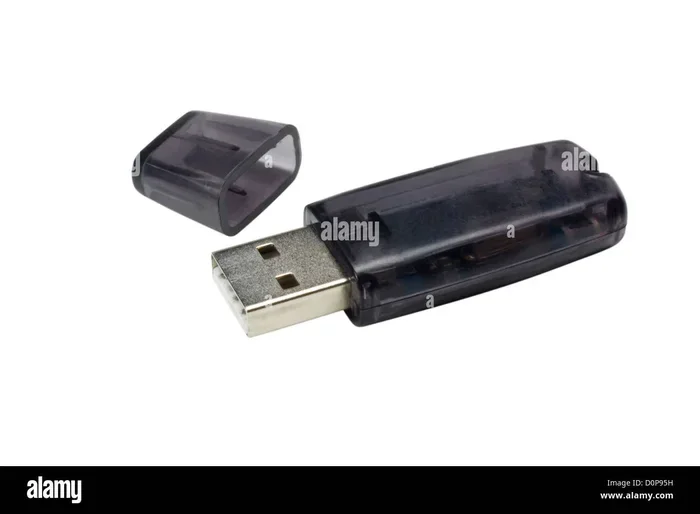
USB wifi adapters are the most popular type. They plug right into a USB port on your laptop or desktop. They are small, portable, and easy to set up. Most people prefer them because they do not require opening up their computer.
USB adapters come in two main shapes. There are standard USB sticks that stay plugged in. And there are larger adapters with external antennas that offer better range. If you need something quick and easy, a USB adapter is usually the way to go.
One thing to watch out for is that some USB ports are slower than others. A USB 3.0 port will give you much better performance than a USB 2.0 port. Always check your ports before buying a USB adapter.
PCIe Wifi Adapters
PCIe adapters install directly inside your desktop computer. They plug into a slot on your motherboard. These adapters tend to offer better performance and more stable connections than USB options.
They also tend to have stronger antennas built in. This gives them better range and signal strength. If you have a desktop PC and want the best possible wireless network performance, a PCIe adapter is a great choice.
The downside is that they require opening your computer case and installing them. This might feel intimidating if you are not tech-savvy. But most PCIe adapters come with simple instructions and are not too hard to install.
Mini PCIe and M.2 Adapters
Some laptops and small devices use mini PCIe or M.2 adapters. These are internal cards that fit into special slots. They are common in thin laptops where there is no room for a full-size card.
If your laptop already has a built-in wifi adapter, you might be able to replace it with a better one. This requires opening the laptop and swapping the card. It is more advanced, but it can greatly improve your laptop wifi performance.
What Specs Should You Look For?
When shopping for a network adapter, the spec sheet can feel overwhelming. But you really only need to focus on a few key numbers. These will tell you if an adapter is right for you.
Wireless Standards
Wifi adapters follow different standards. The most common ones you will see are 802.11n, 802.11ac, and 802.11ax. The 802.11ax standard is also known as wifi 6. It is the newest and fastest standard available right now.
Here is a quick look at the main standards:
- 802.11n (Wifi 4): Older and slower. Max speed around 600 Mbps. Fine for basic browsing.
- 802.11ac (Wifi 5): Mid-range and reliable. Max speed around 1,200 to 3,600 Mbps. Great for most homes.
- 802.11ax (Wifi 6): The newest standard. Max speed well over 5,000 Mbps. Best for gaming and heavy use.
If you want your adapter to last a few years, go with wifi 6 or at least wifi 5. Older standards like 802.11n are fine for light use, but they will feel slow if you do anything demanding.
Frequency Bands
Most modern adapters support dual band or tri band. Dual band means the adapter can connect on both the 2.4 GHz and 5 GHz frequencies. Tri band adds a second 5 GHz band for even more capacity.
The 2.4 GHz band has a longer range but slower speeds. It also suffers more interference from other devices like microwaves and Bluetooth. The 5 GHz band is faster but has a shorter range. It is less crowded, which means a more stable connection.
For the best experience, choose a dual band wifi adapter at minimum. This gives you the flexibility to switch between bands depending on your needs and location in your home.
USB Port Version
If you are buying a USB adapter, the port version matters a lot. USB 2.0 ports are slow and will limit your adapter’s performance. USB 3.0 ports are much faster and allow the adapter to reach its full potential.
Some newer adapters use USB-C connections. These offer even faster data transfer speeds. If your computer has USB-C ports, look for an adapter that supports them. You will get better performance and a more future-proof setup.
Can You Use Your Pc Without a Wifi Adapter?
Some people wonder if they can connect to wifi without a wifi adapter. The short answer is no. Every device that connects to a wireless network needs some kind of adapter. For desktop PCs without built-in wifi, you need either a USB adapter or a PCIe card.
If your PC does not have wifi built into the motherboard, you have options. You can add a wifi stick for your PC that plugs into a USB port. Or you can install a PCIe card inside the tower. Both options are affordable and easy to set up.
Another option is to use an ethernet cable for a wired connection. But if you need wireless freedom, an adapter is a must. The good news is that adapters are inexpensive and simple to use. You can have wireless internet running in minutes.
Common Mistakes People Make When Buying a Wifi Adapter
Buying a wifi adapter seems simple, but people make mistakes all the time. Avoiding these common errors can save you money and frustration.
Buying Based on Price Alone
The cheapest adapter might seem like a good deal. But it often lacks the speed, range, and features you need. A very cheap adapter might only support older wifi standards. It could become a bottleneck for your entire internet connection.
Instead of just looking at price, check the specs. Make sure the adapter supports the wireless standards and frequency bands you need. Spending a little more upfront can save you from buying a second adapter later.
Ignoring Driver Support
Drivers are the software that lets your computer talk to the adapter. Some adapters have great driver support and regular updates. Others stop getting updates after a few months. This can cause problems with compatibility and performance.
Before you buy, check if the manufacturer provides drivers for your operating system. Look for adapters from brands that are known for good support. A well-supported wireless adapter will work more smoothly and last longer.
Not Checking Router Compatibility
Your adapter is only as good as your router. If you buy a wifi 6 adapter but your router only supports wifi 5, you will not get wifi 6 speeds. Both devices need to support the same standard for you to see the full benefits.
If you are upgrading your adapter, it might be worth checking if your router needs an upgrade too. Can I add mesh wifi to an existing router? In many cases, yes. Mesh systems can breathe new life into an older router and work great with modern adapters.
Overlooking Antenna Quality
Not all antennas are created equal. Some adapters have tiny internal antennas that work fine in small spaces. Others have large external antennas that can pull in signals from much farther away.
If you live in a larger home or have thick walls, external antennas make a big difference. They help maintain a strong wireless connection even when you are far from the router. Do not overlook this detail when comparing adapters.
Quick Tips for Choosing the Right Wifi Adapter
Not sure where to start? Here are some quick tips that will help you make the right choice:
- Check your internet speed: If you pay for 300 Mbps or more, get an adapter that supports at least wifi 5.
- Think about what you do online: Gaming and streaming need faster adapters than basic browsing or email.
- Match your device type: Laptops work best with USB adapters. Desktops can use USB or PCIe cards.
- Go dual band minimum: This gives you the most flexibility and the best performance.
- Read reviews: Real user reviews tell you about reliability, speed, and ease of setup.
- Check your ports: Make sure your computer has the right USB or PCIe slots for the adapter you choose.
- Consider future needs: Buying a wifi 6 adapter now means you are ready for faster internet plans later.
These simple tips will help you avoid buyer’s regret. They will guide you toward an adapter that fits your life and your budget.
How to Set Up Your New Wifi Adapter
Once you have your new adapter, setting it up is usually pretty straightforward. Most adapters come with a quick-start guide. Here is a general overview of the process.
For USB adapters, simply plug the stick into an available USB port. Your computer should recognize it automatically. You may need to install a small driver from a CD or download it from the manufacturer’s website. After that, scan for available networks and connect just like you would with built-in wifi.
For PCIe adapters, you will need to open your computer case. Slide the card into a free PCIe slot on your motherboard. Secure it with a screw. Close the case, power on your PC, and install the drivers. The adapter should appear in your network settings right away.
If you run into any issues, make sure your drivers are up to date. You can usually find the latest drivers on the manufacturer’s website. Restarting your computer after installation also helps things run smoothly.
Do You Need a New Adapter if You Already Have Wifi?
If your computer already has built-in wifi, you might not need a separate adapter. Most modern laptops come with wifi built in. But older laptops or desktops may have outdated adapters that cannot keep up with today’s internet speeds.
You can check your current adapter’s specs in your device manager on Windows or system settings on Mac. Look at the wifi standard it supports. If it only supports 802.11n or older, upgrading to a wifi 5 or wifi 6 adapter can be a huge improvement.
Even if your current adapter works fine, an upgrade might be worth it if you are experiencing slow speeds or weak signals. A new adapter can breathe new life into an older computer and help you get the most out of your internet plan.
Final Thoughts
So, does it really matter which wifi adapter you get? The answer is a clear yes. Your adapter affects your speed, range, and overall connection quality. Picking the right one means fewer interruptions, faster downloads, and a better internet experience every day.
Take the time to understand your needs. Think about what you use the internet for, how far you are from your router, and what your budget allows. With the right wifi adapter, you can turn a mediocre connection into a great one. Your internet experience will feel faster, more reliable, and much more enjoyable.
Do not settle for less than what your internet plan deserves. Choose an adapter that matches your speed, supports modern wireless standards, and fits your device. A small investment in the right adapter pays off every single day you use your computer.
Frequently Asked Questions
Can I connect to wifi without a wifi adapter?
No, every device needs a wifi adapter to connect to a wireless network. If your PC does not have built-in wifi, you will need a USB or PCIe adapter. You can also use an ethernet cable for a wired connection, but that requires a physical cable.
What is the difference between wifi 5 and wifi 6 adapters?
Wifi 6 (802.11ax) is faster and more efficient than wifi 5 (802.11ac). Wifi 6 handles multiple devices better and offers lower latency. If you have a fast internet plan or many devices connected, wifi 6 is the better choice.
Do I need a dual band or single band adapter?
A dual band adapter is highly recommended. It lets you connect on both 2.4 GHz and 5 GHz frequencies. The 5 GHz band offers faster speeds, while 2.4 GHz has better range. Single band adapters are more limited and can suffer from more interference.
Can I use a USB wifi adapter with any computer?
Most computers can use a USB wifi adapter as long as they have a free USB port. Check that your operating system supports the adapter and that drivers are available. USB 3.0 ports will give you the best performance.
How do I know if my current wifi adapter is outdated?
Check your adapter’s specs in your device manager or system settings. If it only supports 802.11n or older, it is likely outdated. If you experience slow speeds or weak signals even with a fast internet plan, your adapter may be the bottleneck.
Will a better wifi adapter improve my internet speed?
Yes, if your current adapter is slower than your internet plan. A better adapter can unlock the full speed you are paying for. It also improves range and stability, especially in larger homes or areas with weak signals.