Does Airplane Mode Turn Off Wi Fi On Laptop For Sure
Yes, airplane mode does turn off Wi-Fi on your laptop by default, but you can override this setting and keep Wi-Fi running while airplane mode is active. This guide walks you through exactly how airplane mode affects your laptop’s wireless connection, why people use it, and how to take control of your network settings in just a few clicks.
Does Airplane Mode Turn Off Wi Fi On Laptop For Sure
So you toggled airplane mode on your laptop and now your Wi-Fi is gone. Maybe you are on a flight. Maybe you just want a break from notifications. Either way, the question is simple. Does airplane mode turn off Wi-Fi on laptop? The short answer is yes, it does. But the full story is a lot more interesting than that.
Airplane mode is one of those settings everyone uses but few people truly understand. It does more than just kill your Wi-Fi. It shuts down every wireless radio on your device. That means Bluetooth, cellular data, and NFC all go silent too. But here is the part most people miss. You can actually keep Wi-Fi on while airplane mode is active. At least on most laptops.
This guide breaks down exactly what happens when you flip that airplane mode switch. We will look at why it matters, how to control your settings, and what to do when things go wrong. Whether you are a frequent flyer or just someone who wants better battery life, you will find practical answers here. Let us dive in.
Key Takeaways
- Airplane mode disables Wi-Fi automatically: When you toggle airplane mode on, your laptop cuts all wireless connections including Wi-Fi and Bluetooth.
- You can keep Wi-Fi on with airplane mode: Most modern laptops let you re-enable Wi-Fi even while airplane mode is still active.
- It is a quick battery saver: Using airplane mode can extend your laptop battery life significantly when you are offline.
- Check your network settings: If Wi-Fi does not turn back on after disabling airplane mode, your laptop Wi-Fi card may need attention.
- Airplane mode is not just for flights: Many people use it daily to reduce distractions or save power while working offline.
📑 Table of Contents
- What Happens When You Turn On Airplane Mode
- How Airplane Mode Affects Your Laptop’s Wi-Fi
- How To Turn Wi-Fi Back On While In Airplane Mode
- Why People Use Airplane Mode On Laptops
- Common Problems And How To Fix Them
- Expert Tips For Managing Wi-Fi And Airplane Mode
- Frequently Asked Questions
- Final Thoughts
What Happens When You Turn On Airplane Mode
When you activate airplane mode on your laptop, the system sends a signal to disable all wireless communication hardware. This is not just a software trick. It actually powers down the wireless adapters built into your machine.
The Wireless Radio Shutdown
Every laptop with wireless capability has a wireless card or adapter. This little chip handles all your Wi-Fi and Bluetooth connections. When airplane mode turns on, it tells that chip to stop broadcasting and receiving signals. Think of it like flipping a light switch. The connection goes dark instantly.
Your laptop stops scanning for networks. It drops any active Wi-Fi connection. Bluetooth devices like headphones or mice disconnect. Even your laptop stops trying to find a cellular signal if it has that capability. Everything wireless goes quiet.
Why It Is Called Airplane Mode
The name comes from the aviation industry. Airlines asked passengers to disable wireless devices during takeoff and landing. The concern was that radio signals might interfere with aircraft instruments. Airplane mode became the standard way to comply quickly.
Over time, this feature moved from phones to laptops and tablets. Today, every major operating system supports it. Windows, macOS, and Chrome OS all have airplane mode built in. The core function stays the same. Kill all wireless signals to stay safe and compliant.
Does Airplane Mode Turn Off Wi-Fi On Laptop Every Time
Here is where it gets nuanced. In most cases, yes. Airplane mode turns off Wi-Fi on your laptop without question. But some laptops give you the option to re-enable Wi-Fi manually while airplane mode is still on. This is a key detail that many people do not know about.
If you have a newer laptop with a modern operating system, check your network settings. You may see a Wi-Fi toggle that stays clickable even when airplane mode is active. This gives you control. You can stay offline from cellular networks but still connect to a local Wi-Fi network.
How Airplane Mode Affects Your Laptop’s Wi-Fi
Understanding how airplane mode interacts with your Wi-Fi helps you troubleshoot problems. It also helps you use your laptop more efficiently. Let us look at the technical side in simple terms.
The Role Of Your Wi-Fi Adapter
Your laptop’s Wi-Fi adapter is the hardware that connects you to wireless networks. When airplane mode activates, it sends a command to this adapter to power down. The adapter stops looking for networks. It stops sending and receiving data.
This is different from simply turning off Wi-Fi through your settings. When you turn off Wi-Fi manually, only the Wi-Fi adapter shuts down. Airplane mode shuts down everything wireless at once. It is a broader, more powerful switch.
What Gets Disconnected
When airplane mode is on, you lose access to several things. Here is a quick list of what gets cut off:
- Wi-Fi networks: You cannot connect to any wireless internet.
- Bluetooth devices: Headphones, keyboards, and mice disconnect.
- Cellular data: If your laptop has a SIM card or eSIM, it stops working.
- NFC connections: Any near-field communication goes dormant.
- Network sharing: Your laptop stops sharing its connection with other devices.
That is a lot of disconnection from one simple toggle. It is designed to be a one-stop solution for going fully offline.
Can You Still Use Wi-Fi In Airplane Mode
Yes, on many laptops you can. Both Windows and macOS allow you to re-enable Wi-Fi while airplane mode remains on. This is incredibly useful. You might want to connect to a hotel Wi-Fi network but still avoid cellular signals. Or you might want to use a local network without broadcasting your presence on cellular towers.
On Windows, look for the Wi-Fi icon in your system tray. If airplane mode is on and the Wi-Fi toggle is available, click it to turn Wi-Fi back on. On macOS, go to System Settings and look for Network. You should see Wi-Fi as an option even with airplane mode active.
This feature is not available on every laptop. Older models or certain manufacturer builds may lock Wi-Fi completely during airplane mode. But most modern laptops from the last five years support this flexibility.
How To Turn Wi-Fi Back On While In Airplane Mode
Sometimes you need Wi-Fi back without fully disabling airplane mode. Maybe you are on a flight and the airline offers Wi-Fi. Maybe you are in a location where cellular signals are weak but Wi-Fi works fine. Here is how to get your wireless connection back.
On Windows Laptops
Follow these steps to re-enable Wi-Fi while airplane mode is still active on Windows:
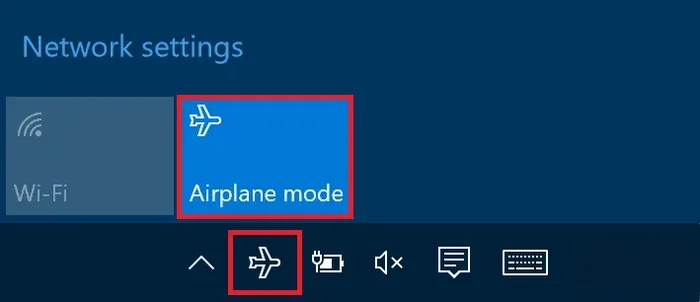
- Click the network icon in your taskbar at the bottom right.
- Make sure airplane mode is turned on.
- Look for the Wi-Fi toggle just below the airplane mode switch.
- Click the Wi-Fi toggle to turn it back on.
- Select your network and connect as usual.
This works on Windows 10 and Windows 11. The Wi-Fi toggle stays functional even when airplane mode is active. If you do not see the Wi-Fi option, your laptop manufacturer may have locked this feature. Check your device settings or update your wireless drivers.
On macOS Laptops
Mac users have a slightly different path. Here is how to restore Wi-Fi while airplane mode is on:
- Click the Apple menu in the top left corner.
- Go to System Settings (or System Preferences on older Macs).
- Click on Network.
- Look for Wi-Fi in the left sidebar.
- Turn Wi-Fi back on even if airplane mode is enabled.
macOS handles this gracefully. You get fine-grained control over each wireless connection type. This is one of the reasons many professionals prefer MacBooks for travel.
On Chrome OS Laptops
Chromebooks also support this feature. Click the time in the bottom right corner. Look for the airplane mode icon. Click it to expand the quick settings. You should see a Wi-Fi toggle that you can turn on independently of airplane mode.
If Wi-Fi Will Not Turn Back On
Sometimes things do not work as expected. If your Wi-Fi will not turn back on after disabling airplane mode, do not panic. Here are a few things to try:
- Restart your laptop: A simple reboot often fixes wireless glitches.
- Check your network adapter: Go to Device Manager and make sure your Wi-Fi adapter is enabled.
- Update your drivers: Outdated drivers can cause connectivity issues.
- Toggle airplane mode twice: Turn it on, wait ten seconds, then turn it off again.
- Run the network troubleshooter: Windows has a built-in tool for this under Settings.
If none of these work, your wireless card may be failing. At that point, it is worth looking into replacing your laptop Wi-Fi card or getting professional help.
Why People Use Airplane Mode On Laptops
Airplane mode is not just for airplanes. Many people use it daily for reasons that have nothing to do with flying. Let us explore the most common use cases.
Saving Battery Life
Wireless radios drain battery. Every time your laptop searches for a Wi-Fi network or maintains a Bluetooth connection, it uses power. Airplane mode kills all of these radios at once. The result is noticeably longer battery life.
If you are working offline at a coffee shop or on a long flight, airplane mode can add hours to your battery. Some users report getting 30 to 50 percent more runtime by switching to airplane mode and turning Wi-Fi back on only when needed.
Eliminating Distractions
Notifications pull your attention away from work. Emails, messages, and app alerts all rely on wireless connections. When you turn on airplane mode, those distractions stop. You get a quiet, focused environment.
This is especially helpful during deep work sessions. Many writers and programmers use airplane mode to stay in the zone. You can always turn Wi-Fi back on when you are ready to reconnect.
Improving Security
Public Wi-Fi networks are convenient but risky. They are often unsecured, which makes your data vulnerable. When you use airplane mode, you eliminate the risk of accidentally connecting to a malicious network.
Some professionals use airplane mode as a security habit. They only connect to trusted networks when they need to. This simple practice reduces exposure to potential cyber threats.
Quickly Resetting Network Connections
Sometimes your Wi-Fi just acts up. Toggling airplane mode on and off is a quick way to reset your network adapter. It forces your laptop to drop all connections and reconnect fresh. This trick works surprisingly well for fixing slow speeds or connection drops.
Common Problems And How To Fix Them
Airplane mode is generally reliable. But like any technology, it can cause issues. Here are the most common problems and their solutions.
Wi-Fi Stays Off After Disabling Airplane Mode
This is the most common complaint. You turn off airplane mode, but Wi-Fi does not come back. The fix is usually simple. Click the Wi-Fi toggle in your settings and turn it on manually. If that does not work, restart your laptop.
If the problem persists, your wireless adapter may need attention. Visit your device manager and check the status of your Wi-Fi card. Updating or reinstalling the driver often resolves this issue.
Airplane Mode Stuck On
Sometimes airplane mode refuses to turn off. Your laptop stays stuck in offline mode even though you click the toggle. This can happen after a software update or a driver conflict.
Try restarting your laptop first. If that does not work, go to Settings and look for Network & Internet. There should be an airplane mode toggle there. Click it to turn it off. You can also try using the keyboard shortcut if your laptop has one.
Wi-Fi Keeps Turning Off By Itself
If your Wi-Fi randomly disables, airplane mode may not be the culprit. Instead, your laptop might have a power-saving feature that turns off wireless adapters to conserve energy. Check your power settings and disable any options that manage Wi-Fi automatically.
You can also check if your laptop has a physical Wi-Fi switch or function key. Some models have a dedicated button that toggles Wi-Fi independently of software settings.
Expert Tips For Managing Wi-Fi And Airplane Mode
Getting the most out of your laptop’s wireless features takes a bit of know-how. Here are some expert tips that help power users stay connected and in control.
Use Keyboard Shortcuts
Most laptops have a function key combination for airplane mode. On Dell laptops, it is usually Fn + F12. On HP laptops, look for the airplane icon on one of the F-keys. These shortcuts save time and work even when your touchpad is acting up.
Keep Your Drivers Updated
Outdated wireless drivers are the root cause of many airplane mode issues. Set a reminder to check for driver updates once a month. This keeps your Wi-Fi adapter running smoothly and prevents random disconnections.
Use Airplane Mode As A Troubleshooting First Step
Before you dig into complex network settings, try toggling airplane mode. It is the fastest way to reset all your wireless connections. Many IT professionals use this as their go-to first step for fixing Wi-Fi problems.
Pair Airplane Mode With Good Habits
Combine airplane mode with other smart practices. Turn off Bluetooth when you are not using it. Disable automatic network connections to public Wi-Fi. These habits together give you better control over your laptop’s wireless behavior.
Know When To Seek Professional Help
If you have tried everything and your Wi-Fi still does not work properly, it may be a hardware issue. A failing wireless card needs replacement. Before you go that route, check if your laptop supports adding Wi-Fi to your PC through a USB adapter as a temporary workaround.
Frequently Asked Questions
Does airplane mode turn off Wi-Fi on all laptops?
Yes, airplane mode turns off Wi-Fi on all laptops by default. However, most modern laptops allow you to re-enable Wi-Fi manually while airplane mode is still active. Check your network settings to see if your laptop supports this feature.
Can I use Wi-Fi on my laptop while airplane mode is on?
Yes, you can on most laptops. Both Windows and macOS let you toggle Wi-Fi back on independently while airplane mode remains active. This is useful when you want to connect to a local network without enabling cellular or Bluetooth connections.
Does airplane mode save battery on a laptop?
Absolutely. Airplane mode disables all wireless radios including Wi-Fi and Bluetooth. This significantly reduces power consumption and can extend your battery life by 30 to 50 percent depending on usage.
Why won’t my Wi-Fi turn back on after I disable airplane mode?
This is usually caused by a driver glitch or a stuck network adapter. Try restarting your laptop first. If that does not work, check your Device Manager for the Wi-Fi adapter and make sure it is enabled. Updating your wireless drivers often fixes this problem too.
Is airplane mode the same as turning off Wi-Fi manually?
No, they are different. Turning off Wi-Fi manually only disables the wireless network connection. Airplane mode disables all wireless hardware including Wi-Fi, Bluetooth, and cellular data. It is a broader reset of all your wireless connections.
Can airplane mode affect my laptop’s Wi-Fi card hardware?
No, airplane mode is a software setting and does not damage your Wi-Fi card. It simply tells the wireless adapter to stop broadcasting and receiving signals. Your hardware remains safe and unaffected by normal use of airplane mode.
Final Thoughts
So does airplane mode turn off Wi-Fi on laptop? Yes, it absolutely does. Airplane mode is designed to kill every wireless connection on your device. That includes Wi-Fi, Bluetooth, and cellular data. It is a powerful, all-in-one switch that keeps you fully offline with a single toggle.
But the story does not end there. Most modern laptops give you the freedom to bring Wi-Fi back while airplane mode stays on. This flexibility is incredibly useful for travelers, professionals, and anyone who wants better battery life without giving up their wireless connection entirely.
Understanding how airplane mode works puts you in control. You get to decide when to go fully offline and when to stay connected selectively. That knowledge saves time, fixes frustrating problems, and helps you get the most out of your laptop every single day.
Next time you flip that airplane mode switch, you will know exactly what is happening under the hood. And if something goes wrong, you will have the tools to fix it quickly. Stay connected on your terms. That is the real power of understanding your laptop’s wireless settings.